Builder brands: Add keywords to your site
Keywords on the internet help customers find your website through search engines like Google. It's not enough to say "I'm a plumber!" or "I'm a lawyer!" After all, some plumbers do HVAC or handyman work above and beyond regular plumbing. Likewise, some lawyers only handle accidents or criminal cases. So, it's essential to make it easy for people to find what they are looking for using keywords.
In this article, you will find a short read-through that should give you some insights about what keywords are, as well as some instructions for adding your keyword data into your website builder. Good SEO begins with on-page content. Ultimately, the best person to tell your story is you, and a little research online can provide loads of material to begin the process.
For example, Google offers a free keyword tool that shows the number of people who searched for keywords that might be relevant to your website. If a restaurant has amazing pasta, they may want to add “delicious pasta sauce” to your keywords, but the tool might show you that 300 people have searched for that in the last year.
It might not be as important as adding "flavorful pasta sauce," which may have had 30,000 searches in comparison. If you're selling "healthy pasta sauce," one of your keywords might be "organic pasta sauce," or "homemade alfredo sauce," or something specific and relevant to you and your website or business. The reason for this is because of the way our current culture words things and thinks about searching for items.
To begin adding keywords, follow these steps:
- Log in to your account via https://www.networksolutions.com/my-account/login.
- Click Websites & Hosting from the left navigation menu.

- If you have a single website builder in the account, you will be redirected to the Website Builder dashboard. If you have multiple website builder accounts, click the Edit website button on the respective website package that you need to access.
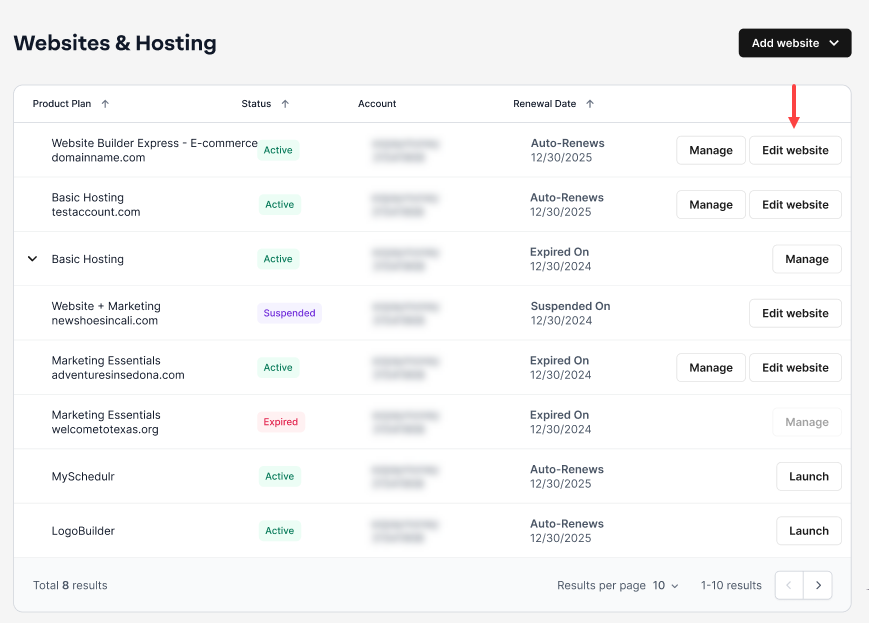
- Launch your website editor by choosing Edit Site.

- In your drag-and-drop website builder, select Pages in your left-hand menu.

- Under the Pages tab in your dashboard, click MANAGE PAGES.

- You will see a pop-up with your page names and several sub-sections for content.

- Scroll down the window until you see the Page SEO area.

- Click into the text box for Keywords to begin adding content.
Note: When listing keywords, you should do them in comma separated value format or CSV.
- Once you’ve entered all the desired keywords on your page, choose SAVE on the bottom right to apply these keywords to your website design.

- Now that you’ve added keywords to your page, when you are ready to push these keywords to the web, be sure to click Publish.

Get practical tips and product updates on LinkedIn.
Follow Network Solutions