Builder brands: Add social buttons/link social accounts
With social media being one of the primary sources of online communication today, it’s no question that you should include all your social outlets on your web page. Since there is a world of different media to choose from, it’s essential to understand your audience and which social media they are using.
With the social elements built into your designer, you can link to your Twitter, LinkedIn, Facebook, Instagram accounts, and so much more! In this article, we will cover how to add some of the most popular and relevant social media platforms to your website, as well as linking your accounts and the differences between social buttons.
Linking your accounts
- Log in to your account via https://www.networksolutions.com/my-account/login.
- Click Websites & Hosting from the left navigation menu.

- If you have a single website builder in the account, you will be redirected to the Website Builder dashboard. If you have multiple website builder accounts, click the Edit website button on the respective website package that you need to access.
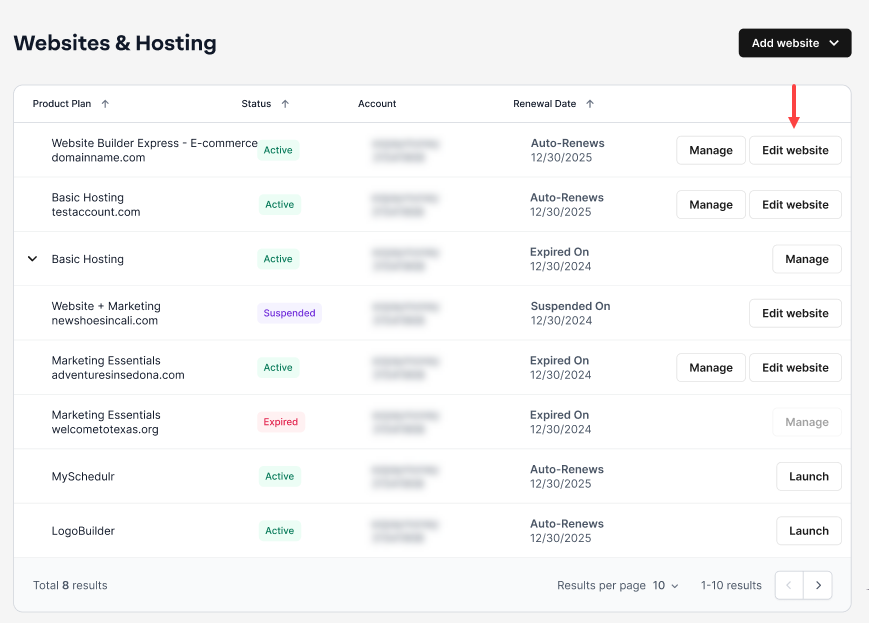
- Launch your website editor by choosing Edit Site.

- Be sure to log into your different media to quickly obtain your URLs when needed.
- To access your manage social links menu, click on the Manage gear from your left-hand menu.

- Click Social.

- A pop-up will appear to scroll through the available media that you can link. Paste your URLs into the respective entry boxes and click OK to save.

You can now add social buttons that will automatically link to your profiles.
Social buttons
Before you begin adding buttons to your page, first, you’ll want to review which options are available and test them out. You can test the different options and the look and feel by following the steps below.
- To begin, start by clicking the Elements tab in the left-hand menu.

- Click Social.

- Several options will appear. Choose a setup that works for you.

- In this case, we will use SOCIAL LINKS ICONS.
Note: You should place a social media button near the content. Visitors might find it engaging or worthy of sharing.
- You can place these anywhere on your page where a website visitor may want to click on your social media account and follow you.

- Be sure to Save and Publish your site to save the changes.

Get practical tips and product updates on LinkedIn.