Knowledge Base
Categories: Builder Legacy
Builder brands: Adding a donation option to your store
- Log in to your account via https://www.networksolutions.com/my-account/login.
- From the left-hand menu, click the Websites & Hosting tab.
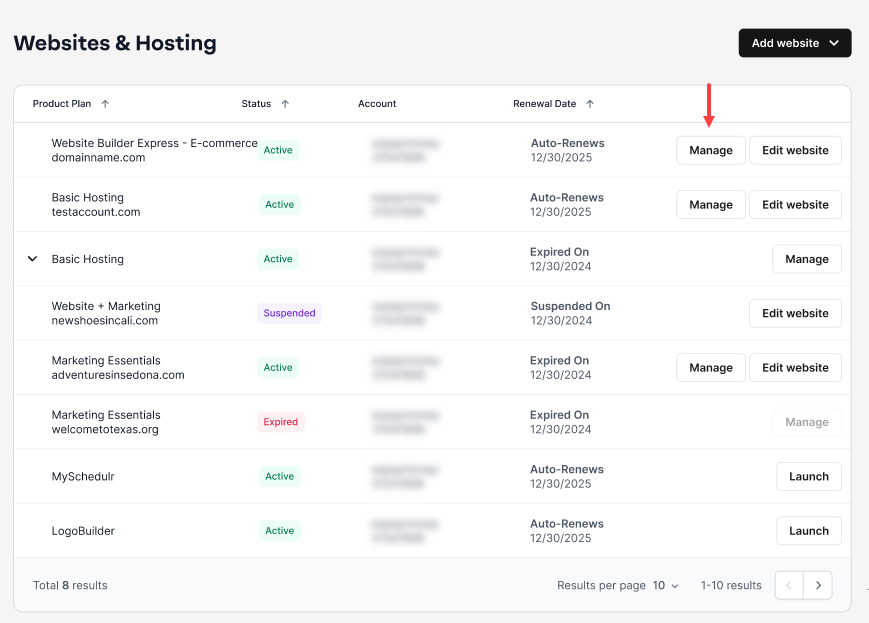
- Navigate to the hosting package that you want to access with Website Builder, then click Manage to continue.
- Navigate and click the Manage Store tile.

- Next, select Products from the left navigation menu.

- Hover over the + icon at the bottom right of the page, and click Add.

- On the Product page, set the Name to Donation or Tip.

- Leave the Price as Empty for now. Continue to fill out the Excerpt and Description to be as desired.

- Next, change the Fulfillment Method to None.

- Return to the top of the Product page and select the Variants tab.

- Click the blue Add a variant button. If you have not saved your product yet, you will want to do so now.

- In the new panel that opens:

- Enter Amount for the variant name.
- Choose Other for the variant type.
- Enter $1, $5, and $10 as your variant choices (Don’t forget to hit Enter on your keyboard after each amount!). Optional: If your organization deals with larger amounts, add other denominations such as $25, $50, $75, $100, etc.
- Click save at the bottom of the panel.

- You will now see your Variants listed below. Under the area for Additional Charge, enter the corresponding dollar amount to the variant option.

- Now you are ready to make your product live! Click the Publish button at the upper right corner of the screen to add this item to your store.


Now you have a donation option through your e-commerce store that can be added to any of your visitor’s normal purchases.
Get practical tips and product updates on LinkedIn.
Follow Network Solutions
Did you find this article helpful?