Knowledge Base
Categories: Builder Legacy
Builder brands: Adding an Instagram gallery to your website
In this article, we will discuss:
Adding an Instagram gallery
- Log in to your account via https://www.networksolutions.com/my-account/login.
- Click Websites & Hosting from the left navigation menu.

- If you have a single website builder in the account, you will be redirected to the Website Builder dashboard. If you have multiple website builder accounts, click the Edit website button on the respective website package that you need to access.
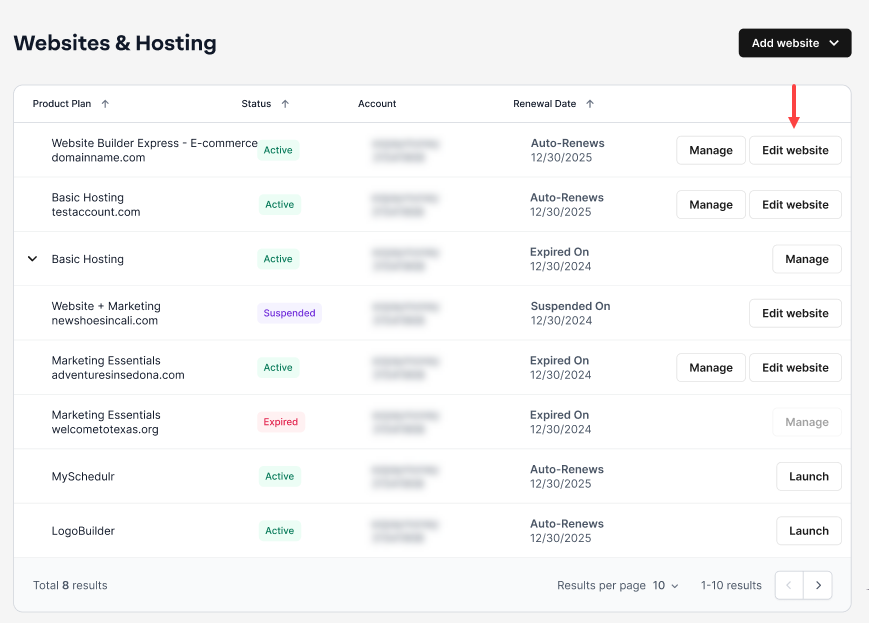
- Launch your website editor by choosing Edit Site.

- From the menu on the left, choose Elements.

- Scroll or search for Live Feeds.

- Within this element category, select INSTAGRAM and place it in the desired location on the page.


- You will next see a pop-up open, prompting you to log in or confirm your account is linked, and you would like to authorize the connection. Choose Authorize to continue.

- You will then see a note about Instagram’s 60-day policy. Click OK to continue editing your site.

Refreshing your Instagram link - 2020 privacy policy update
In mid-2020, Instagram updated its privacy policy, which requires connections to be refreshed every 60 days. For ease, we have added a countdown to your element that shows how long until the reconnection must be made. To refresh your account connection, you will need to:
- Log in to your account via https://www.networksolutions.com/my-account/login.
- Click Websites & Hosting from the left navigation menu.
- If you have a single website builder in the account, you will be redirected to the Website Builder dashboard. If you have multiple website builder accounts, click the Edit website button on the respective website package that you need to access.
- Launch your website editor by choosing Edit Site.
- Select your Instagram gallery element.

- In the white toolbar that appears above the element, choose Reconnect.

- You will see a pop-up for you to confirm your previous settings. Choose Authorize to proceed.

- Publish your site for the updated connection to go live.
Get practical tips and product updates on LinkedIn.
Did you find this article helpful?