Knowledge Base
Categories: Builder Legacy
Builder brands: Adding links in the Express Editor
The Express Editor allows you to easily create interactive elements by adding links to your text, images, and buttons. This guide will walk you through accessing the builder and managing various types of links.
In this article, we will cover the following:
- Accessing the Builder from the account manager
- Adding links in the Express Editor
- Available link types
Accessing the Builder from the account manager
Before managing your links, you must first access the Website Builder through your account manager.
- Log in to your account via https://www.networksolutions.com/my-account/login.
- Click Websites & Hosting from the left navigation menu.

- If you have a single website builder in the account, you will be redirected to the Website Builder dashboard. If you have multiple website builder accounts, click the Edit website button on the respective website package that you need to access.
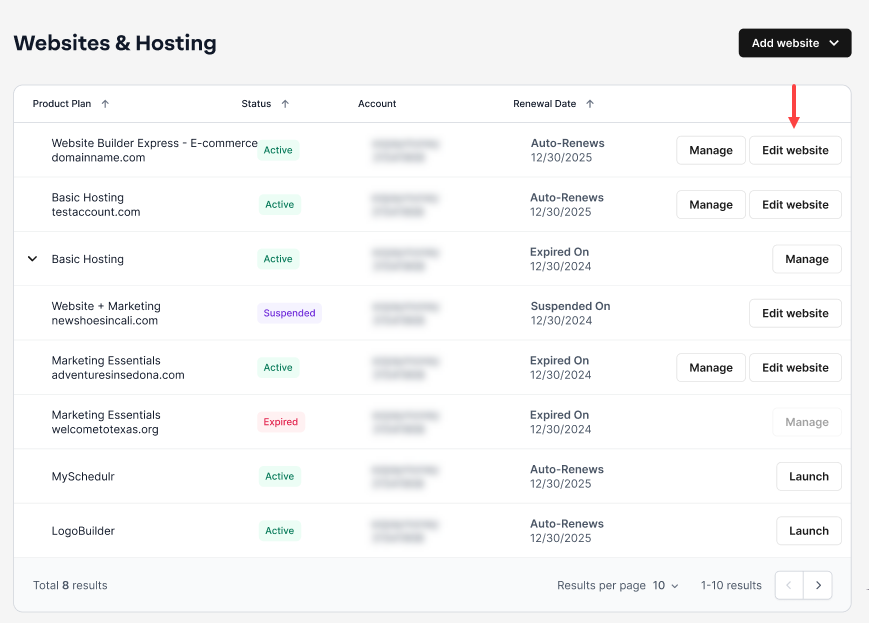
- Launch your website editor by choosing Edit Site.

Adding links in the Express Editor
Once you are in the editor, follow these steps to add a link to an element.
- Select the Text, Image, or Button you would like to add the link to.

- A menu bar will appear above the selected item.

- Choose the Insert Link Icon to open the link-management window.

- On the left side of the pop-up, choose the type of link you would like to add.
 Pro tip: When using external web addresses, make sure to include the HTTP:// or HTTPS:// protocol.
 - Click Save to attach the link.

- Be sure to Save and Publish your changes in the editor to make them live.

Available Link Types
In relation to Step 5, you can choose from several link destinations to improve your user experience:
- Website page: Click the drop-down menu and select an existing page from your website.
- Web address: Paste an external URL to point users to an outside site or a external shop.
- Email or phone: Creates links that automatically trigger the user's phone dialer or email client.
Pro tip: Linking a telephone number is highly effective for mobile users, allowing them to call you with a single tap.
- Document: Attaches a file that users will download when clicking the link.
- Booking: If your booking tool is set up, you can link it directly so customers can schedule appointments.
- No link: To remove a previously saved link, click the Attach Link button on the element and select No Link in the popup.
- Open in new tab: Toggle this slider to ensure the link opens in a separate browser tab, making it easier for visitors to return to your original page.
Get practical tips and product updates on LinkedIn.
Did you find this article helpful?