Knowledge Base
Categories: Builder Legacy
Builder brands: Favicons in the Express editor
What is a favicon?
A favicon is an icon that appears in the tabs of the browser when someone visits your site.

It helps your brand be consistent and gives a visual image to your company.
To add a favicon
- Log in to your account via https://www.networksolutions.com/my-account/login.
- Click Websites & Hosting from the left navigation menu.

- If you have a single website builder in the account, you will be redirected to the Website Builder dashboard. If you have multiple website builder accounts, click the Edit website button on the respective website package that you need to access.
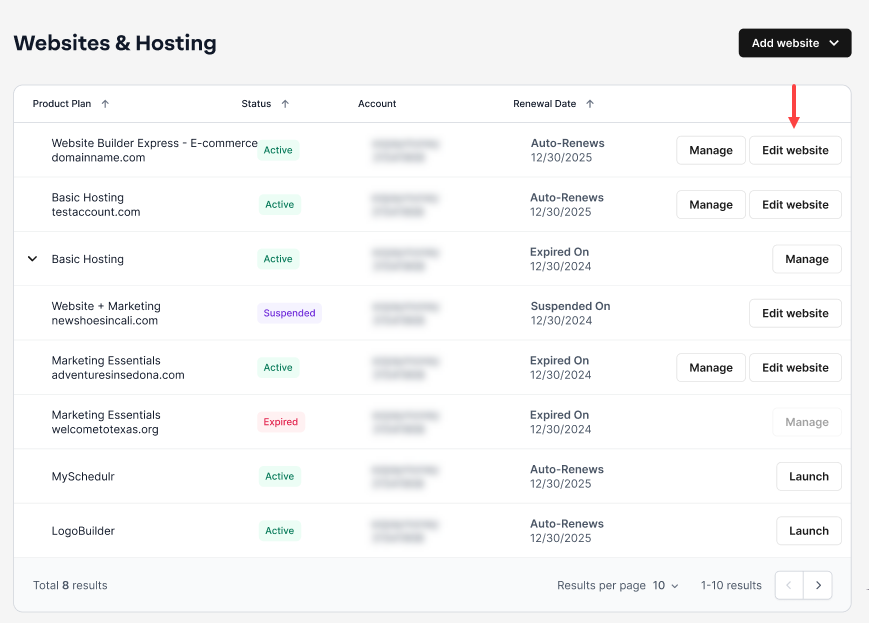
- Launch your website editor by choosing Edit Site.

- Begin within your website editor.

- Select the Settings option on the left menu bar of the editor.

- In the panel that opens up, choose the Favicon tab on the upper right.

- Within this tab, click on the area labeled Click to upload favicon.
Pro tip: A favicon will need to be a square image at the optimal size of 32x32 pixels. With smaller image resolutions like this, simple images or logos work best. This will open your media library with stock images, previously uploaded images, and an upload image option.

- Once you find the image you would like to use, click on it to add it as the favicon.
If the image is being uploaded, you will see a progress bar, and when complete, it will create a thumbnail of the image that was selected.

- Once it is completed, choose Apply in the bottom right to save the Favicon for your site.

Replacing/deleting a favicon
- Begin within your website editor.

- Select the Settings option on the left menu bar of the editor.

- In the panel that opens up, choose the Favicon tab on the upper right.

- Within this tab, there will be an area labeled Favicon with a preview of the current Favicon. When you hover your cursor over the image, you will see two icons appear, giving you the options to replace the current image or delete it.

- Once you’ve completed your desired action, choose Apply in the bottom right to save the Favicon for your site.

Get practical tips and product updates on LinkedIn.
Follow Network Solutions
Did you find this article helpful?