Builder brands: How to add a gallery
Adding photo galleries, also known as "slideshows" or "scrolling images," to your website can help show off your products, explain your business, or even entertain customers who visit your site. With your website editor, you can easily add image galleries anywhere on your page using the responsive drag-and-drop functionality features. You can also quickly resize or edit the gallery and add effects or behaviors that cause the images to react to your viewers.
In this article, we will discuss
Add an image gallery
- Log in to your account via https://www.networksolutions.com/my-account/login.
- Click Websites & Hosting from the left navigation menu.

- If you have a single website builder in the account, you will be redirected to the Website Builder dashboard. If you have multiple website builder accounts, click the Edit website button on the respective website package that you need to access.
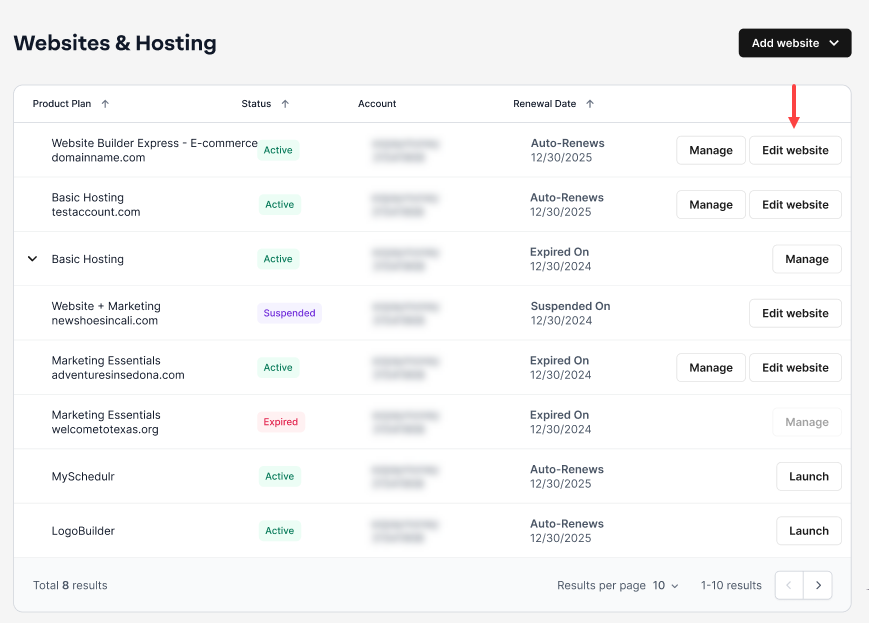
- Launch your website editor by choosing Edit Site.

- To add a gallery to your website, click the Elements tab in the left-hand menu.

- Then click Images.

- A menu will appear that will let you choose which type of image you’d like to place on your site.
Note: Selecting a single Image is what it sounds like, one single image that you can drag around the page and place where you would like. See: Adding and editing images.A gallery is also known as a slideshow of images. Icons are great for adding emphasis to text, like adding an envelope icon next to your contact email, for example.

- Select IMAGE GALLERY.

- Once you select IMAGE GALLERY, a grid of four stock images will appear in the main design dashboard.
- Drag the IMAGE GALLERY to its desired location and click the gallery to drop it.

- Once you set your gallery on the page, a menu will appear that will let you choose your image source.

- Selecting Instagram will try to pull from your linked profile.
- Selecting Add Images will try to pull from your already uploaded images.
- For this example, we will select Add Images, allowing you to upload photos from your computer or select images already on file.

- Before we add new images, let's take a look at the layout that appears by default in every gallery.

- The left-hand column is where you will see all the images in this gallery.
- The three stacked dots to the left of each image allow you to reorganize your photos by dragging them up or down.
- The checkboxes allow you to hide an image in the gallery by unselecting a box.
- Clicking directly on an image in the left-hand menu will show the Image Details on the right-hand side.
- Clicking the trash can icon to the right of each image will delete that image from the gallery.
- Clicking on an image in the right-hand menu will allow you to change the image itself.
- The right-hand display is where you add SEO details like Titles, Descriptions, and ALT tags.
Add new images to your gallery
- To add new images, select the Add Images selection to the top right of the pop-up.

All images added to the gallery will be in the left-hand column of the Manage Gallery pop-up. More than five images will create a scrollbar effect. If you upload your pictures in the wrong order, it's easy to rearrange the photos to create a nice flow. - Clicking Clear Images will remove all the images in the gallery, but not remove the gallery itself.
- Once you select ADD IMAGE in the top right, a window will appear showing you the four places you can pull an image onto your website: either uploading your own, selecting a link image, picking from your saved images, or choosing from thousands of stock images courtesy of Unsplash.

- STOCK IMAGES means you would like to browse through the available images within the builder.
- MY IMAGES means you would like to choose an image you have already uploaded.
- LINKED IMAGES means you'd like to add an image through a URL.
- ADD IMAGES means you would like to upload new images to the My Images section.
Upload images to your gallery
Once you choose the Upload Images button, you'll see a familiar system pop-up asking you to select which images you'd like to upload from your computer’s hard drive.- Select the image(s) you would like to upload and click the Open button from your system menu.
Note: This step is relatively universal; however, the look of this step varies depending on the age and type of computer you have.
- You should now be back in your MY IMAGES section, where you will see all the image(s) you have uploaded.

- Select an image to add to your gallery by clicking on the photo. (A checkmark will appear over your selections.)

- Click the PLACE button to add it to the Gallery within the website builder.

- Checkmark the images you would like to include in your gallery.

- Once you have made your gallery edits, click SAVE to retain the information and land back in the main design dashboard.

- You'll now see the first four images you selected from the My Images list.

- Clicking on the gallery will bring up the Image Toolbar.

- Click More.

Advanced gallery settings
Although there are a lot of the same options in the Advanced Settings as there are in the Image Toolbar above the Gallery, you can adjust a few more settings from this section, such as the image's pop-up effects and appearance.

Some of the more essential options are:

- Change gallery style between grid, columns, or rows.
- Change the gallery design or look.
- Change overall settings like gallery transition speed and alignment.
- Change style, including colors, borders, and background.
- Change size and position manually, including width and height.
- Add animations like "flip" effects or "fade in" effects.
To change the view of an image when it is clicked/ pops open:
- Click Customize Popup.

- The customized pop-up screen will appear, where you can change how the pop-up displays.

- Click Apply to save the changes to the pop-up.

- Be sure to Save and Publish your site to make the changes live.

Get practical tips and product updates on LinkedIn.
Follow Network Solutions