Builder brands: How to add an e-commerce store
Being able to purchase items online has revolutionized the way people commerce and exchange goods. Gone are the days of being inspired by infomercials, of allowing 6-8 weeks for delivery, and of mail-in order forms with a paper check enclosed! What's even better is that, as technology becomes simpler every day, you can sell things online and start earning money for your hard work!
This article will cover how to add a store to your traditional drag-and-drop website builder and the steps you need to get started. If you are using the Express Editor, be sure to search for Adding a store to the Express editor.
Adding a store to your website
Once you log into your website builder, follow the steps below to begin adding the store section to your pages:
- Log in to your account via https://www.networksolutions.com/my-account/login.
- Click Websites & Hosting from the left navigation menu.

- If you have a single website builder in the account, you will be redirected to the Website Builder dashboard. If you have multiple website builder accounts, click the Edit website button on the respective website package that you need to access.
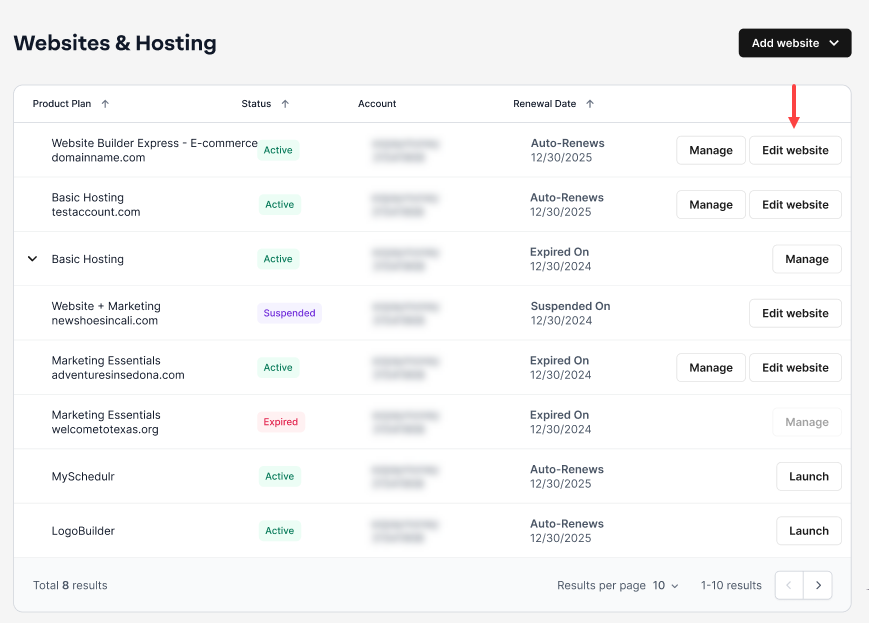
- Launch your website editor by choosing Edit Site.

- Select the Store option with the shopping cart icon.

- Next, select the CREATE A STORE button from the slide menu that appears to get started if you are not already on a plan that includes a store.

- Once you have an eligible plan, you will want to create your store by adding your Business Details and Products. To read more about setting up your store, check out the article: Setting up an e-commerce store.

- You will then see the slide menu change into your store dashboard. From here, you can:

- Manage your products and orders
- Review sales summary
- Track recent orders
- You will also notice your site design in the background changes a little. You will see a store visible in your
Pagessection as well as a shopping cart button hovering over the page.

Get practical tips and product updates on LinkedIn.