Knowledge Base
Categories: Builder Legacy
Builder brands: How to upload or delete files
Occasionally, you may need to upload files to your site for your audience to review and download. After a while, you may also need to remove or update those files to maintain fresh content.
In this article, we will discuss:
How to upload files
- Log in to your account via https://www.networksolutions.com/my-account/login.
- Click Websites & Hosting from the left navigation menu.

- If you have a single website builder in the account, you will be redirected to the Website Builder dashboard. If you have multiple website builder accounts, click the Edit website button on the respective website package that you need to access.
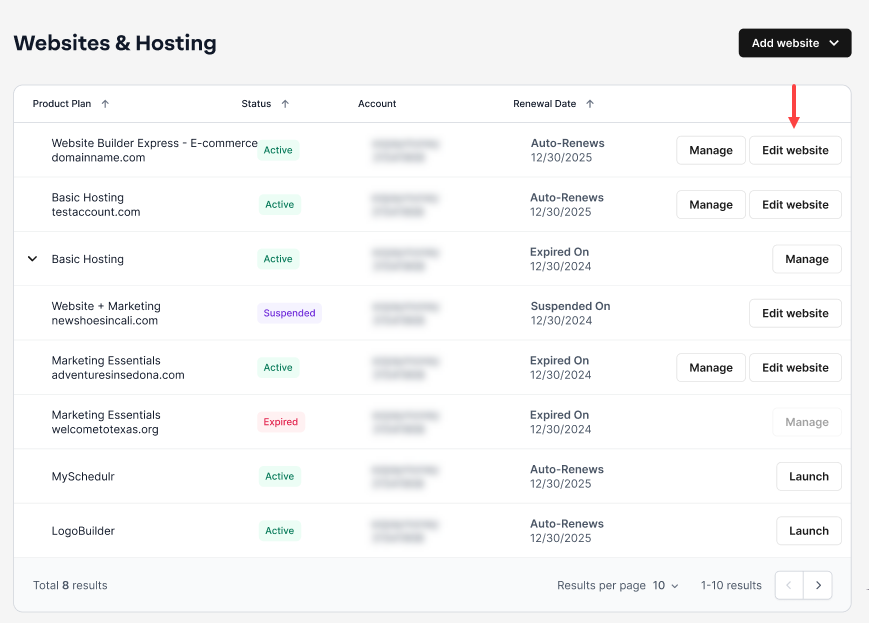
- Launch your website editor by choosing Edit Site.

- From the main design editor, select Elements from the left-hand menu.

- You will then look for and select the Files option on the left-hand menu. You will see two file types: FLASH and DOCUMENT.

- Flash is computer software that produces animations, rich applications, mobile games, and embedded web browser video players.
- Documents vary by type, but are typically text documents saved in either .txt, .doc, or .pdf. formats.
- Select the type of file you would like to upload. (For this example, we will upload a document.)

- At the Document menu, select UPLOAD FILES.

- You should see a familiar system pop-up where you can navigate to the document you want to upload. Select the File and then click Open to return to the Document menu. You should now see the document you selected.

- Select the document to land back on the main design dashboard, and you will now see a button to download the document that you can drag and drop where you'd like that document to be.

How to attach a document
You can also attach a document to a button on the page.
- Log in to your account via https://www.networksolutions.com/my-account/login.
- Click Websites & Hosting from the left navigation menu.
- If you have a single website builder in the account, you will be redirected to the Website Builder dashboard. If you have multiple website builder accounts, click the Edit website button on the respective website package that you need to access.
- Launch your website editor by choosing Edit Site.
- Select any button element and then click Attach Link.

- A pop-up menu will appear where you will see the option to select a Document.

- Select the document you'd like to upload and then click OK.

- That's it! The button will now be linked to the Document.

How to delete documents
- Log in to your account via https://www.networksolutions.com/my-account/login.
- Click Websites & Hosting from the left navigation menu.
- If you have a single website builder in the account, you will be redirected to the Website Builder dashboard. If you have multiple website builder accounts, click the Edit website button on the respective website package that you need to access.
- Launch your website editor by choosing Edit Site.
- From the main design dashboard, select Elements from the left-hand menu.

- Next, look for and select the Files option in the middle of the left-hand menu. You will see two file types: FLASH and DOCUMENT. Select either option to proceed.

- From the Documents tab, hover over the desired document to reveal a checkbox in the left-hand corner.
- Click the checkbox to select the document, then click Delete in the top toolbar.

- That's it! Your document will be gone after confirming the action.
Review
This guide covered how to upload files, attach documents to buttons, and delete files from your website to keep your content organized and up to date.
Get practical tips and product updates on LinkedIn.
Did you find this article helpful?