Knowledge Base
Categories: Builder Legacy
Builder brands: Marketing Hub - Disconnecting my Ad account
Time, money, results, or even a change to a new marketing tool could all be factors in a business owner's decision to disconnect any current platforms from Marketing Hub. This article provides a comprehensive guide to disconnecting your Ad account from Marketing Hub.
This article discusses the following topics:
Disconnecting a Google Ad account
To learn how to disconnect your current Google Ad account, read the steps below.
- Log in to your account manager via https://www.networksolutions.com/my-account/login.
- Click Websites & Hosting from the left navigation menu.

- Navigate to the hosting package that you want to access with Website Builder, then click Manage to continue.

- Select Marketing Hub on the left side menu. You will see the dashboard and all other tools on the left.

- Within the Marketing Hub page, navigate to the AdSpend tool.

- Select Settings.

- Under the Integration Settings, click the Edit option.

- Select the Disconnect from AdSpend button from the AdSpend tile.

- Click Confirm to revoke the account access.

- You will notice that the AdSpend account has been deleted and disconnected from the AdSpend dashboard after the page has loaded.
Disconnecting a Bing Ad account
To learn how to disconnect your current Bing Ad account, read the steps below.
- Log in to your account manager via https://www.networksolutions.com/my-account/login.
- Click Websites & Hosting from the left navigation menu.
- Navigate to the hosting package that you want to access, then click Manage to continue.
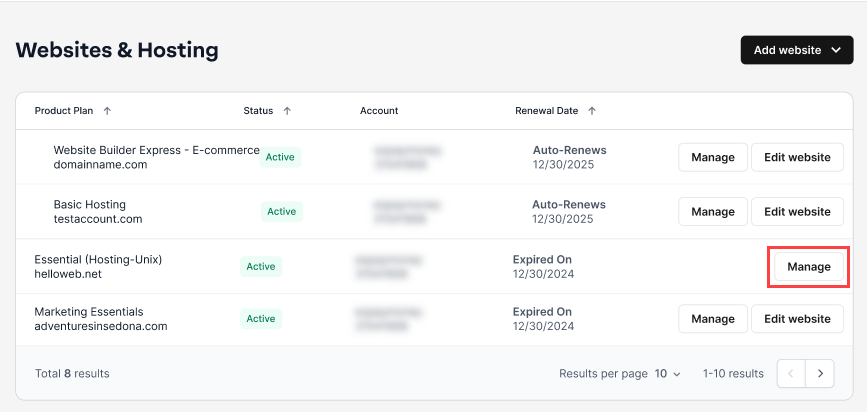
- Select Marketing Hub on the left side menu. You will see the dashboard and all other tools on the left.
- Within the Marketing Hub page, navigate to the AdSpend tool.
- Select Settings.
- Under the Integration Settings, click the Edit option.
- By clicking Disconnect from AdSpend, the Bing Ad account can be deleted.

- Verify the account access suspension.
- Then, Marketing Hub was cut off from the Bing Ad account.
Get practical tips and product updates on LinkedIn.
Follow Network Solutions
Did you find this article helpful?