Knowledge Base
Categories: Builder Legacy
Builder brands: Schedule and send an email campaign
Once you've finished building your email campaign, it's time to send it off to your contacts to let them know all about your brand and business. You can send it immediately or schedule a day and time for the email to be sent.
- Log in to your account via https://www.networksolutions.com/my-account/login.
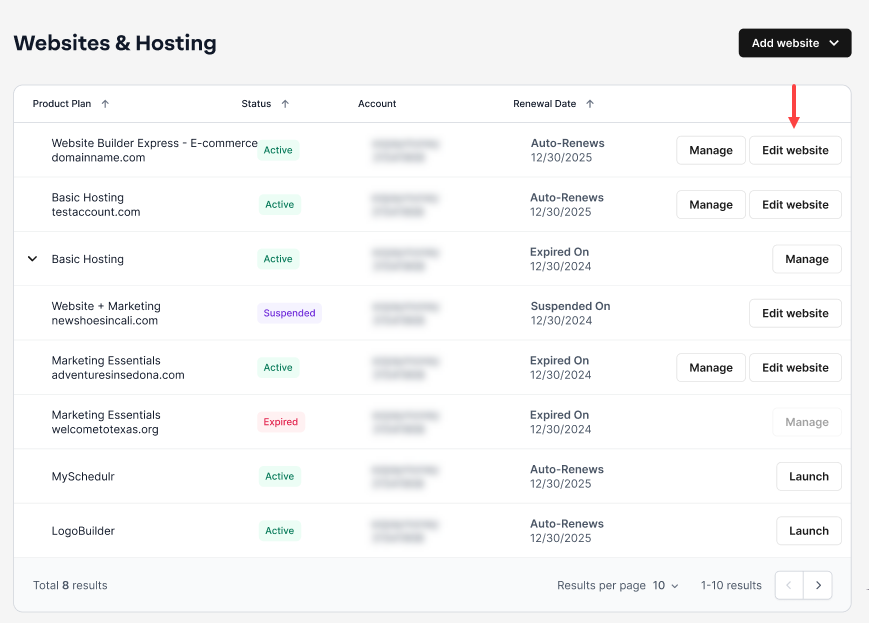
- Click Websites & Hosting from the left navigation menu.

- If you have a single website builder in the account, you will be redirected to the Website Builder dashboard. If you have multiple website builder accounts, click the Edit website button on the respective website package that you need to access.
- Select CreativeMail on the left side menu. You will see the dashboard and all other tools on the left. From your recent campaigns, click Edit under the campaign you would like to send or click New campaign to create a new one.

If you don't have any campaigns, click Create your first Campaign and follow the steps in this article, Creating an Email Campaign.

- Click Add recipients or Next at the top of the email editor.

- Click Next

- Finally, adjust the Subject line, Sender name, and Preview Text to customize what the recipient will see when they open the email and set a Name for the campaign (this will only appear on your Email Marketing dashboard).

- Optional: Use the advanced settings to select a verified Sender email and Reply-to email that recipients will see and respond to.

- Select Send now to send the email out to your recipients instantly. Select Schedule to choose a specific day and time for the email to be sent.
NOTE: You must verify your Sender email and include full business details to send an email campaign.

Note: You can schedule your emails as far as possible. If the email is scheduled for the next month, it will count for that month's campaign allotment.
Get practical tips and product updates on LinkedIn.
Follow Network Solutions
Did you find this article helpful?