Builder brands: Updating the social share image
When sharing your website on social media sites like Facebook, a great way to add visual interest to your post is to customize the image automatically pulled when sharing the site. This is known as a 'Social Image' or 'OG image.' This article will show how to upload it to your Express Editor and manually add an OG Image Meta Tag using HTML Injection to specify what social media will use as an image.

To learn more about sharing optimized web-hosted content on Facebook, please visit their article: A guide to sharing for webmasters.
In this article, you will learn how to enable, create, and populate product categories in your builder store:
- Uploading social share image
- Using HTML injection
- Updating image display using Facebook crawler
- Review
Uploading social share image
- Log in to your account via https://www.networksolutions.com/my-account/login.
- Click Websites & Hosting from the left navigation menu.

- If you have a single website builder in the account, you will be redirected to the Website Builder dashboard. If you have multiple website builder accounts, click the Edit website button on the respective website package that you need to access.
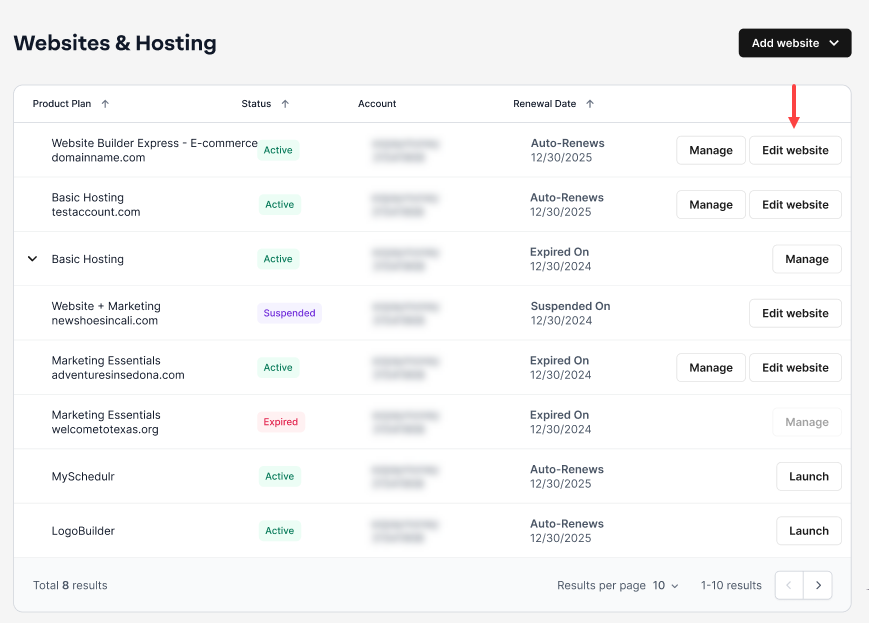
- On your website builder dashboard, tap Edit Site.

- Go to Settings.

- Select My site, then navigate and click on SEO.

- To upload, tap Click to upload social share image.

- The Image Library will prompt you to upload or use the stock photos from your local computer. Once you're done, click Apply to save the image.

- Please save and then Publish the site to make these changes live.
Requirements
- At least 1080 pixels in width for the best display on high-resolution devices
- Use 600 pixels in width images to display image link ads
- Use 1:1 images in your ad creatives for better performance with image link ads.
- Pre-cache your images by running the URL through the URL Sharing Debugger tool to pre-fetch metadata for the website. You should also do this if you update the image for a piece of content.
Using HTML injection
Another option is to add it by using HTML. To begin, please follow the steps below:
- Find the URL of the image you would like to use and copy it. Image URLs always end in file types such as .jpg or .png.
- Visit this link to learn how to find an image URL through Google Images.
OR
- If you are trying to use your photo, you can get a link by uploading the image to a 3rd party image host and looking for a Link Symbol to generate the URL.
Example Image URL
https://Network Solutions.com/images/social-image.jpg
- Visit this link to learn how to find an image URL through Google Images.
- Insert the image URL into the following meta tag:
<meta property="og:image" content="IMAGE LINK HERE"/> - Go to Settings.
- Select HTML injection. Navigate and click on Head HTML, then add the metadata.

- Click Apply to save changes.

- Once completed, Save and then Publish the site to make these changes live.
The og:image tag can specify the URL of the image that appears when someone shares the content on Facebook.
Requirements
- Dimension is 200 x 200 pixels and must not exceed 8 MB
- At least 1200 x 630 pixels for the best display on high-resolution devices
- 600 x 315 pixels to display link page posts with larger images
If your image is smaller than 600 x 315 px, it will still display in the link page post, but the size will be much smaller.
Updating image display using Facebook crawler
- Next, we will want Facebook to know there is a new image to display. Navigate to the following Facebook link: https://developers.facebook.com/tools/debug/sharing/

Note: You may need to log in to your Facebook account to access this tool. - Enter your full website URL into the area for Sharing Debugger and click Debug. If the new image doesn't show up right away, since it can take a few minutes to update, you may need to hit the Scrape Again button a couple of times to force Facebook to re-crawl the site's updated OG content.

- The Link Preview should now be updated with the correct OG Image. Sharing the URL directly to Facebook should reflect the correct image as well.
Review
Learn how to make your website stand out on social media by setting a custom share image that boosts engagement and ensures your brand looks polished every time your link is shared.
Get practical tips and product updates on LinkedIn.
Follow Network Solutions