Email Marketing app - Campaign Report
Beyond just sending emails, understanding how your audience responds is very important. The Email Marketing app's Campaign Report provides detailed data to track your marketing success. Knowing how to use this report to get a clearer understanding of your campaign's performance, sharpening your marketing strategy, and maximizing your reach.
In this article, we will discuss:
The Campaign Report
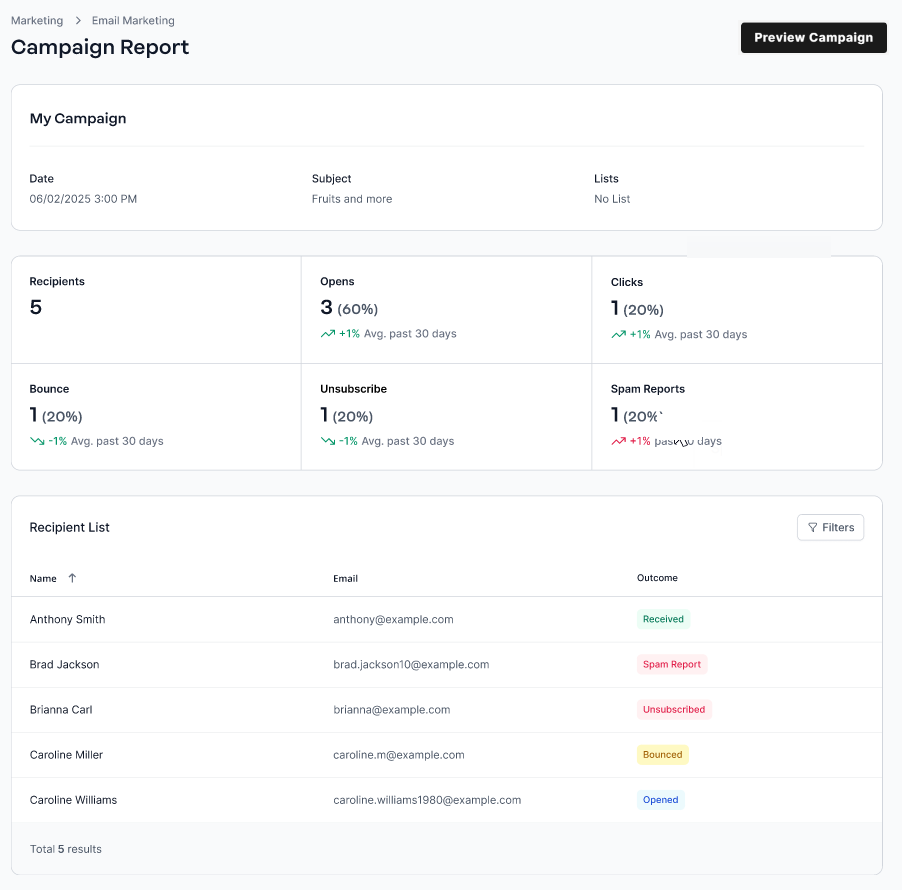
Your Email Marketing app's Campaign Report has 3 sections:
Campaign details
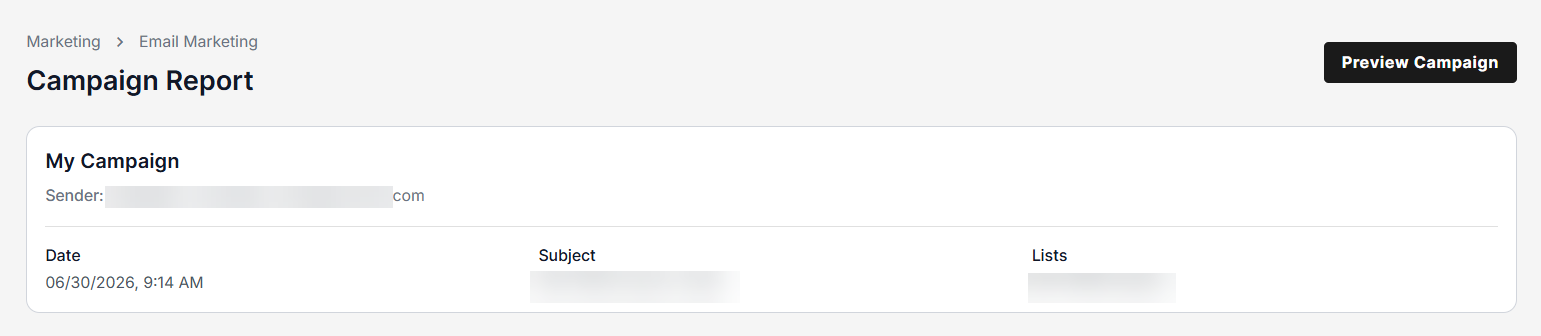
This section of the report will show you:
- Preview Campaign - The top-right side button, when clicked, opens a new tab where you can see the content of the associated campaign.
- Campaign Name
- For users with a paid version, the report also shows the Sender Email.
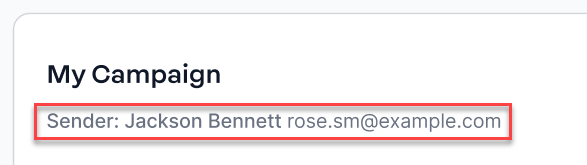
- For users with a paid version, the report also shows the Sender Email.
- Date - The date the campaign was sent to your recipients
- Subject - The email subject of the campaign
- List - The name of the contact list will appear here if the campaign was sent to a specific contact group.
Campaign data
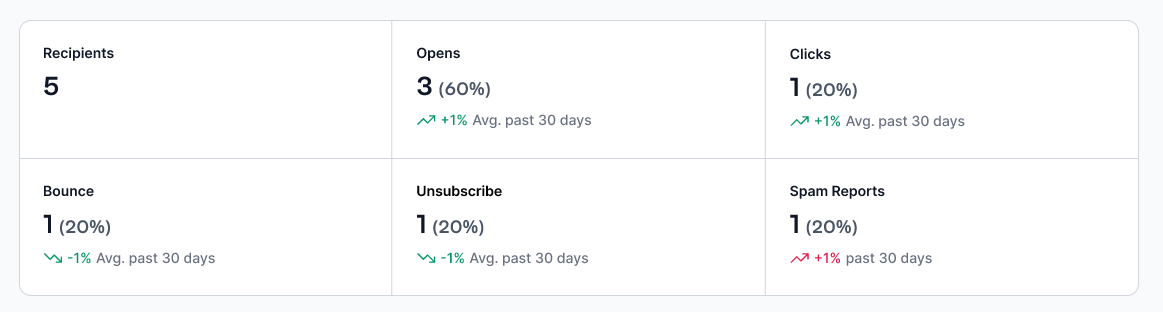
This section of the report entails:
- Recipients - Shows the number of recipients who should receive the specific campaign.
- Opens - Number of recipients who opened the email.
- Bounce - Number of emails that were unsuccessfully delivered.
- Unsubscribe - Number of recipients who unsubscribe from the email campaign.
- Clicks - Number of recipients who successfully received the email.
- Spam Reports - Number of recipients who reported the email as spam.
Recipient List
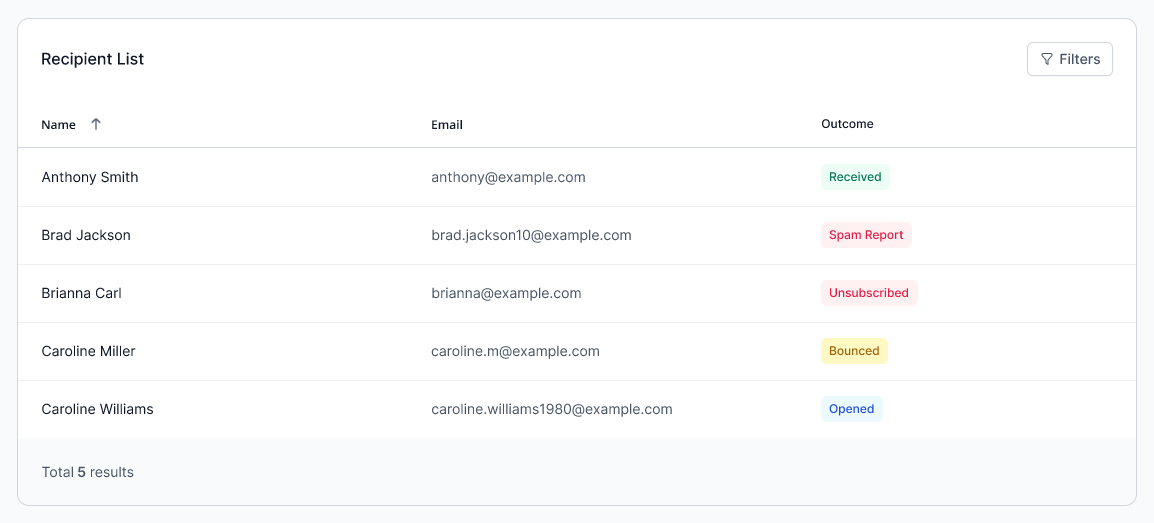
This section of the report showcases more detailed information on the campaign's data:
- Recipient's name
- Recipient's email address
- Outcome - Shows the result of the email per recipient:
Important: You can only filter the list by outcome.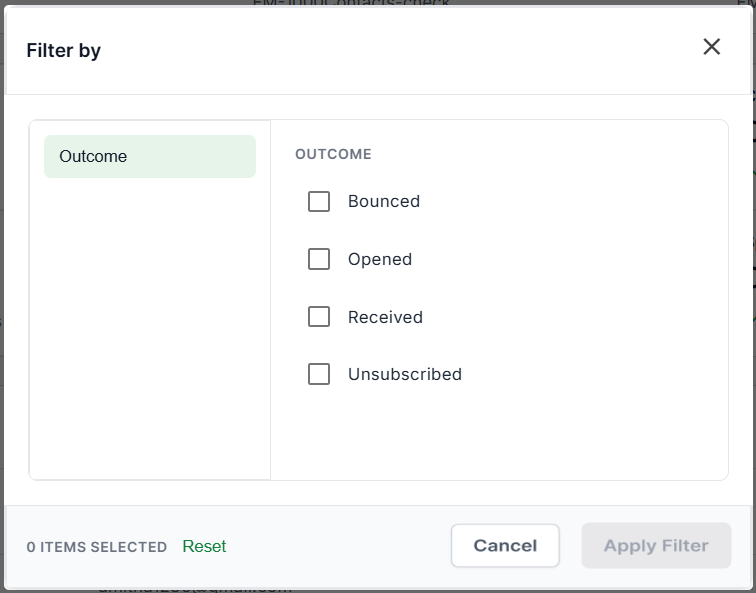
- Bounced - Filter the list with recipients who didn't receive the email only
- Opened - Filter the list with recipients who opened the email only
- Received - Filter the list with recipients who successfully received the email only
- Unsubscribed - Filter the list with recipients who unsubscribed from the email campaign
Review
Dive deep into your email campaign's analytics with our Email Marketing app's Campaign Report. Use custom filtering to live campaign preview designed to help you analyze performance trends, refine your targeting, and improve your email marketing outcomes.
Get practical tips and product updates on LinkedIn. Follow Network Solutions