Knowledge Base
Categories: iPage Legacy
iPage: How to create an under construction page
But there is an alternative way to construct your site directly in your hosting provider. This way, you can make an "Under Construction" or a "Coming before long" page to be displayed to your guests, so they don't see the changes you make until it's done.
A web hosting commonly reads a list of pages to set as the homepage of your site in this arrangement: index.htm, index.html, index.php, and default.htm. If one of these filenames is read, it'll be displayed as your website's homepage. Web design programs most regularly make an index.html or index.php page. When you need to publish your site, regardless if it is only for testing, it is likely that the primary page will be displayed to the public. This article will guide you on how to create a placeholder page so merely you can work on your website in the background.
- Log in to your account via https://www.networksolutions.com/my-account/login.
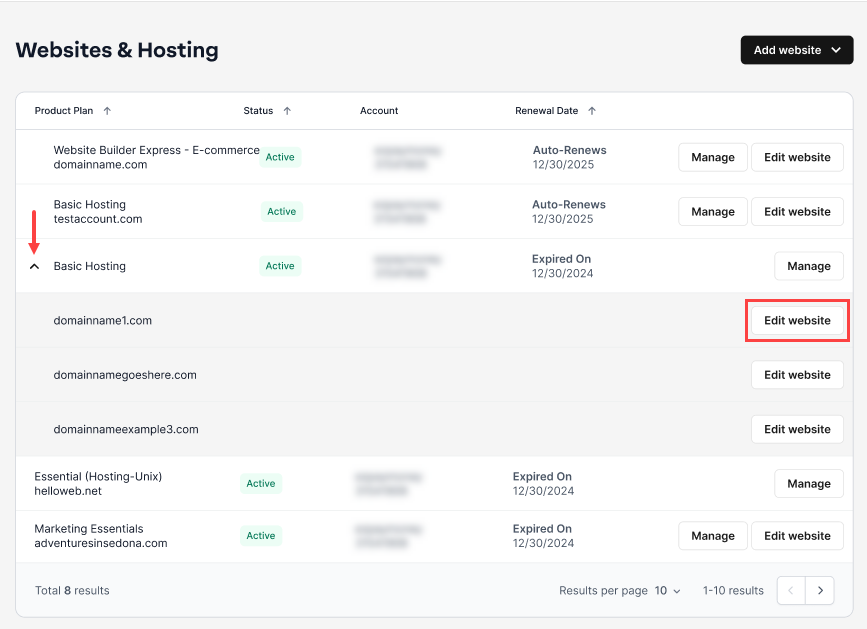
- Click Websites & Hosting from the left navigation menu.

- Navigate to the hosting package where you want to set file and folder permissions, then click Edit website next to the domain name you want to manage.
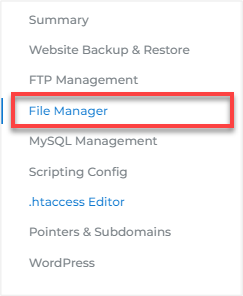
- Go to HOSTING, then click File Manager.
- Click on New Folder found in the top toolbar of the page and name it underconstruction_page.

- Inside your newly created folder, create a file named index.html.

- To edit your index.html file, click the three dots on its right side and select Edit.

- Copy and paste this HTML code inside the box:
- Click Save.
- Once you save it, go to your domain pointers and have your domain pointed to the folder name you just created, then click Save.

Related Articles:
- How to Setup Domain Pointers
- Hosting Tools: File Manager
- How to Create New Files and Folders Using File Manager
- How to Edit Files Using File Manager
Get practical tips and product updates on LinkedIn.
Follow Network Solutions
Did you find this article helpful?