iPage: How to update Subdomains
How To Create and Update Subdomains
What is a Subdomain?
As your web presence increases, you may require the addition of subdomains for your website. Subdomains help you organize your content and provide additional advantages with navigation. Subdomains are like children to your parent or top-level domain. You can put a page of your site to the subdomain, like shop.domainname.com. There are cases that customers create a separate website and put it to the subdomain.
How to Create a Subdomain
-
Log in to your
Domain Dashboard.
- In Card view, click on the
Managebutton.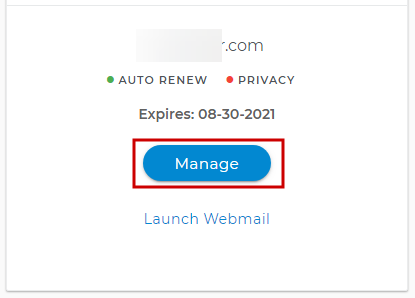
- In List view, click on the
Gearicon.
- Click on
Pointers & Subdomainsin the left-hand menu.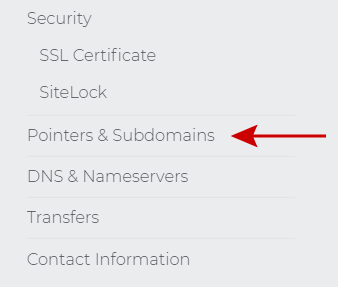
- Click the blue
Add Subdomainbutton.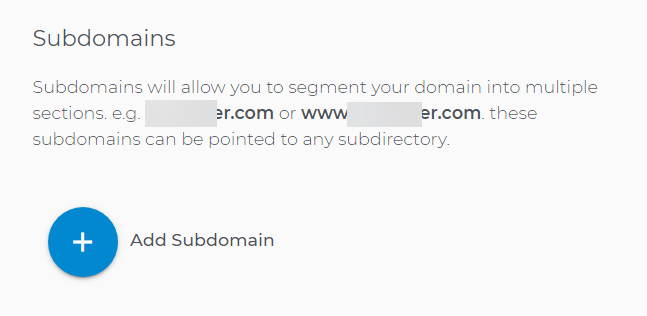
- Add the
Subdomain Nameand theSubdirectorywhere the files are stored. ClickSave.- Some common subdomains are test, admin, and shop. The shop subdomain is often used for the customer's e-commerce section. The test subdomain is most commonly used for redirecting a customer to a temporary page while the main website is under maintenance.
- Example:
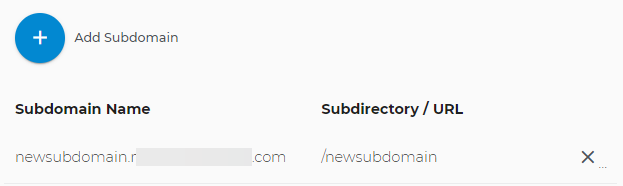
- Subdomain = newsubdomain
- Subdirectory = /newsubdomain
- URL = https://domainname.com/newsubdomain
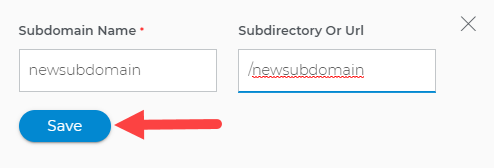
Make sure to put the correct folder name or location so that the subdomain will show your files correctly. It is recommended, mostly if you just started, to point the subdomain to an empty folder and put the contents inside that folder.
- The new subdomain will be shown where it was added.
How to Remove a Subdomain
- Click on the
Xnext to your subdomain and directory.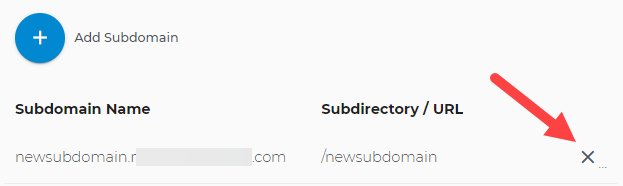
- Click on
Yes, delete it.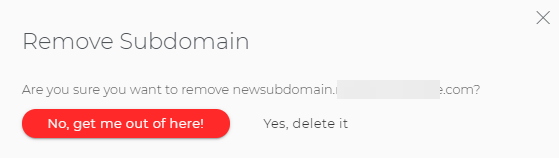
How to Point a Subdomain to Another Server
If you wish to point your subdomain to a different server, you just need to create an A record and point it to your new host's IP address, where your content is/will be located. To know more about updating an A record, please click here.
Get practical tips and product updates on LinkedIn.
Follow Network Solutions