iPage: VPS and Dedicated Hosting - How to configure backups through WHM
How to Configure Backups through WHM
You will need to log in to WHM first. Please see this article for guidance on logging in to WHM first. Once you are in, you can proceed with the steps below.
Type "backup"inside the search field found on the left sidebar. This will help you to narrow down the results.
Note: There are two services available for managing backups. The Legacy Backup is an older service that is already deprecated. It is recommended to use the Backup system since it offers flexibility in the number of backups retained, better interface, and more options.
- Selecting a User
- Configuring a Backup
- Enabling and Disabling Backups
- Modifying Backup Schedule
- Sending Backups to a Remote Location
Backup System
Selecting a User
Selecting a user is best used when you have multiple cPanel accounts. This can be checked through the Backup User Selection option in WHM. A backup eats space in the server so it is recommended to use this section to disable backups for those accounts that can be archived. It is your responsibility to ensure that you have all the necessary backups and information needed.
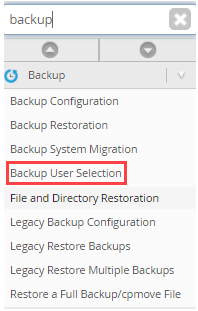
- Once inside the WHM, on the left pane, type "backup" and select this option
Backup User Selection.
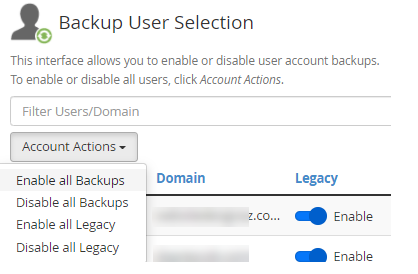
- Inside the Backup User Selection, you will see the Account Actions drop-down menu. This gives you more options in disabling and enabling your backups and legacy backups.
- If in case that you want to configure a specific user only, then you can utilize the toggle bar.
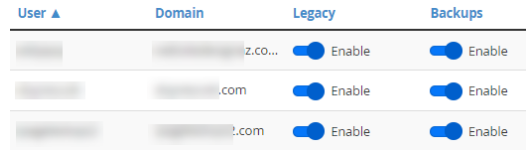
- Inside the Backup User Selection, you will see the Account Actions drop-down menu. This gives you more options in disabling and enabling your backups and legacy backups.
Configuring a Backup
When making any changes, it is imperative to click the Save Configuration button. This can be found at the very bottom of the page. Not doing this will result in the changes not taking effect.
Enabling and Disabling Backups
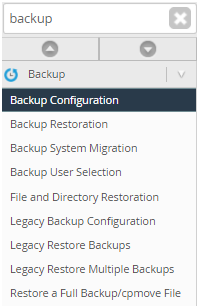
- Search for backup and select the
Backup Configurationoption.
- The landing screen will immediately show the option to Enable or Disable backups. When enabling backups, some of the default settings should be considered, especially the Retention values. The value must fit the space available on your server.
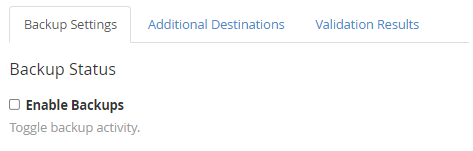
Modifying Backup Schedule
The Daily, Weekly, and Monthly sections have similar layouts. Check the layout below set for Daily Backup,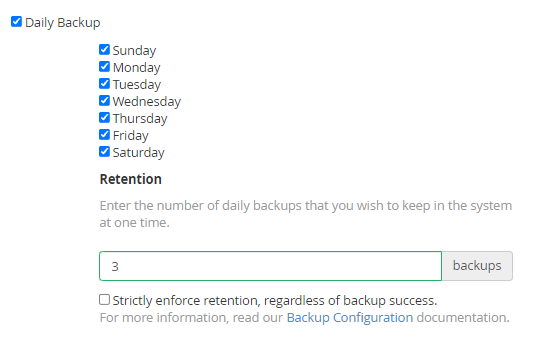
Here are the options that can be seen in the image
- A tick box for Daily(or in some cases, Weekly, or Monthly) is enabled. A blue check indicates that this is enabled.
- Days when the backups will run.
- The number of completed backups held on your server.
In this example, the current retention is 3. On Wednesday night, a backup will be generated. Then, it will delete the Sunday backup since the system only retains 3 backups, those backups were made on Monday, Tuesday, and the newly created one on Wednesday.
The Strictly enforce retention regardless of backup success option is recommended to be left unchecked. This option means that the above cycling of backups will occur regardless if a backup is not completed. It can help the server from running out of space.
Sending Backups to a Remote Location
Sending a backup to a different location is a way to keep your server space enough for other accounts, backups, or configurations. There is a range of supported destinations, including Google Drive, Amazon S3, and SFTP. Follow the steps below to use this setup.
- Inside the WHM, type
"backup."
- Click on the
Additional Destinationsoption.
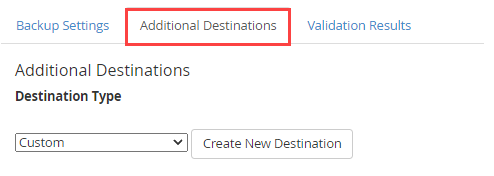
- Select the desired destination from the drop-down menu and click
Create New Destination.
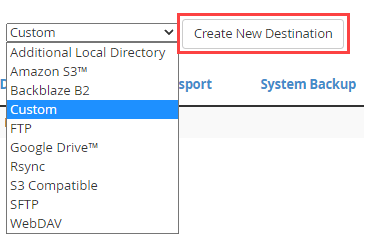
- After clicking the Create New Destination button, new configurations will show up. The parameters differ from one destination to another. This will help you set up the Destination for the backup. Note that each destination has its own documentation to read through.
- An option to Retain Backup in the Default Backup Directory can be found at the bottom of the main page. If this option is checked, a copy of the backup will be retained in the service while another copy is being sent off to the new Destination.
Legacy Backup
Switching from Legacy Backup to Backup
The Legacy Backup is already deprecated, and you can easily switch to the Backup service through the Backup System Migration option inside WHM.
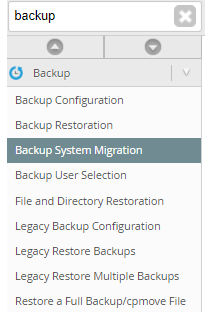
- Inside WHM, type backup in the Search tab. Then, select
Backup System Migration.
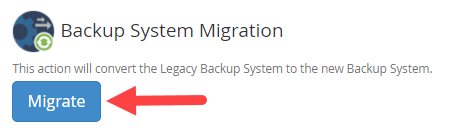
- The landing page will give you a straight option to migrate to the new Backup System.
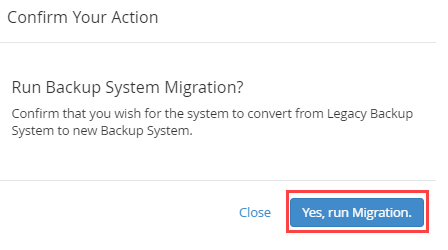
- A dialogue box will appear. Confirm the migration of the backup by clicking on
Yes, run Migration.
Enabling and Disabling Backups
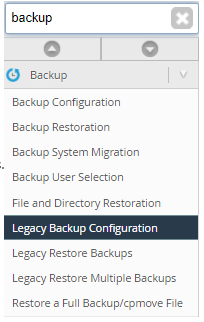
- Inside the WHM, click on
Legacy Backup Configuration.You may also search "backup" to narrow down the options.
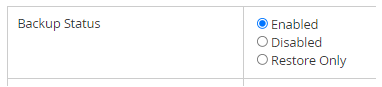
- The first option will let you enable, disable or restore only the Backup.
- Click
Saveat the bottom page.
Modifying Backup Schedule
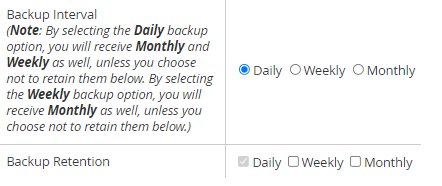
- To change the backups you want to run, you need to edit both the Backup Interval and Backup Retention.
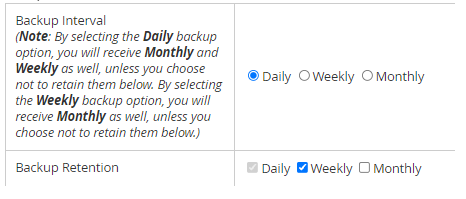
- To disable Weekly or Monthly backups, ensure that they are unchecked for both Backup Interval and Backup Retention.
- Click on the
Savebutton at the bottom page to keep the settings,
Get practical tips and product updates on LinkedIn.
Follow Network Solutions