iPage: VPS and Dedicated Hosting - How to manage root's SSH Keys in WHM
VPS and Dedicated Hosting: How to Manage Root’s SSH Keys in WHM
SSH allows secure file transfer and remote logins over the internet. Your connection via SSH is encrypted, allowing a secure connection.
This article will guide you in managing your Root’s SSH Keys to:
- Allow automation when logging in via SSH
- Import existing keys
- Generate new keys
- Manage/delete keys
Accessing your WHM
- Log in to your Network Solutions Control Panel.
- Click on the
Server Control Centericon.
- Click on the
Regenerate Root Password. - Navigate to https://
SERVER_IP:2087, whereSERVER_IPis the IP address of your dedicated server. - Log in using ‘root’ as the userID and the password you received in step 3.
The username for WHM is always “
root.”

Managing your Root’s SSH Keys
- Once you’re logged in to WHM, scroll the left sidebar to
Security Center.Then click onManage Root’s SSH Keys.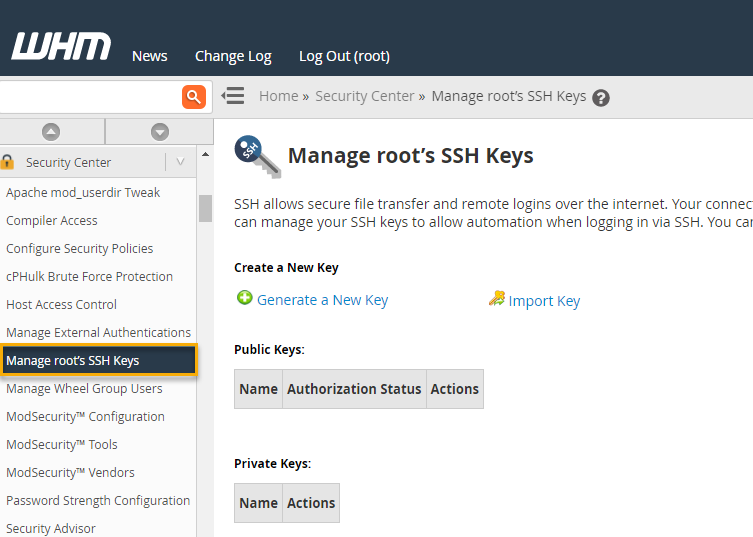
- Choose either the
Generate a New KeyorImport Keybutton. - If you choose to click the Generate a New Key, fill in all the needed information, click the
Generate Keybutton.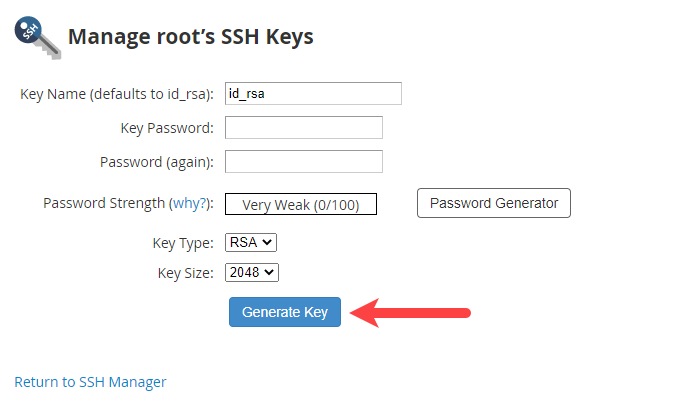
- If you decide to click the Import Key, enter all the required information, then click the
Importbutton.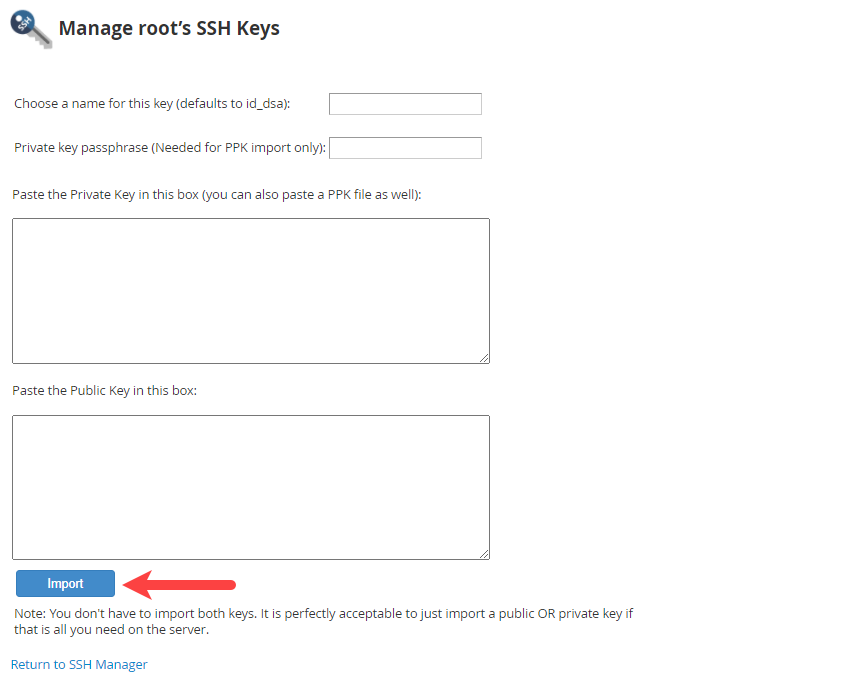
Tip: You don’t have to import both keys. It is perfectly acceptable to import a public OR private key if that is all you need on the server.
Reseller Access
If you would like SSH access on any cPanel, edit or change the package on the cPanel to be set to have Shell Access enabled. The cPanel user will be able to access the Shell by the instructions listed above.
VPS and Dedicated Servers SSH Access
Dedicated and VPS customers automatically have root SSH access. Root access allows you to change anyone and anything on your server. If you have multiple cPanels which need SSH, you can activate them all within root WHM.
Get practical tips and product updates on LinkedIn.
Follow Network Solutions