Introducing the Network Solutions Link in Bio tool
As a valuable addition for our domain customers, we are excited to introduce the new Network Solutions® Link in Bio tool, a simple yet powerful way to create a customizable landing page for all your important links. This feature, available directly within your Network Solutions Account Manager, allows you to consolidate your social media profiles, business websites, and promotional links into a single, shareable URL, perfect for your Instagram, TikTok, or other social profiles.
- One page per domain: This feature is available for every domain in your account (one unique Link in Bio page per domain). If you have not yet completed the "Domain Onboarding" for a selected domain, the tool will automatically prompt you to do so during the setup process.
- Automated DNS configuration: When this tool is provisioned, a reserved mylinks subdomain (e.g., mylinks.yourdomain.com) is automatically created in your DNS settings. Please note that this subdomain is dedicated to your Link in Bio page and cannot be used for other websites or hosting purposes.
In this article, we will cover:
What is the Link in Bio tool?
The Network Solutions® Link in Bio tool is a value-added feature for domains designed to help you create a mobile-friendly micro-website. Instead of being limited to a single link on your social media profiles, you can now direct your audience to a beautifully branded page that showcases all of your important content. It’s an easy-to-use alternative to services like Linktree, fully integrated into your existing Network Solutions Account Manager, and it includes an easy-to-remember link for your visitors: mylinks.yourdomain.com.
How to create and customize your page?
Getting started with your new Link in Bio page is straightforward. Follow these simple steps:
- Log in to your Network Solutions Account Manager via https://www.networksolutions.com/my-account/login.
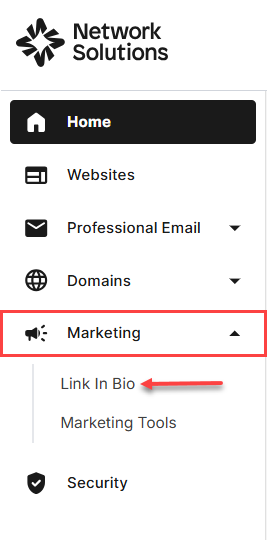
- From the left-hand menu, click the Marketing tab, then click the Link In Bio drop-down option.
- On the Link in Bio page:
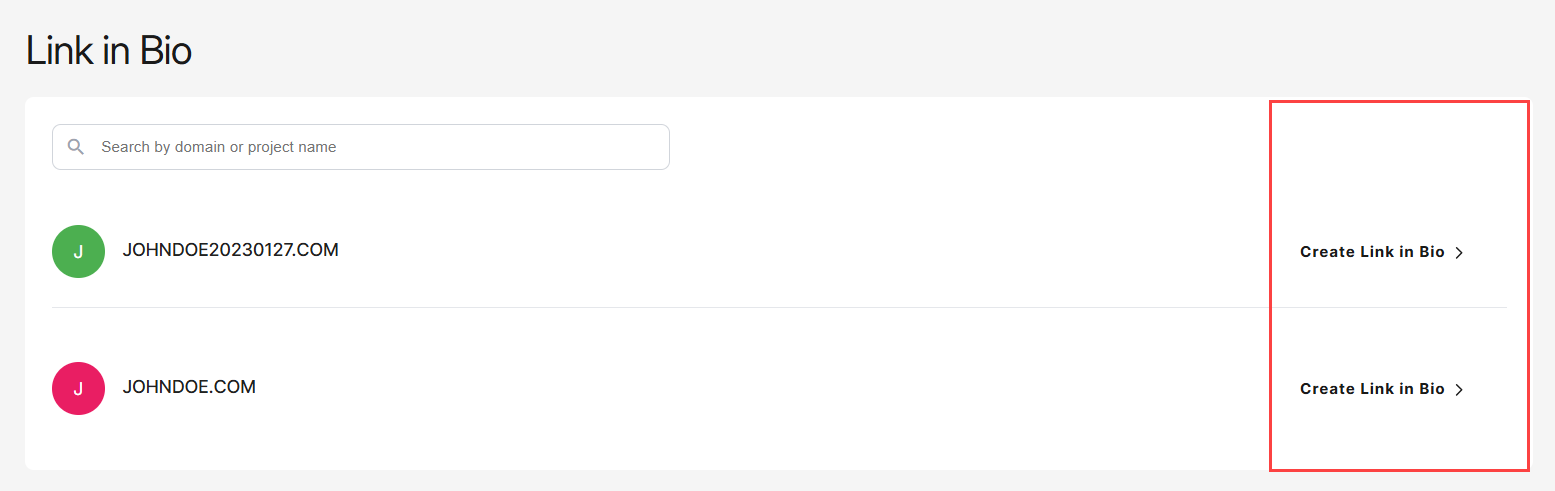
- Select the domain for which you want to create a Link in Bio page.
- Click the Create Link in Bio button on the right side of that domain.
- On the pop-up that appears:
- Enter the Project Title or Business Name.
- Enter a Brief Description to tell visitors what your domain is about.
- Click the Submit button.
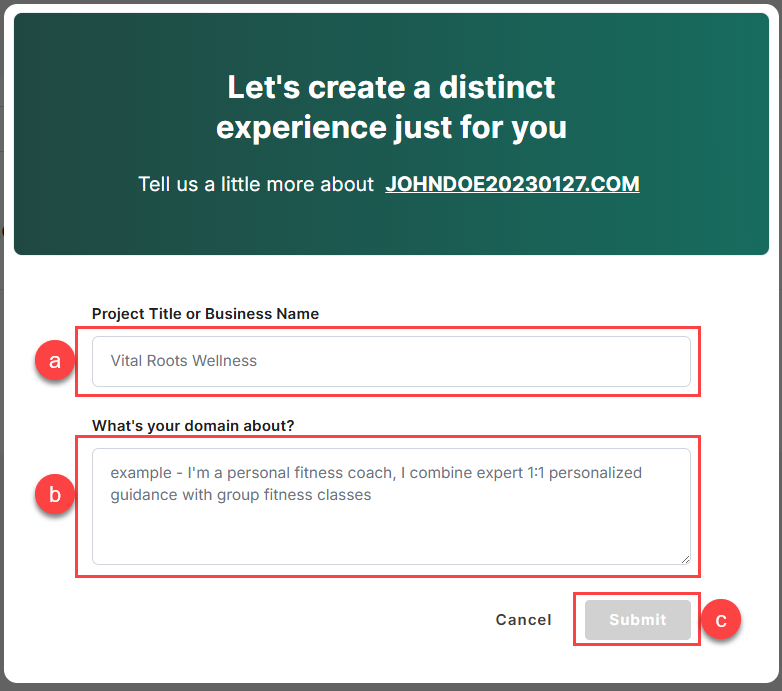
Note: Bear in mind that the pop-up above will only appear if you have NOT previously completed the Domain Onboarding process.
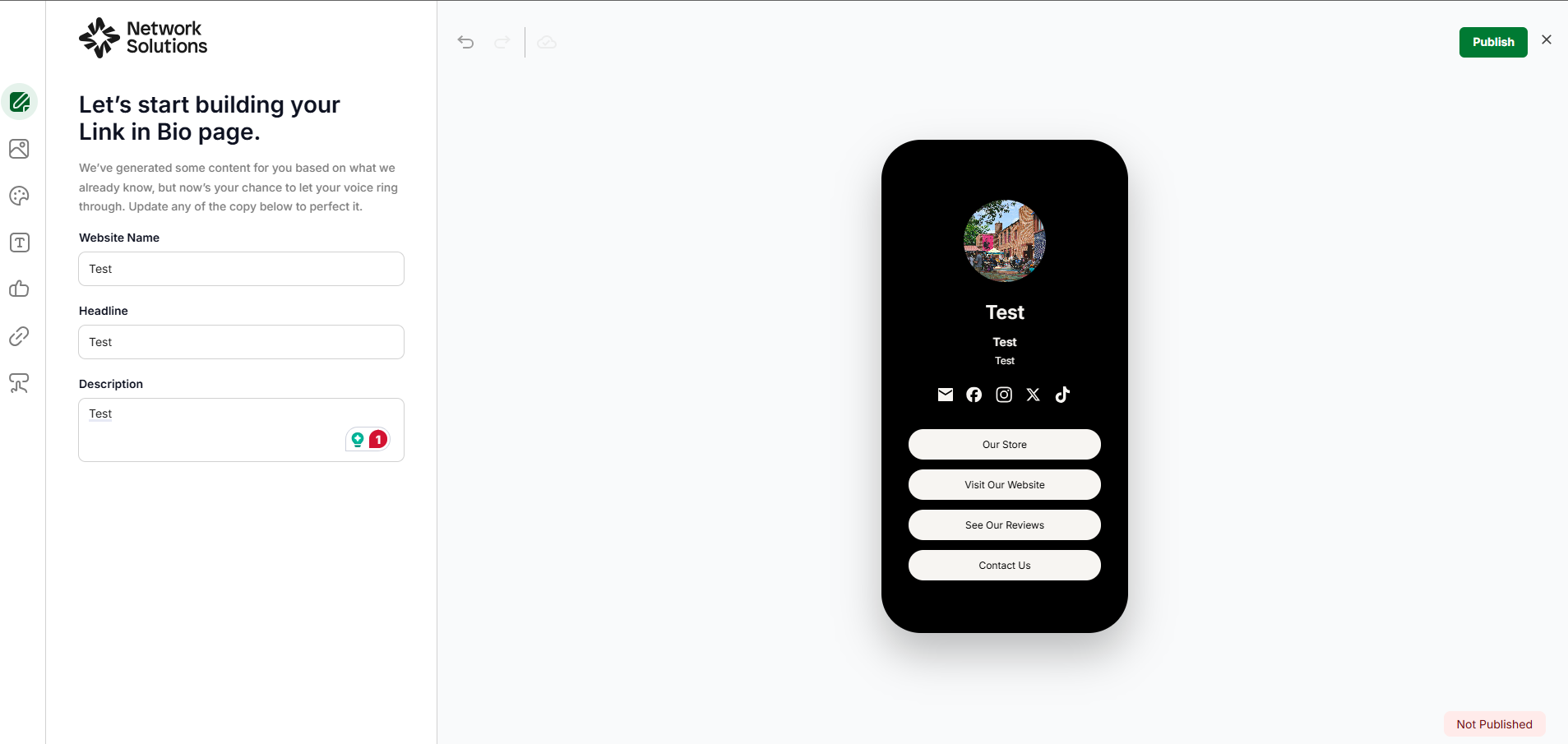
After clicking Submit, you will be rerouted to the Network Solutions ® Link in Bio editor, where you can customize your page. The following entries below show you more information about the left sidebar options:
- Business info: We’ve generated some content for you based on what we already know, but now’s your chance to let your voice ring through. Update any of the copy below to perfect it.
- Profile image: Choose from our gallery or upload your own photo to help visitors recognize you instantly. A great profile image makes your page more personal and memorable.
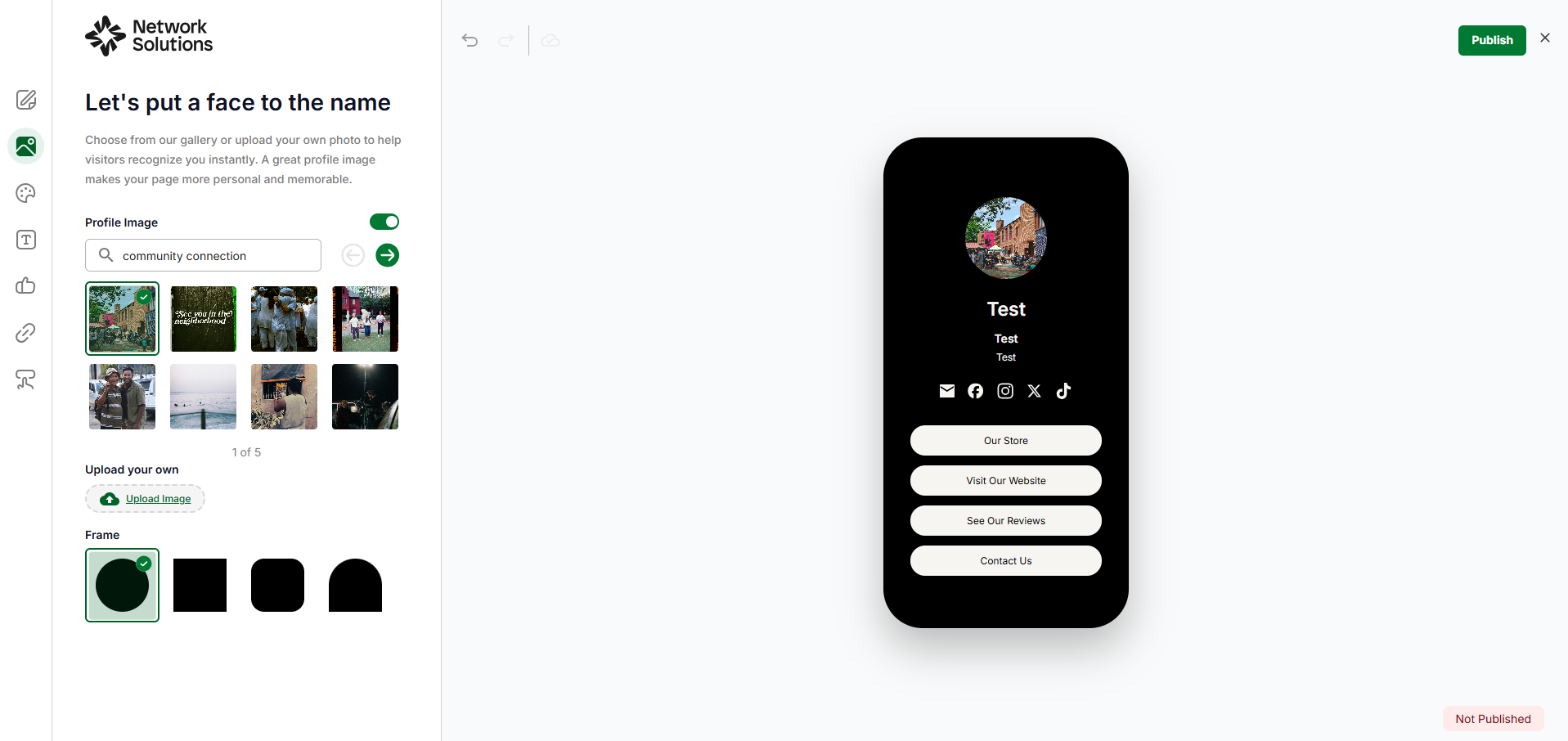
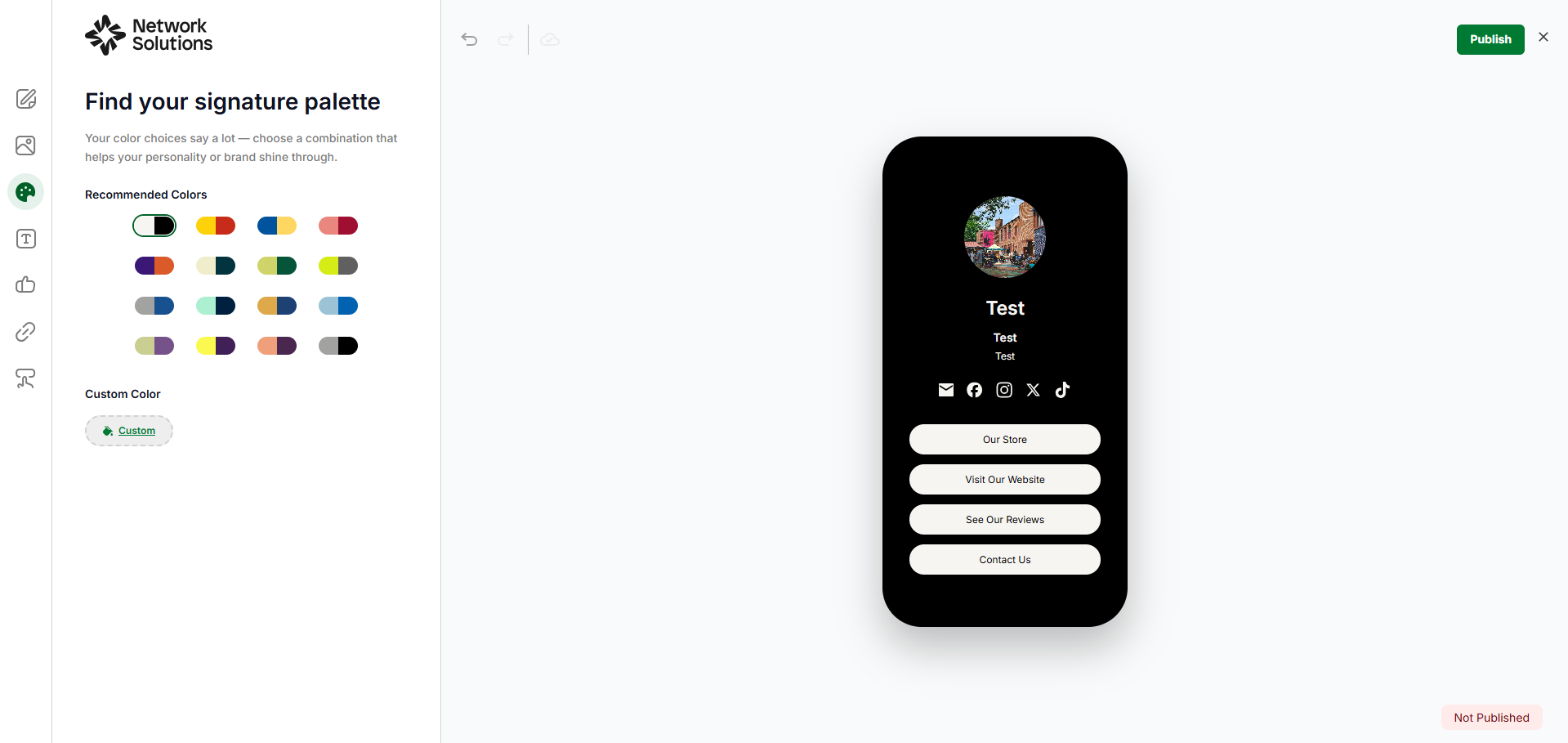
- Colors/Palette: Your color choices say a lot — choose a combination that helps your personality or brand shine through.
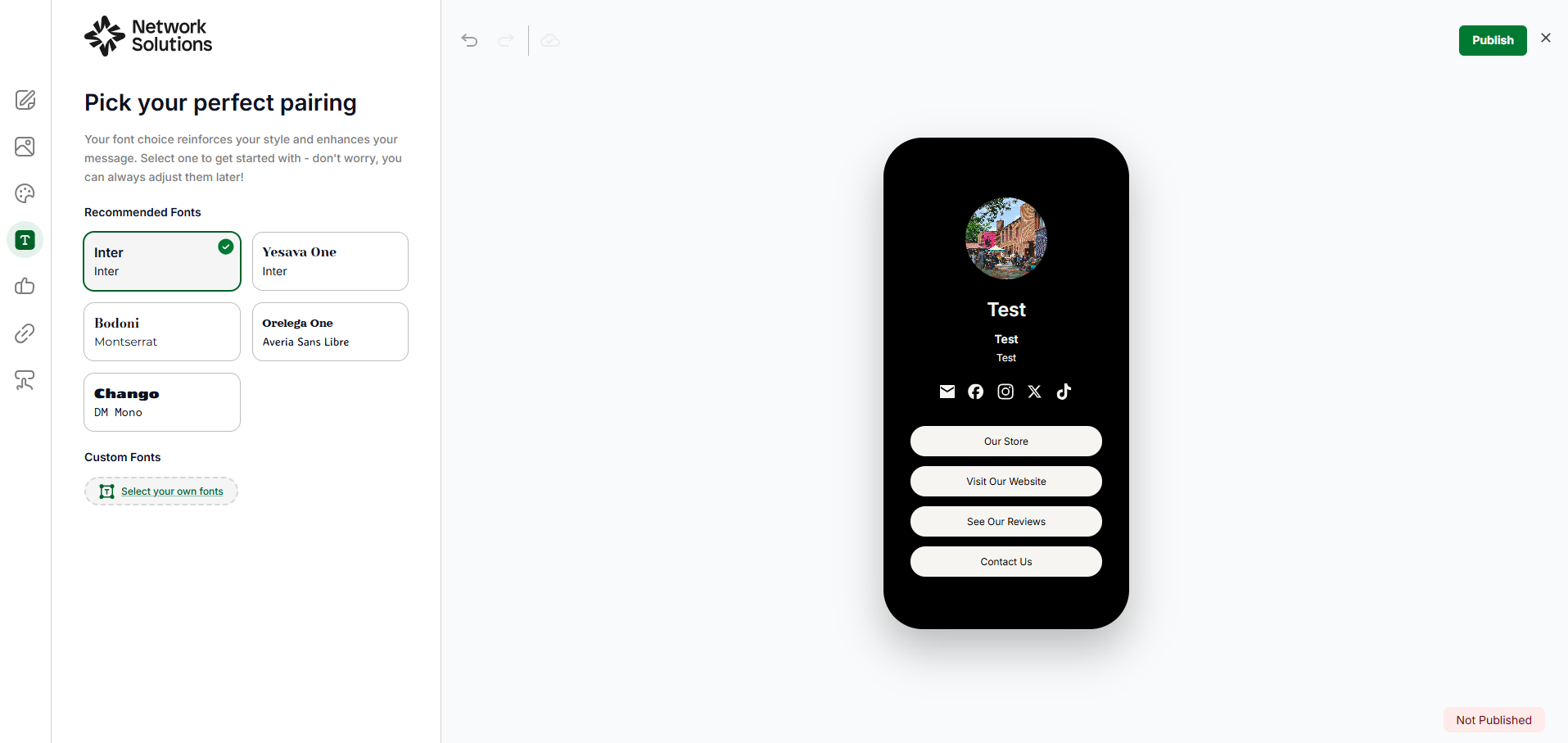
- Fonts: Your font choice reinforces your style and enhances your message. Select one to get started with - don't worry, you can always adjust them later!
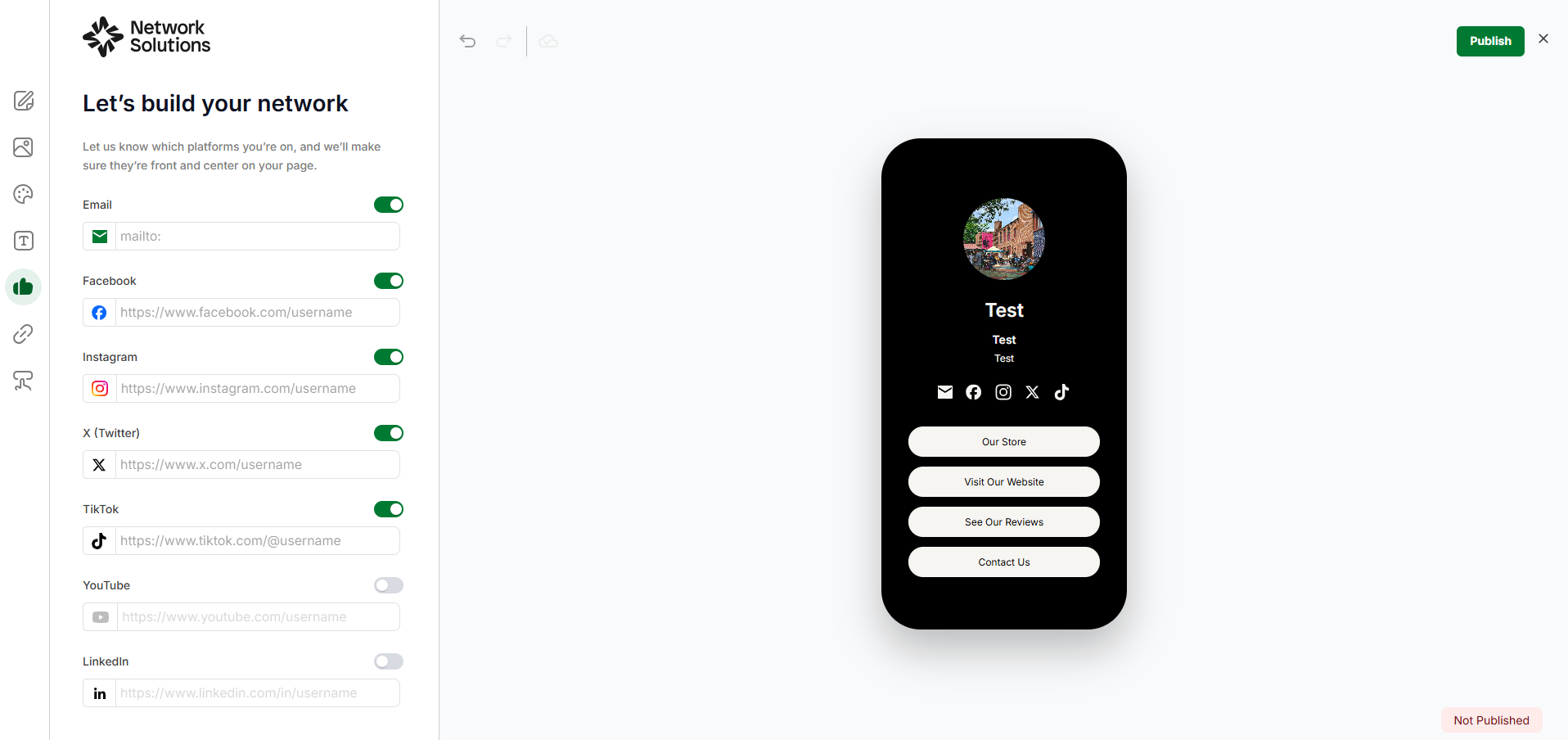
- Social links: Let us know which platforms you’re on, and we’ll make sure they’re front and center on your page.
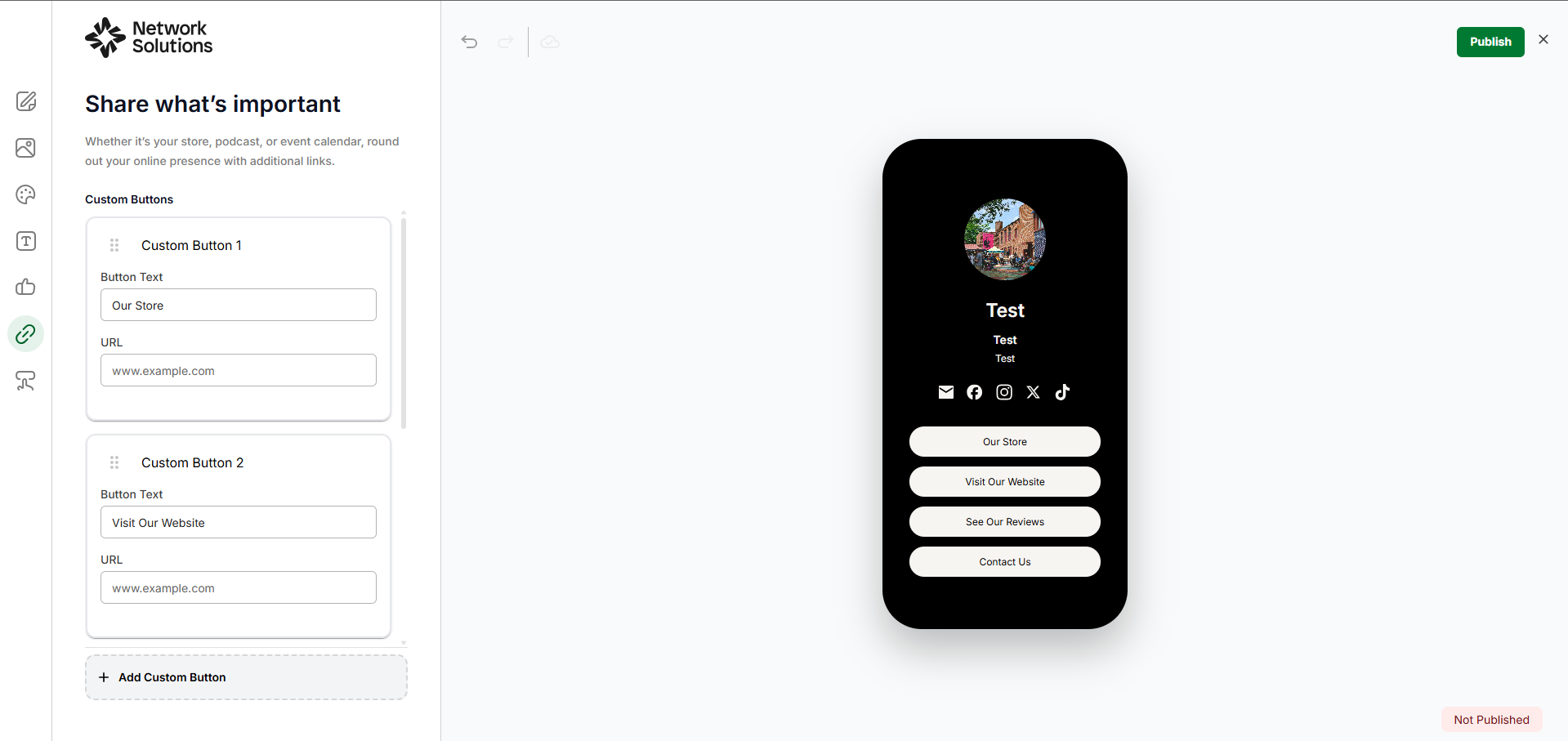
- Button links: Whether it’s your store, podcast, or event calendar, round out your online presence with additional links.
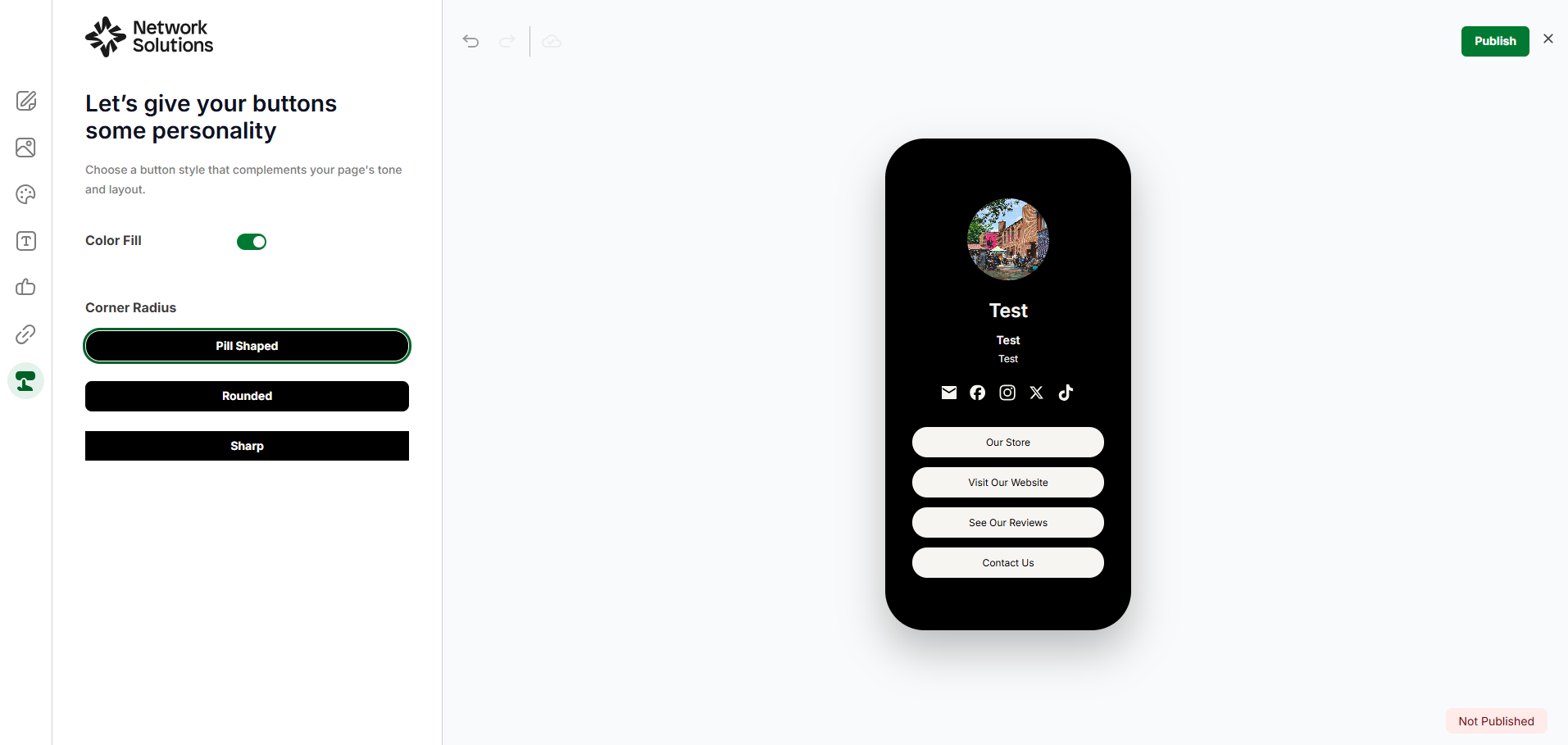
- Button styles: Choose a button style that complements your page's tone and layout.
How to publish your page
- Once you are done customizing your Link in Bio, click the Publish button in the top right corner of the editor.
- After a successful publish, you will see a confirmation pop-up that says, "Your one of a kind Link Bio page has been published. It looks good on you."
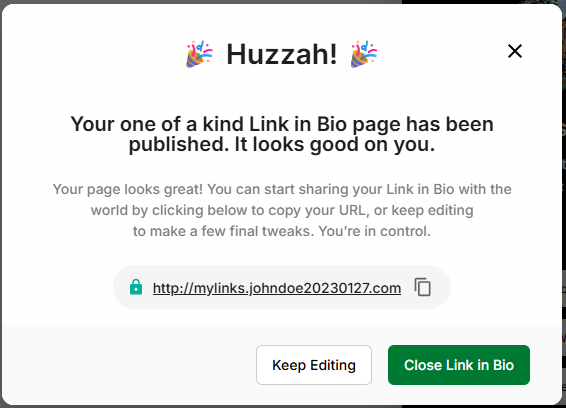
- From this pop-up, you can choose to Continue Editing or Close Link in Bio.
- Keep an eye on the status indicator in the bottom-right corner of the screen. It will tell you if your page is Not Published or Published.
- If you try to publish with incomplete links, a "Hold up! You might have forgotten something." pop-up will appear with the following message:
"You haven't filled in the URL for at least one of the links on your page. Publishing now will display the button, but it won't work if someone clicks on them. To fix this, click the Cancel button below, and check the Social Links and Button Links screens for any missing information."
From there, you can either click Cancel to go back and add your URLs or Publish Anyway.
Review
The Network Solutions® Link in Bio tool is a powerful feature included with your domain, designed to enhance your online presence. This guide has provided a high-level overview of what the tool is, how to access and create your page through the Marketing tab, and the key features you can customize. By following the intuitive editor and publishing your page, you can create a centralized hub for all your important links.
Get practical tips and product updates on LinkedIn.
Follow Network Solutions