How to manage a Google Business Profile listing
Keeping your business information accurate and up to date is essential for attracting and engaging customers online. The Google Business Profile makes it easy to manage a Google Business Profile listing by giving you full control over key details such as your contact information, address, service area, business hours, and photos. In this guide, you’ll learn how to update your business profile, edit hours of operation, and manage images so customers can easily find, recognize, and connect with your business.
In this article, we will discuss:
Updating business profile details
Follow the steps below to learn how to update your business profile details.
- Log in to your account via https://www.networksolutions.com/my-account/login.
- Click Marketing and select Google Business Profile from the left navigation menu.
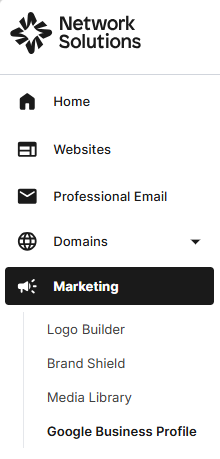
Note: Upon upgrading, this menu will change to Business Directory. - Navigate to Profile to access and manage your business profile.

- In the Profile Details section, you can edit the following business listing attributes:
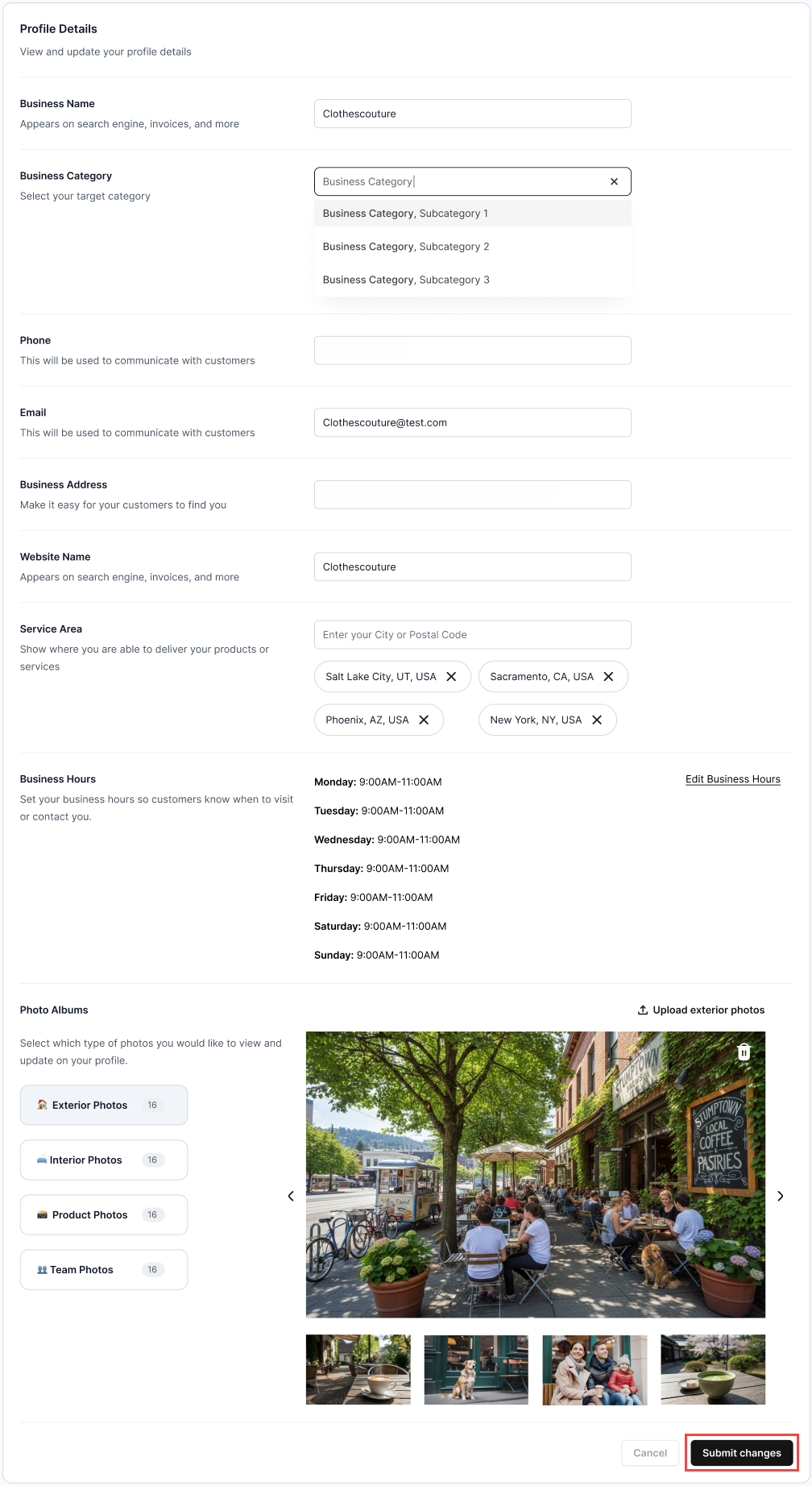
- Business name: Appears on search engines, invoices, and more
- Business category: Select your target category
- Phone: Use to communicate with customers
- Email: Use to communicate with customers
- Business address: Make it easier for customers to find your business
- Website name: Appears on search engines, invoices, and more
- Service area: Shows where you can deliver your products or services
- Business hours: Set your business hours so customers know where to visit or contact you
- Photo albums: Where you can manage the photos that customers see on your business profile
- Click Submit changes once you’re all set.
Editing business hours availability
- Scroll down to Business Hours, then tap Edit Business Hours.
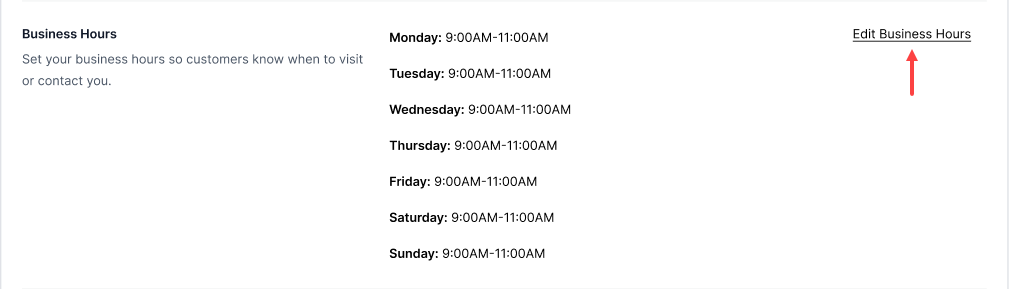
- Set your business availability, so customers know when to visit or contact you.
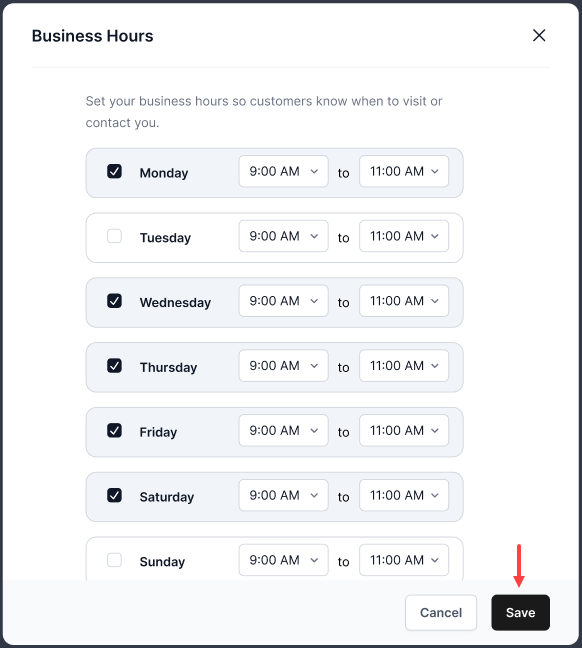
- Click Save to complete successfully.
Managing images in the photo album
View the steps below to add and delete a photo when updating your business profile.
Adding a photo
- Select which type of photos you would like to view and add an image to your business profile.
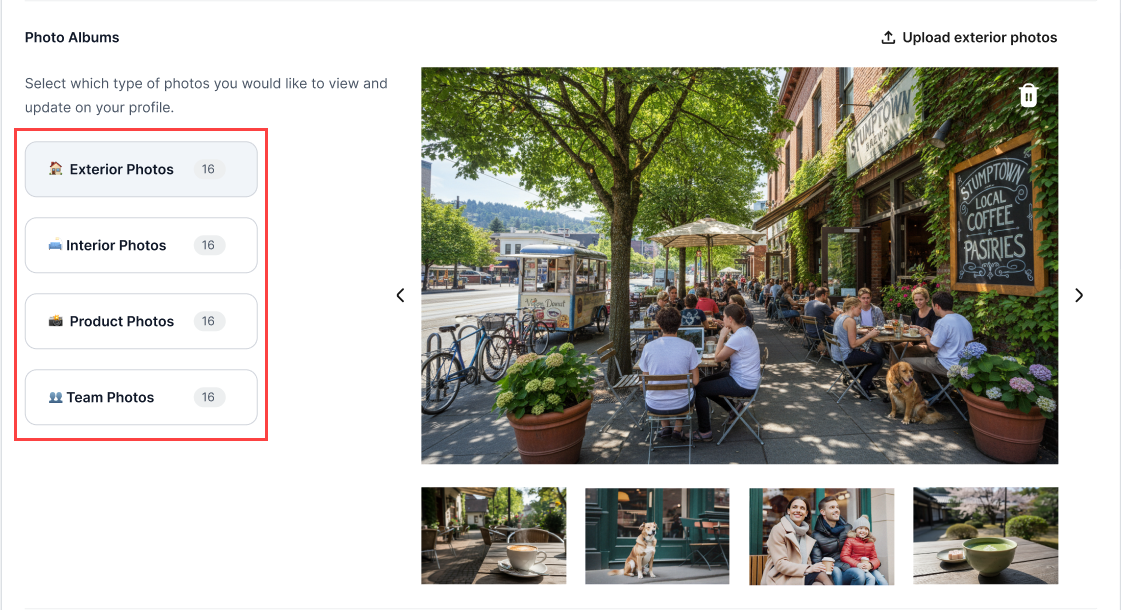
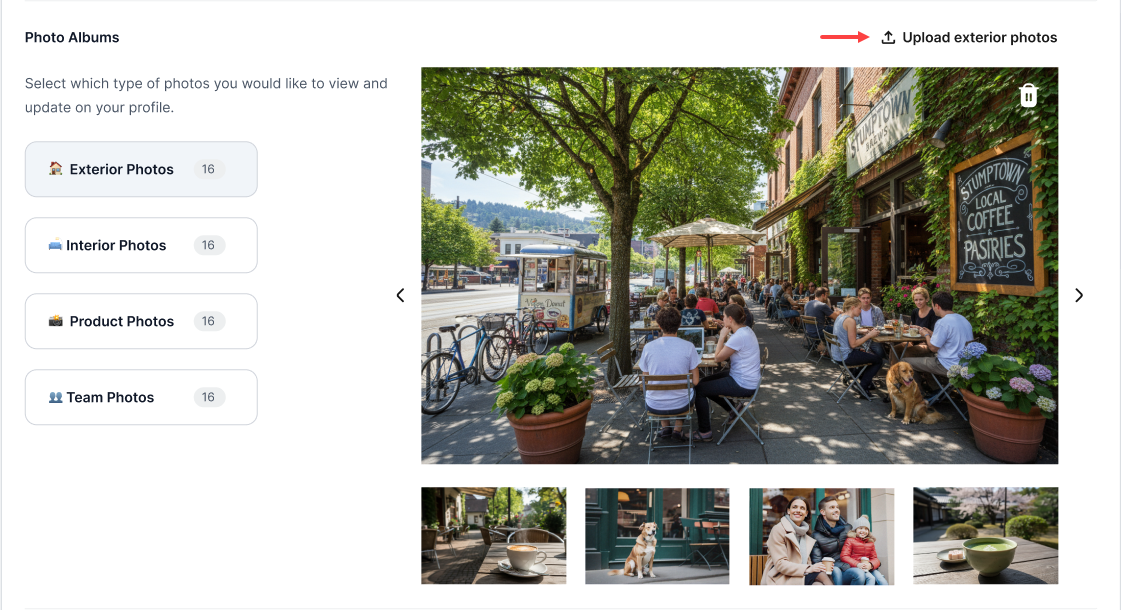
- Click Upload exterior photos to add a photo.
Deleting a photo
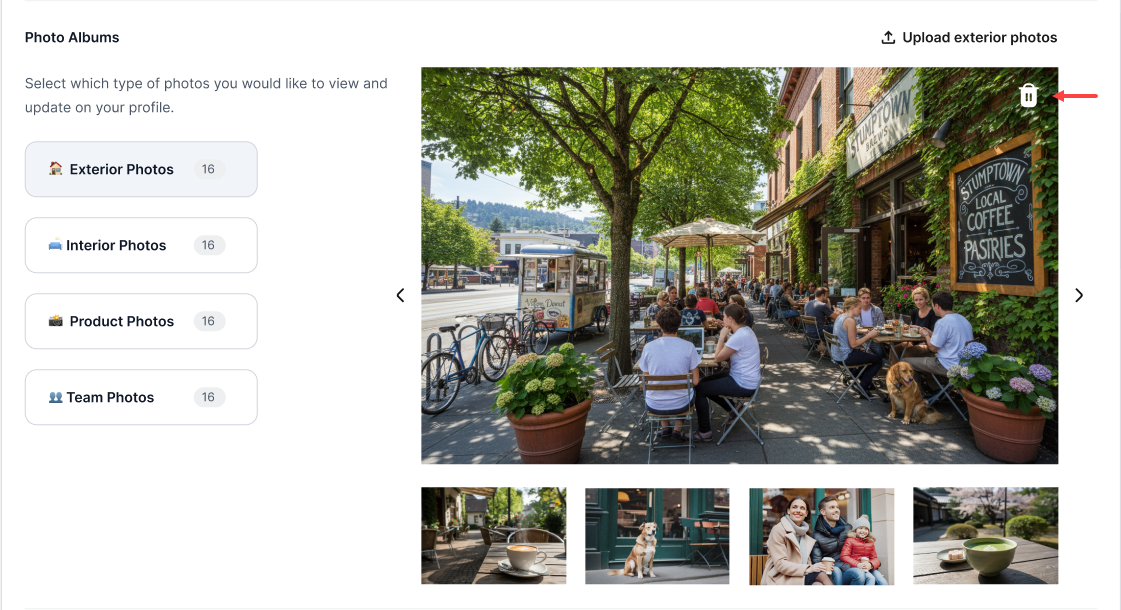
- Select which type of photos you would like to view and delete an image from your business profile.
- Tap the Delete icon to proceed with removing the image.
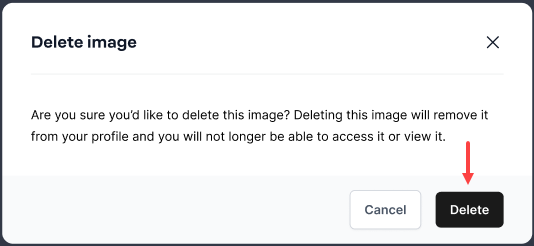
- Click Delete to remove the image successfully.
Review
Customer feedback plays an important role in building trust, and this article shows you how to manage Google Business Profile reviews in a simple and organized way. It walks you through viewing incoming reviews, replying to customers, and using filters to sort reviews by date, response status, or flagged status. You will also learn how to flag reviews that may violate guidelines, so you can track them and decide on the next steps to protect your business reputation.
Get practical tips and product updates on LinkedIn.
Follow Network Solutions