How to manage Google Business Profile reviews
Keeping track of customer feedback helps you maintain a strong online reputation. This article explains how to manage Google Business Profile reviews by showing you how to view incoming reviews, respond directly to customers, and organize feedback using filters. You will also learn how to flag reviews that may be misleading or inappropriate, so you can monitor and take the appropriate next steps.
In this article, we will discuss:
Viewing and responding to reviews
Follow the steps below to see how you can view and respond to reviews.
- Log in to your account via https://www.networksolutions.com/my-account/login.
- Click Marketing and select Google Business Profile from the left navigation menu.
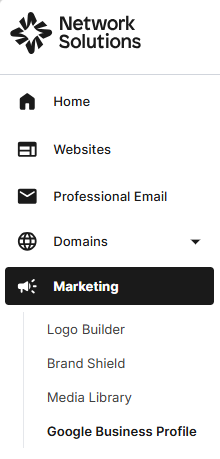
Note: Upon upgrading, this menu will change to Business Directory. - Navigate to Reviews to access and manage all your reviews.
- Select a review from the list to view and display its details, as well as manage responses.
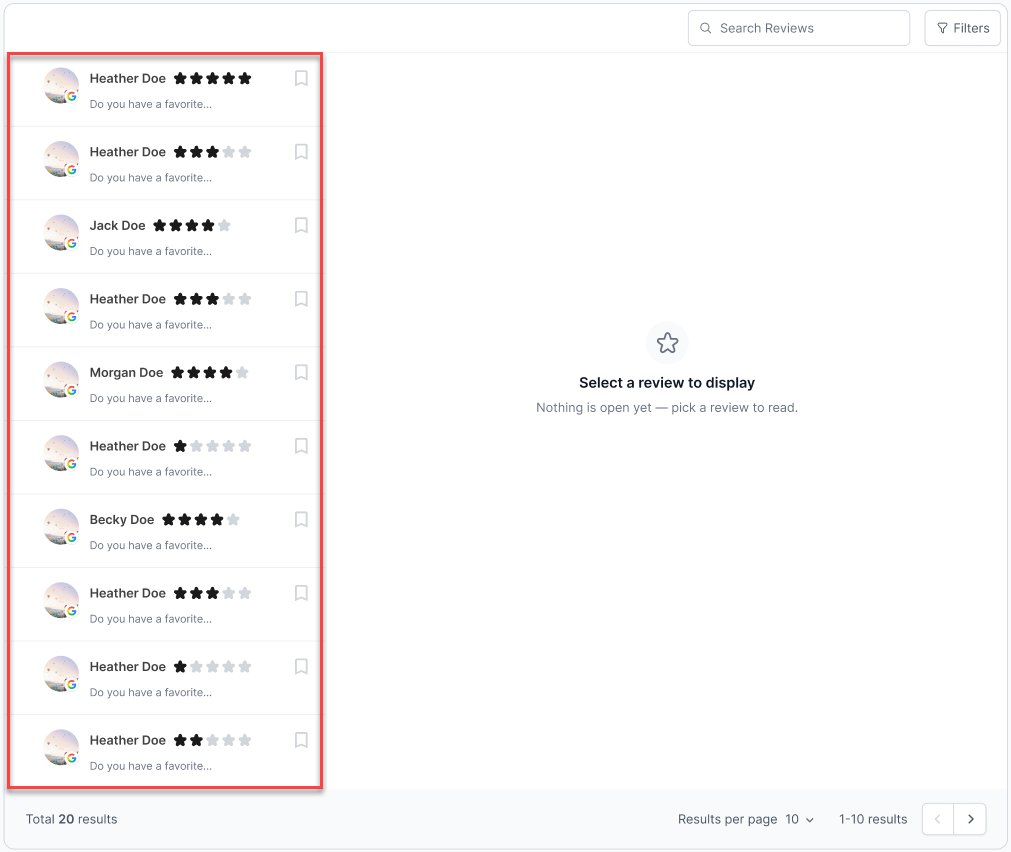
Note: Any unread messages will show up with a bold font in that left-hand column so that they are easier to find. - Write your response, then click Send.
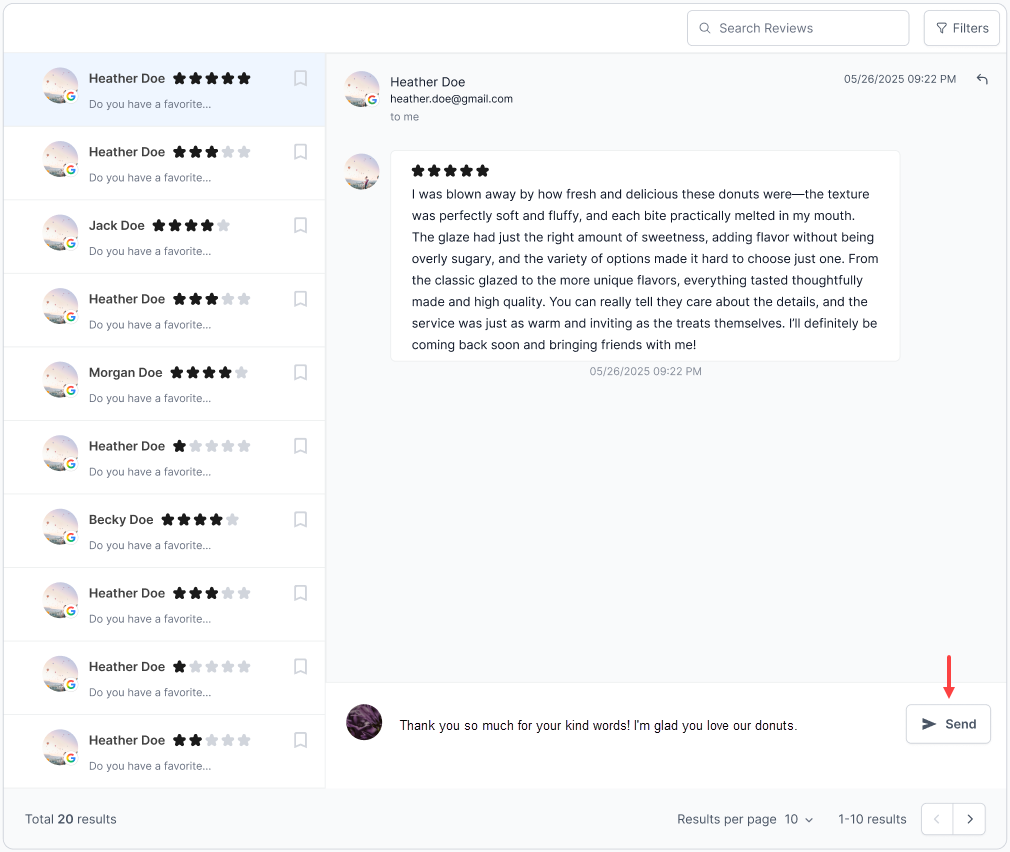
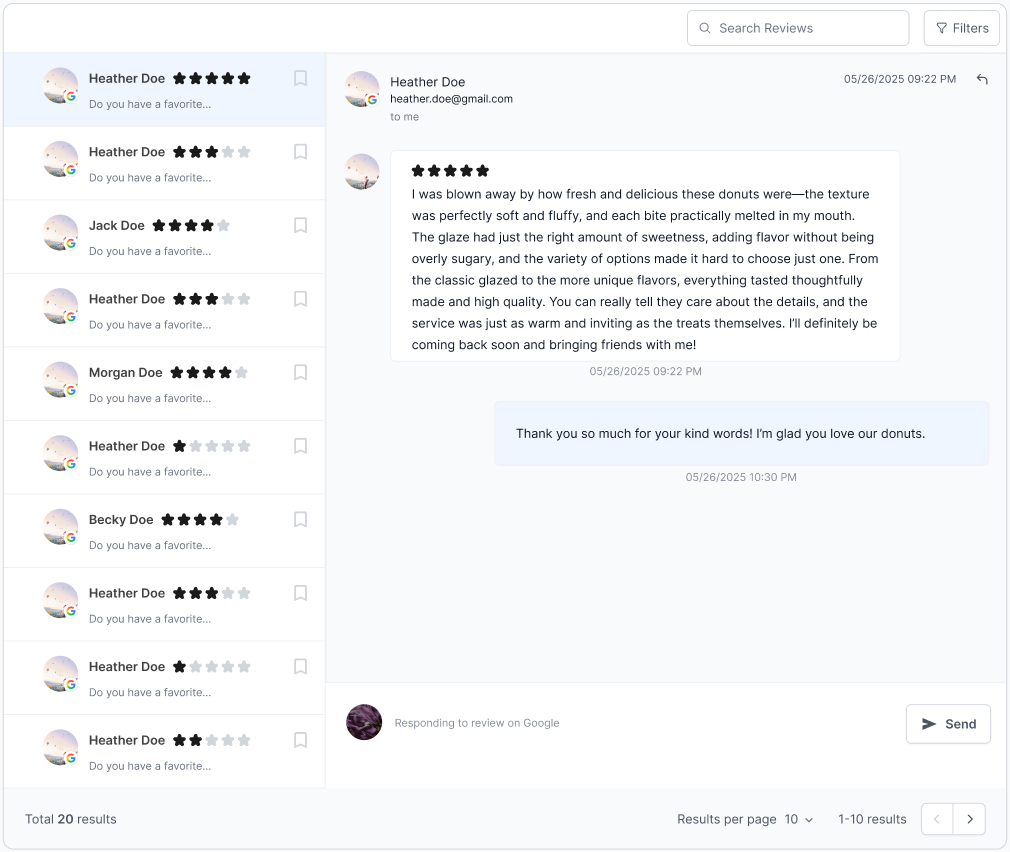
- Once your response is sent, you are good to proceed to the next business profile reviews.
Filtering a review
- Tap Filters to find reviews easily.
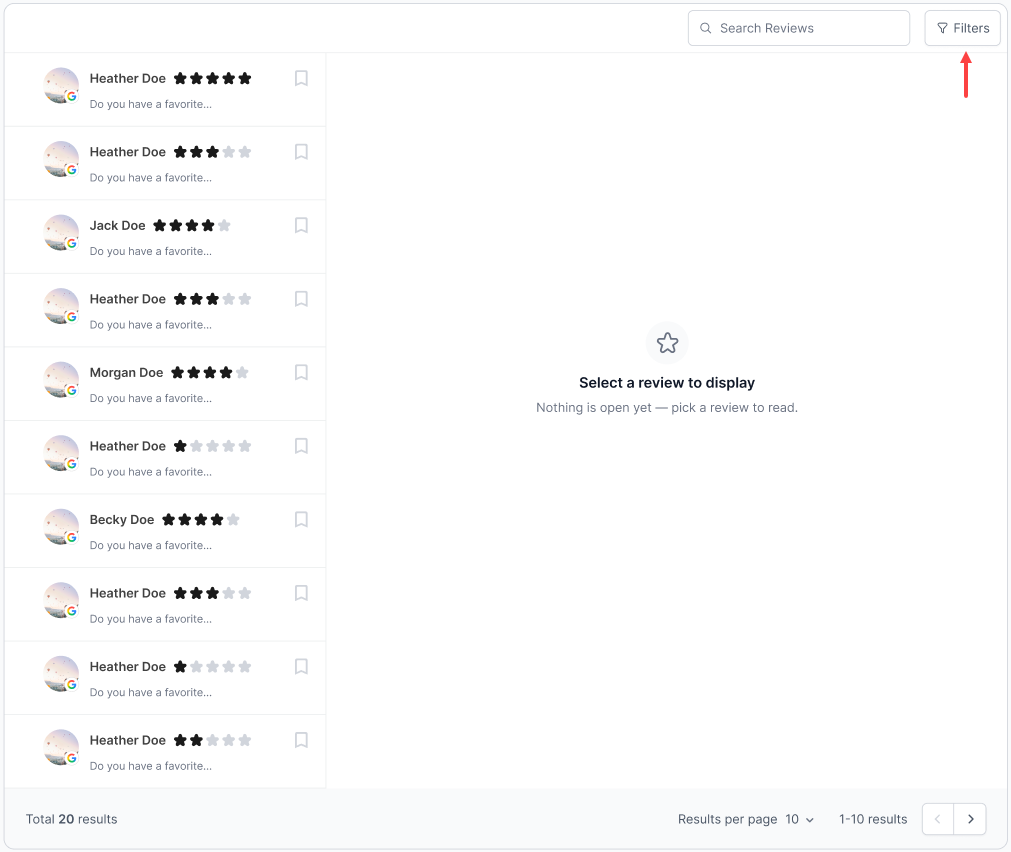
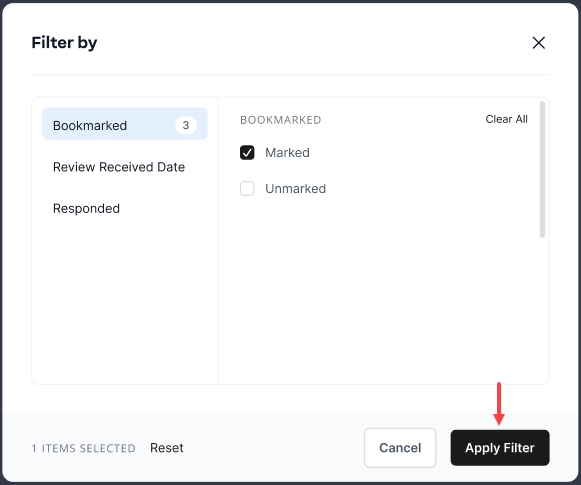
- Select to filter reviews either by Bookmarked, by Review Received Date, or by Responded, then click Apply Filter to show the items that you are significantly looking for.
Review
Customer feedback plays an important role in building trust, and this article shows you how to manage Google Business Profile reviews in a simple and organized way. It walks you through viewing incoming reviews, replying to customers, and using filters to sort reviews by date, response status, or flagged status. You will also learn how to flag reviews that may violate guidelines, so you can track them and decide on the next steps to protect your business reputation.
Get practical tips and product updates on LinkedIn.
Follow Network Solutions