How to manage your SEO Tool
Taking charge of your website visibility becomes much easier when you understand how to navigate the essential features of your dashboard to fix issues and track success. This guide explains how to access your account and manage SEO Tool functions, so you can view a clear snapshot of your site's health through an intuitive audit score. Organize your workflow by filtering tasks based on priority and use the performance tab to see which keywords are effectively bringing in traffic. We also cover how to adjust your settings and use helpful guidance like AI writing recommendations to complete improvements that help you rank higher in search results.
In this article, we will discuss:
Accessing the SEO Tool
- Log in to your account via https://www.networksolutions.com/my-account/login.
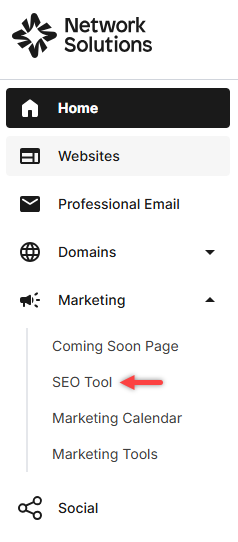
- Click Marketing and select the SEO Tool from the left navigation menu.
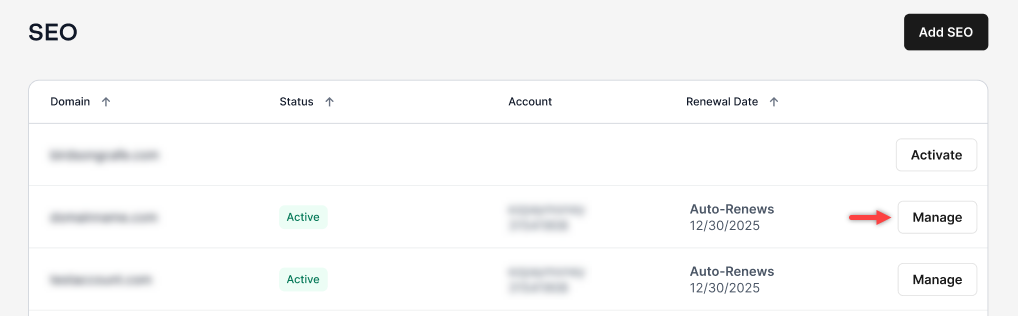
- Alternatively, if you have multiple domains, select the domain that you want to access, and click Manage to proceed.
Getting to know the Overview tab
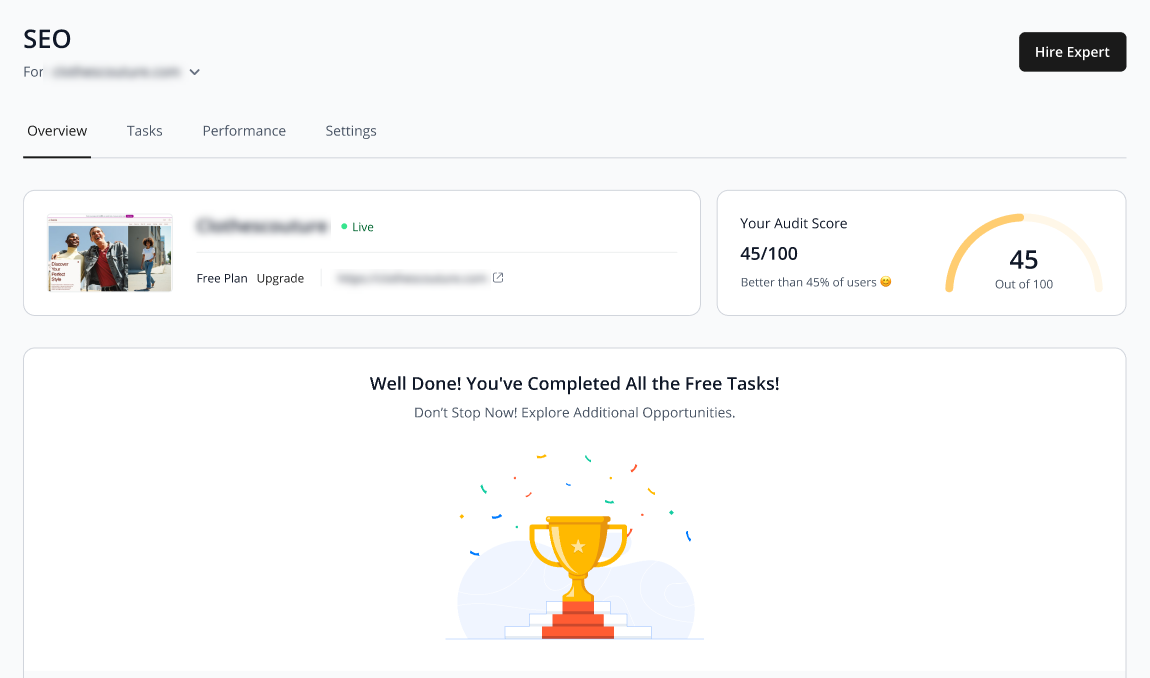
The Overview tab displays the following key details:
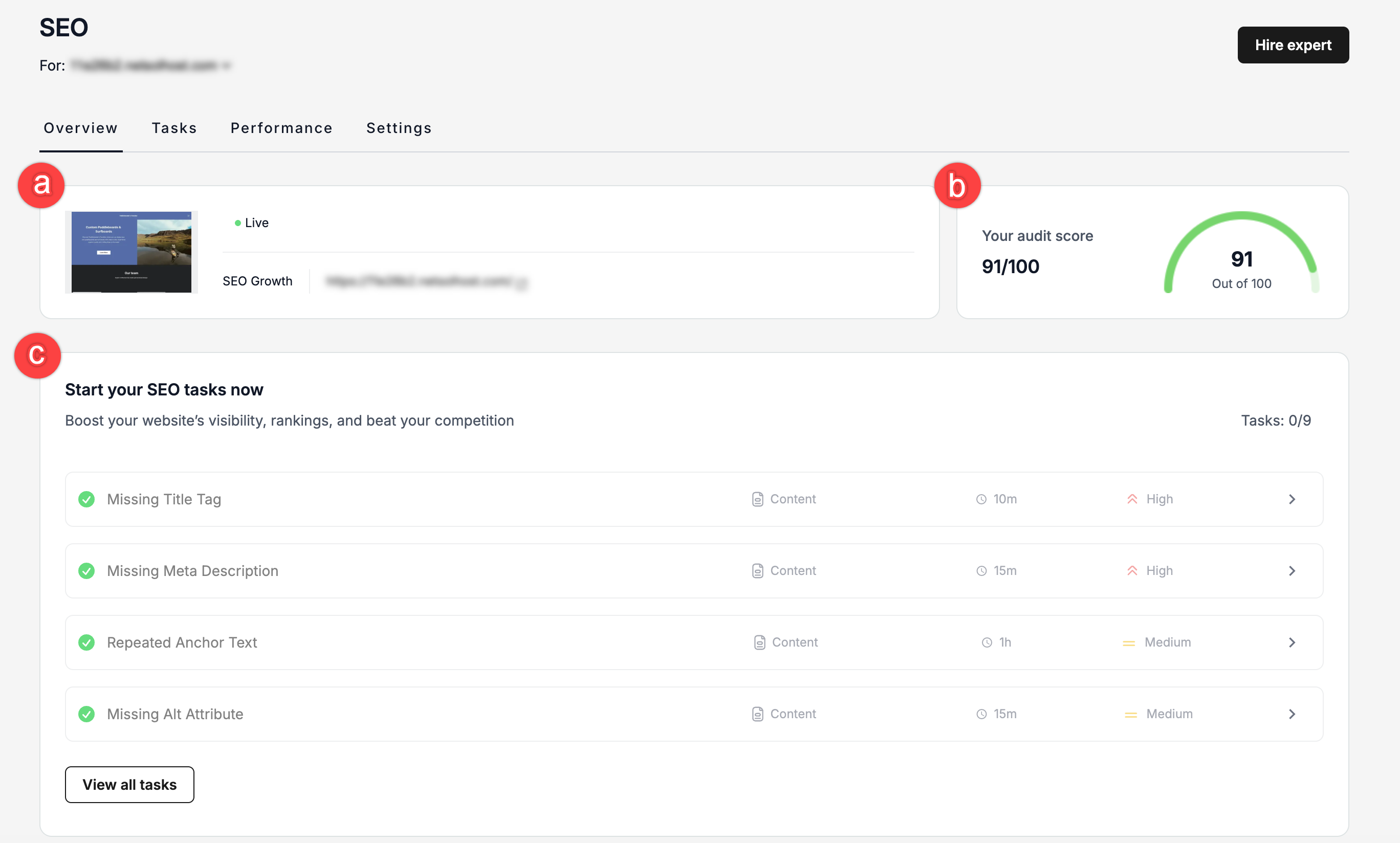
- Website information: displays basic details about your website, such as its URL, domain name, and website status, showing you a quick overview of the site you're auditing.
- Audit score: a numerical rating that reflects the overall SEO health of your website. A higher score indicates better SEO performance, while a lower score shows areas that need improvement.
- SEO tasks: a list of recommended actions or fixes to improve your website’s SEO. Each task identifies specific issues or opportunities and provides guidance on how to address them.
To start working on your SEO tasks:
- Click on any task you want to work on.
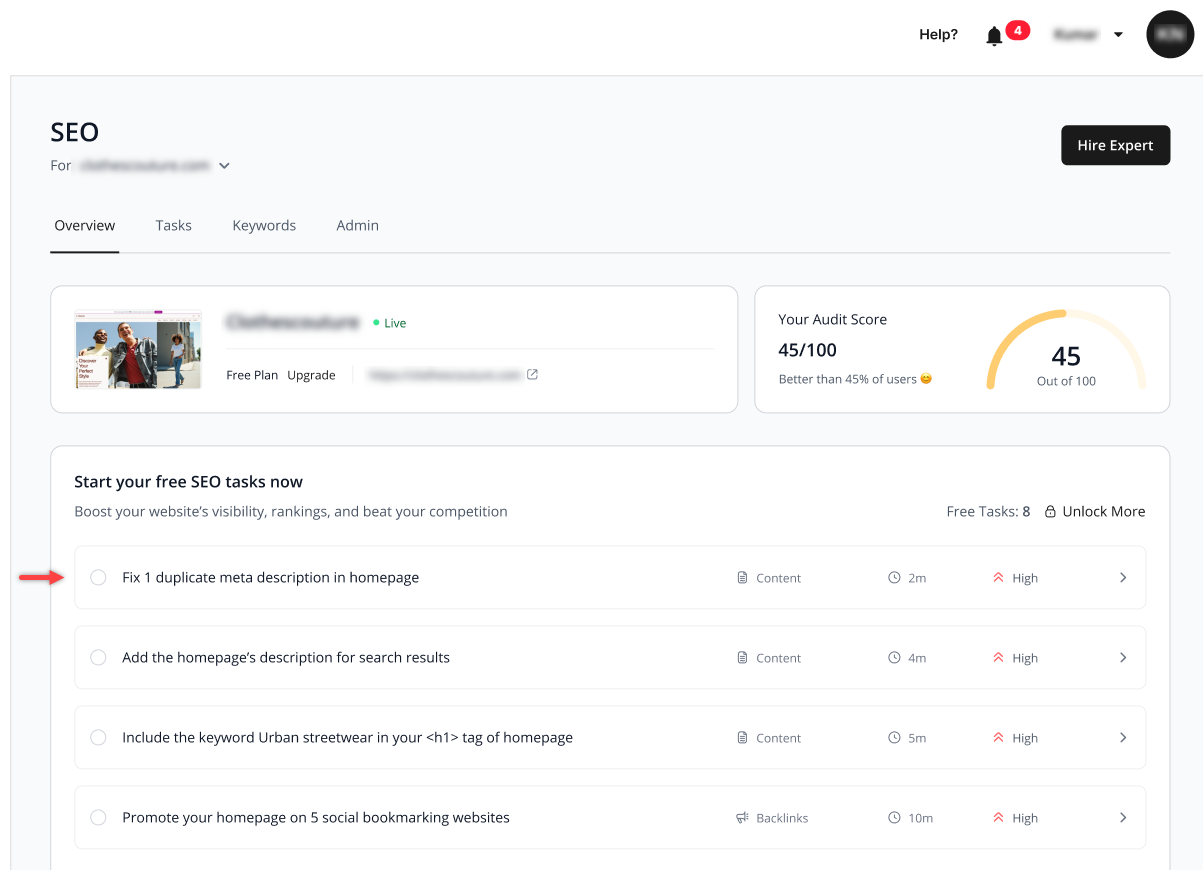
- Follow the steps provided under the How can I fix this? tab to complete the task.
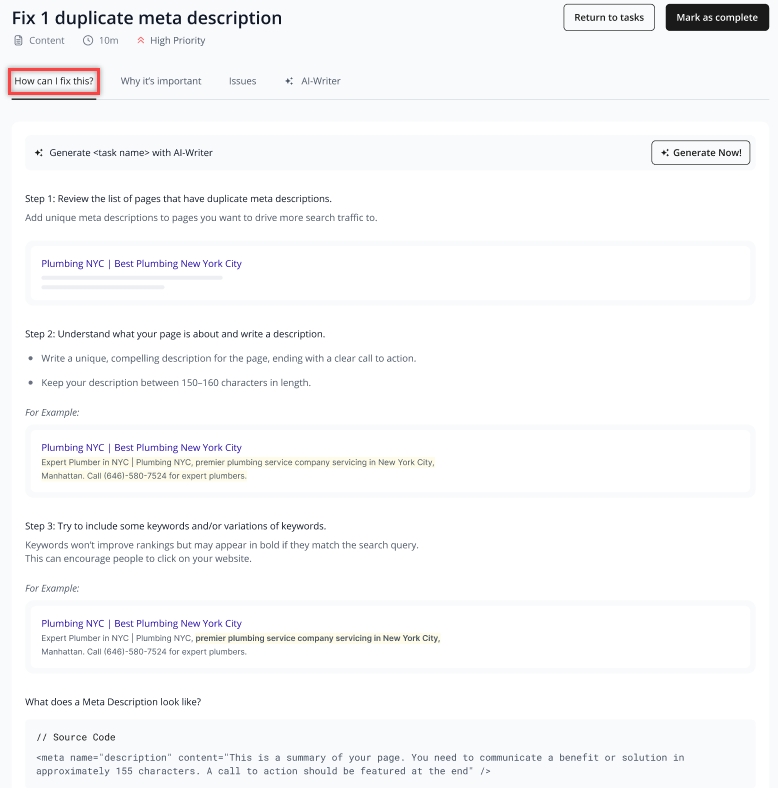
- Click the following tabs to view more details about the task.
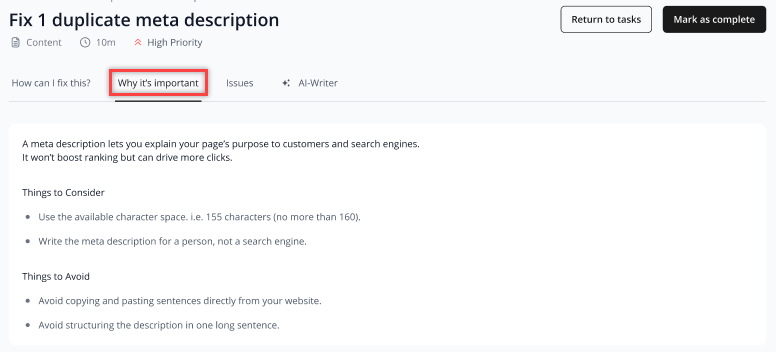
- Why it’s important: This tab will explain why it’s crucial to address this task and how it will affect your SEO.
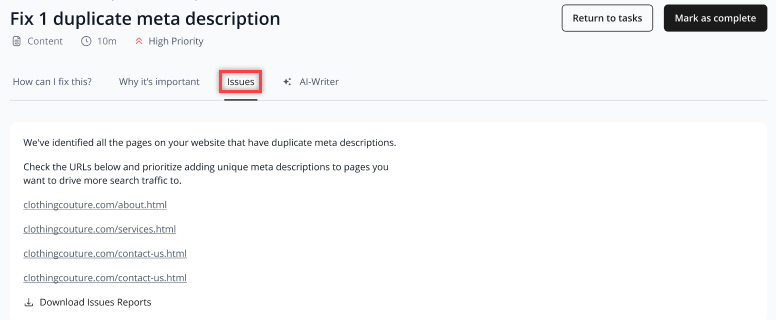
- Issues: This tab shows the areas of opportunity that prompted this task to be recommended.
- Why it’s important: This tab will explain why it’s crucial to address this task and how it will affect your SEO.
- Click the AI-Writer tab to view AI-powered recommended actions or entries that can guide you in completing the task more efficiently.
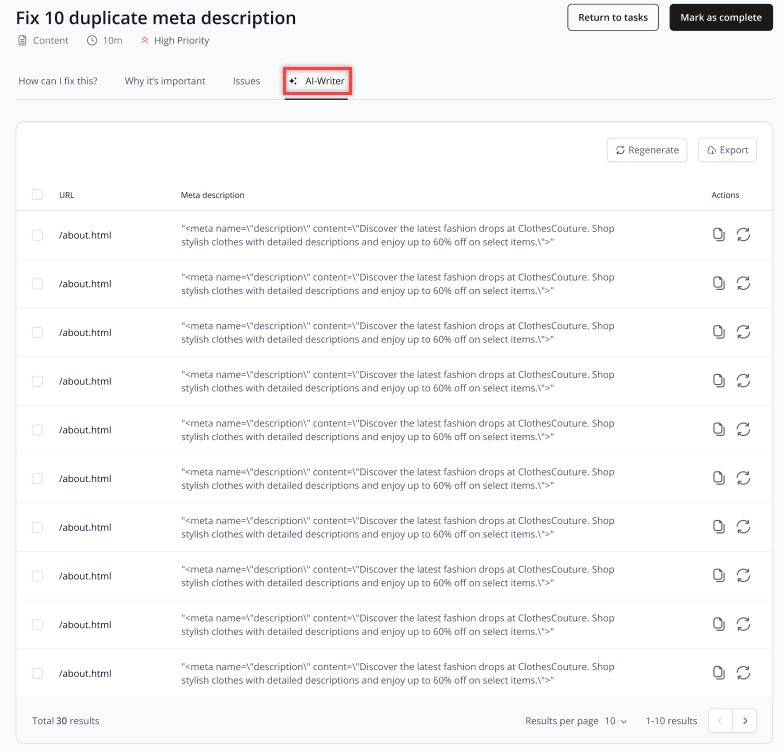
- Click Mark as complete once you’ve finished the steps to address the task.
- After completing all required tasks, the overview page will show a “Well done!” message confirming that all tasks have been successfully completed.
Managing tasks
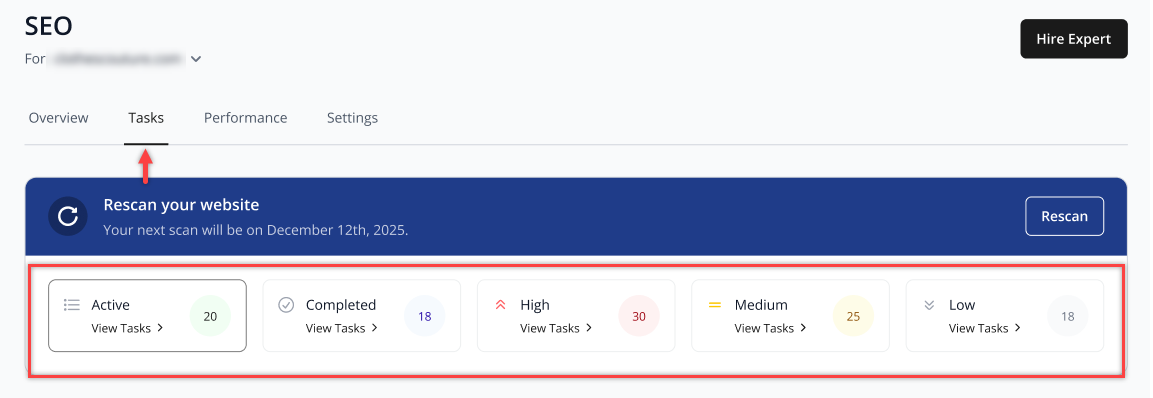
The Task tab shows all your SEO tasks in one place, organized into Active and Completed sections so you can conveniently track your progress. Tasks are also grouped by priority level (High, Medium, and Low), each with its own section to help you focus on what needs attention first.
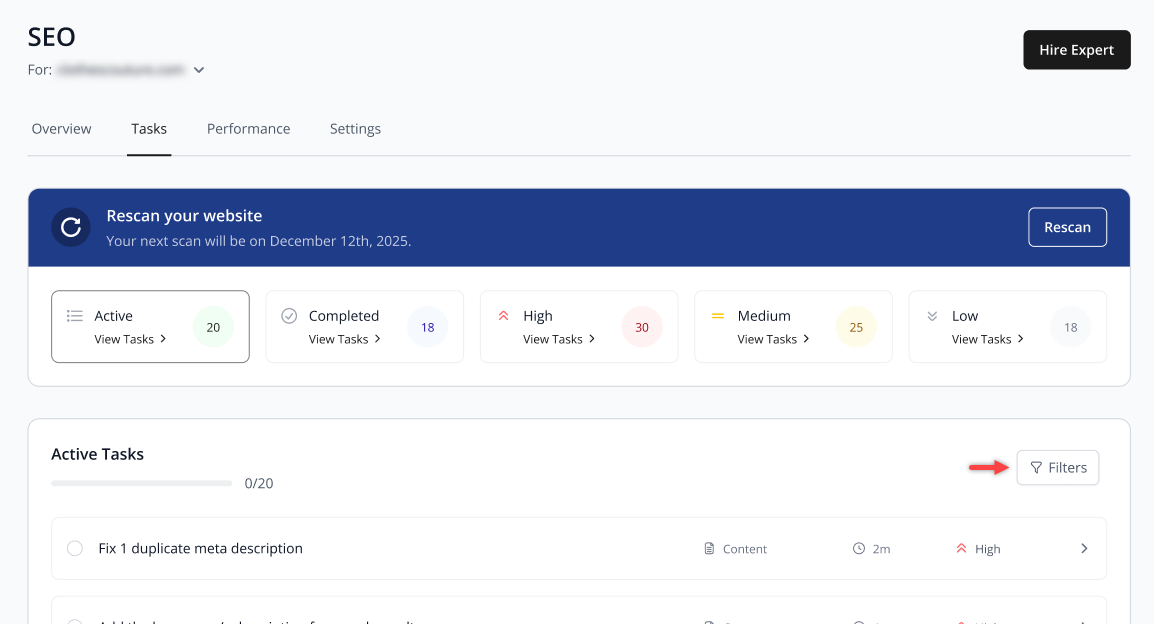
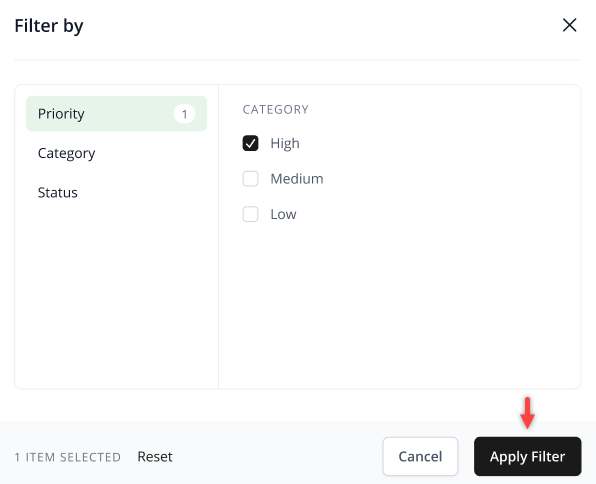
You can also use the Filter button to sort tasks by Priority, Category, or Status, making it more convenient to find specific items and manage your workflow.
- Click on the Filter button.
- Select your preferred filter options (Priority, Category, or Status).
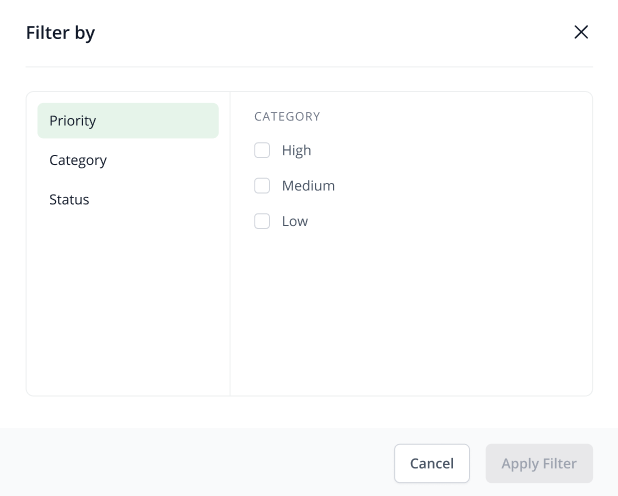
- Click Apply Filter to update the task list.
Monitoring SEO performance
The Performance tab provides a health check for your website's SEO. It shows how often you appear in searches and where you rank for specific words. This tab helps you identify which pages are successful and which ones need more work to reach the first page of search results.
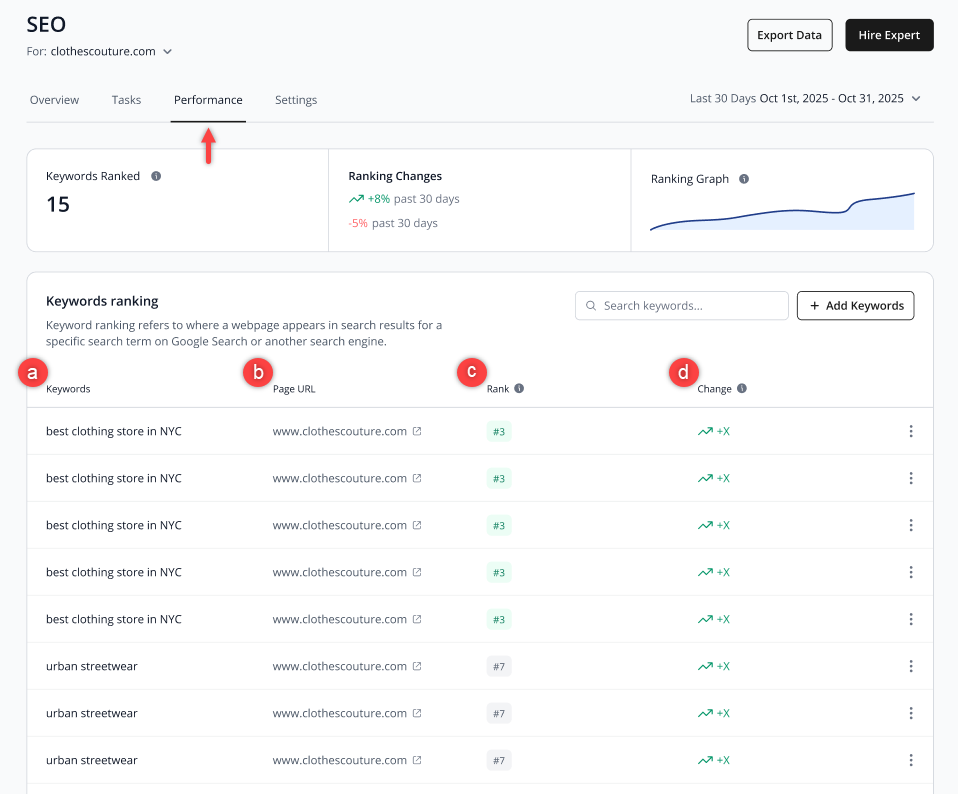
- Keywords: This column shows the search terms your website is using or ranking for. These are the words people type into search engines to find your site.
- Page URL: This column shows the specific web page on your site that is ranking for the keyword. It helps you see which pages are getting traffic from each search term.
- Rank: This column shows your website’s current position in Google search results for this keyword.
- Change: This column shows how many of your keywords improved or dropped in ranking over the past 30 days.
Adding keywords
- Click + Add Keywords.
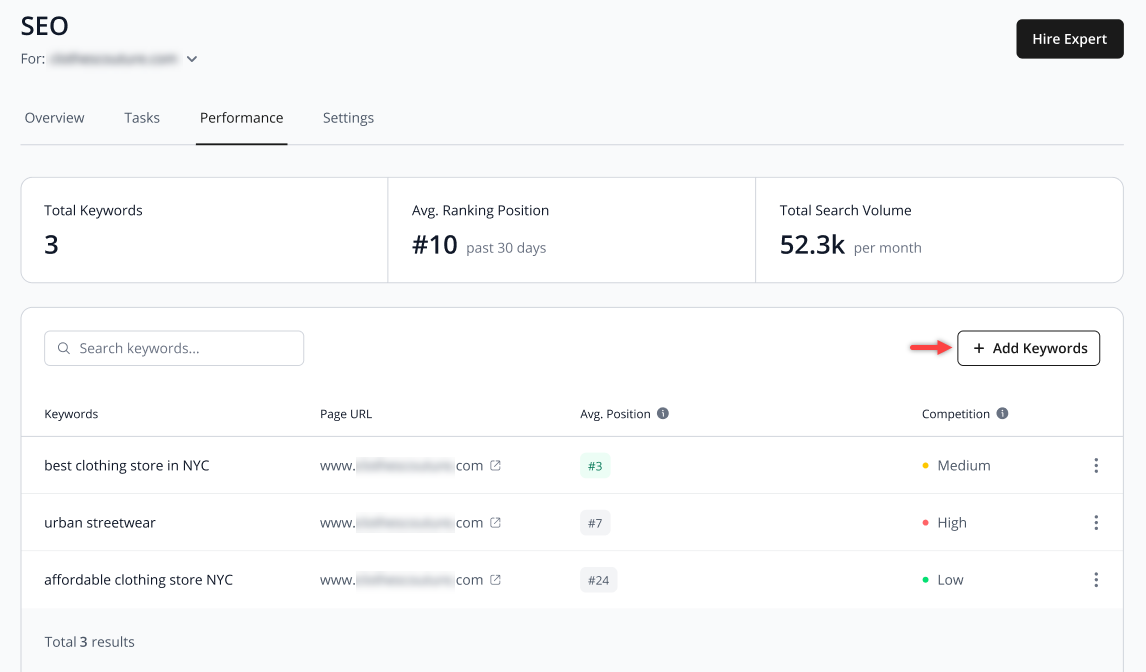
- Select a keyword from the list or type in the keyword you want to use, then click Add Keyword to save your changes.
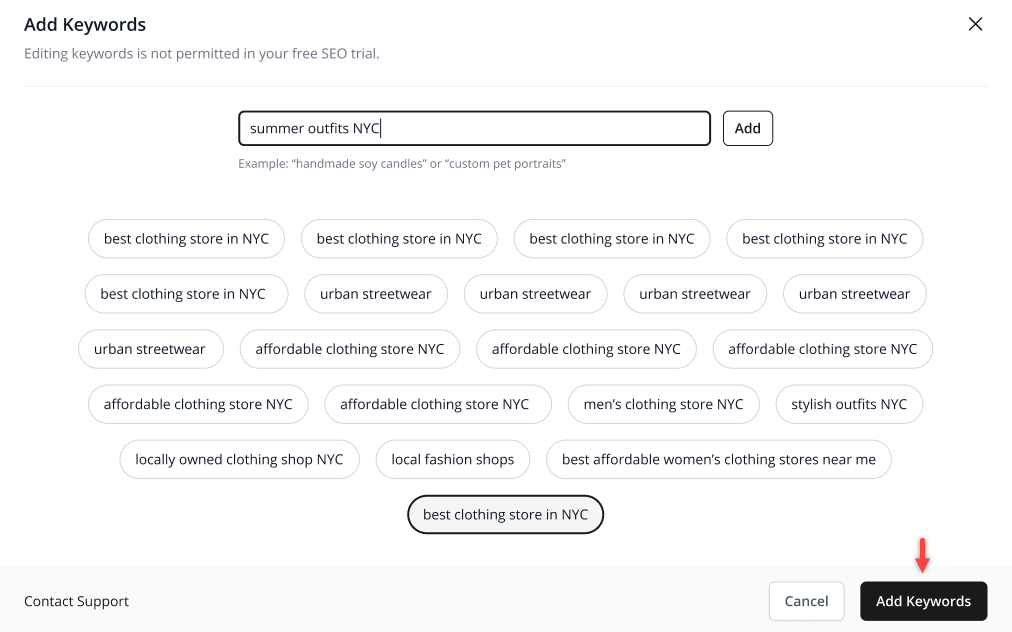
Important:- The Edit Keywords feature is not currently available. This functionality will be introduced in future updates.
- Keyword limits vary by SEO plan. The one-month free trial applies exclusively to the SEO Starter plan (up to 15 keywords). The SEO Growth plan, which allows up to 50 keywords, is not available as a free trial.
- The free trial is limited to one per account. Once the free trial has been activated, another free trial cannot be claimed on the same account, even if the account contains multiple domain names. If you have multiple domains under a single account, the free trial can only be used for one domain.
Settings tab
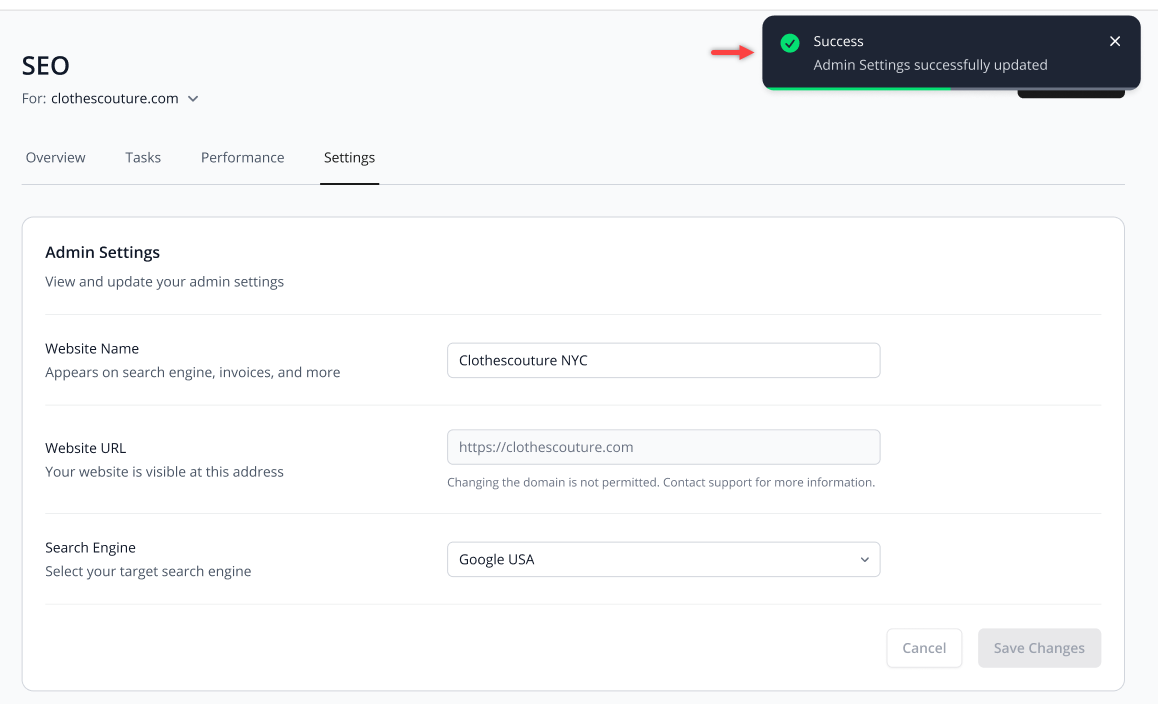
The Settings tab allows you to view and update your SEO administrative information. Here, you can manage key details such as:
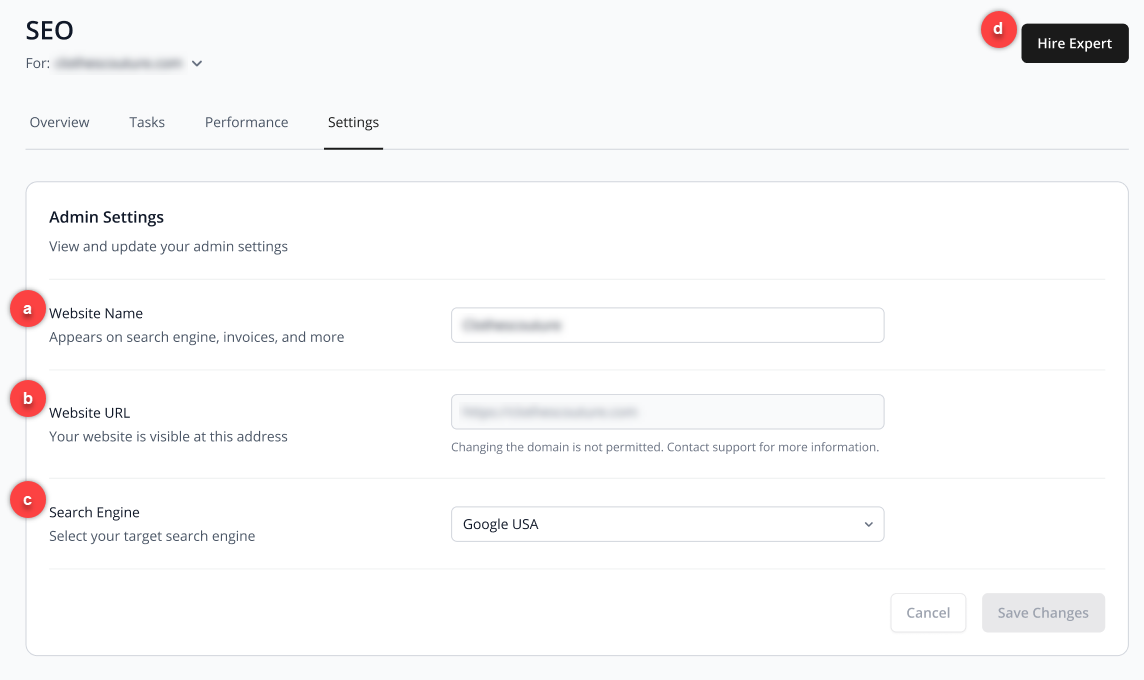
- Website Name: The name that appears on search engines, invoices, and other official materials.
- Website URL: The web address where your site is accessible.
- Search Engine: Select your target search engine for SEO purposes.
- Hire Expert: A professional expert will manage your full SEO campaign, from technical audits to content optimization.
These settings help ensure your website information is accurate and properly configured for both users and search engines.
To make changes to any of the information:
- Click on the section you want to edit.
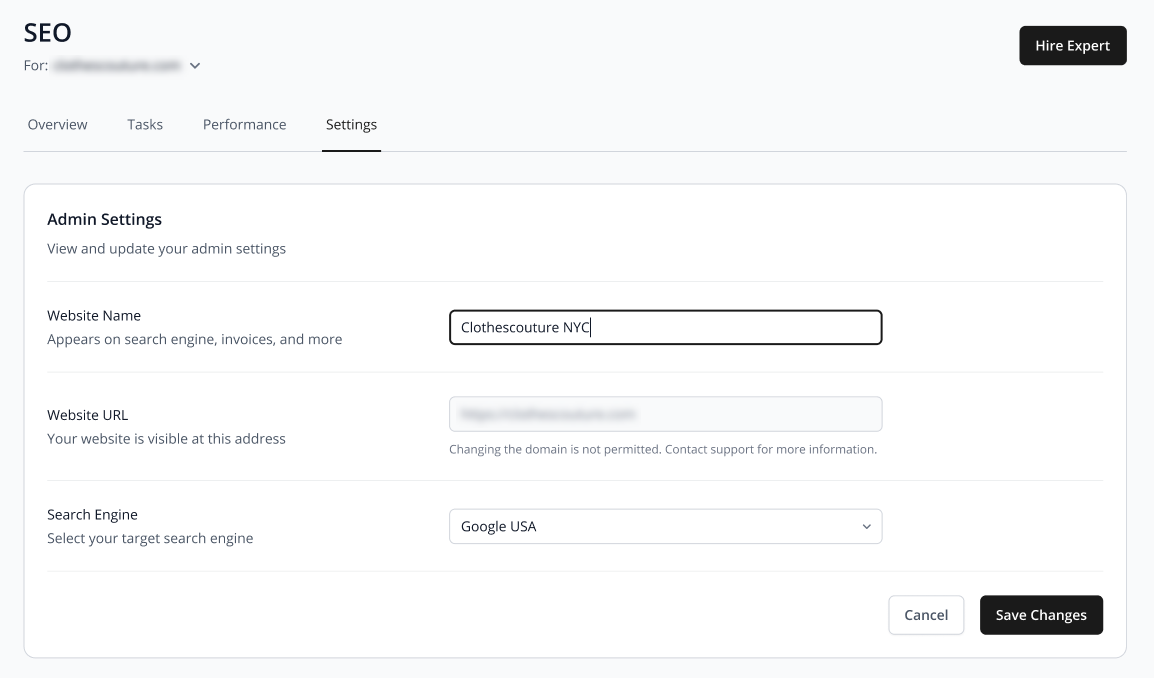
Note: You cannot edit the Website URL in the account manager. To update it, please reach out to customer support. - Click Save Changes to apply and finalize your updates.
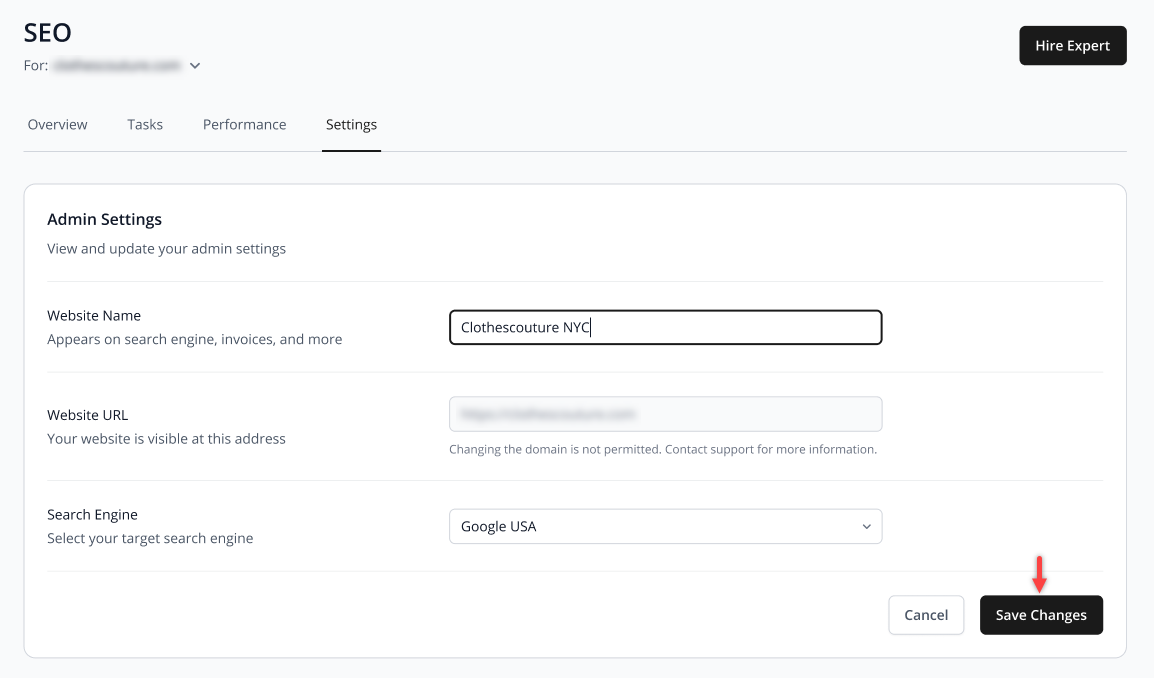
- A confirmation message will appear to let you know that the Admin Settings have been successfully updated.
Review
This platform offers a highly effective way to manage SEO Tool features and gives you a clear path to improving your website ranking without needing technical expertise. You can easily view your current audit score and access a prioritized list of tasks that guide you through necessary fixes with helpful AI recommendations to speed up the process. The interface allows you to monitor exactly how your keywords perform against competitors and provides simple filters to help you organize your work based on what needs attention first. By combining detailed performance tracking with easy administrative settings, this system makes it simple for anyone to understand their search engine presence and make the right changes to grow their online traffic.
Get practical tips and product updates on LinkedIn.
Follow Network Solutions