Managing Microsoft 365 users and licenses
Microsoft 365 user and mailbox management is moving to the Microsoft Admin Portal. You can use the Microsoft Admin Portal to manage individual users and license assignments, while account manager continues to support subscription and license purchasing.
In this article, we will discuss:
What's changing?
When accessing your Microsoft 365 subscription through account manager, you may notice the following changes:
- User and mailbox management: Individual Microsoft 365 users and mailboxes are managed through the Microsoft Admin Portal.
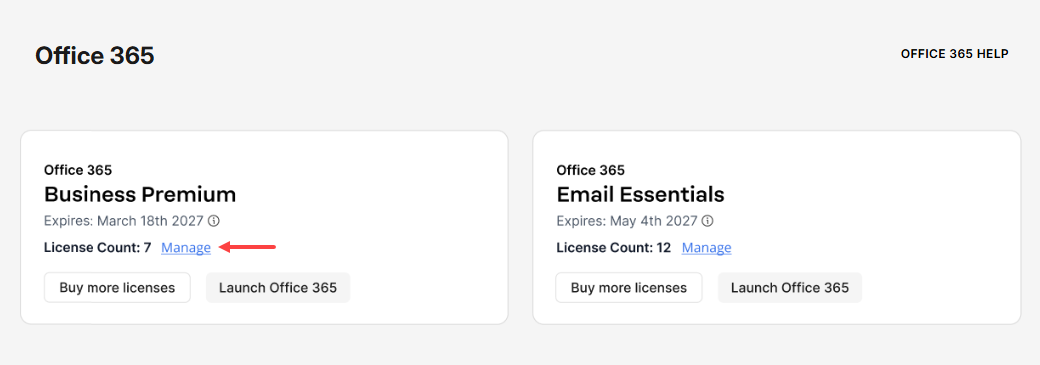
- Manage option: Selecting Manage for your Microsoft 365 subscription opens the Microsoft Admin Portal in a new browser tab.
- License information: Instead of displaying individual users assigned to licenses, account manager displays the number of licenses purchased under License Count.
- Additional licenses: If you need more licenses, you can purchase them through the Buy more licenses option in account manager.
- Previous user management page: The previous user management page and its related menu options are no longer available. If you previously bookmarked that page, use the Microsoft Admin Portal instead.
Manage Microsoft 365 users and mailboxes
To manage individual Microsoft 365 users or mailboxes:
- Log in to your account via https://www.networksolutions.com/my-account/login.
- Click Microsoft Office 365 from the left navigation menu.

Note: Alternatively, click Email & Office and select Microsoft Office 365 from the drop-down menu if you have more than one email service. - Select the Microsoft 365 subscription you want to access, then click Manage or Launch Office 365.
- Click Go to Microsoft Admin Portal to launch Microsoft Admin Portal in a new tab and manage users, mailboxes, or licenses assignments.
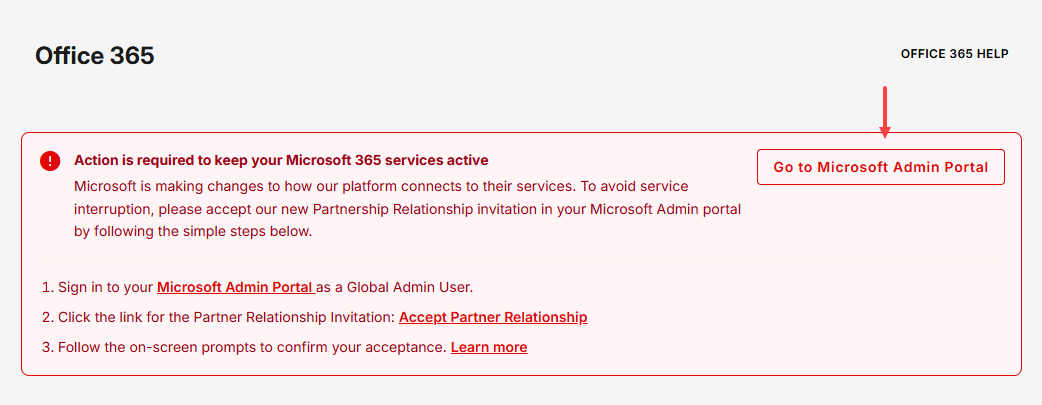
Important: Follow the steps provided and accept the new Partnership Relationship Invitation after signing in to the Microsoft Admin Portal. Acceptance may be required to maintain access to Microsoft 365 services.
Purchase additional licenses
If you need additional Microsoft 365 licenses:
- Select the Microsoft 365 subscription you want to purchase an additional license, then click Buy more licenses.
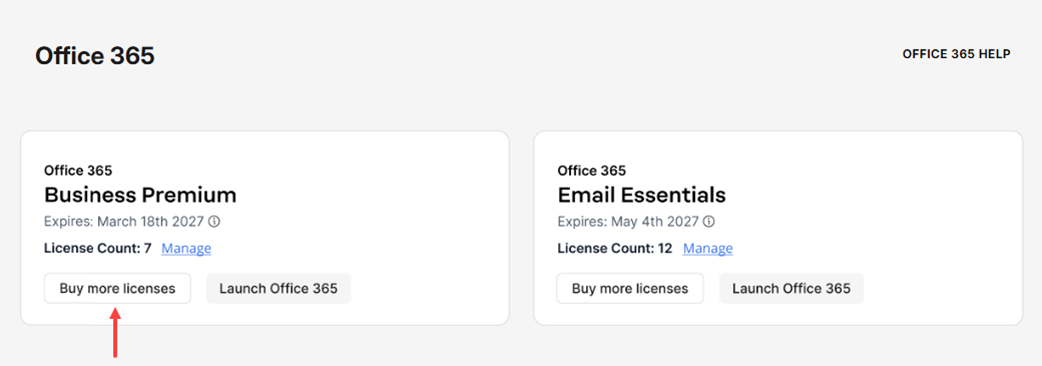
- Follow the prompts to purchase the additional licenses you need.
After purchasing licenses, use the Microsoft Admin Portal to manage individual license assignments.
What can I manage in each location?
| Task | Where to manage it |
|---|---|
| View purchased license count | Account manager |
| Purchase additional licenses | Account manager |
| View individual users | Microsoft Admin Portal |
| Add or remove users | Microsoft Admin Portal |
| Manage individual user settings | Microsoft Admin Portal |
| Assign or change licenses for users | Microsoft Admin Portal |
| Manage mailboxes | Microsoft Admin Portal |
Review
Managing Microsoft 365 users, mailboxes, and license assignments is now completed through the Microsoft Admin Portal, while license purchases and subscription-level management remain available in account manager. Following this workflow allows you to access the appropriate management tools, maintain user and mailbox configurations, assign licenses as needed, and purchase additional licenses when required. Using the designated platform for each task helps ensure Microsoft 365 administration and licensing activities are performed through the correct management experience.
Get practical tips and product updates on LinkedIn.
Follow Network Solutions