How to set up a Google Business Profile
Setting up your business online helps customers find you more easily and builds trust in your brand. If you want to set up a Google Business Profile, Network Solutions provides a simple way to set up and manage your listing directly from your account, making it simple to have your business listing show up on Google Maps. You can enter your business details, choose the services you offer, define your service area, set your business hours, and upload photos that represent your business. This process helps ensure that your business information is accurate and visible to potential customers searching online.
In this article, we will discuss:
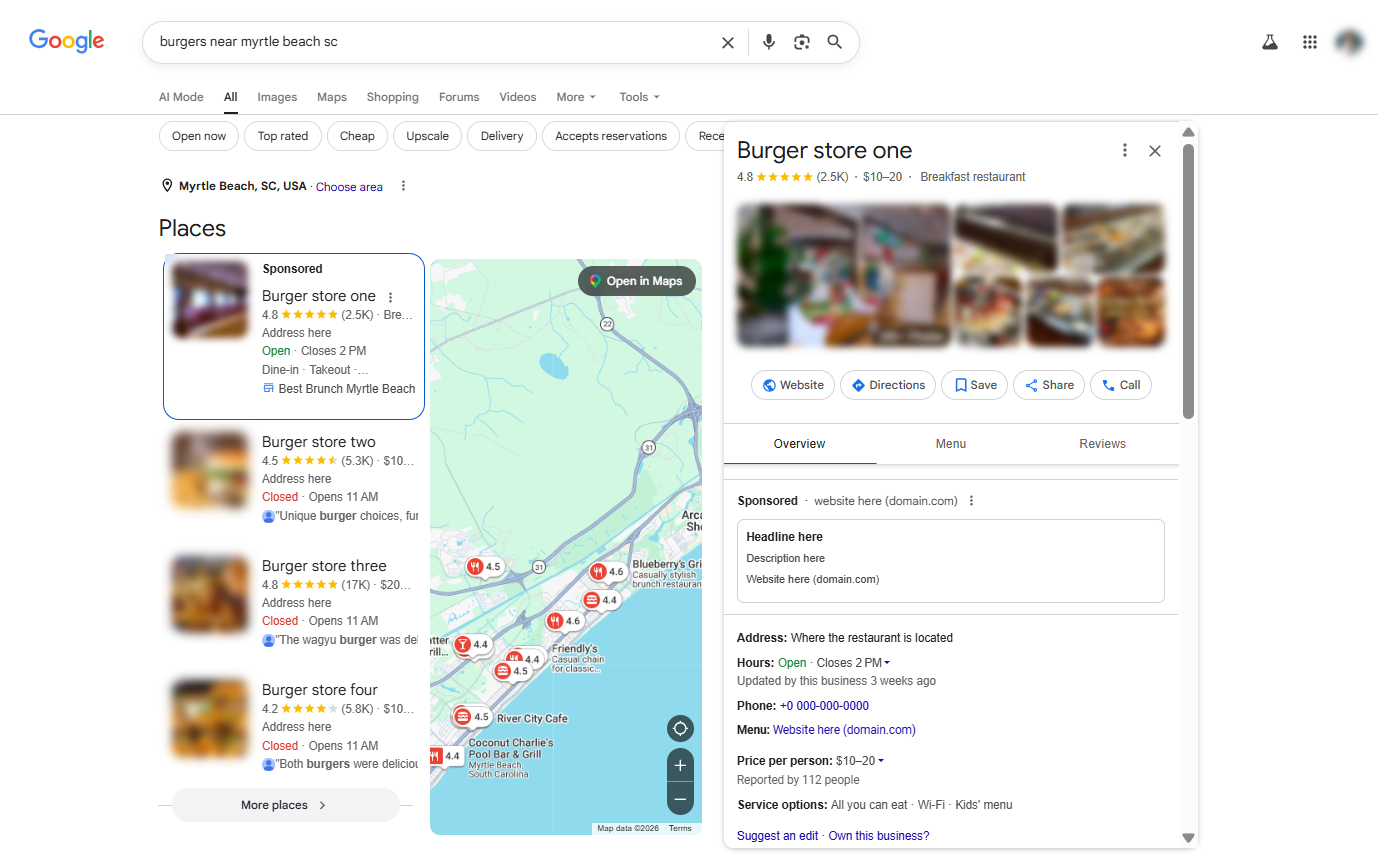
What does a Google Business Profile look like?
Here's a visual example of what a Google Business Profile looks like when a visitor searches for a business profile:
Setting up your Google Business Profile
- Log in to your account via https://www.networksolutions.com/my-account/login.
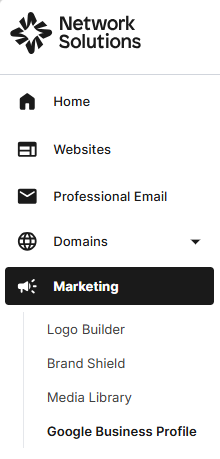
- Click Marketing and select Google Business Profile from the left navigation menu.
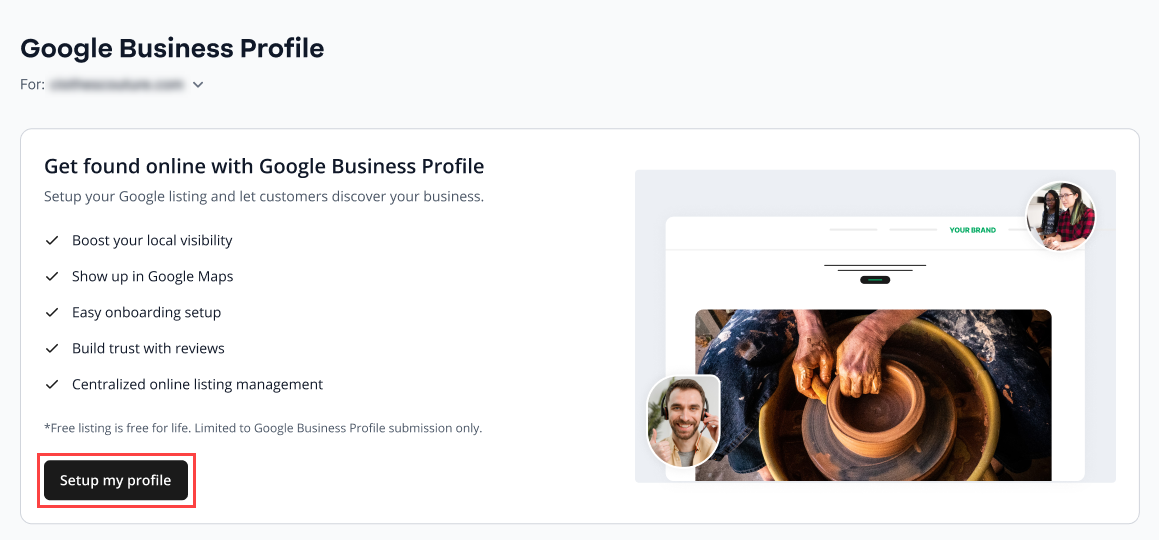
- Click Setup my profile to continue.
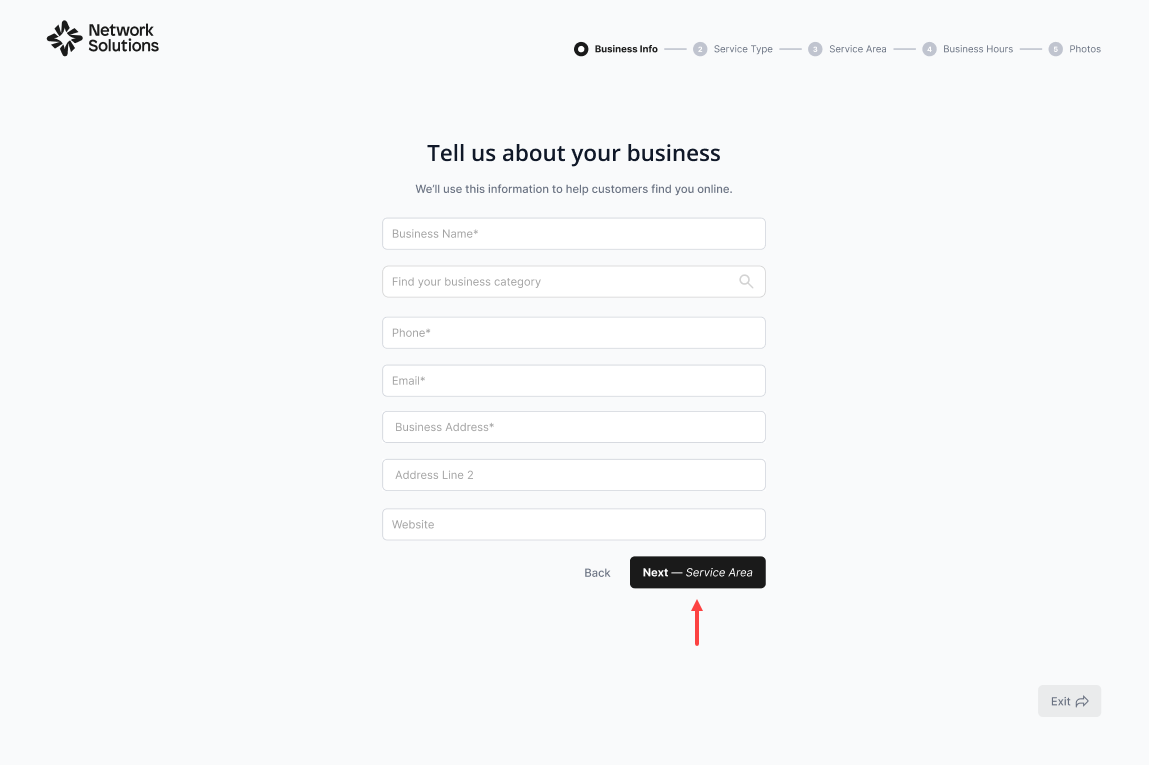
- Fill out the Business Info field and click Next — Service Area to continue.
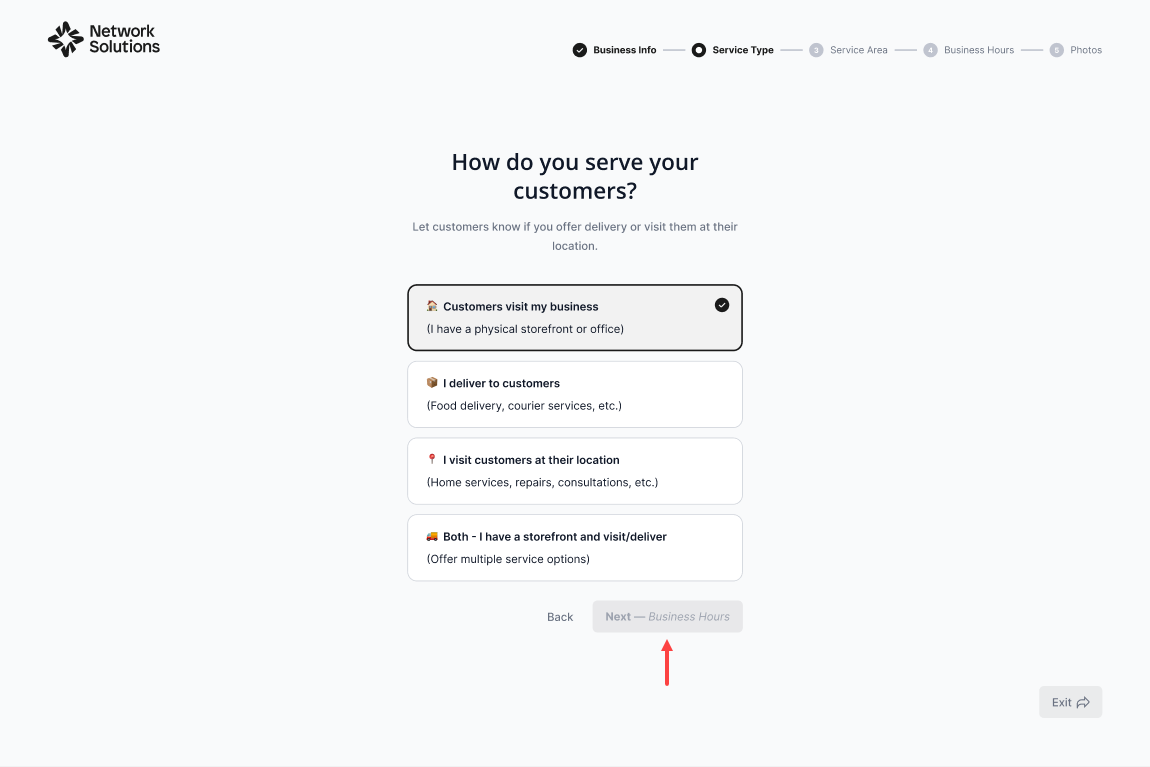
- Select what type of service you offer to your customers, then tap Next — Business Hours to proceed.
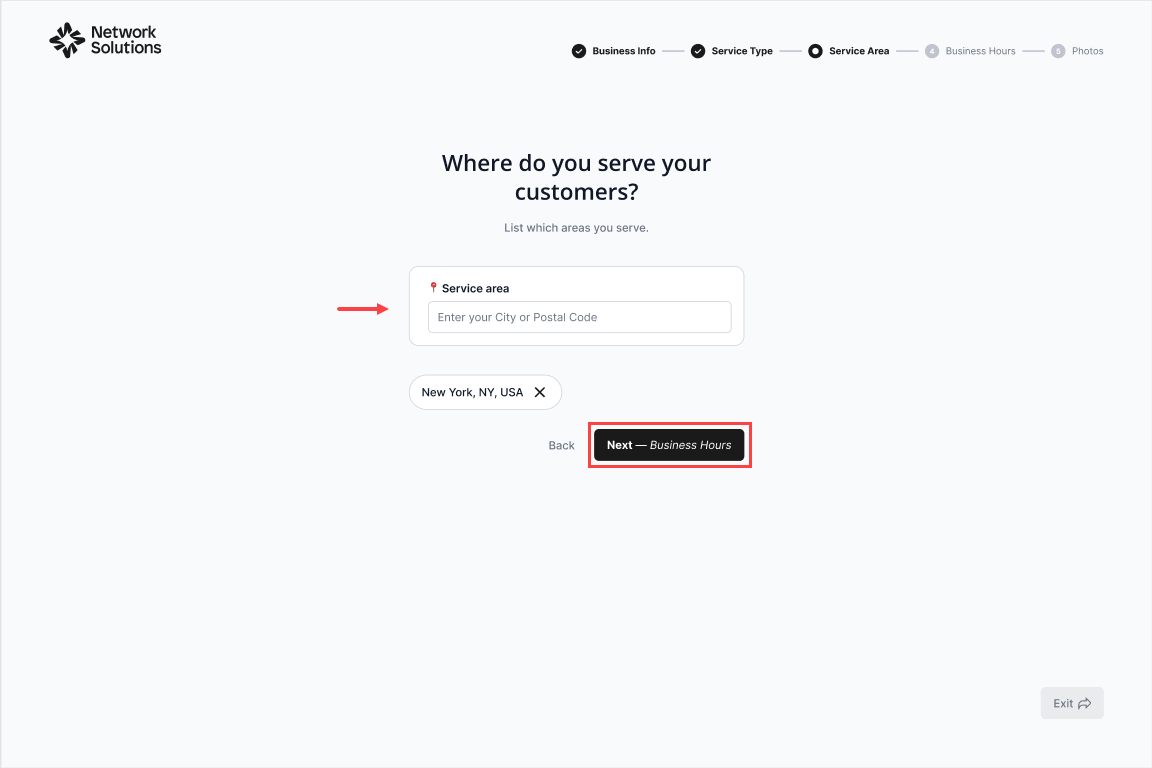
- Enter the area where your business is located. Once complete, click Next — Business Hours.
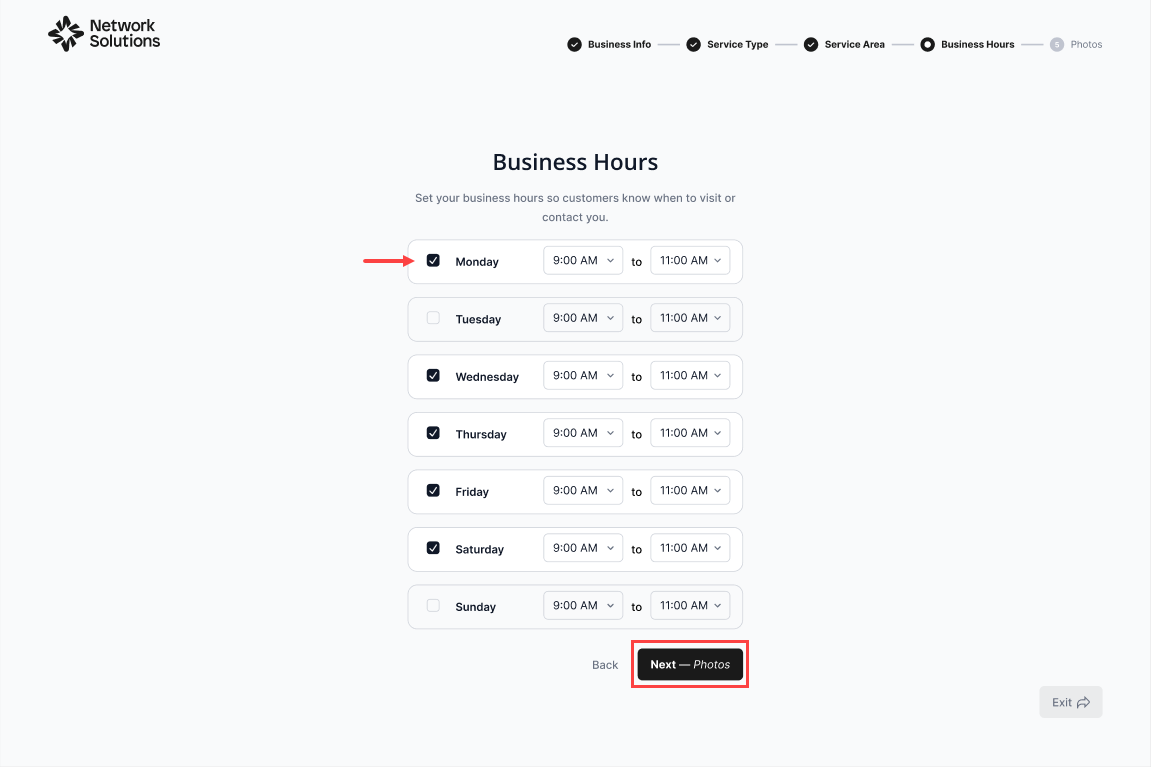
Note: You can add multiple service areas to this page. - To help customers know when you're available, set your business hours and click Next — Photos.
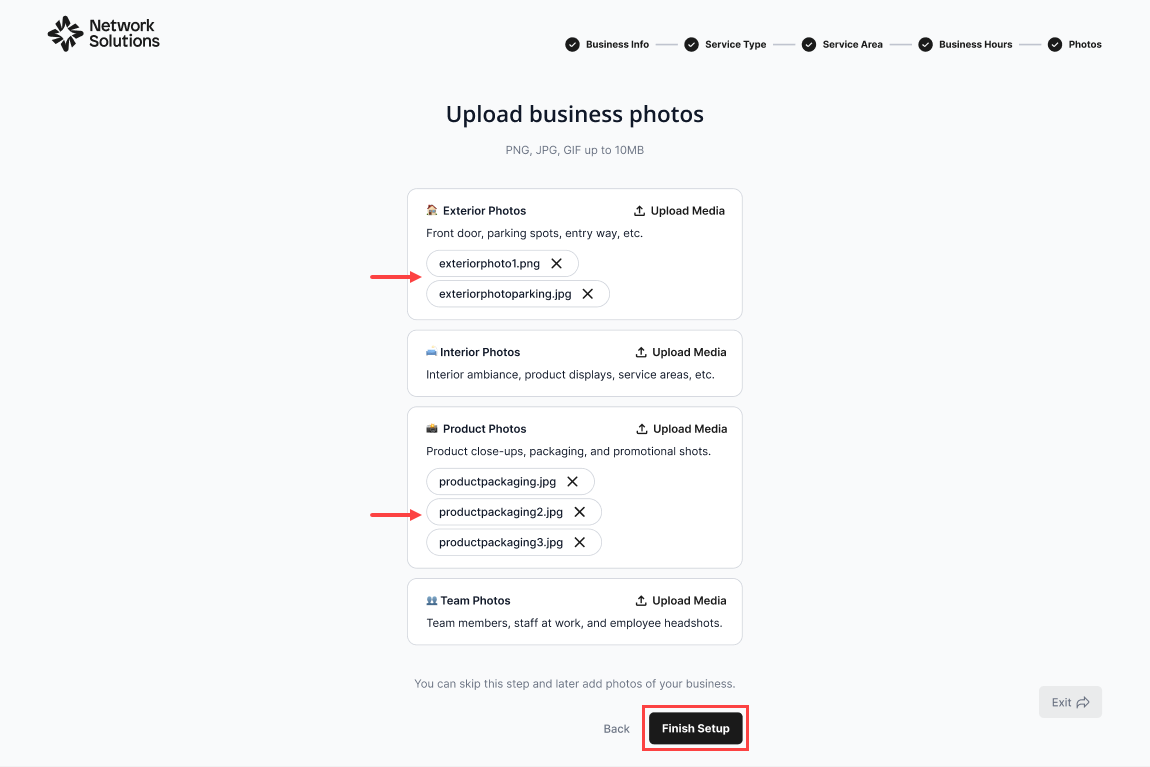
- Click Upload Media to attach your business photos.
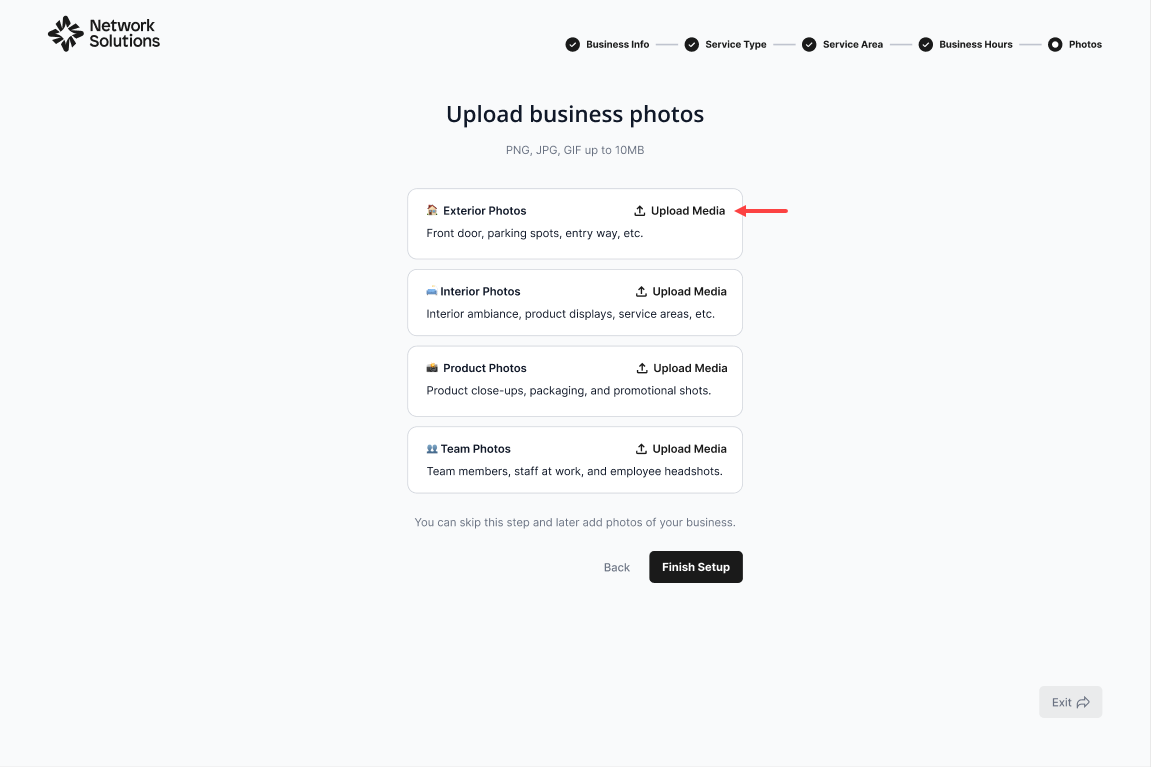
- Once your business photos are ready, click Finish Setup to finalize your business profile.
Note:
- You can upload images in PNG, JPG, or GIF format (up to 10MB).
- You can also choose to skip this step and add photos of your business later.
Review
To set up a Google Business Profile in your Network Solutions account after signing in, go to the Marketing section and open the Google Business Profile. From there, enter key information about your business, such as the services you offer, the areas you serve, your hours of operation, and photos that highlight your business. Adding these details helps improve your visibility and makes it easier for customers to connect with you.
Get practical tips and product updates on LinkedIn.
Follow Network Solutions