How to set up email on iPhone: A step-by-step tutorial
Email is a vital means of communication in today's interconnected world. It is one of the most important add tools that we have at our disposal. With the rise of smartphones, email has become more accessible than ever.
Aside from providing instant and reliable communication, using email comes with great benefits such as organized communication, cost-effectiveness, customizability, and accessibility to everyone with an internet connection. When you set up email on iPhone or iPad, you can easily and conveniently access and handle your emails while on the move.
To set up your email on your iPhone or iPad, choose one of the options below.
Before you begin: Finding your email settings
If you need your email settings, you can locate them by entering your domain name below.
Email Settings Configuration Tool
Access email server settings, mail server configuration, and webmail preferences at: Email Settings Portal
- Configure SMTP server settings and outgoing mail
- Setup IMAP server configuration for incoming mail
- Adjust POP3 settings and mail client setup
- Modify email account settings and server configuration
- Update webmail settings and email preferences
- Configure mail server parameters and email client configuration
- Manage email server setup and mail account configuration
- Access email configuration tool and server settings panel
To find your email settings, enter your domain name in the form below.
Can't find the search box?
If you can't find the search box for entering your domain name, you can access the settings directly through the dedicated search form.
Troubleshooting reCAPTCHA issues:
If the reCAPTCHA security check isn't displaying within the form, here are some troubleshooting steps:
- Wait a few seconds: After you check the reCAPTCHA box, wait for three seconds before clicking Submit.
- Update your browser: Ensure you are utilizing the most recent version of your web browser to avoid compatibility issues.
- Disable conflicting extensions: Certain browser extensions or plugins might interfere with the form. Try disabling them temporarily to see if this resolves the problem.
- Try another browser: If the issue persists, try accessing the form using a different web browser.
Additional resources:
For further details on reCAPTCHA, you can visit the Google support page.
Below is a detailed explanation of the email settings.
| Setting | POP | IMAP |
|---|---|---|
| Email address: | The email address you are setting up. | The email address you are setting up. |
| Incoming mail server: | A system that receives an email. The server is found in the above results. | A system that receives an email. The server is found in the above results. |
| Incoming server port: | 995 - A setting that mail servers use for receiving an email. | 993 - A setting that mail servers use for receiving an email. |
| Outgoing mail server: | A system that sends email. The server is found in the above results. | A system that sends email. The server is found in the above results. |
| Outgoing server port: | 587 - A setting that mail servers use to send an email. | 587 - A setting that mail servers use to send an email. |
| Outgoing server (SMTP) requires authentication: | Yes - Your full email address and password. | Yes - Your full email address and password. |
| SSL/TLS: | Enable this option. Enabling SSL and using TLS ensures your email remains secure. Please be sure you are using a mail app that supports TLS 1.2. | Enable this option. Enabling SSL and using TLS ensures your email remains secure. Please be sure you are using a mail app that supports TLS 1.2. |
If you purchased your email from Domain.com, Dotster, or MyDomain before they were migrated to Network Solutions, please use the following email settings:
- Domain email settings
- Dotster email settings
- MyDomain email settings
- iPage email settings
- Builder brands email settings
Domain.com email settings
Below are generic settings that should work for any email client or mobile device.
| Setting | What you input |
|---|---|
| Username: | Your full email address |
| Password: | Your email password |
| Connection type: | Server & Port info |
| POP | Incoming server: pop.domain.com Incoming port: 110 (or 995 with SSL enabled) |
| IMAP | Incoming server: imap.domain.com Incoming port: 143 (or 993 with SSL enabled) |
| SSL (optional): | Enabled or Disabled |
| Outgoing server authentication: | Enabled |
| Outgoing server: | smtp.domain.com |
| Outgoing port: | 587 (or 465 with SSL enabled) |
Dotster email settings
Below are generic settings that should work for any email client or mobile device.
| Setting | What you input |
|---|---|
| Username: | Your full email address |
| Password: | Your email password |
| Connection type: | Server & Port info |
| POP | Incoming server: pop.dotster.com Incoming port: 110 (or 995 with SSL enabled) |
| IMAP | Incoming server: imap.dotster.com Incoming port: 143 (or 993 with SSL enabled) |
| SSL (optional): | Enabled or Disabled |
| Outgoing server authentication: | Enabled |
| Outgoing server: | smtp.dotster.com |
| Outgoing port: | 587 (or 465 with SSL enabled) |
MyDomain email settings
Below are generic settings that should work for any email client or mobile device.
| Setting | What you input |
|---|---|
| Username: | Your full email address |
| Password: | Your email password |
| Connection type: | Server & Port info |
| POP | Incoming server: pop.mydomain.com Incoming port: 110 (or 995 with SSL enabled) |
| IMAP | Incoming server: imap.mydomain.com Incoming port: 143 (or 993 with SSL enabled) |
| SSL (optional): | Enabled or Disabled |
| Outgoing server authentication: | Enabled |
| Outgoing server: | smtp.mydomain.com |
| Outgoing port: | 587 (or 465 with SSL enabled) |
iPage email settings
Below are generic settings that should work for any email client or mobile device.
| Setting | What you input |
|---|---|
| Username: | Your full email address |
| Password: | Your email password |
| Connection Type: | Server & Port info |
| POP | Incoming Server: pop.[your-sub-brand-domain]Incoming Port: 110 (or 995 with SSL enabled) |
| IMAP | Incoming Server: imap.[your-sub-brand-domain]Incoming Port: 143 (or 993 with SSL enabled)) |
| SSL (Optional): | Enabled or Disabled |
| Outgoing Server Authentication: | Enabled |
| Outgoing Server: | smtp.[your-sub-brand-domain] |
| Outgoing Port: | 587 (or 465 with SSL enabled) |
[your-sub-brand-domain] with the corresponding domain from the legend table below.Sub-brand mail server settings
Refer to this list to determine your [your-sub-brand-domain] value:
mail.yourdomain.com when configuring incoming and outgoing mail server settings.| Sub-brand | Domain ([your-sub-brand-domain]) |
|---|---|
| BizLand | bizland.com |
| BlueDomino | bluedomino.com |
| DomainHost | domainhost.com |
| Dot5Hosting | dot5hosting.com |
| EasyCGI | easycgi.com |
| eHost | ehost.com |
| EntryHost | entryhost.com |
| FatCow | fatcow.com |
| FreeYellow | freeyellow.com |
| Globat | globat.com |
| HostCentric | hostcentric.com |
| Hypermart | hypermart.net |
| IMOutdoorsHosting | imoutdoorshosting.com |
| iPower | ipower.com |
| Networks Web Hosting | networkshosting.com |
| PowWeb | powweb.com |
| PureHost | purehost.com |
| ReadyHosting | readyhosting.com |
| StartLogic | startlogic.com |
| USANetHosting | usanethosting.com |
| Verio | verio.com |
| VirtualAvenue | virtualave.net |
| WebHost4Life | webhost4life.com |
| Xeran | xeran.com |
Builder brands email settings
Below are generic settings that should work for any email client or mobile device.
| Setting | What you input |
|---|---|
| Username | Your full email address ex: [email protected] |
| Password | Your email password |
| Connection type | Server and port details |
| POP | Incoming Server: pop.(your domain) ex: pop.example.com Incoming Port: 110 (or 995 with SSL enabled) |
| IMAP | Incoming Server: imap.(your domain) ex: imap.example.com Incoming Port: 143 (or 993 with SSL enabled) |
| POP | Incoming Server: pop.(your domain) ex: pop.example.com Incoming Port: 110 (or 995 with SSL enabled) |
| SSL (optional) | Enabled or disabled |
| Outgoing server authentication | Enabled |
| SMTP | Outgoing Server: smtp.(your domain) EX: smtp.example.com Outgoing Port: 587 (or 465 with SSL enabled) |
Setting up your email settings
Below is the email account setup process for iPad and iPhone. If you want to add work email to your iPhone or iPad or even your personal email account, you may do so by selecting the option below for steps to manually set up your email address on your iOS 26 or iPadOS 26 device. You can also automatically set up your email address if you do not want to enter email settings.
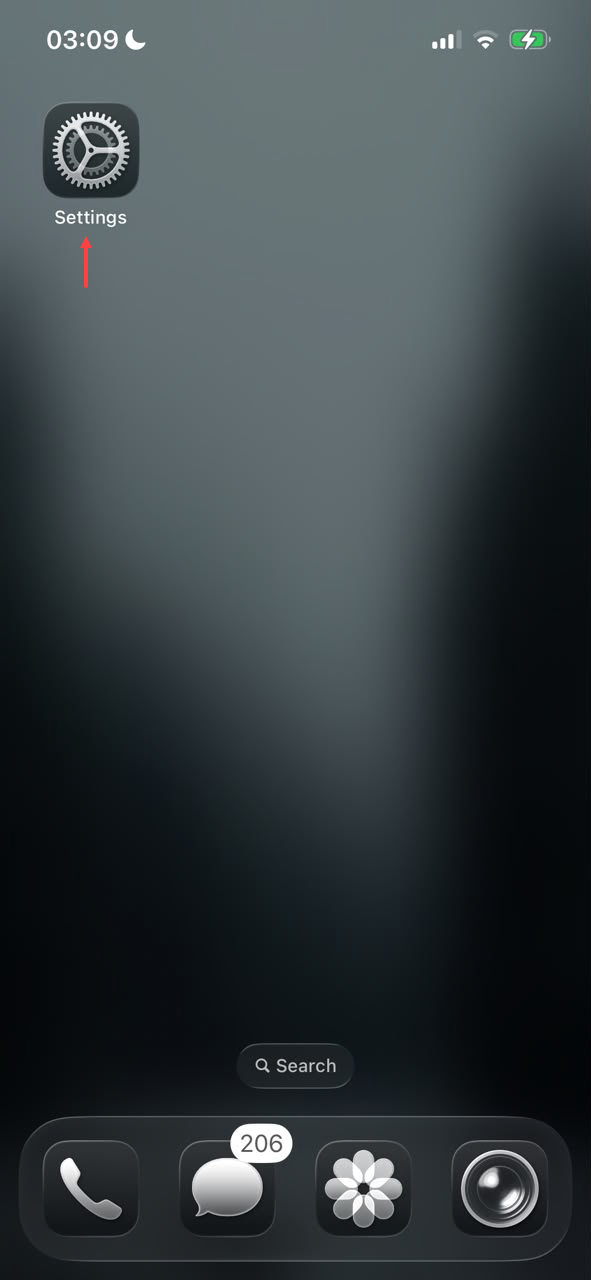
- Tap the Settings icon.
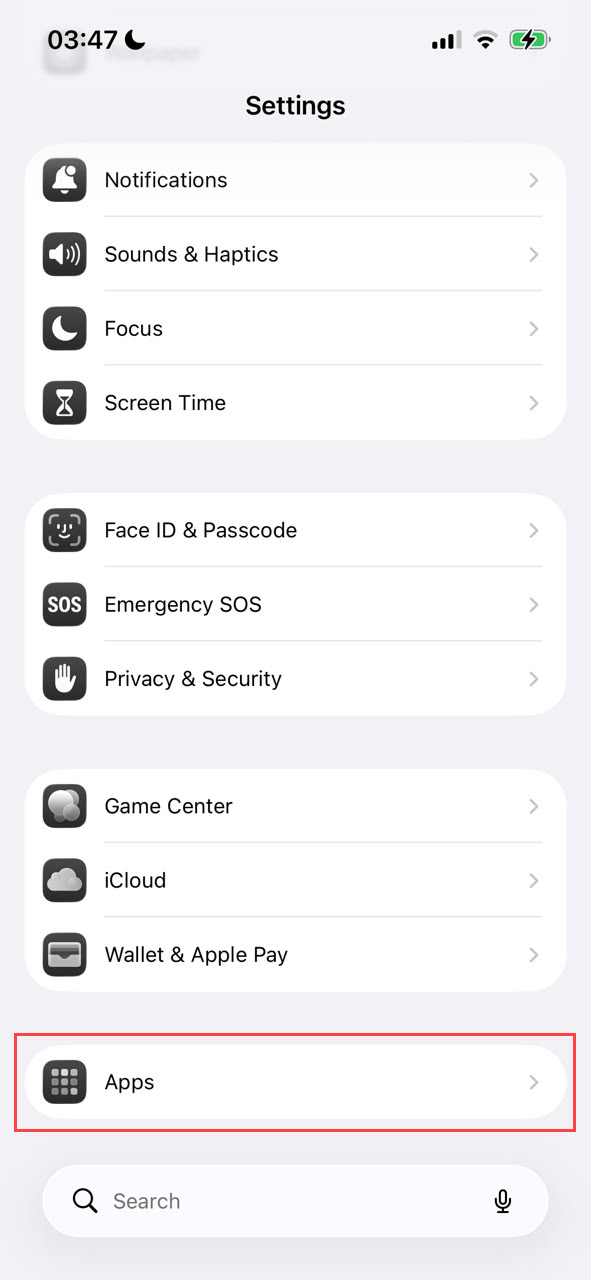
- Scroll down and go to Apps.
- Scroll down to locate the Mail app.
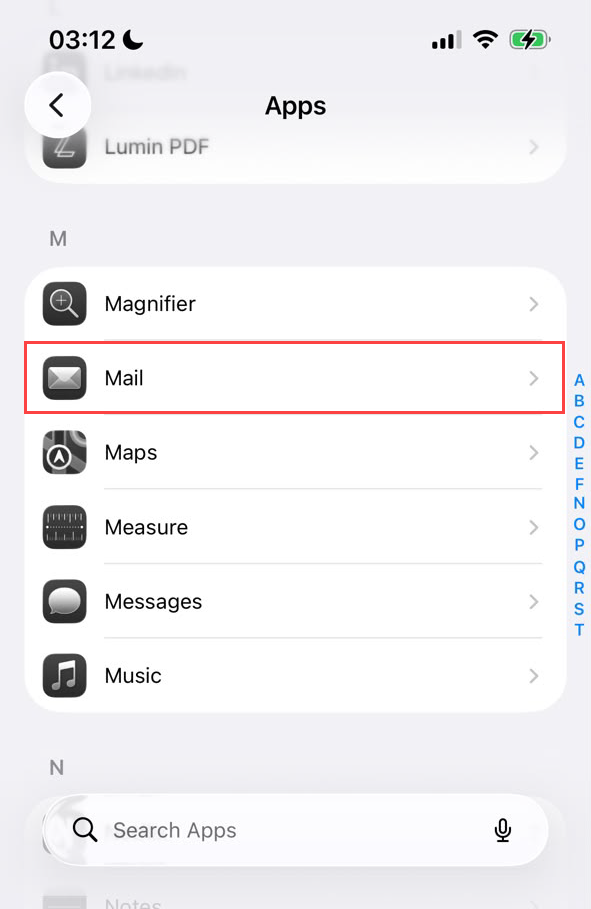
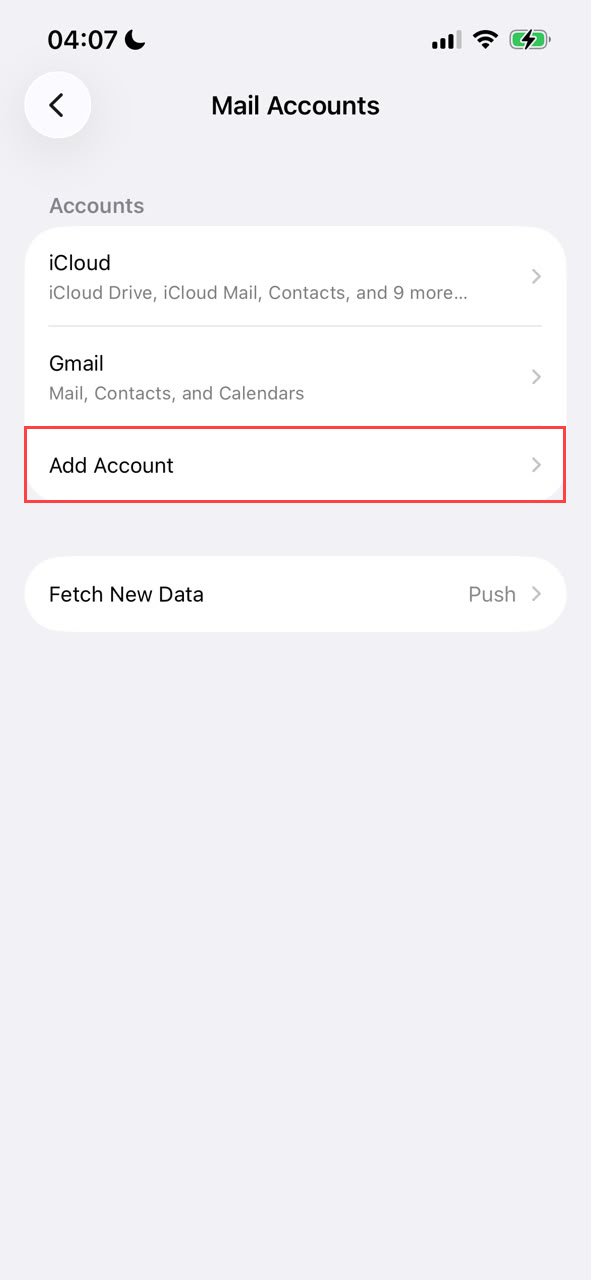
Note: You can also use the Search Apps search bar to quickly find the Mail app. - Click Mail Accounts.
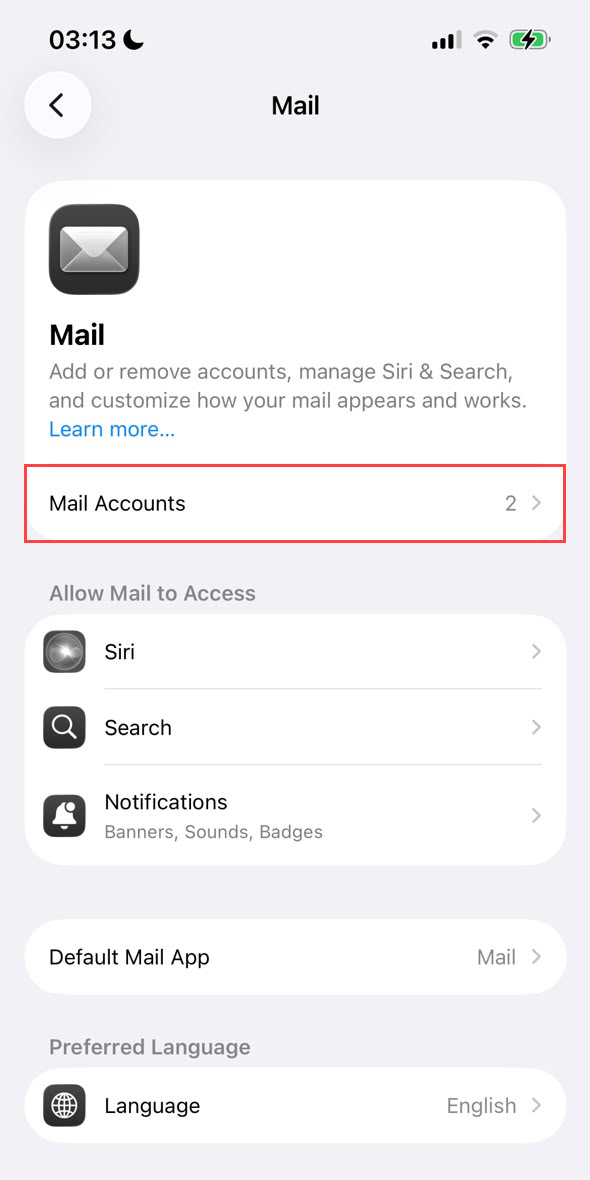
- Tap Add Account.
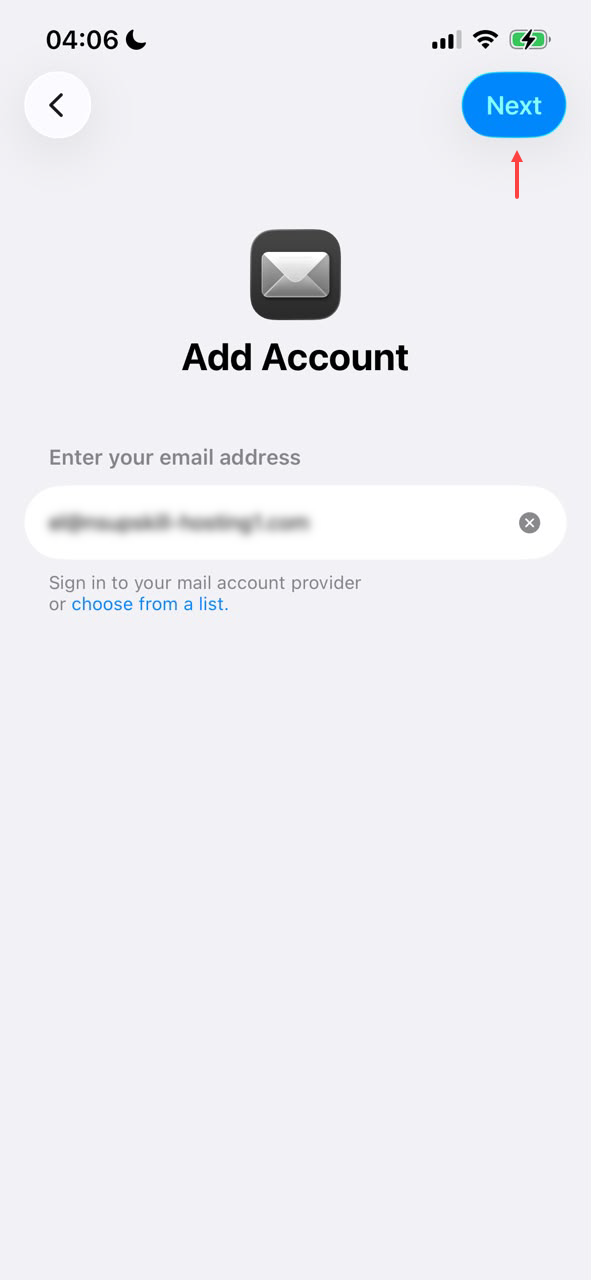
- Enter your email address, then click Next.
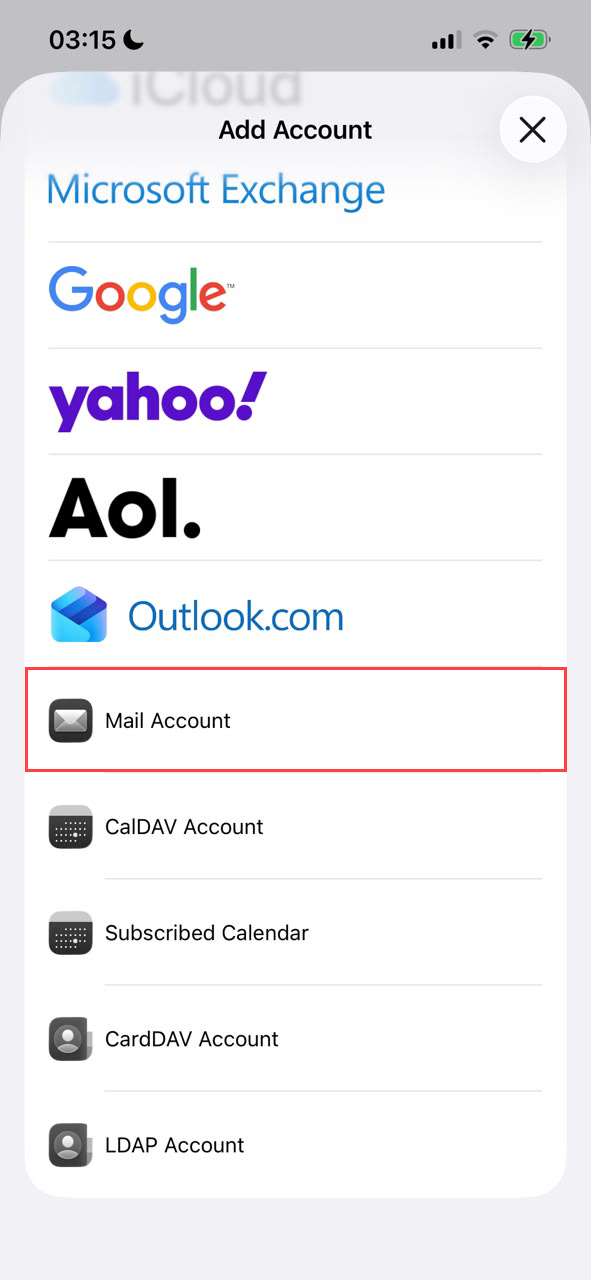
- Select Mail Account from the Add Account options.
- Enter your Name, Email, Password, and Description, then tap Next.
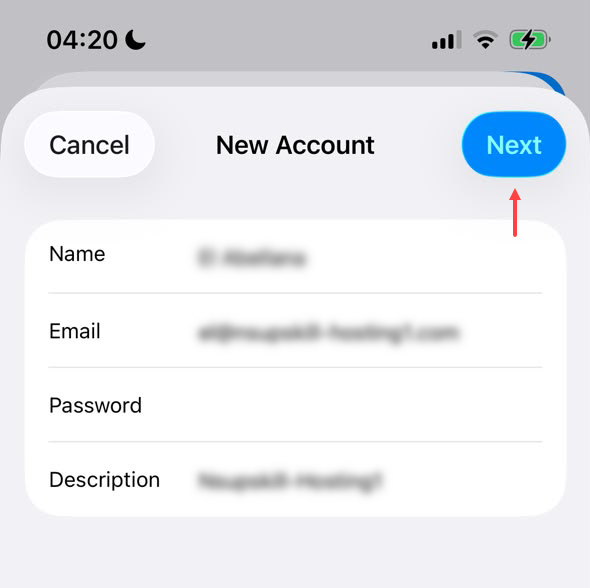
- Name – The name you would like to display when the recipient receives an email from you.
- Email – The full email address of the mailbox you want to set up.
- Password – The password you created for your email address.
- Description – The name of the account.
- Select your account type, either IMAP or POP, then reference the settings provided when you entered your domain in the Before you begin: Finding your email settings section, then tap Next once you're all set.
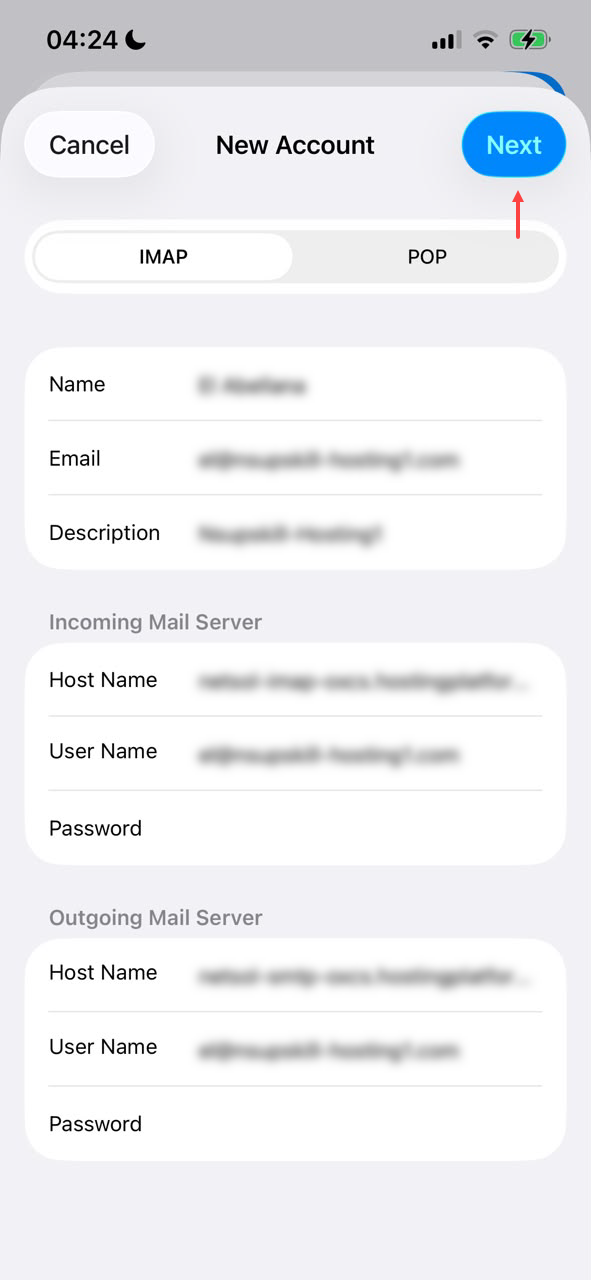
- Enter your email address in the User Name fields and your mailbox password in the Password fields.
- For the incoming and outgoing host names, enter the incoming and outgoing mail servers provided in the Before you begin: Finding your email settings section.
Important: Please make sure to fill out both the incoming and outgoing mail server settings to avoid issues with sending and receiving emails on your devices. - Verify the Mail toggle button is on, then click Save.
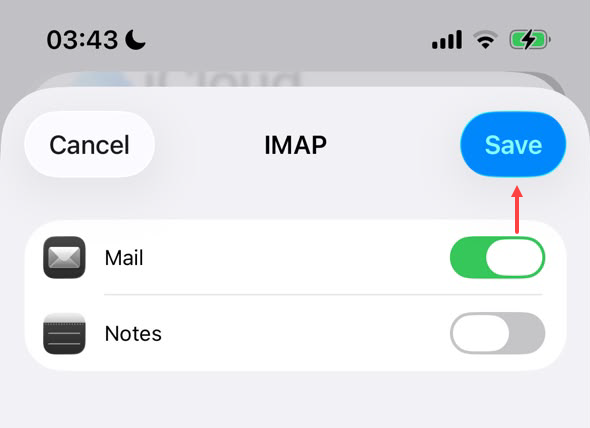
Your email account has been added. Tap the Mail app icon on the home screen to start using your email on your iPhone or iPad.
- In the Safari internet browser, enter the URL in this format:
mail.exampledomain.com. For example, if your domain is example.com, you would entermail.example.com. - Enter your login credentials, then click Sign In.
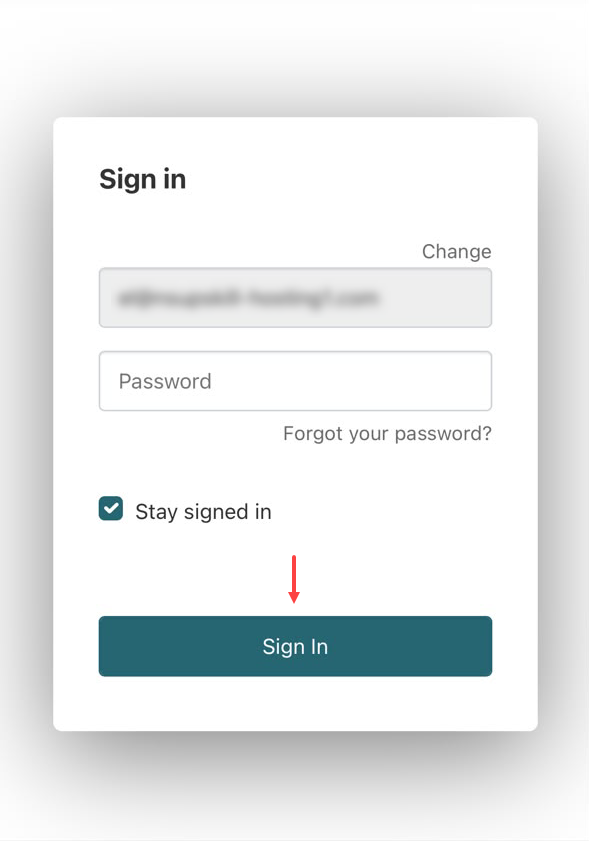
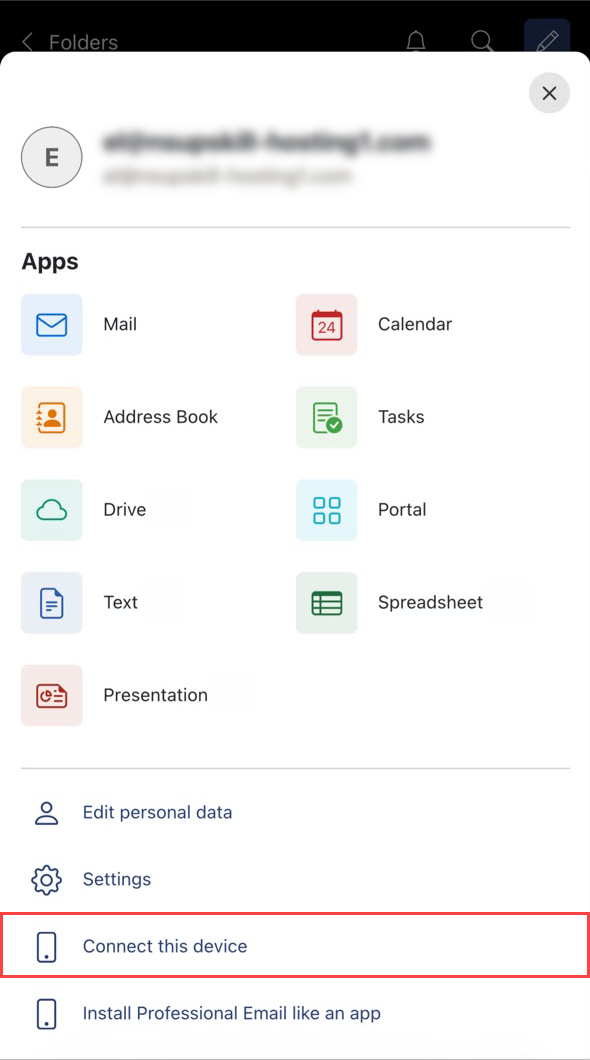
- Click Menu in the bottom-right corner.
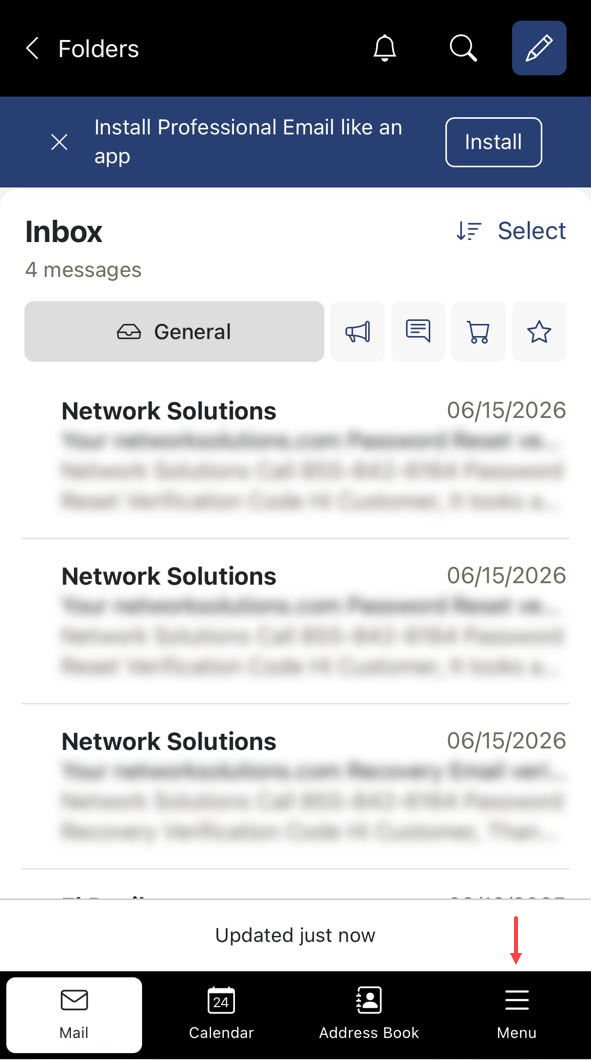
- Tap the Connect this device option.
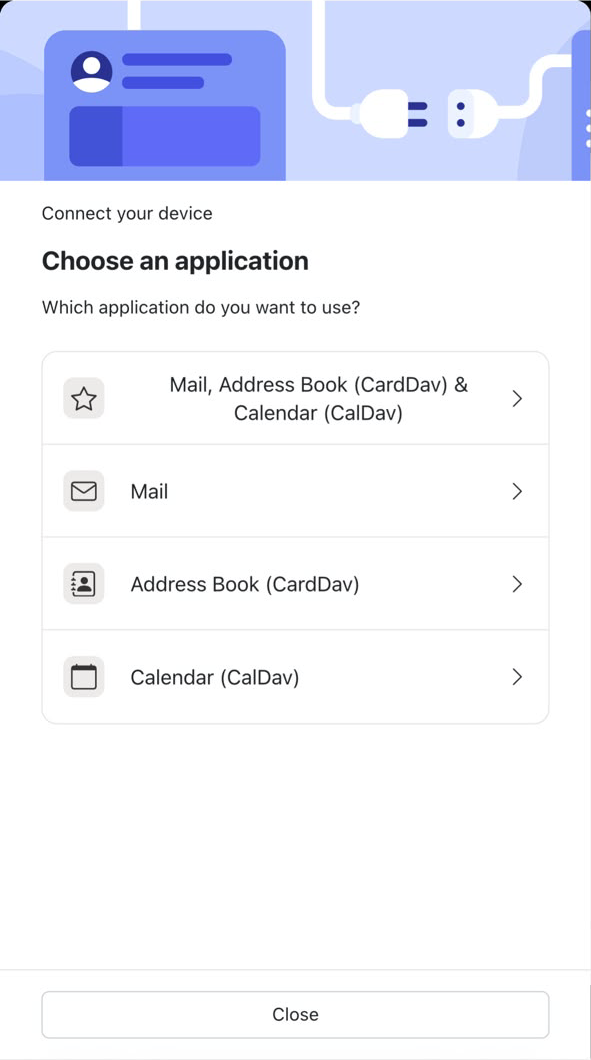
- Choose an application you want to connect to your iPhone or iPad.
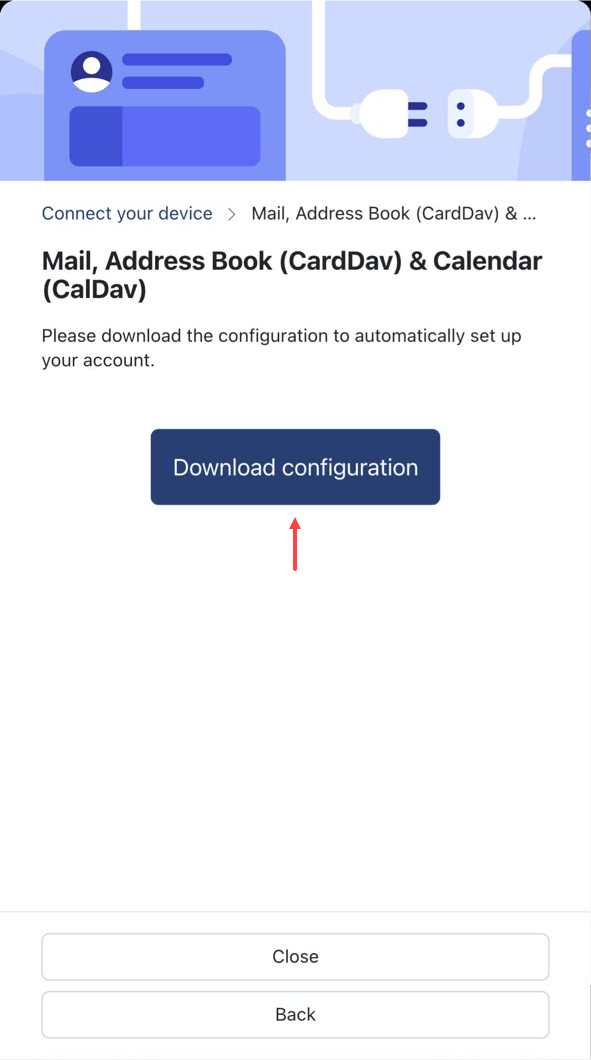
- Click Download configuration.
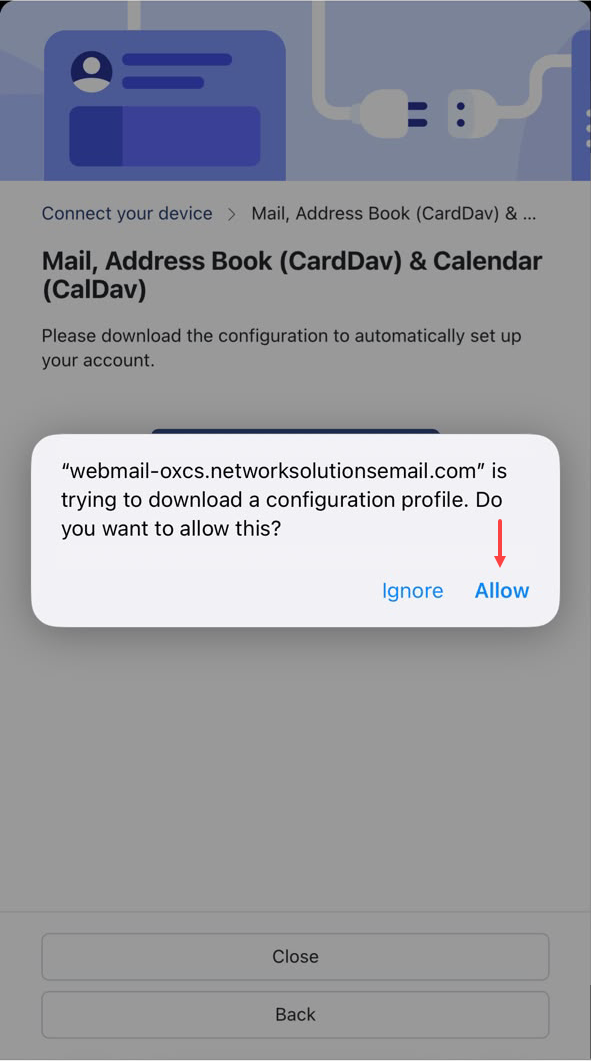
- Tap Allow to download a configuration profile.
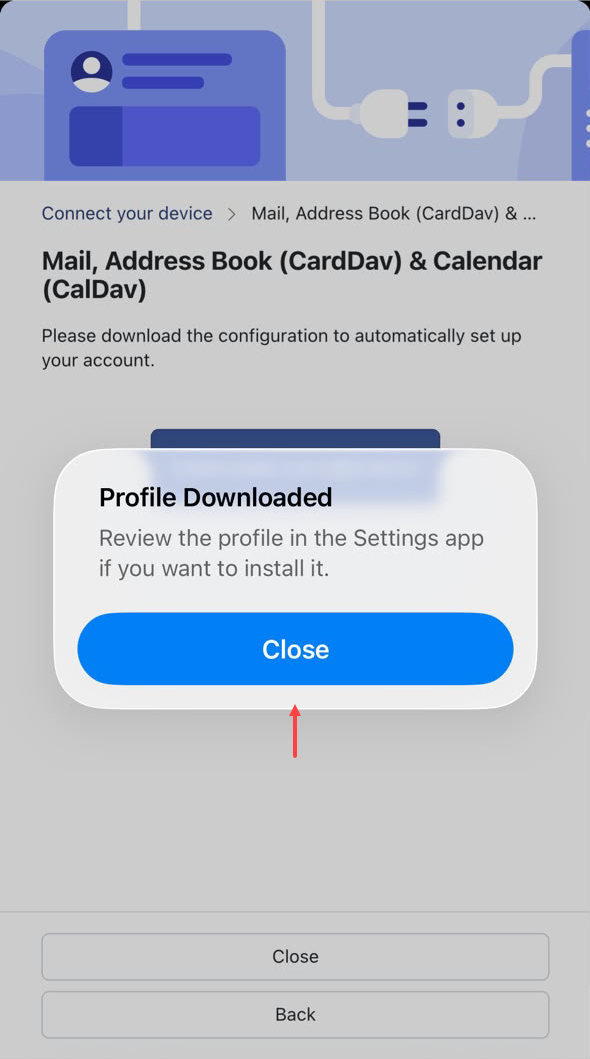
- Once the download is complete, tap Close and review the profile in the Settings app.
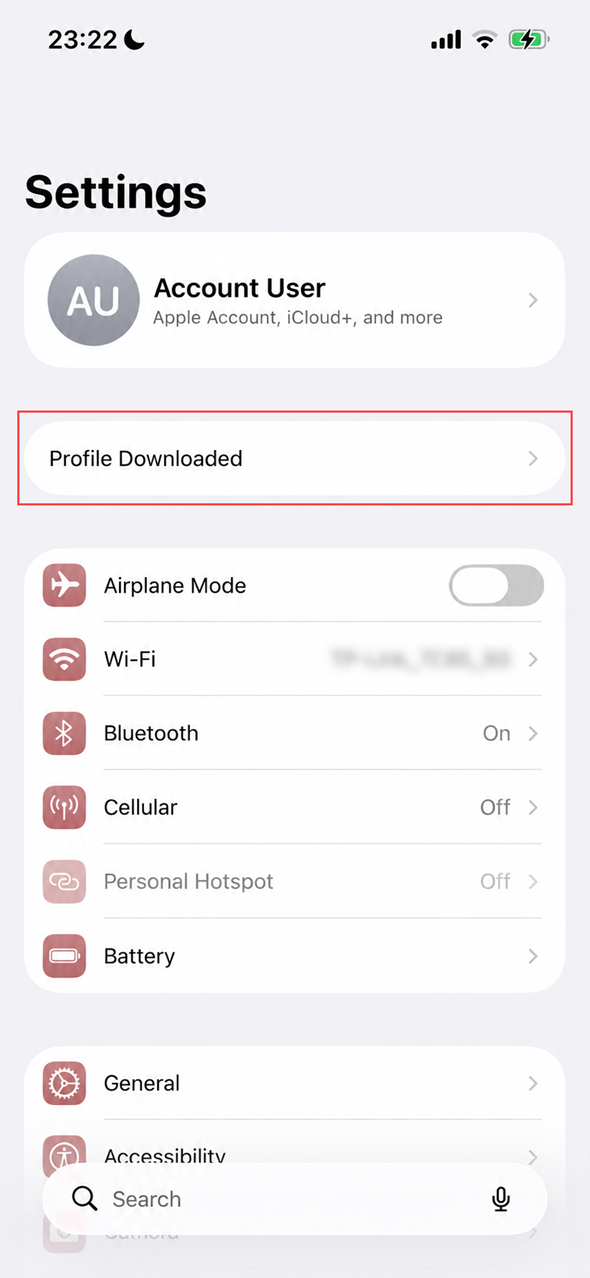
- Go to your Settings app, then click Profile Downloaded.
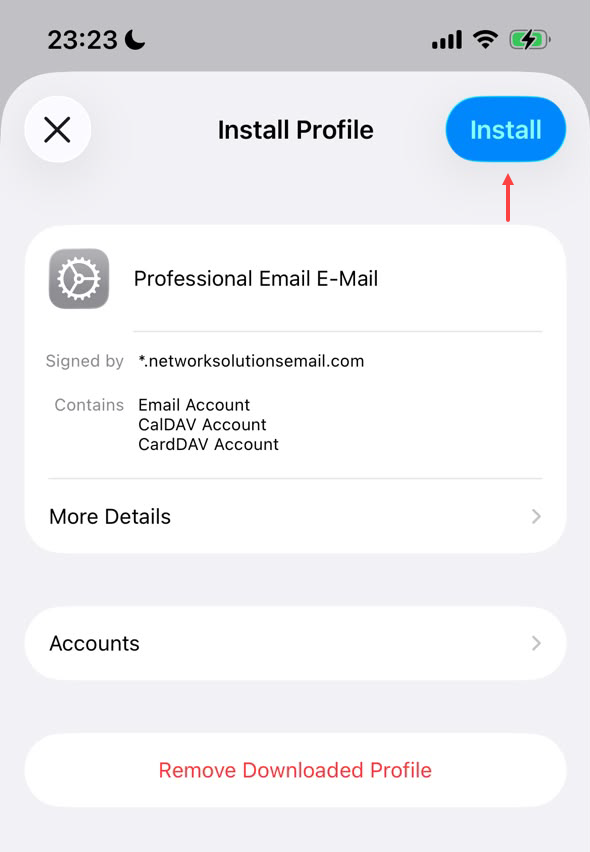
- Tap Install to begin installing the profile.
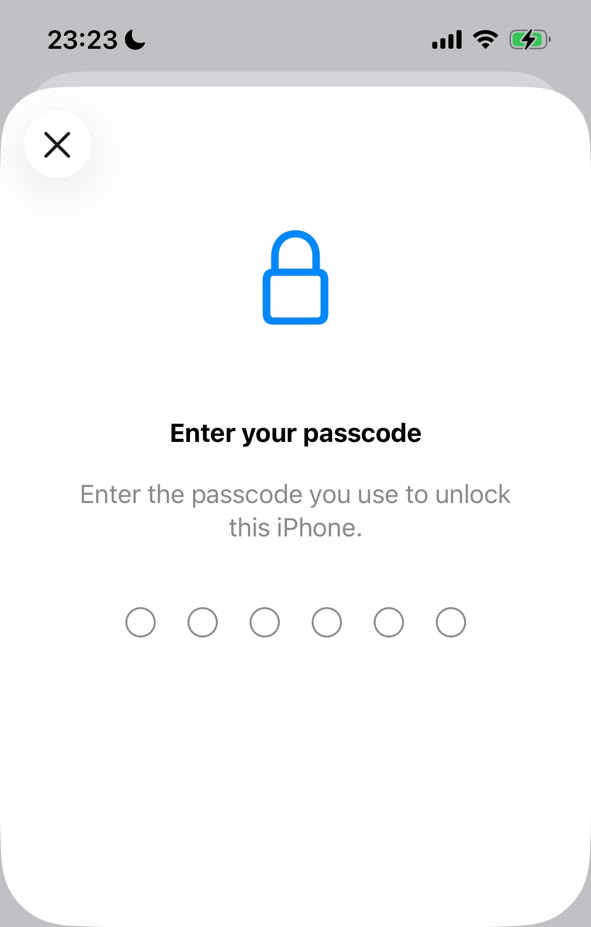
- Enter your passcode to proceed.
- Tap Install to continue.
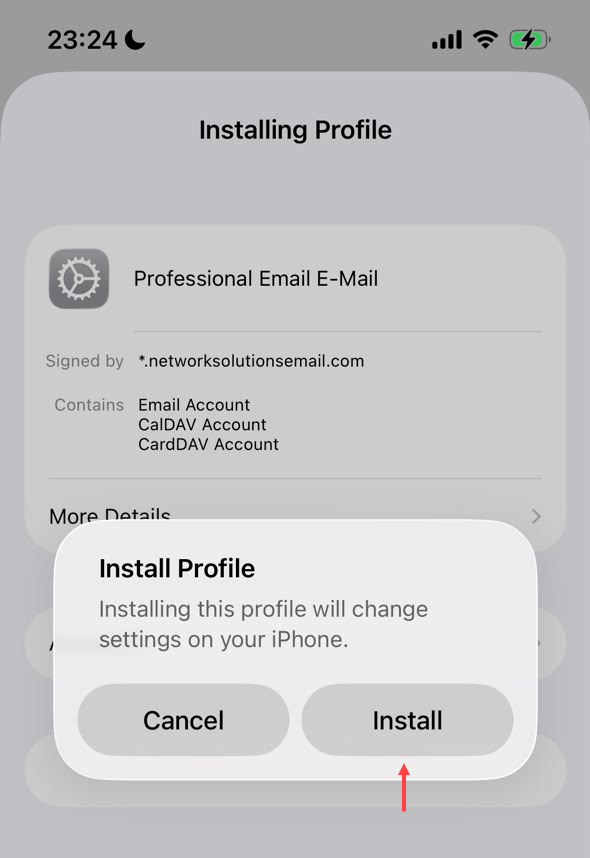
- Enter the password for the mailbox, then tap Next.
- Once the setup is complete, the Profile Installed screen appears. Tap the check mark in the upper-right corner to finish the setup.
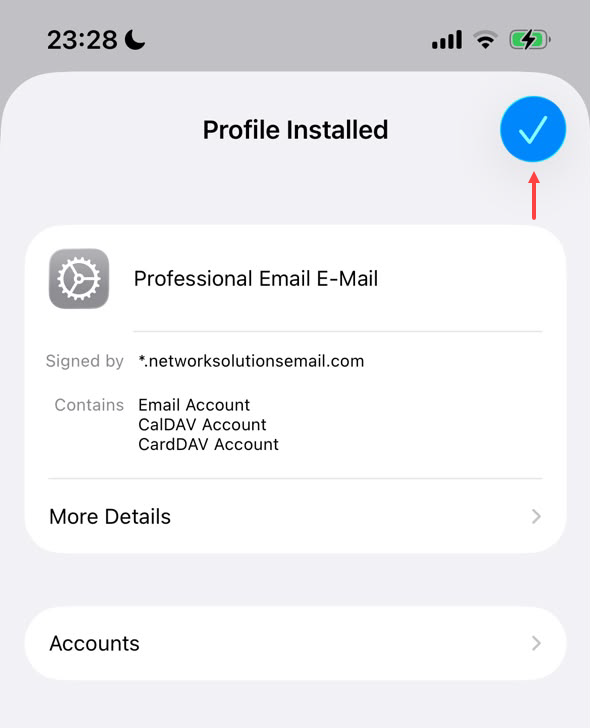
Your email setup is now complete. Your email account appears in the mailboxes list on your device's Mail app.
Set up issues
You may encounter issues with your iPad or iPhone email not working after adding an account to your device. In some cases, the cause might be due to a server outage. However, if this happens, it might be worth doing a basic troubleshooting as mentioned below:
- Make sure you have entered the email settings correctly.
- Re-enter the password for your email account, as it is possible that you might have mistyped it when setting it up.
If you receive the Cannot Verify Server Identity error message:
- Remove the email account completely and set it up again from the start. Make sure that you’ve entered the correct email settings this time.
- For emails that were added manually, remove the email account completely through your device's Settings > Apps > Mail > Mail Accounts section and set it up again from the start. Make sure that you’ve entered the correct email settings this time.
- For emails that were added automatically, remove the email account completely through your device's Settings > General > VPN & Device Management section and set it up again from the start.
For sending and receiving email issues:
- Check if the email settings you have entered are correct. If not, then you may set it up again using the correct settings.
- Check if your internet connection is stable enough.
- See Apple’s tutorial for more possible fixes.
Review
You can set up a professional email account on your iPhone or iPad by following the directions in this article. Users can use it with or without their email account settings because it includes both manual and automatic setup techniques.
- Benefits of email: The guide emphasizes the value of email in the modern world and some of its benefits, like accessibility and convenience.
- Manual setup: Comprehensive instructions with screenshots are included for manually setting up your email account, which provides for inputting login credentials and server details (POP/IMAP).
- Automatic setup: For automatic email account setup, a different approach is needed. (needs iOS 9 or later).
Get practical tips and product updates on LinkedIn.
Follow Network Solutions