How to add a cWatch trust seal to your website
If you want to add a cWatch trust seal to your website, it's important to understand what the seal represents and how it works. A cWatch trust seal is a website security badge that reflects your site's current security status based on cWatch scan results and protection settings. Depending on the website's status, the seal may indicate that the site is malware-free or actively protected by the cWatch.
When you add a cWatch trust seal to your website, visitors can view information about the site's security posture based on the status reported by cWatch. The seal automatically reflects the current security status of the website and may display either a Malware-free or Protected designation, depending on scan results and active protection status. In this article, you'll learn about the available trust seal types and how to add a cWatch trust seal to your website.
In this article, we will discuss:
Available trust seal types
The trust seal reflects the current security posture of the website and is available in two status levels:
- Malware-free: The website has been scanned and malware has been removed.
- Site-safe: The website has been scanned, cleaned, and is actively protected by cWatch.
Adding a site trust seal in cWatch
- Log in to your account via https://www.networksolutions.com/my-account/login.
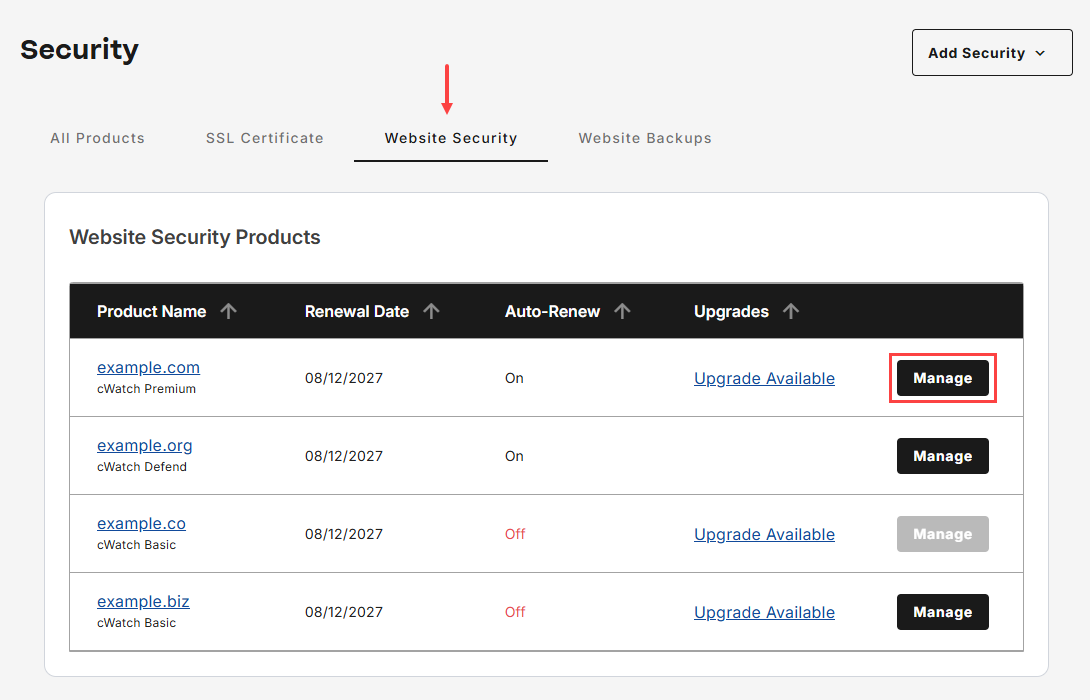
- Click Security from the left navigation menu.

- Go to Website Security, then tap Manage for the domain that you would like to access cWatch.
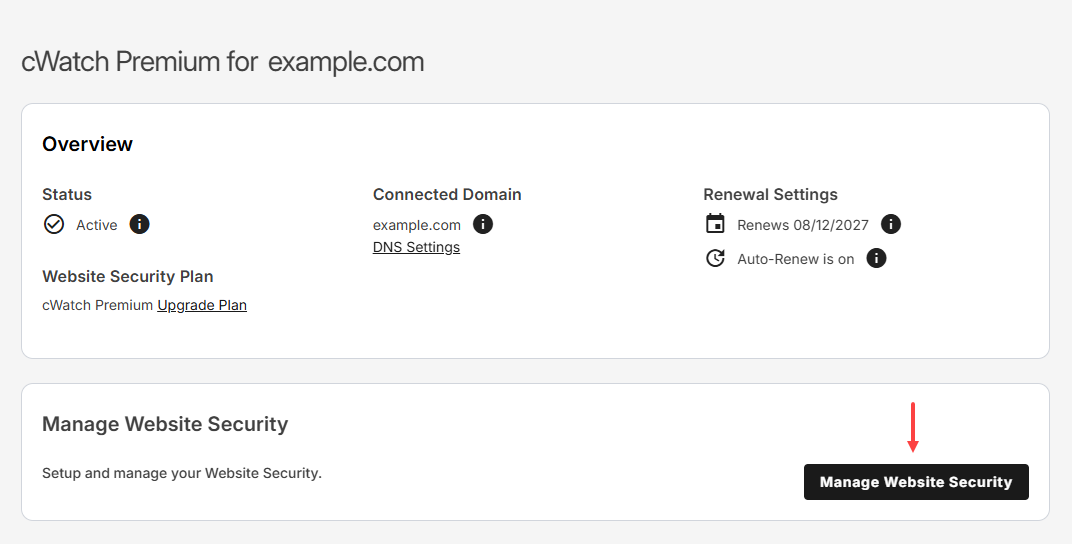
- Tap Manage Website Security to launch cWatch portal.
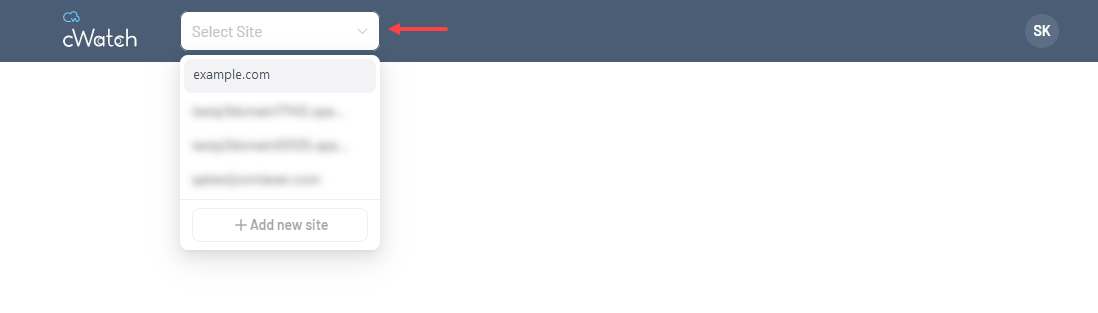
- Ensure that you select the correct domain from the drop-down menu before adding a trust seal.
- Go to Trust, then click Add Trust Seal to proceed.
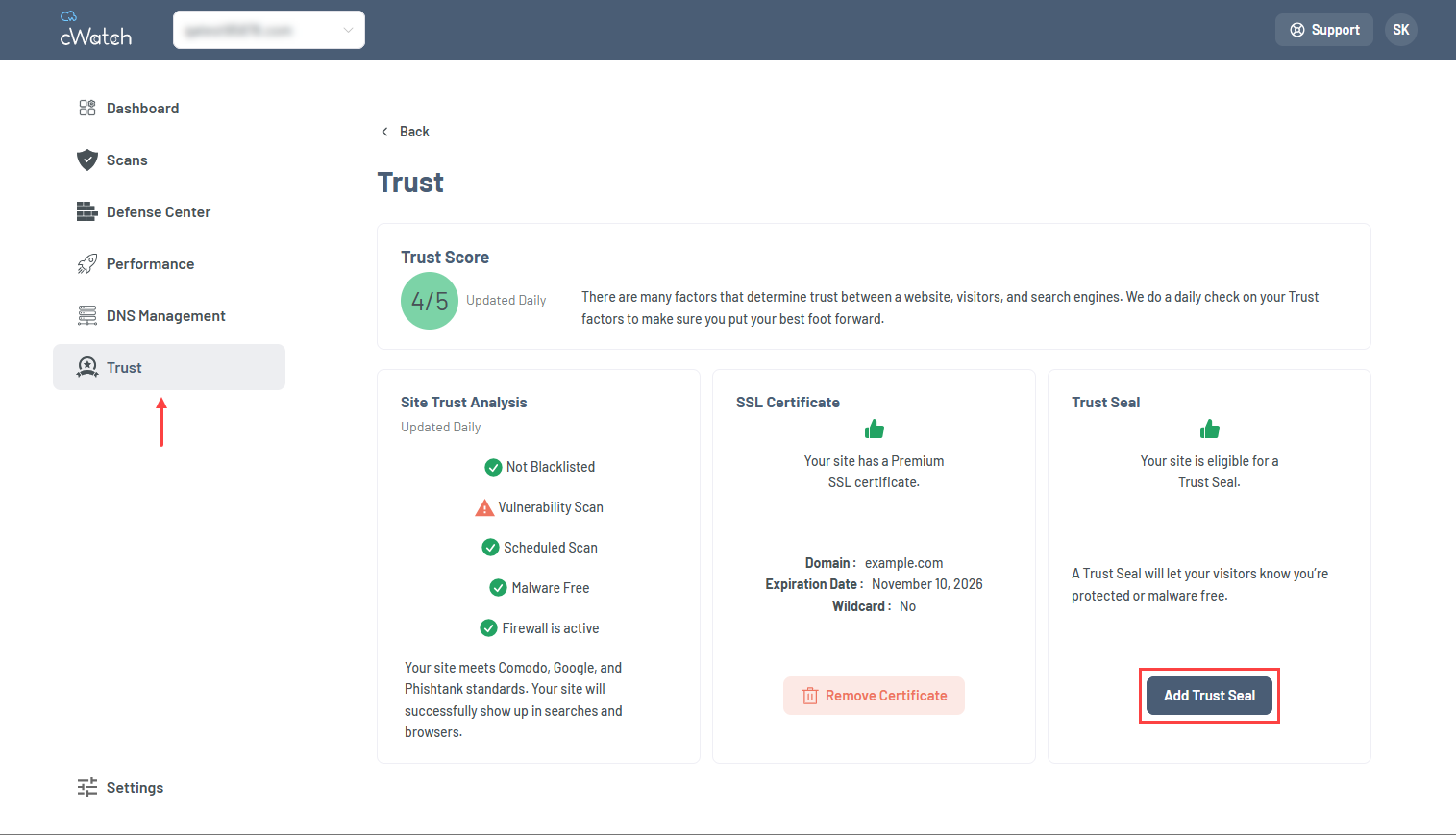
- Select the appropriate trust seal code version and click Copy Code, then paste the code into your website's source code where you want the seal to appear.
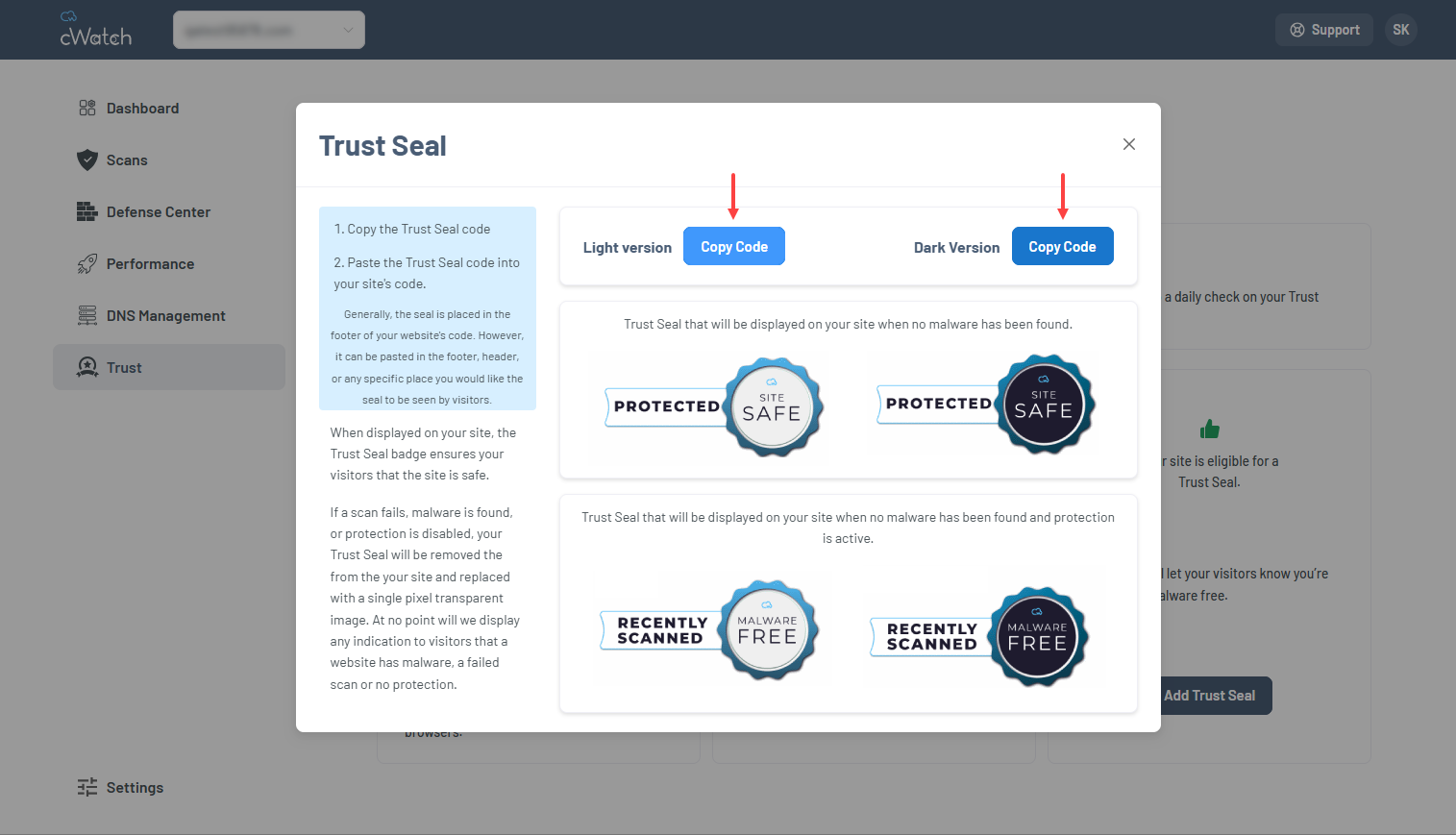
Note: Refer to the articles below for guidance on inserting custom code into your website:
If a scan fails, malware is detected, or protection is disabled, the trust seal will be removed from your website and replaced with a single-pixel transparent image. Visitors will not see any indication that the website contains malware, has failed a scan, or is no longer protected.
Review
To add a cWatch trust seal, access the cWatch portal, select the appropriate seal code, and place it in the desired location on your website. The trust seal reflects your site's current security status, displaying either a malware-free or protected badge based on scan results and active protection. Once installed, the seal updates automatically to help showcase your website's security and reinforce visitor confidence.
Get practical tips and product updates on LinkedIn.
Follow Network Solutions