Knowledge Base
Categories: Builder Legacy
Builder brands: Creating a Facebook Ad campaign
Advertise and quickly create engaging ads delivered directly to your target audience. Learn more about creating a Facebook Ads campaign and running ads across Facebook's vast network. Promote your app, generate leads, and increase online sales.
Note: If you still need to set up your Facebook Ad campaign, please follow the instructions in Builder brands: Managing Facebook Ad campaign.
In this article, we will discuss:
Step 1: Accessing the AdSpend dashboard
- Log in to your account via https://www.networksolutions.com/my-account/login.
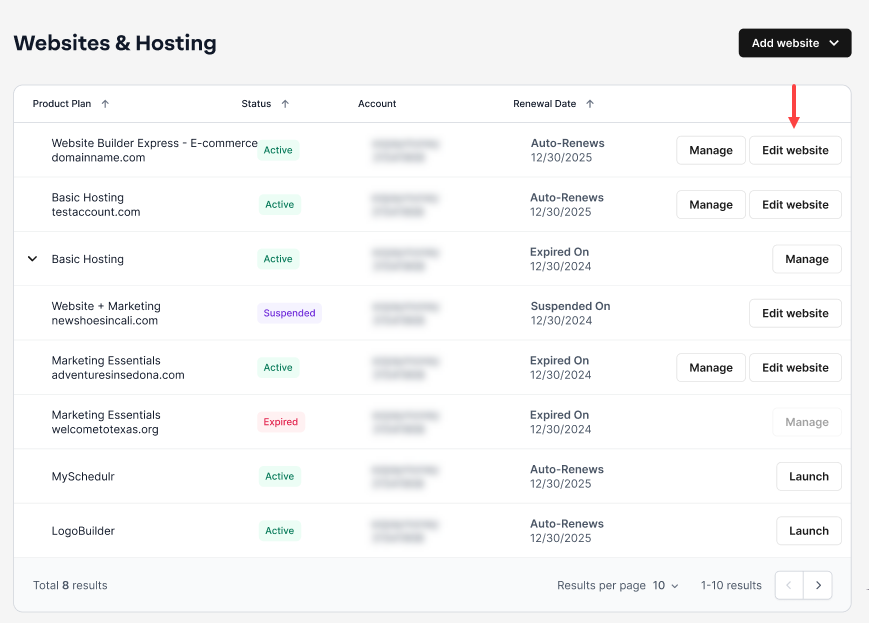
- Click Websites & Hosting from the left navigation menu.

- If you have a single website builder in the account, you will be redirected to the Website Builder dashboard. If you have multiple website builder accounts, click the Edit website button on the respective website package that you need to access.
- Go to Marketing Hub and select AdSpend.

- Select Facebook to access the Campaigns section. Alternatively, you can click the View Facebook Campaigns link to access the same section.

- Click Create A New Campaign to proceed.

- Choose a Campaign Objective by clicking the Continue button.

Note: Think about your business goals before creating an ad. Knowing what you want to achieve is essential for selecting the right goal. Your advertising objective is what you want people to do when they see your ads. - Enter the following information:
- Campaign Name & Special Ad Categories

Note:- You can leave it blank and click again to deselect a category
- Declare whether your advertisements are about credit, employment, housing, social issues, elections, or politics. Requirements differ by country
- Campaign Details

Note:- Buying Type is limited to Auction only
- The Campaign Objective is currently limited to Catalog Sales only
- Campaign Spending Limit: minimum spending is $100
- Budget & Schedule

- Campaign Budget Optimization

- Campaign Name & Special Ad Categories
- Click the Continue to Ad Set and Ad Creation to complete the process.
Step 2: Ad setup

- Enter Ad Set Name.
- Select Dynamic or Classic for your Ad Format:
- Dynamic- Show different products to each viewer based on their preferences.
- Classic- Displays the same advertisement to all viewers and directs them to a single page on your website.
- In the Ad Content section, enter your caption.
- Upload a photo, add a Headline, Destination URL, and select Button Text from the drop-down.
- To proceed to the next page, click the Continue to Audience button.
Step 3: Create a new audience
To target your ad, you'll need a pixel or an app.
- Choose the best fit for your ads from the two options listed below:
- Find prospective customers even if they haven't interacted with your business.

- Retarget ads to people who interacted with your products on and off Facebook
.

Note: People may see the same or similar products they saw previously when you use dynamic ads. Retargeting with dynamic ads can be used to remind people about products they have previously browsed or purchased on your website. Instagram Shopping and Marketplace.
- Find prospective customers even if they haven't interacted with your business.
- Once you've completed the required fields, click Continue to Review.
- Review the Ad content and click Publish Ad to successfully complete.

- When the ad is successfully published, you will be directed to the Facebook campaign dashboard's landing page.
Get practical tips and product updates on LinkedIn.
Follow Network Solutions
Did you find this article helpful?