How to configure SFTP on Network Solutions
Secure File Transfer Protocol (SFTP) provides a secure way to access and manage your website's files. This guide will walk you through how to configure SFTP on your Network Solutions hosting package.
In this article, we will tackle the following:
Access your SFTP credentials on your web hosting package
- Log in to your account via https://www.networksolutions.com/my-account/login.
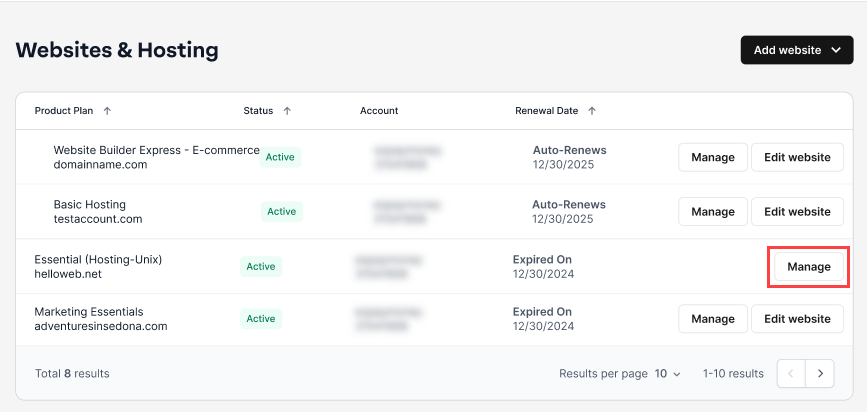
- From the left-hand menu, click Websites & Hosting.

- If you have multiple hosting packages, click the Manage button next to the hosting package which you want to set up SFTP.
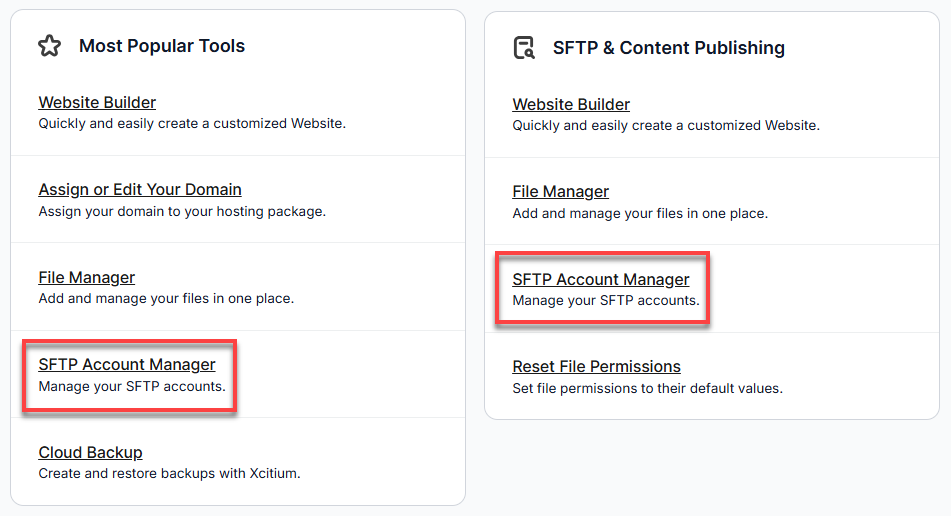
- Go to the SFTP & Content Publishing or Most Popular Tools section, then click SFTP Account Manager.
- You will be rerouted to the SFTP Account Manager page.
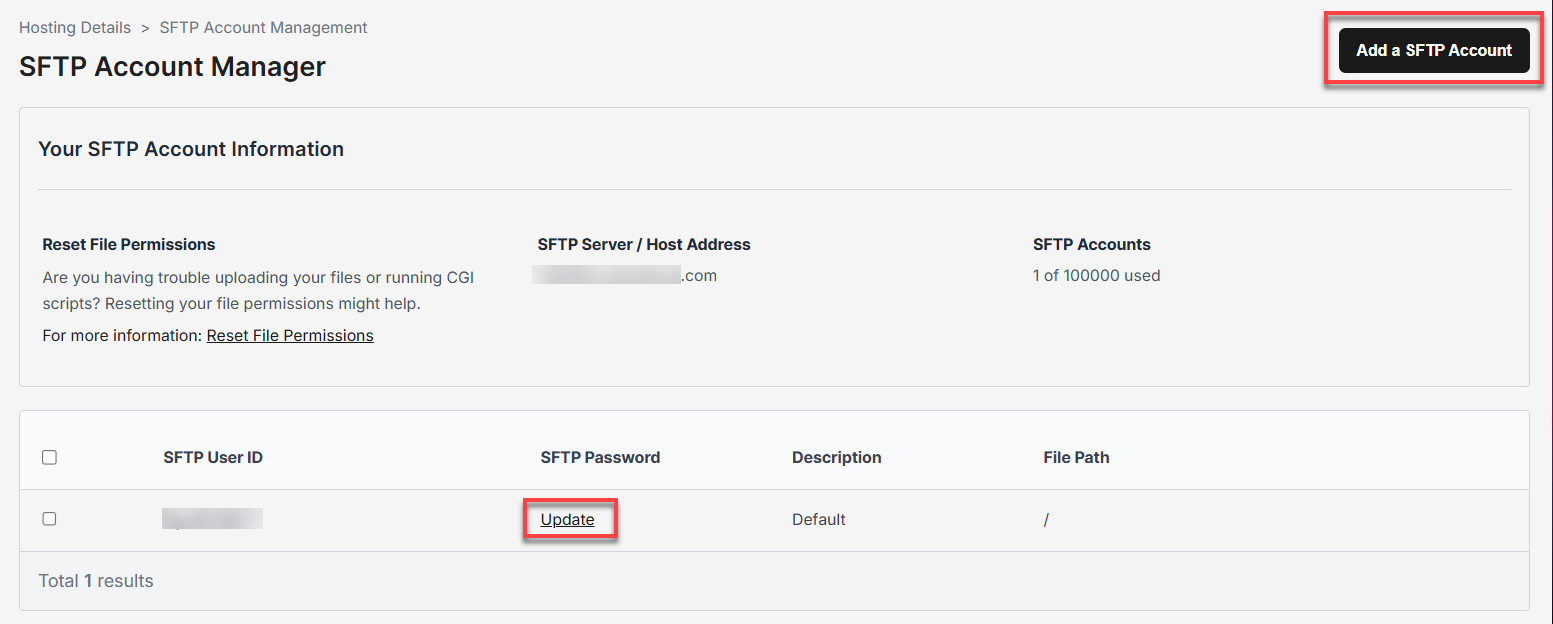
- As shown in the image above, you can update existing SFTP accounts or set up a new one. Crucially, this is where you will find your:
- Host Address (your server's hostname or IP address).
- Username for the SFTP account.
- Password (you may need to set or view it here).
- The designated port number for SFTP is 22.
Access your SFTP credentials on your WordPress package
- Log in to your account via https://www.networksolutions.com/my-account/login.
- From the left-hand menu, click WordPress.
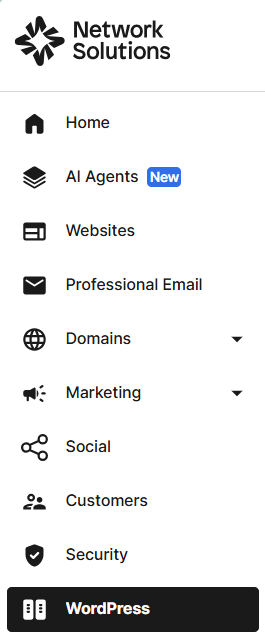
If you only have one WordPress package, you’ll be brought directly to your control panel. But if you’re handling several sites, just click Manage beside the one you want to open. For new setups, choose Setup first to finish the initial configuration.
- Under the Configurations section, click the SFTP Account Manager option.
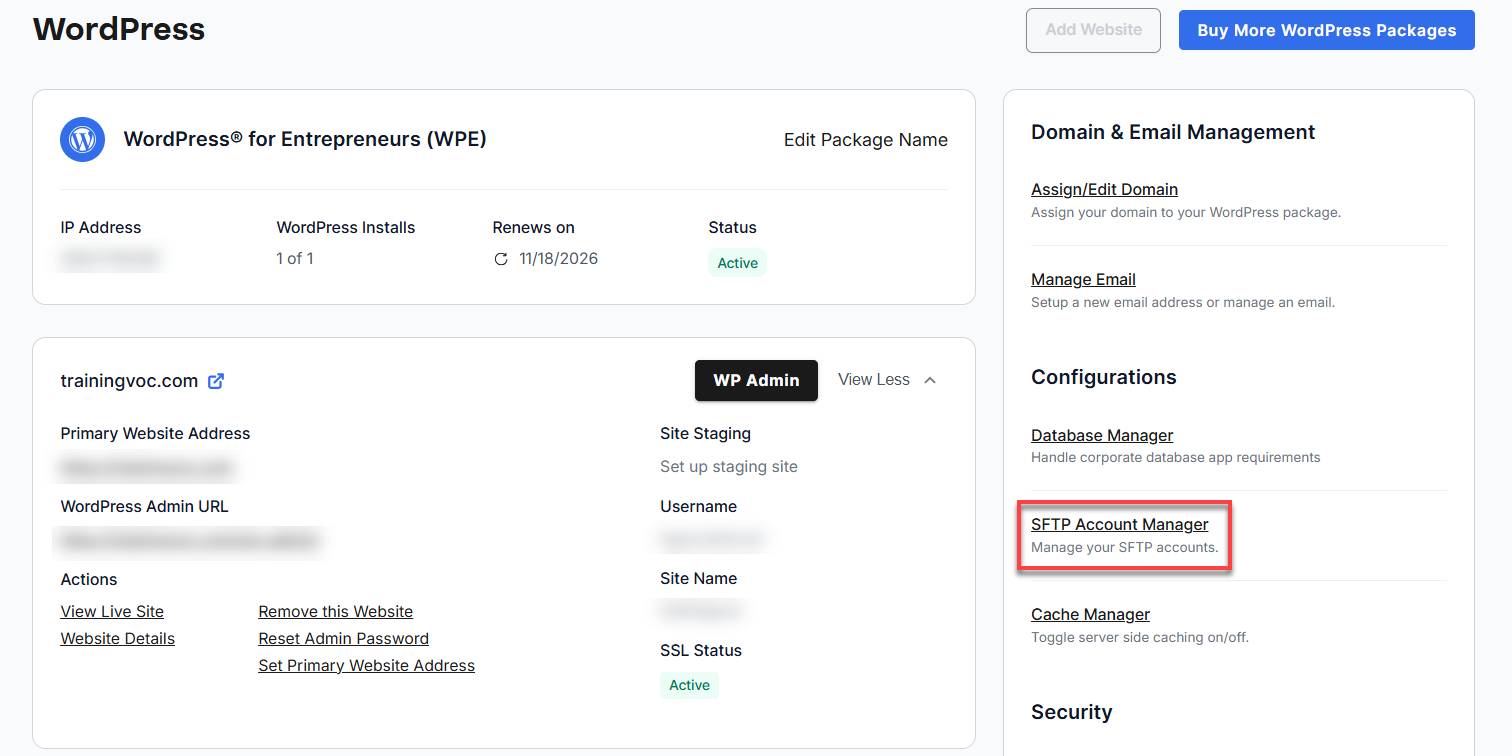
- You will be rerouted to the SFTP Account Manager page.
- As shown in the image above, you can update existing SFTP accounts or set up a new one. Crucially, this is where you will find your:
- Host Address (your server's hostname or IP address).
- Username for the SFTP account.
- Password (you may need to set or view it here).
- The designated port number for SFTP is 22.
Accessing the File Manager using an FTP client
You can now use an FTP client with your host, username, and password ready. Follow these steps to configure SFTP using the FileZilla client. The steps will be similar for other SFTP clients.
Downloading and installing FileZilla
You first need to download and install the FileZilla client on your computer.
- Go to the official FileZilla website.
- Download the appropriate version for your operating system (Windows, macOS, or Linux).
- Follow the installation prompts.
Accessing the hosting files through FileZilla
- Open FileZilla.
- Under the Host section, enter the required credentials indicated as SFTP Server / Home Address from Network Solutions under the SFTP Account Manager.
- Provide the Username and Password.
- Enter the port number, which is 22 by default for SFTP. After that, click the Quickconnect button to proceed.

Review
You now have all the steps needed to manage your Network Solutions website files securely. Following this guide, you can confidently configure SFTP, connect with a client, and ensure your file transfers are always encrypted and protected.
Get practical tips and product updates on LinkedIn.
Follow Network Solutions