How to import and export DNS zone files in Network Solutions
Need to move DNS settings from one domain to another or create a backup of your existing records? You can now import and export DNS zone files in Network Solutions for an easier way to migrate, replicate, and manage DNS configurations across your domains and environments in minutes accurately and completely.
In this article, we will discuss:
Import your DNS zone files
To import your DNS zone files through your account manager, kindly follow the steps below:
- Log in to your account manager via https://www.networksolutions.com/my-account/login.
- Click Domains in the left navigation tab.

- You will be routed to the domain overview section. If you have multiple domains in your account, click Manage for the domain you want to update.
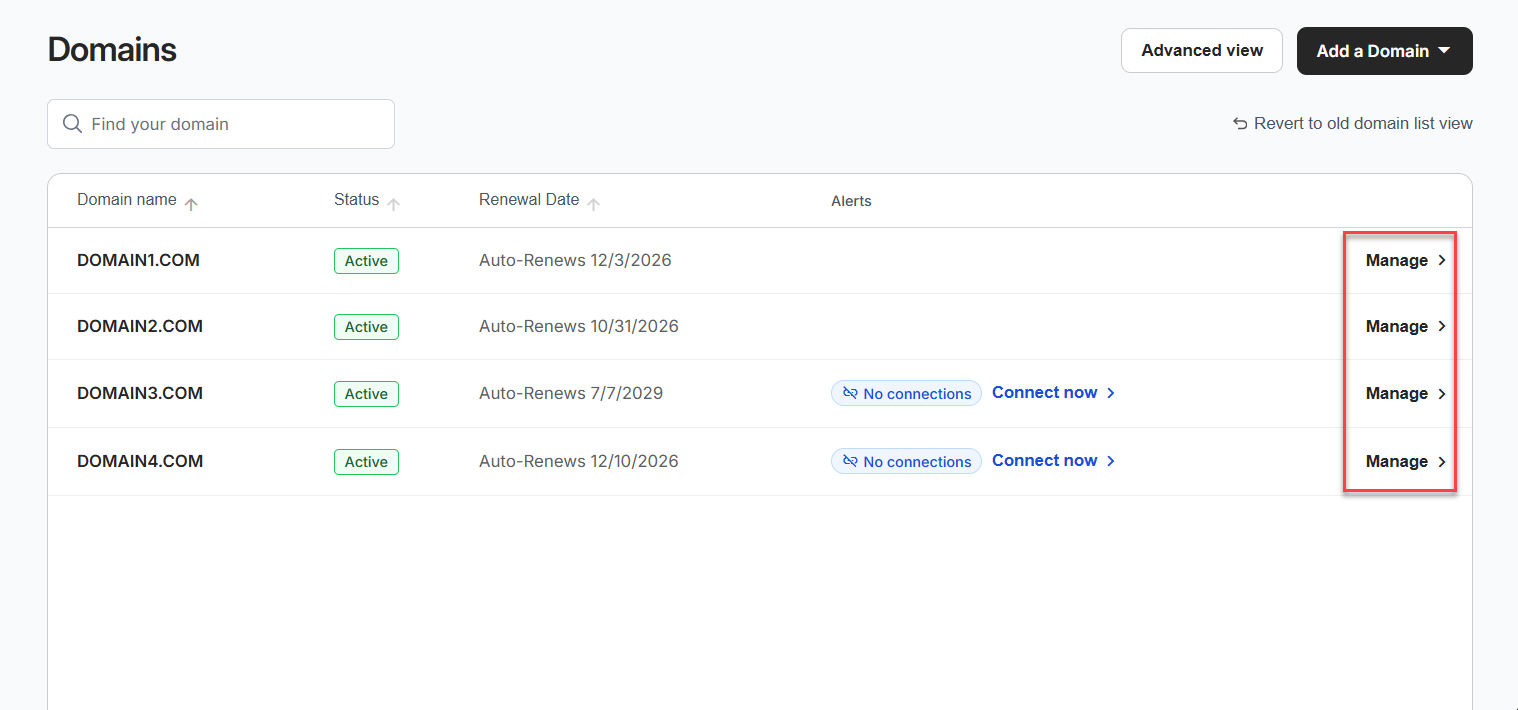
- In the domain overview section, click the DNS tab.
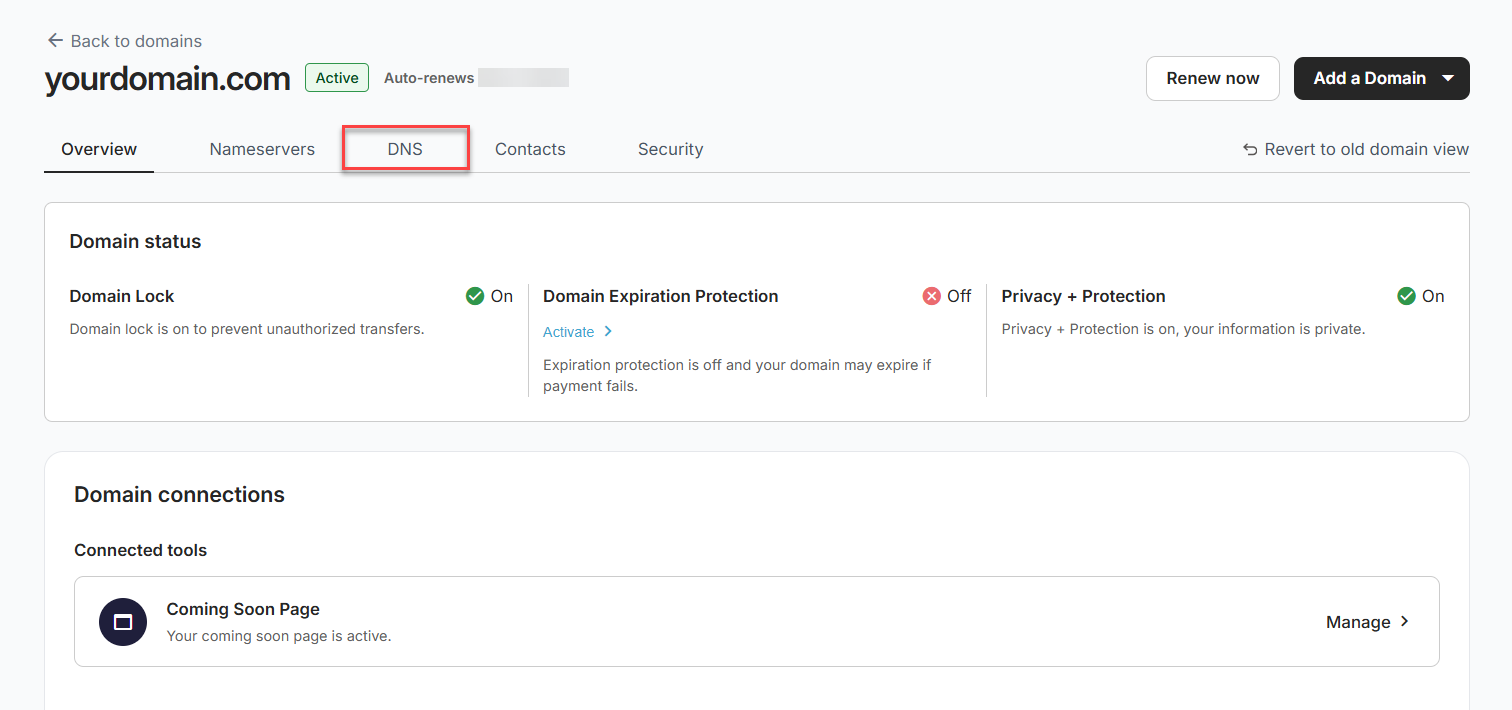
- Click the Import File button.
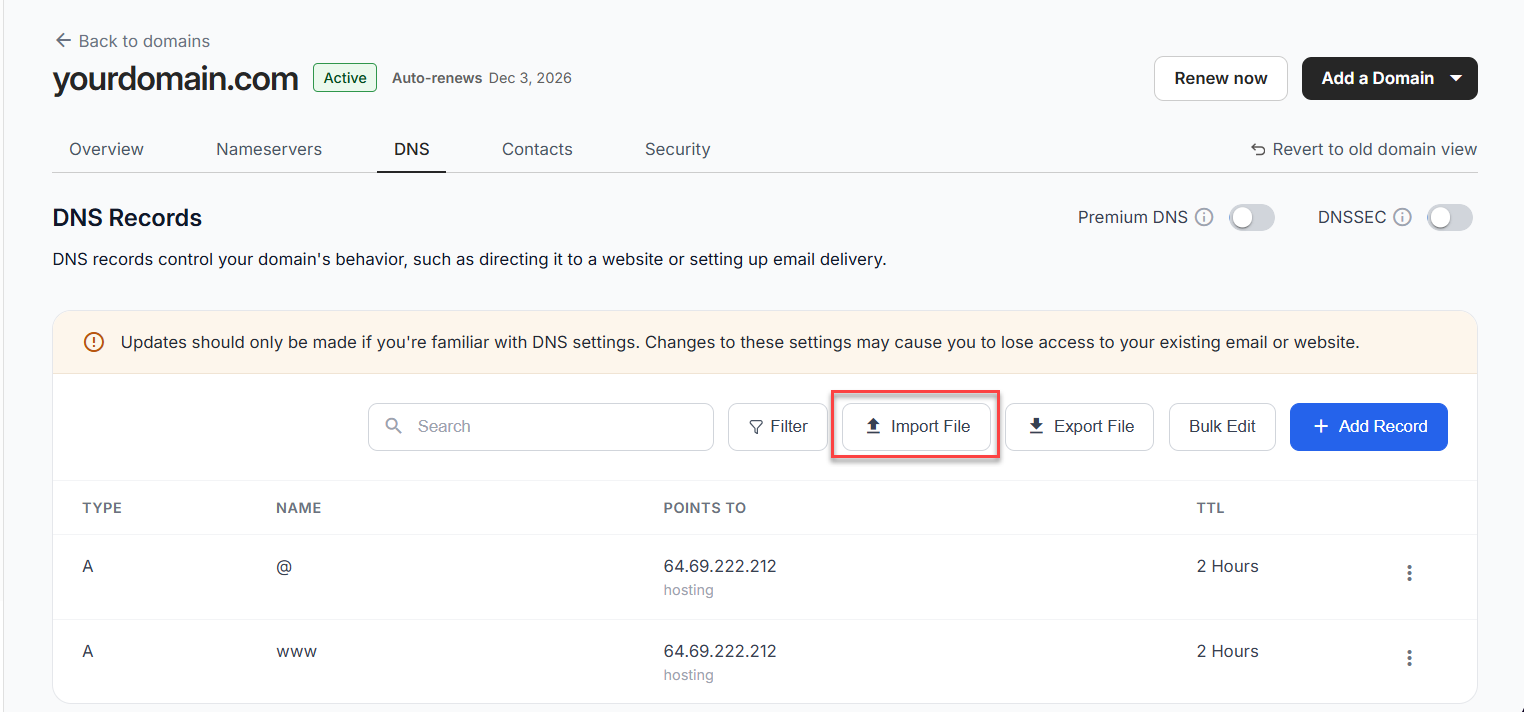
- The Select DNS Zone File window will appear. Drag and drop your file into the upload area, or click browse to select the file from your computer.
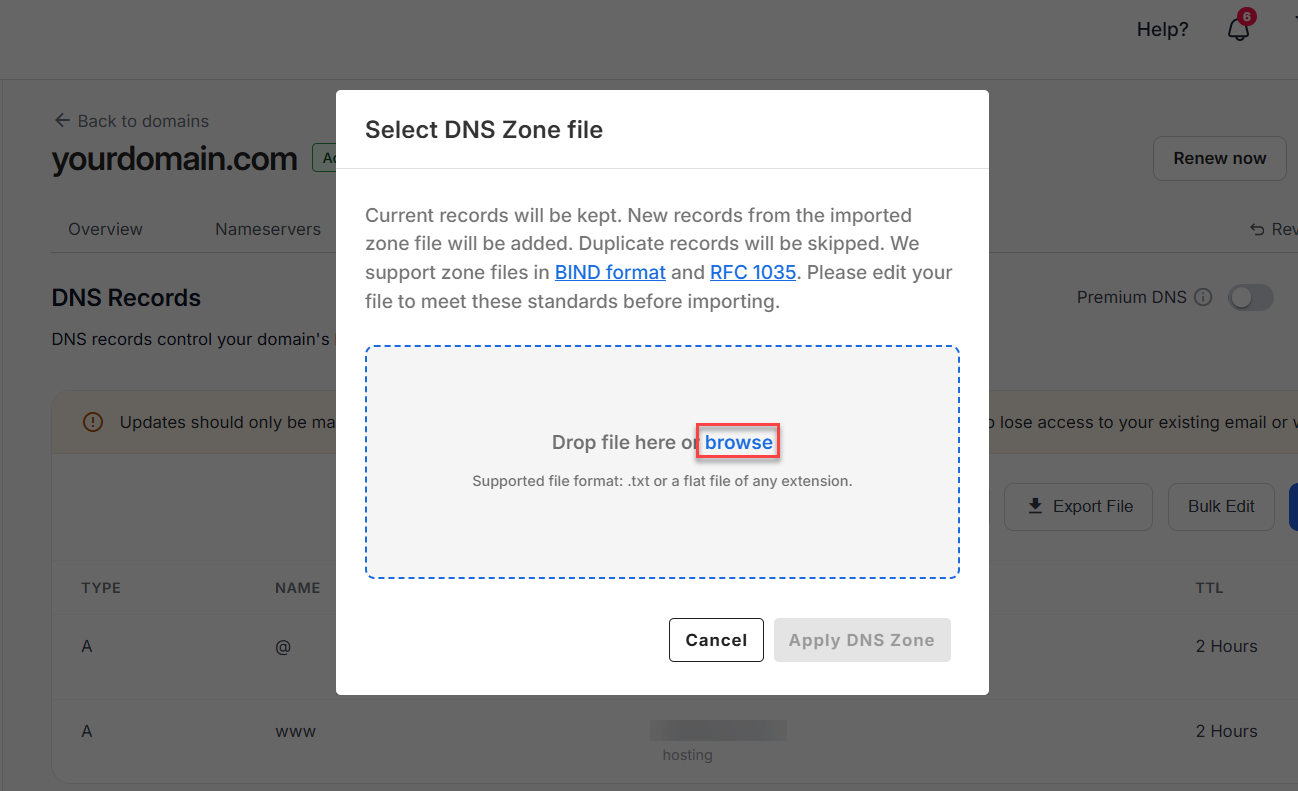
- Click Apply DNS Zone to import the file.
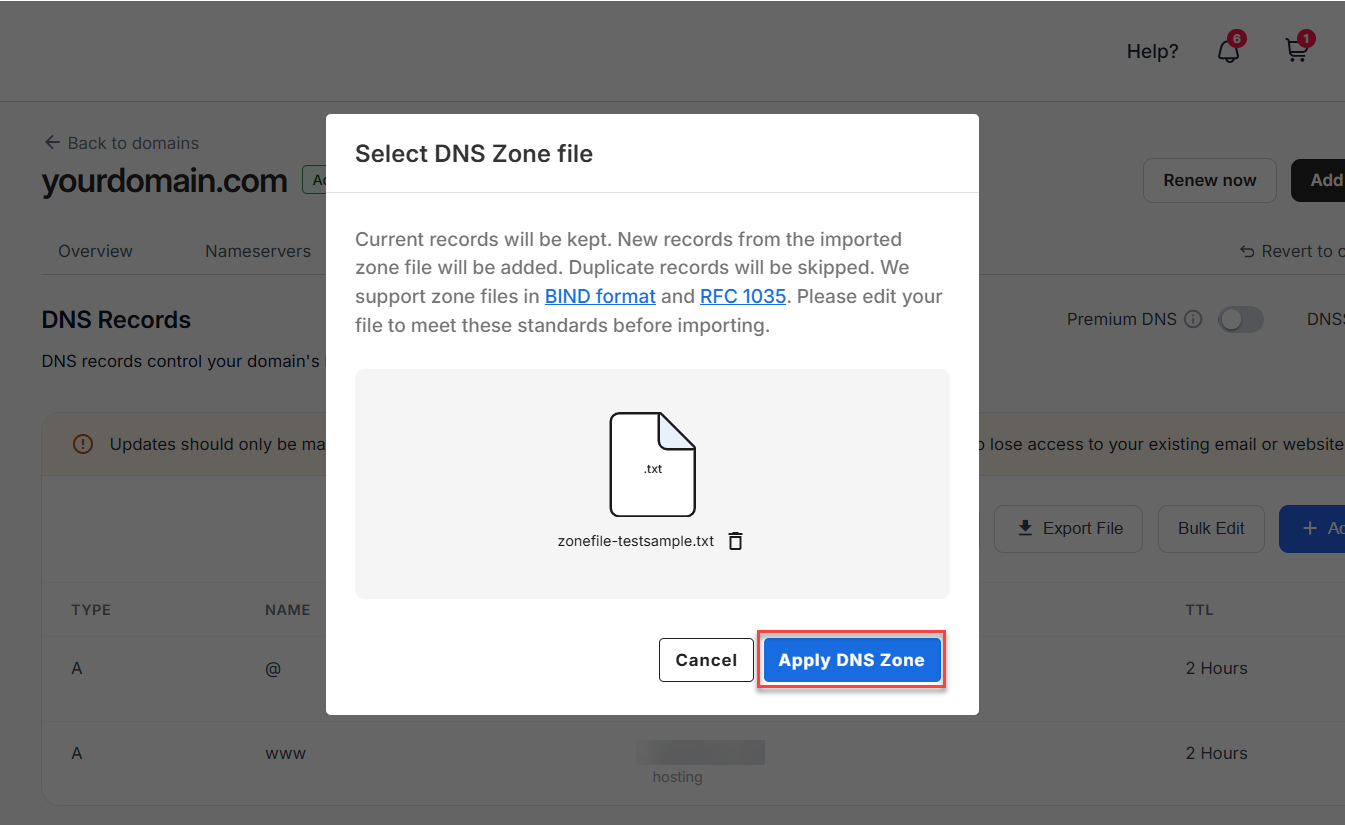
You have successfully imported your DNS zone file!
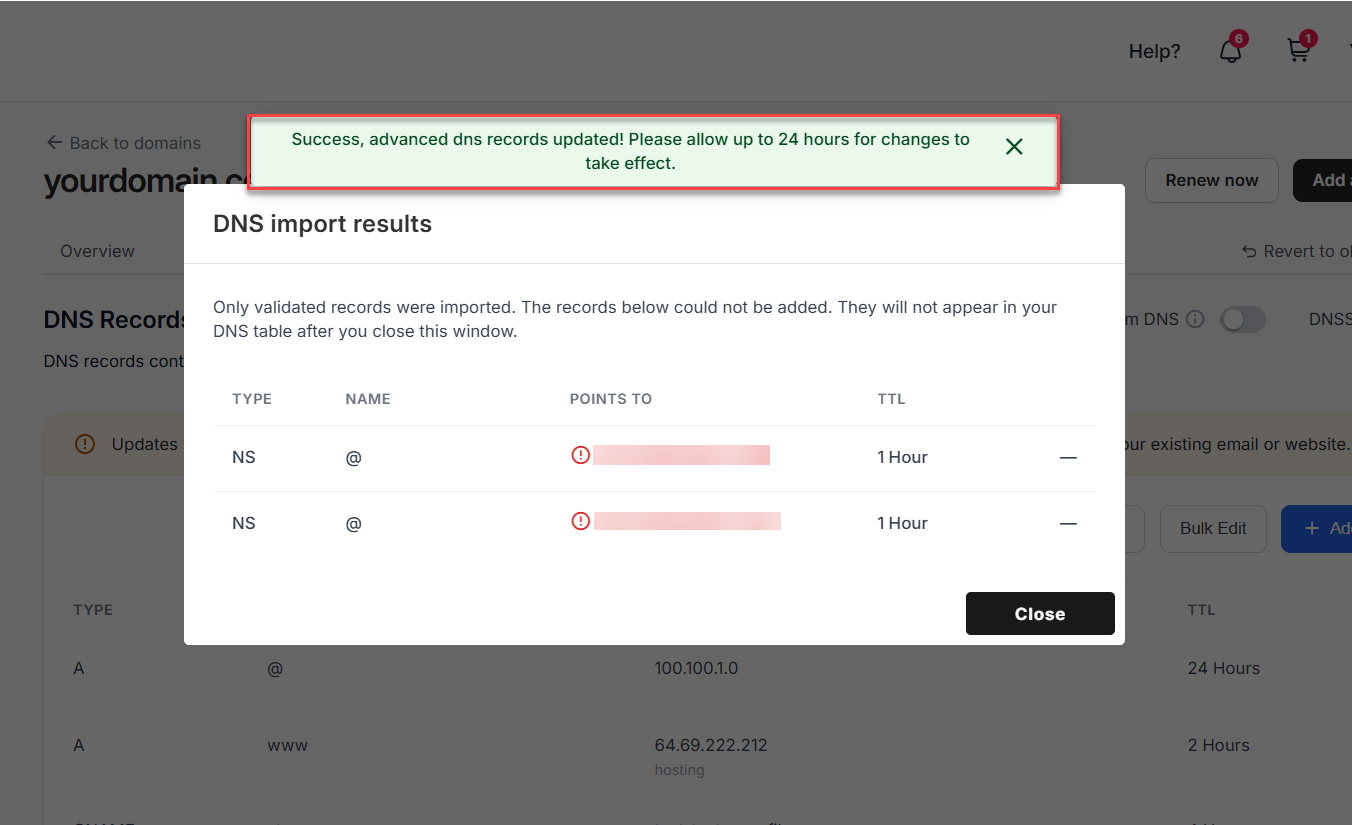
Fix import errors
Our system validates the DNS zone file after it is uploaded. If any records contain errors or unsupported values, you may need to update them before they can be imported.
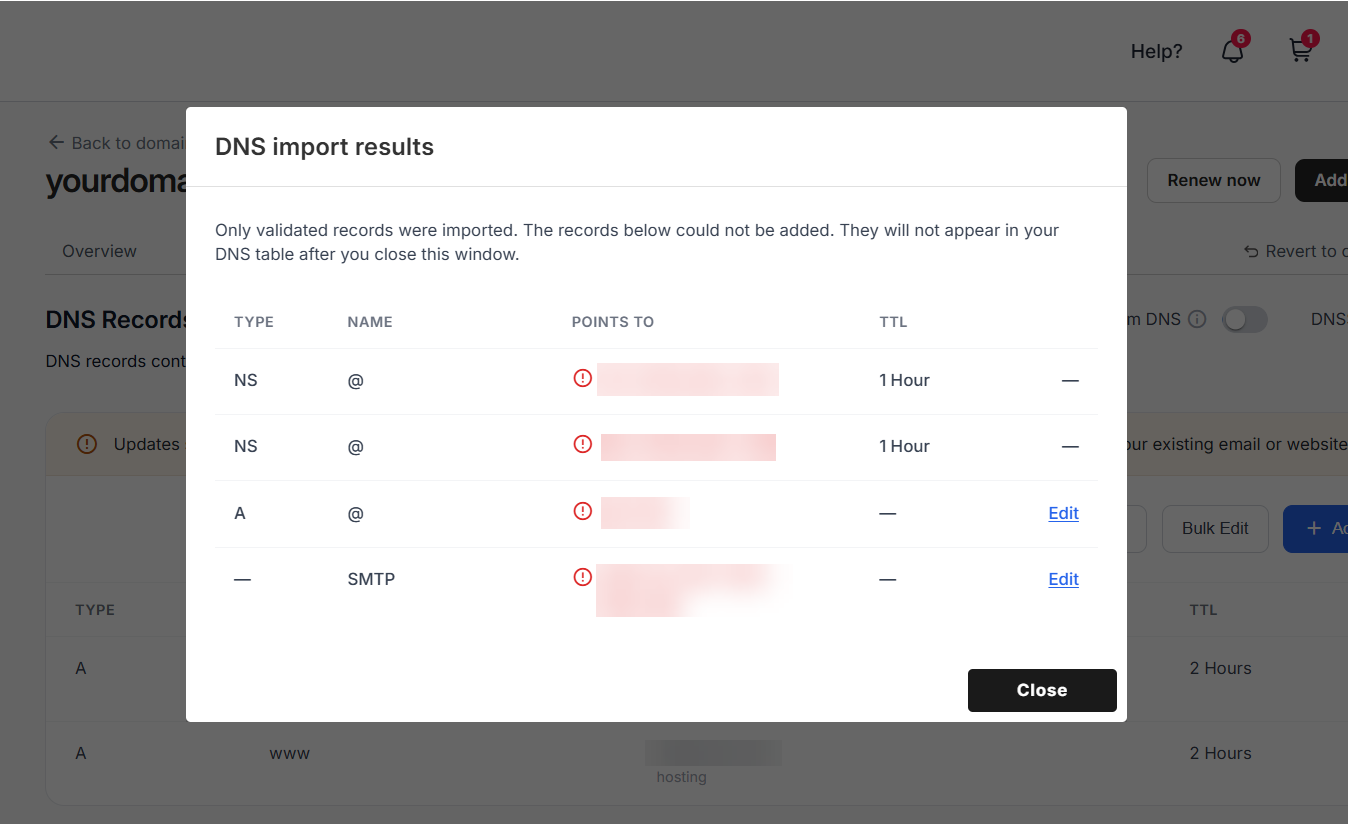
- After clicking Apply DNS Zone, a list of records with import issues will appear if any errors are detected.
- To resolve the error, you can edit the affected record unless it is already in use. Records that are already in use cannot be edited from this screen.
- Hover over the red exclamation icon to view the reason the DNS record could not be imported.
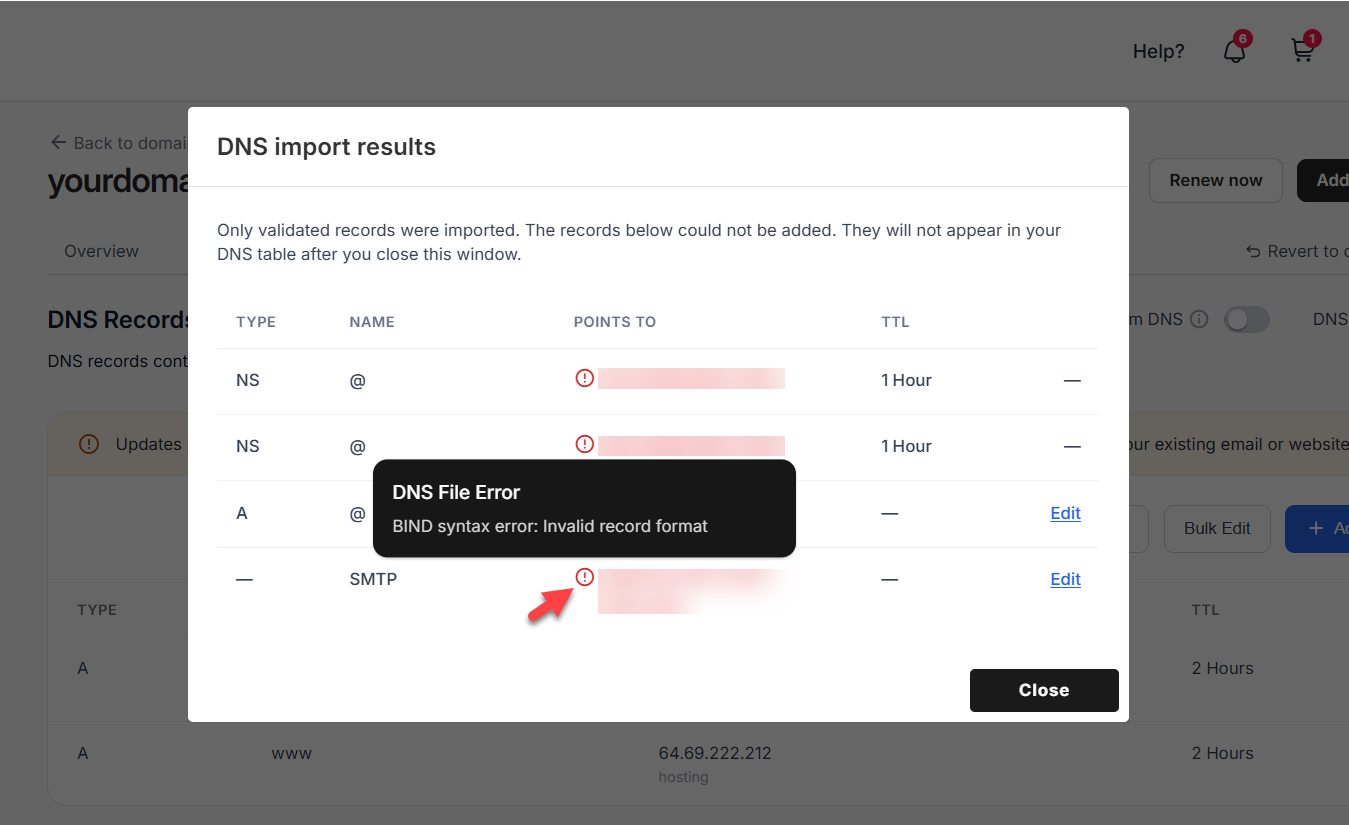
- Click the Edit option that is next to the detected DNS record error.
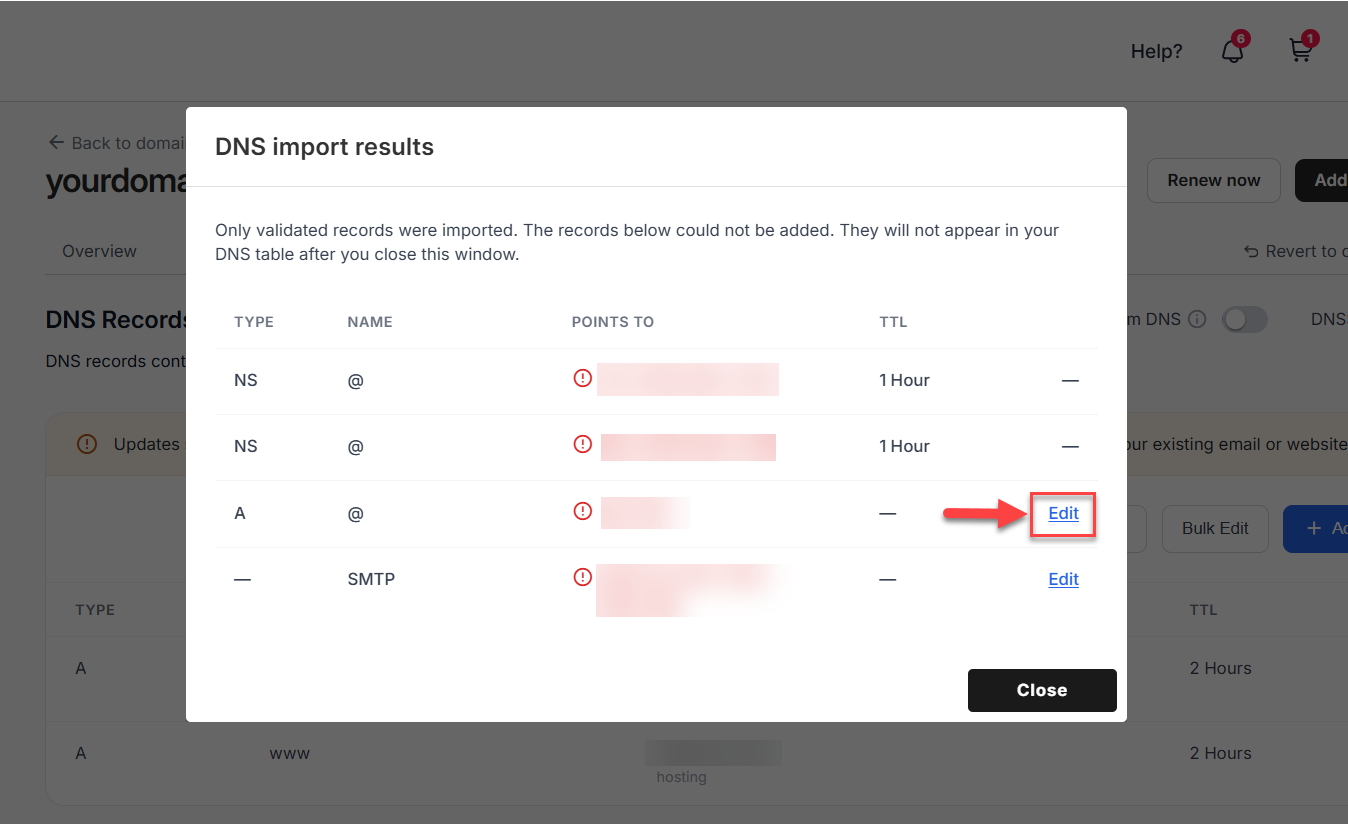
- Update the DNS record with the correct information.
- Click the Add/Edit button to save changes.
Note: Depending on the changes being made, you will see either the Add or Edit button.
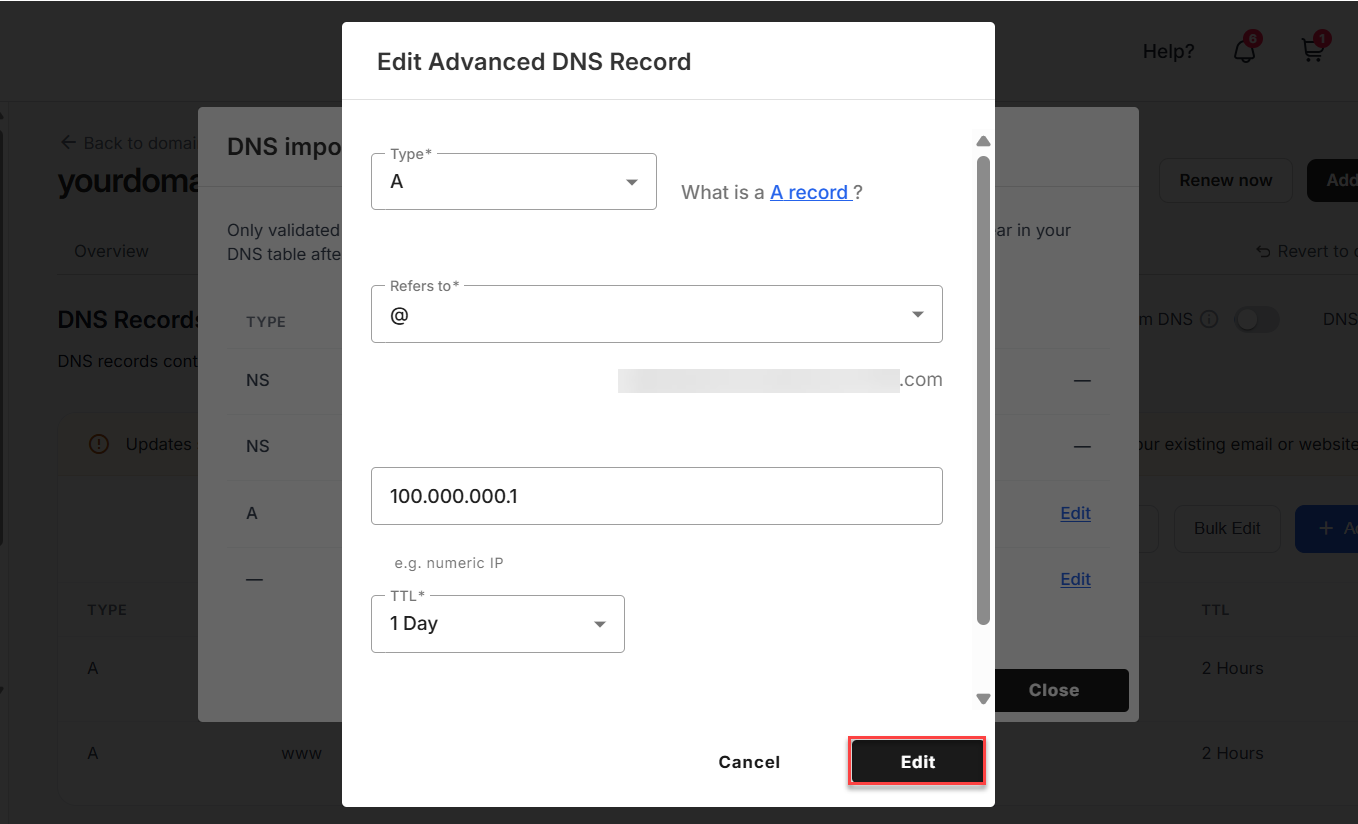
The DNS record has been updated and successfully added to your domain's DNS records.
- If you log in to your account manager via https://www.networksolutions.com/my-account/login, please refer to How to manage DNS and advanced DNS records in Network Solutions.
- If you log in to your account manager via support.web.com, please refer to How to update DNS and advanced DNS records in support.web.com.
Export your DNS zone files
To export the DNS zone file from your account manager, kindly follow the steps below:
- Log in to your account manager via https://www.networksolutions.com/my-account/login.
- Click Domains in the left navigation tab.
- You will be routed to the domain overview section. If you have multiple domains in your account, click on Manage.
- In the domain overview section, click the DNS tab.
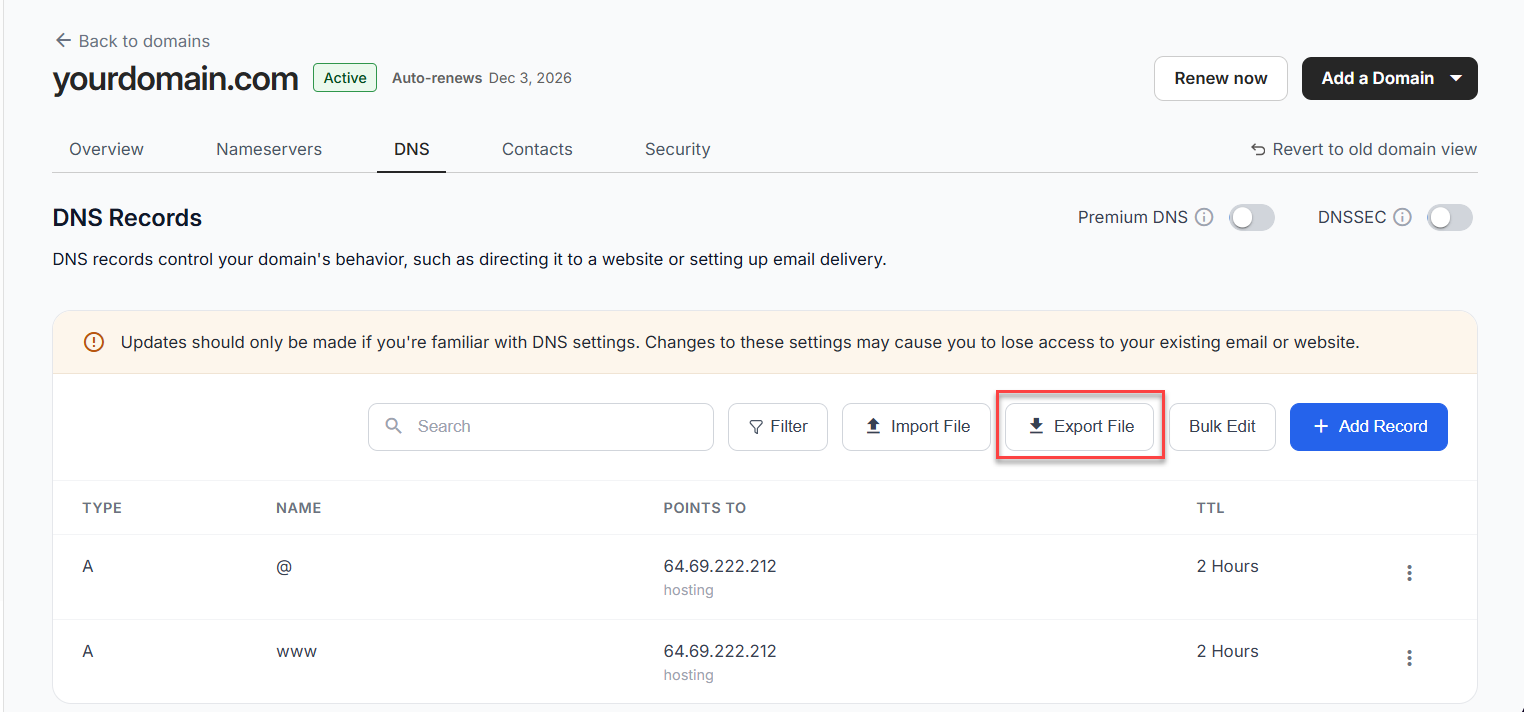
- Click the Export File button.
- Click Download DNS Zone to export the file. The DNS zone file should be downloaded to your computer.
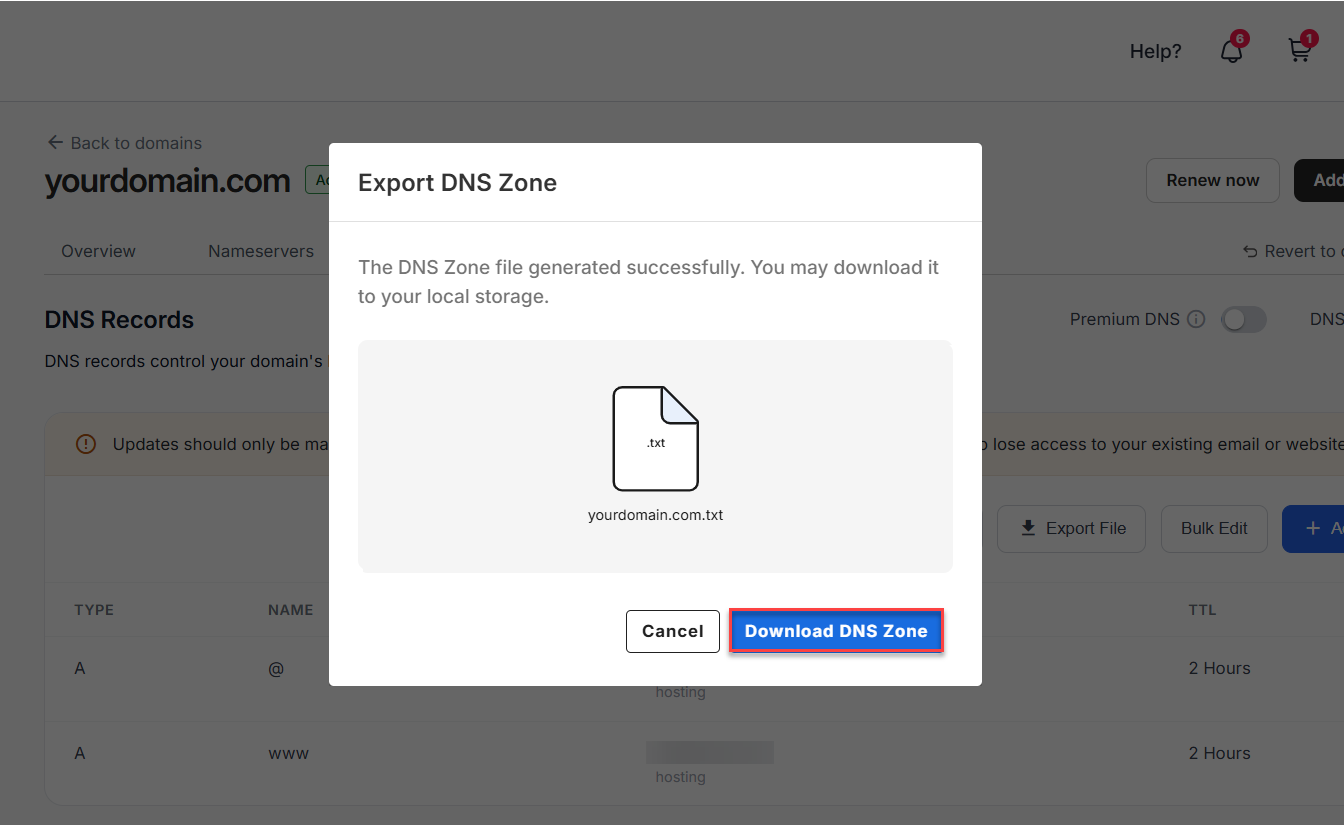
You have successfully exported your DNS zone file!
Review
Use the import feature to upload DNS records and the export feature to download your current DNS configuration. If the system detects any errors during import, review and correct the affected records before proceeding.
Get practical tips and product updates on LinkedIn.