How to manage DNS and advanced DNS records in Network Solutions
Managing your Domain Name System (DNS) records is initially configured to work with our services, but you can modify them if you wish to use different providers for different services. For example, if you want to maintain active email services with us but host your website with another provider, you will need to transfer your domain nameservers to our managed nameservers to access the Advanced DNS Manager. This flexibility allows for tailored service configurations to meet your specific needs.
Nameservers function as crucial directories that align your domain with the corresponding IP address, fundamentally shaping how your domain operates. By updating your nameservers, you can switch control of your website and email hosting between providers.
Steps to modify your Nameservers:
- Log in to your account via https://www.networksolutions.com/my-account/login.
- Select Domains on the left side of the page.

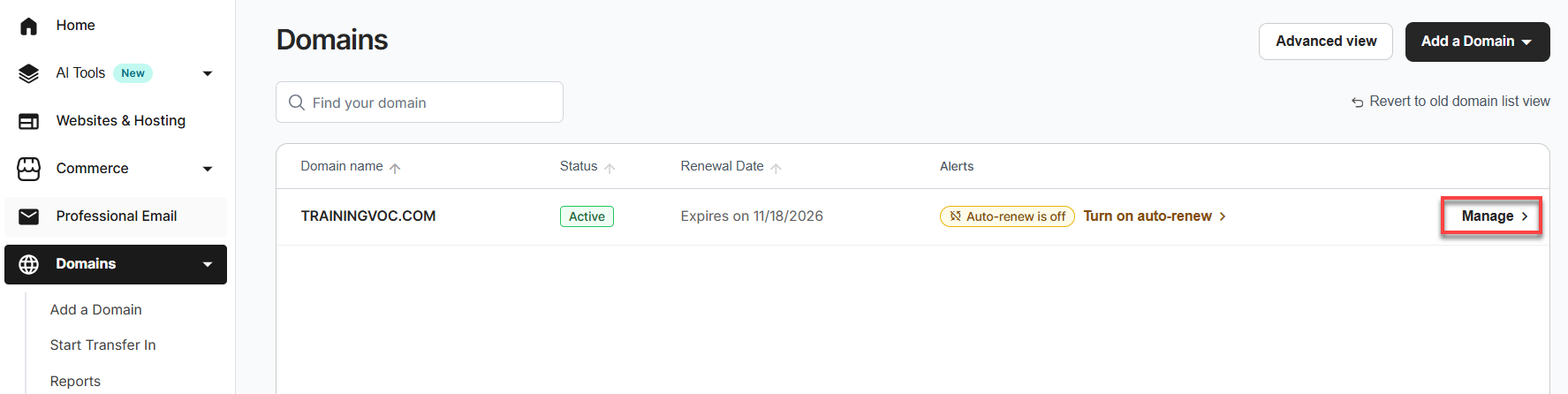
- Select the domain name you want to change and click the Manage button. If you only have one domain, you will be taken directly to the domain details page.
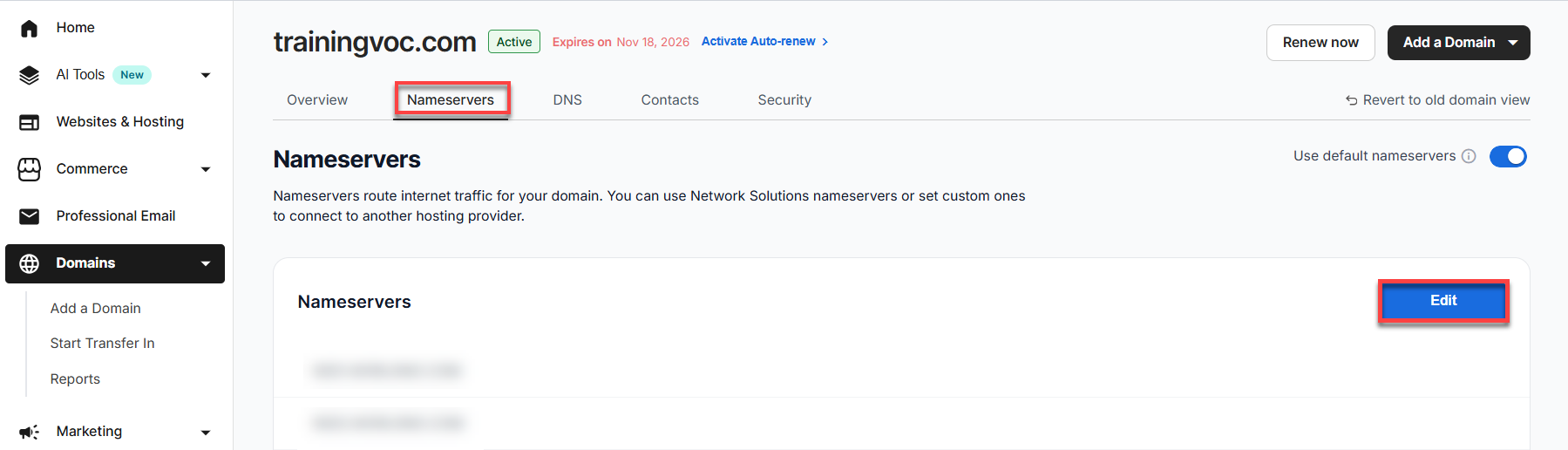
- On the domain page, go to the Nameservers tab and select Edit to update your nameservers.
- Enter your nameservers, then click Save.
You have updated your nameservers.
Nameserver (NS) records for subdomains determine which DNS server controls the records for a domain. Pointing a subdomain host to a different nameserver allows another DNS service to manage how records for that subdomain are handled.
Follow the steps below when you are ready to change or modify the NS record.
- Log in to your account via https://www.networksolutions.com/my-account/login.
- Select Domains on the left side of the page.
- Select the domain name you want to change and click the Manage button. If you only have one domain, you will be taken directly to the domain details page.
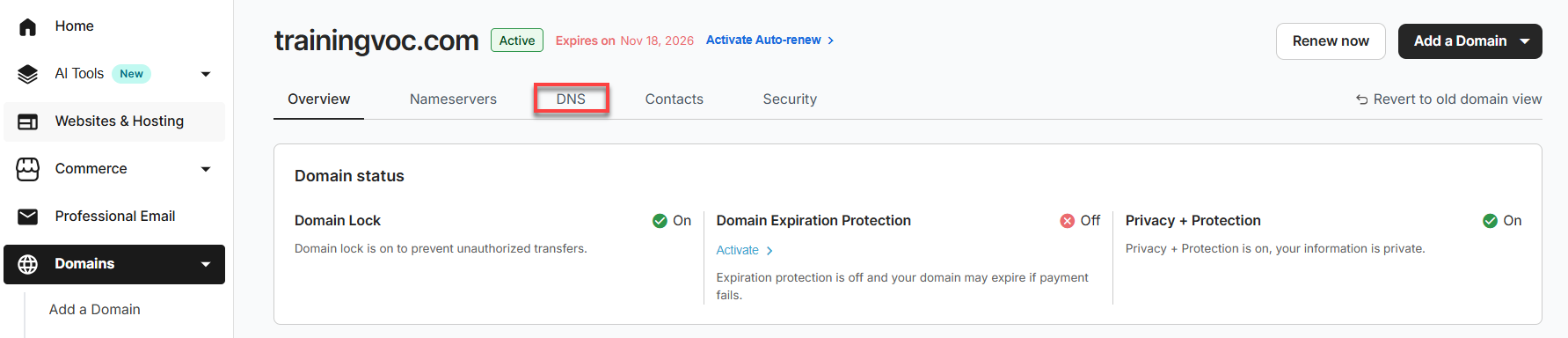
- On the domain page, go to the DNS tab.
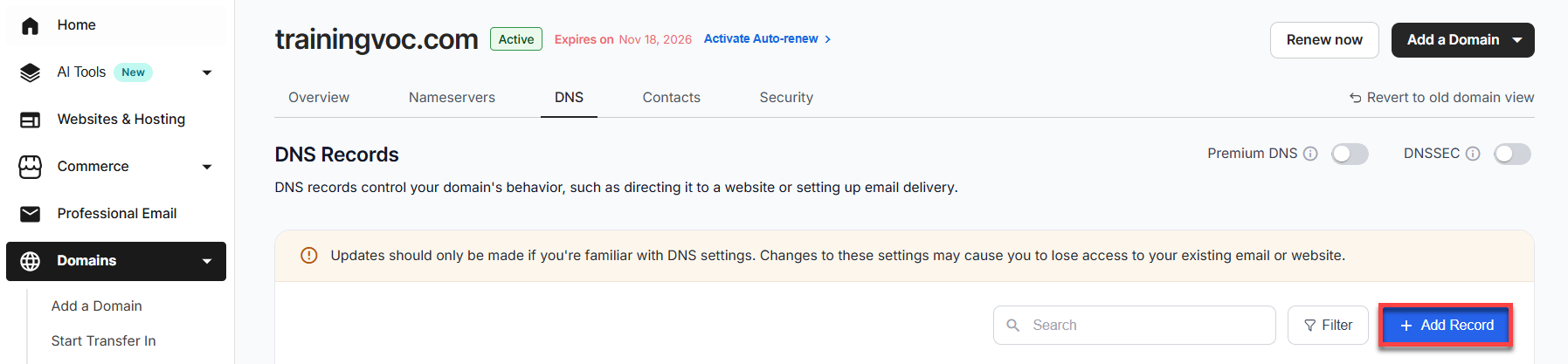
- To add records: Click +Add Record.
To edit records: Locate the existing NS record, click on the vertical ellipsis, and then select Edit.

- A pop-up window will appear.

- Add the Subdomain, add the Nameserver, then select the TTL. The TTL default is 7200 (2 hours).
- Repeat these steps for each subdomain and nameserver.
- Click the Add button. If you are editing records, then click the Edit button.
You have successfully changed the NS record.
Updating NS records in the classic view
To update your NS records in the classic view, follow the steps below:
- Follow steps 1 to 3 above.
- On the domain details page, click Revert to old domain list view link on the right-hand side of the page.

- In the old domain details page, scroll down to the Advanced Tools section.

- Once there, click Manage next to Advanced DNS Records.

- Then click the Classic View link.

- Scroll down to the Nameserver (NS) Records for Subdomains section, then click the EDIT NS RECORDS button.

- On the page that opens, you can add or edit your NS records.

- Add or edit the Subdomain, and then the Nameserver.
- Repeat the steps for each subdomain and nameserver.
- Click Save to continue.
- Click Save Changes to confirm the requested DNS changes.
You have changed your NS records.
The IP address is represented by the Address (A) record, which is used to map a domain or subdomain to its numeric IP address. The A record resolves a domain name or points it to the correct location using the IP address.
- Log in to your account via https://www.networksolutions.com/my-account/login.
- Select Domains on the left side of the page.
- Select the domain name you want to change and click the Manage button. If you only have one domain, you will be taken directly to the domain details page.
- On the domain page, go to the DNS tab.
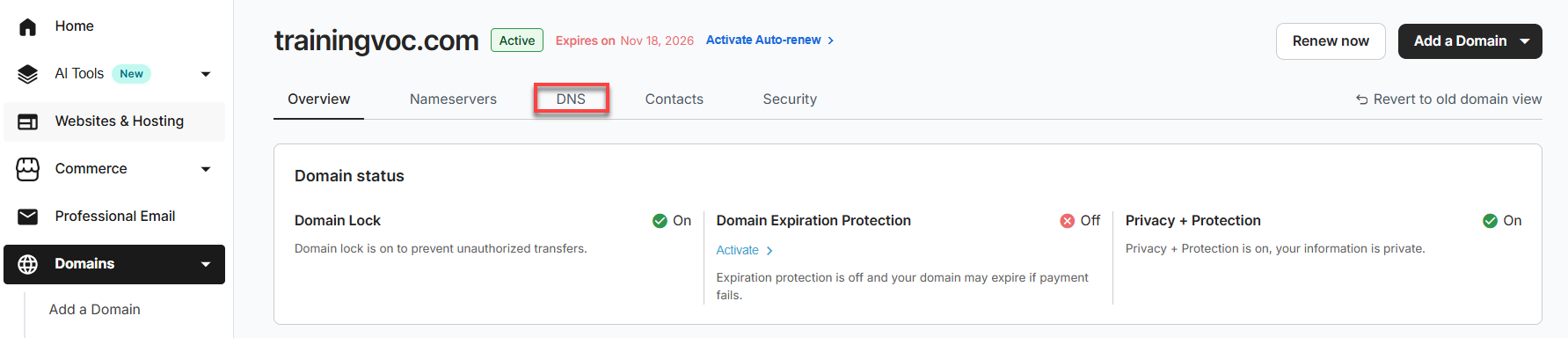
- To add records: Click +Add Record.
To edit records: Locate the existing A record, click on the vertical ellipsis, and then select Edit.
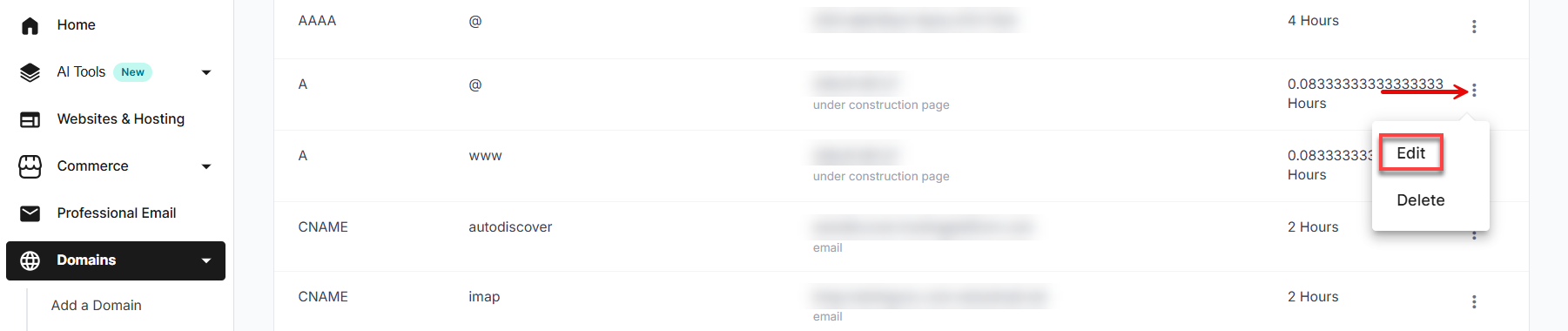 Note: To point your domain to an under-construction page, enter the IP address 205.178.189.129.
 - A pop-up window will appear.

- Select Refers to from the drop-down menu. You can choose @, www, or Other Host.
Note:If you select Other Host, you will be asked to enter the Host Name. This could be something like a star (*).
- Next, enter the IP address in Points to and select the TTL. The TTL default is 7200 (2 hours).
- To save changes, click the Add button. If you are editing records, click the Edit button.
You have changed the IP address for the A record.
Updating NS records in the classic view
To update your A records in the classic view, follow the steps below:
- Follow steps 1 to 3 above.
- On the domain details page, click Revert to old domain list view link on the right-hand side of the page.
- In the old domain details page, scroll down to the Advanced Tools section.
- Once there, click Manage next to Advanced DNS Records.
- Then click the Classic View link.
- On the page that opens, you can add or edit your A records.

- You will have the following options:
- To remove and replace existing numeric IP addresses, select the box next to each A Record you need to delete, then click Continue.
- To add the new Host and Numeric IP addresses or update the existing Numeric IP addresses, enter the appropriate information in the text boxes.
- If needed, modify the TTL settings, then click the Continue button. The TTL default is 7200.
- A confirmation page appears that verifies your records were updated. Review the information carefully, then click the Save Changes button.
You have changed the IP Address for A records.
The IPv6 address is mapped using the AAAA record, which links the domain's nameserver or hostname to its numeric IP address. While the A record resolves a domain name by pointing it to the correct IPv4 address, the AAAA record facilitates the redirection of your host from one IPv6 address to another.
To add an IPv6 AAAA (quad-A) record, please log into your Network Solutions account and follow the provided steps. Your request will be thoroughly reviewed, authenticated, and processed within 24 to 48 business hours.
- Log in to your account via https://www.networksolutions.com/my-account/login.
- Select Domains on the left side of the page.
- Select the domain name you want to change and click the Manage button. If you only have one domain, you will be taken directly to the domain details page.
- On the domain page, go to the DNS tab.
- To add records: Click +Add Record.
To edit records: Look for the existing AAAA record, click on the vertical ellipsis and select Edit.
 Note: To point your domain to an under-construction page, enter the IP address 205.178.189.129.
 - A pop-up window will appear.

- Select Refers to from the drop-down menu. You can choose @, www, or Other Host.
Note: If you select Other Host, you will be asked to enter the Host Name. This could be something like a star (*).
- Next, enter the IP address in Points to and select the TTL. The TTL default is 7200 (2 hours).
- To save changes, click the Add button. If you are editing records, click the Edit button.
You have successfully changed the IP Address for the AAAA records.
Updating AAAA records in the classic view
To update your AAAA records in the Classic view, follow the steps below:
- Follow steps 1 to 3 above.
- On the domain details page, click Revert to old domain list view link on the right-hand side of the page.
- In the old domain details page, scroll down to the Advanced Tools section.
- Once there, click Manage next to Advanced DNS Records.
- Then click the Classic View link.
- Scroll down to the IPV6 Address (AAAA Records), then click the EDIT AAAA RECORDS button.

- On the page that opens, you can add or edit your AAAA records.

- You will have the following options:
- To remove and replace existing numeric IP addresses, select the box next to each AAAA Record you need to delete, then click Continue.
- To add the new Host and numeric IP addresses or update the existing Numeric IP addresses, enter the appropriate information in the text boxes.
- If needed, modify the TTL settings, then click the Continue button. The TTL default is 7200.
- A confirmation page appears that verifies your records were updated. Review the information carefully, then click the Save Changes button.
You have changed the IP address for AAAA records.
Mail Exchange (MX) records establish mail routes for a domain name. Each domain can have multiple mail routes, each assigned a priority number. The route with the lowest number designates the primary server responsible for handling the domain's email. Higher-numbered servers act as backups. Without MX records, a domain would be unable to receive email messages.
- Log in to your account via https://www.networksolutions.com/my-account/login.
- Select Domains on the left side of the page.
- Select the domain name you want to change and click the Manage button. If you only have one domain, you will be taken directly to the domain details page.
- On the domain page, go to the DNS tab.
- To add records: Click +Add Record.
To edit records: Locate the existing MX record, click on the vertical ellipsis, and then select Edit.
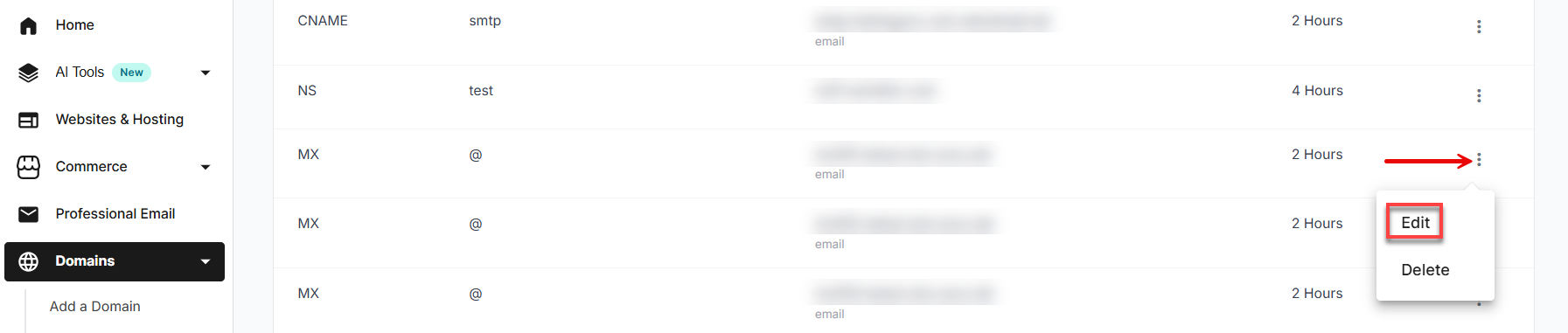 Note: To point your domain to an under-construction page, enter the IP address 205.178.189.129.
 - A pop-up window will appear.

- Select Refers to from the drop-down menu. You can choose @, www, or Other Host. If you select Other Host, you will be asked to enter the Host Name.
- Enter your mail server in the Mail Server field. Next, enter the Priority and TTL. The TTL default is 7200 (2 hours).
- To save changes, click the Add button. If you are editing records, click the Edit button.
You have successfully changed the mail server for the MX records.
Updating MX records in the classic view
To update your MX records in the Classic view, follow the steps below:
- Follow steps 1 to 3 above.
- On the domain details page, click Revert to old domain list view link on the right-hand side of the page.
- In the old domain details page, scroll down to the Advanced Tools section.
- Once there, click Manage next to Advanced DNS Records.
- Then click the Classic View link.
- Scroll down to the Mail Servers (MX Records) section and click the EDIT MX RECORDS button.

- On the page that opens, you can add or edit your MX Records.

- You will have the following options:
- To remove existing Mail Servers (MX Records), select the box next to each Mail Server you need to delete, then click Continue.
- To edit pre-existing Mail Servers (MX Records), enter the Priority number (10 through 90) and the Mail Server in the text boxes.
- To add new Mail Servers (MX Records), enter the Priority number (10 through 90) and the Mail Serverin the text boxes. If needed, modify the TTL settings, then click Save. The TTL default is 7200.
- A confirmation page appears that verifies your records were updated. Review the information carefully, then click the Save Changes button.
You have changed the mail server for MX Records.
A CNAME (Canonical Name) record is a type of DNS record that creates an alias for a domain, allowing traffic for that domain name to be redirected. CNAME records can only be created for third-level domains due to limitations in the Advanced DNS Manager, which does not support alias creation for second-level domains.
Creating a CNAME for a second-level domain could lead to conflicts with other records, potentially disrupting email or website services. If you need to redirect traffic for a second-level domain, consider exploring our Web Forwarding product for a suitable solution.
You have successfully changed the host alias for the CNAME Records.
- Log in to your account via https://www.networksolutions.com/my-account/login.
- Select Domains on the left side of the page.
- Select the domain name you want to change and click the Manage button. If you only have one domain, you will be taken directly to the domain details page.
- On the domain page, go to the DNS tab.
- To add records: Click +Add Record.
To edit records: Look for the existing CNAME record, click on the vertical ellipsis and select Edit.
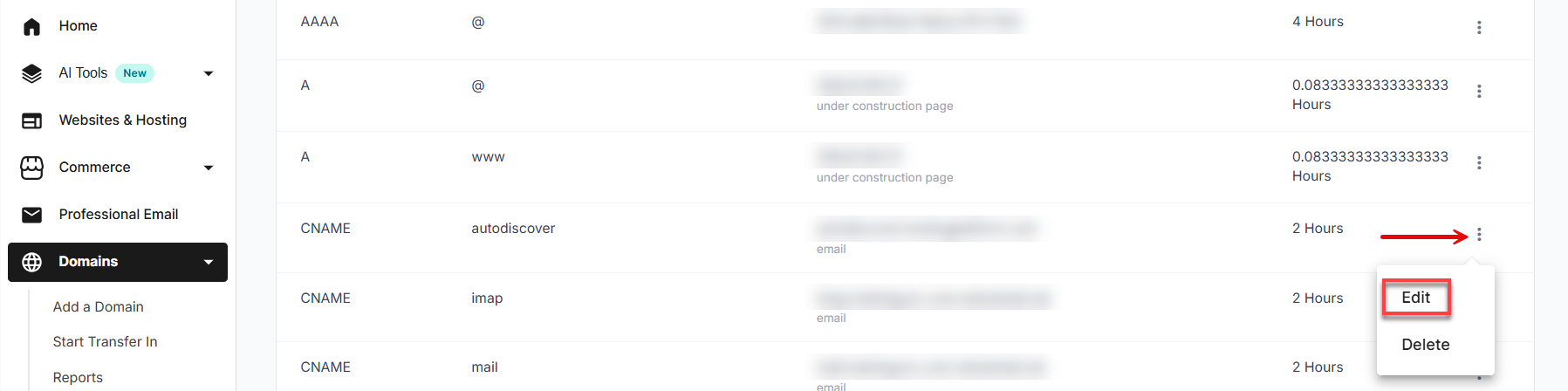
- A pop-up window will appear.

- Select Refers to from the drop-down menu. You can choose @, www, or Other Host.
Note: If you select Other Host, you will be asked to enter the Host Name (such as mail, SMTP, autodiscover,@, IMAP, or POP).
- Enter the Alias to (hostname). This will typically look like a domain name.
- Next, enter the TTL value. The TTL default is 7200 (2 hours).
- To save changes, click the Add button. If you are editing records, click the Edit button.
Updating Canonical Name (CNAME) records in the classic view
To update your CNAME records in the Classic view, follow the steps below:
- Follow steps 1 to 3 above.
- On the domain details page, click Revert to old domain list view link on the right-hand side of the page.
- In the old domain details page, scroll down to the Advanced Tools section.
- Once there, click Manage next to Advanced DNS Records.
- Then click the Classic View link.
- Scroll down to the Host Aliases (CNAME Records) section and click the EDIT CNAME RECORDS button.

- On the page that opens, you can add or edit your CNAME Records.

- You will have the following options:
- Type the new aliases or update the existing aliases in the Alias text boxes. If needed, modify the TTL settings. The TTL default is 7200.
- Select one of the two:
- Refers to Host Name to alias another record assigned to this domain. Select the hostname from the drop-down box under the Host Name button.
- Other Host to alias another domain. The information entered in this field must be a domain name. It cannot be an IP address or a specific directory
- A confirmation page appears that verifies your records were updated. Review the information carefully, then click the Save Changes button
You have changed the host alias for the CNAME records.
TXT records serve multiple functions, one of the most common being the creation of a Sender Policy Framework (SPF). SPF records are crucial for preventing email spammers from forging the "From" fields in emails. They let the domain owner specify which IP addresses are authorized to send email on the domain's behalf.
Another important use of TXT records is to implement Domain-based Message Authentication, Reporting, and Conformance (DMARC). DMARC leverages DNS to publish policies on how an email from a domain should be handled, whether to take no action, quarantine the message, or reject it outright.
v=spf1 include:spf.registeredsite.com include:spf.cloudus.oxcs.net ~all- Log in to your account via https://www.networksolutions.com/my-account/login.
- Select Domains on the left side of the page.
- Select the domain name you want to change and click the Manage button. If you only have one domain, you will be taken directly to the domain details page.
- On the domain page, go to the DNS tab.
- To add records: Click +Add Record.
To edit records: Locate the existing TXT record, click on the vertical ellipsis, and then select Edit.
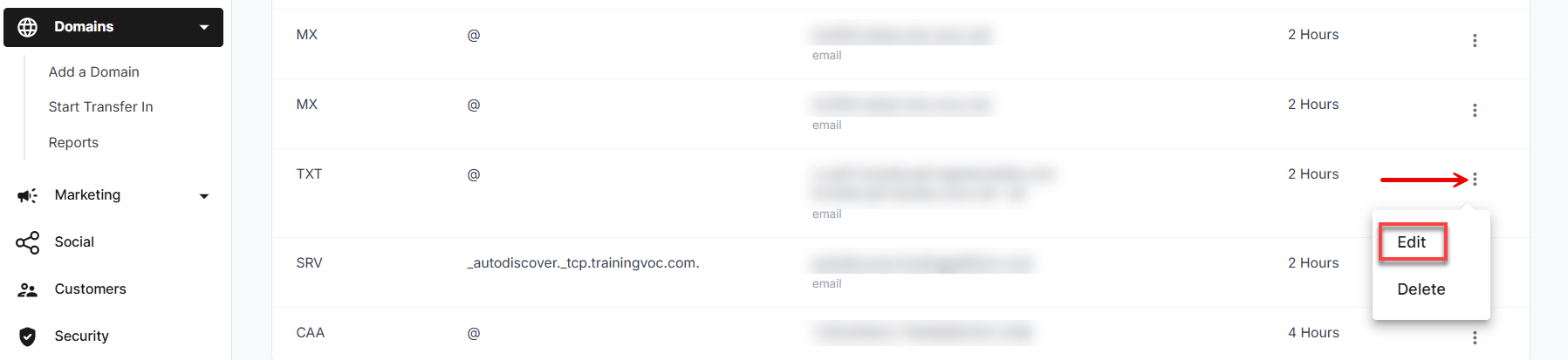
- A pop-up window will appear.

Note: If you select Other Host, you will be asked to enter the Host Name. - Enter the TXT Value into the field. You will need the entire TXT Value you were given.
- Enter the TTL value. The TTL default is 7200 (2 hours).
- Click the Add button. If you are editing records, click the Edit button.
You have changed the TXT records for the Sender Policy Framework (SPF).
Updating TXT records in the classic view
To update your TXT records in the classic view, follow the steps below:
- Follow steps 1 to 3 above.
- On the domain details page, click Revert to old domain list view link on the right-hand side of the page.
- In the old domain details page, scroll down to the Advanced Tools section.
- Once there, click Manage next to Advanced DNS Records.
- Then click the Classic View link.
- Scroll down to the Text (TXT Records) section and click the EDIT TXT RECORDS button.

- On the page that opens, you can add or edit your TXT Records.

- Type a new Hostname or third-level name under the Host field and insert your TXT record in the Text box on the right-hand side of the page, then click the Continue button.
- A confirmation page appears that verifies your records were updated. Review the information carefully, then click the Save Changes button.
You have changed the TXT records for the Sender Policy Framework (SPF).
Service (SRV) records enable users to locate specific services within a network rather than identify individual machines. Unlike A records, which are used to find a specific server or host, SRV records identify services available on the network, such as printers, VoIP systems, FTP services, and more. This functionality is like MX records direct email traffic, but SRV records are designed for a broader range of network services.
- Log in to your account via https://www.networksolutions.com/my-account/login.
- Select Domains on the left side of the page.
- Select the domain name you want to change and click the Manage button. If you only have one domain, you will be taken directly to the domain details page.
- On the domain page, go to the DNS tab.
- To add records: Click +Add Record.
To edit records: Locate the existing SRV record, click on the vertical ellipsis, and then select Edit.
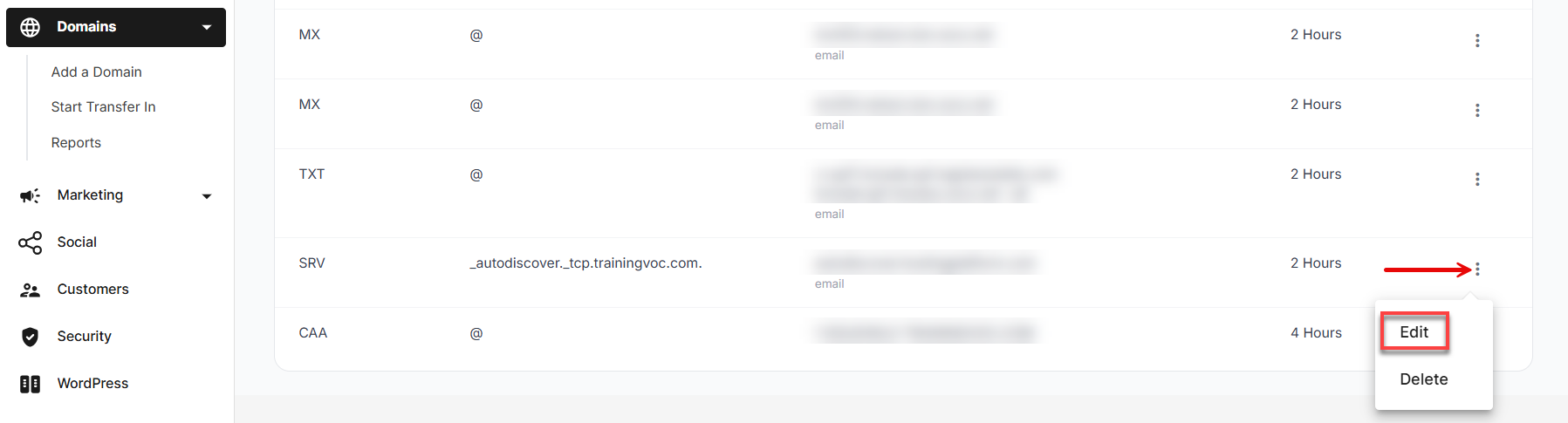
- A pop-up window will appear.

- Enter the following information in each field.
- Service: The name of the service needed (such as
_autodiscover). - Protocol: The protocol of the desired service, usually either
TCPorUDP. - Weight: A relative weight for records with the same priority. Determines which of the records with the same priority are delivered more frequently. Enter the proportional volume of traffic as a percentage.
- Port: The TCP or UDP port on which the service will be found. The port can be any number between 0 and 65535.
- Target: The name of the machine providing the service.
- TTL: The standard time to live. The TTL default is 7200 (2 hours).
- Priority: The priority of the target host; lower value means more preferred. The priority can be any number between 0 and 65535.
- Service: The name of the service needed (such as
- Click the Add button. If you are editing records, then click the Edit button.
You have successfully changed the SRV record.
Updating SRV records in the classic view
To update your Service (SRV) records in the classic view, follow the steps below:
- Follow steps 1 to 3 above.
- On the domain details page, click Revert to old domain list view link on the right-hand side of the page.
- In the old domain details page, scroll down to the Advanced Tools section.
- Once there, click Manage next to Advanced DNS Records.
- Then click the Classic View link.
- Scroll down to the Service (SRV Records) section and click the EDIT SRV RECORDS button.

- On the page that opens, you can add or edit your SRV records.

- You will have the following options:
- To remove the existing SRV records, select the box next to each Service (SRV Record) to delete, then click Continue.
- To add SRV records, enter the additional options based on the type of SRV records being added.
- Service: The name refers to the desired service.
- Target: The name of the machine providing the service.
- Port: The TCP or UDP port on which the service will be found. The port can be any number between 0 and 65535.
- Weight: A relative weight for records with the same priority. Determines which of the records with the same priority are delivered more frequently. Enter the proportional volume of traffic as a percent.
- Priority: The priority of the target host. Lower value means more preferred. The priority can be any number between 0 and 65535.
- TTL: The standard time to live.
- Name: The domain name for which this record is valid.
- Protocol: The protocol of the desired service, usually either TCP or UDP.
- A confirmation page appears that verifies your records were updated. Review the information carefully, then click the Save Changes button.
You have changed the SRV record.
Domain Name System Security Extensions (DNSSEC) provide an additional layer of security for your domain. DNSSEC utilizes a digital signature to ensure that the domain resolution process is secure, safeguarding against unauthorized changes.
- For domain names registered with us and that are using our nameservers, you can enable and disable DNSSEC records of your domain through your Account Manager, as shown below.
- For domain names registered with us but using third-party DNS services, verify first whether DNSSEC is enabled with your DNS provider. If it's disabled on their end, this may cause issues with pulling up your website. If you choose to continue using DNSSEC, you may contact us to have your records, which are provided by your DNS provider, entered.
- Why should you consider DNSSEC? It offers enhanced protection against attacks like cache poisoning, which can misdirect traffic and compromise data.
- How to enable DNSSEC? Simply use the toggle located on the right-hand side of the DNS tab page to activate this feature.

- Why can't I see the option to turn it on? DNSSEC is only available for
.COM/.NET/.INFO/.ORG/.BIZdomains currently.
Certificate Authority Authorization (CAA) records enable you to specify which certificate authorities (CAs) are permitted to issue certificates for your domain. This control helps ensure that only authorized CAs can issue certificates for your domain or subdomains. Your security certificate provider can provide specific guidance on what to include in your CAA record.
- Log in to your account via https://www.networksolutions.com/my-account/login.
- Select Domains on the left side of the page.
- Select the domain name you want to change and click the Manage button. If you only have one domain, you will be taken directly to the domain details page.
- On the domain page, go to the DNS tab.
- To add records: Click +Add Record.
To edit records: Locate the existing CAA record, click on the vertical ellipsis, and then select Edit.
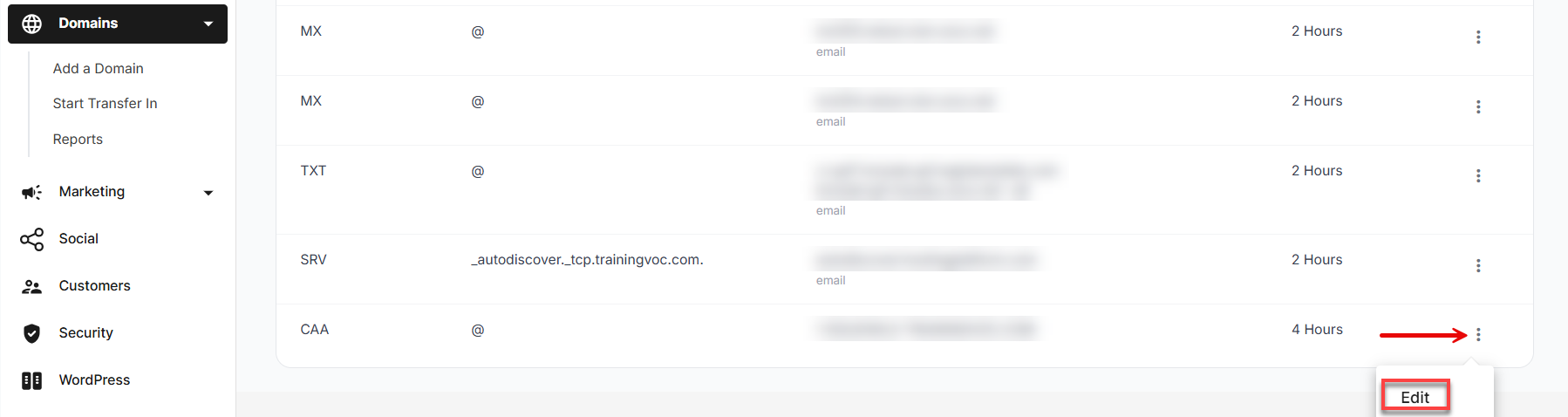
- A pop-up window will appear.

- Enter the following information in each field.
- Flag: Number between 0 and 255.
- Tag: Specifies the property you want to associate with the value (
issue,issuewild). - Value: This is typically the domain of your security provider.
- TTL: The time to live for the record to be saved by the resolver. The TTL default is 7200 (2 hours).
- Click the Add button. If you are editing records, then click the Edit button.
You have successfully changed the CAA record.
DomainKeys Identified Mail (DKIM) enhances email security by adding a digital signature to outgoing messages, authenticating that the email address is legitimate. The DMARC policy informs recipients that your messages are protected by DKIM and specifies actions to take if messages fail authentication, are flagged as junk, or are rejected.
Configuring your DMARC policy requires an email address, which will be used to receive reports on authenticated messages and those flagged for issues, including the reasons for such flags. This email must be from the same domain as the DKIM domain. If it is from a different domain, you must publish a DNS report record to enable it to receive reports from another domain. For instructions on configuring DKIM and DMARC, please refer to How to set up DKIM and DMARC.
Review
DNS records are like the address book for your website. They tell visitors where to find your website and email. You can change your DNS records through your Network Solutions account. Changing your DNS records can affect your website and email. There are different types of DNS records, including A records, MX records, and CNAME records. Each type of record points to a different part of your website or email.
Get practical tips and product updates on LinkedIn.
Follow Network Solutions