Powered by Network Solutions: File management - How to backup and restore files
Backing up your website on a regularly ensures that if the unexpected happens, you are prepared. A backup of your files and data makes, it so you don’t have to recreate your site from scratch. You save both time and money.
In this article, we will discuss:
Why should I back up and restore files?
Saving a backup to your personal computer:
- (Optional) Create a zip archive of the files you want to download.
- Connect to your account using FTP.
- Download your file(s).
Restoring a backup from your personal computer:
- Connect to your account using FTP.
- Upload your file(s).
- (Optional) If you uploaded a zip archive, unzip it using Archive Gateway.
Downloading a backup file
Website Backup & Restore gives you access to our automatic backups of your website files. Because you cannot store an infinite number of backups of your website files, older backups are regularly replaced with newer backups. If you are interested in keeping older backups, you can download a zip archive onto your personal computer by following these steps:
- Log in to your account via https://www.networksolutions.com/my-account/login.
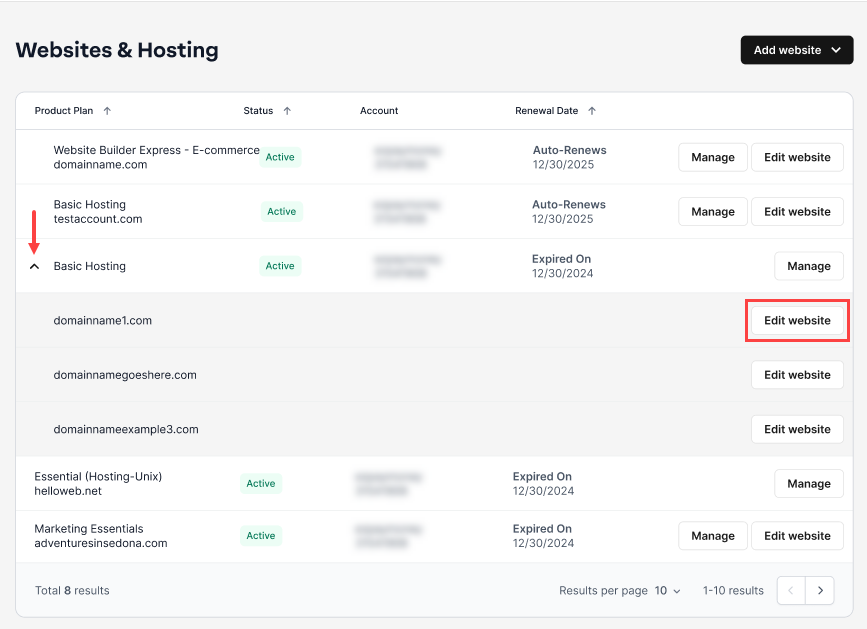
- Click Websites & Hosting from the left navigation menu.

- Navigate to the hosting package where you want to download or restore a backup file, then click Edit website next to the domain name you want to manage.
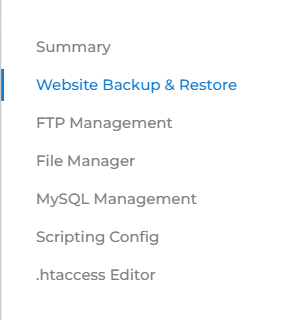
- Go to HOSTING, then select Website Backup & Restore.
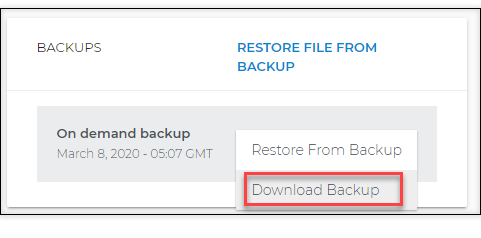
- Click the three-dot menu on the backup file that you want to download.

- Click Download Backup.
- Select a Backup Type, then mark the files/database/sites that you want to archive.
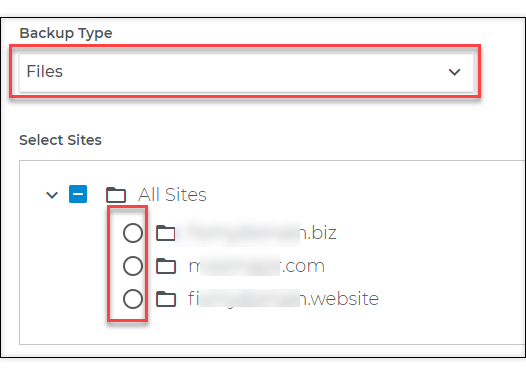
Important: Selecting a directory does not automatically select all of its contents. You will need to click on the directory first to show its contents, then click on the contents individually. - Click the Download button.

This may take some time to initiate the download after clicking this button.
Restoring a backup file
You can use the Website Backup & Restore tool to restore automatic backups only. Manual backups can only be restored by using FTP (to upload the files) and Archive Gateway (to unzip the files, if necessary). Use the following steps to restore an automatic backup:
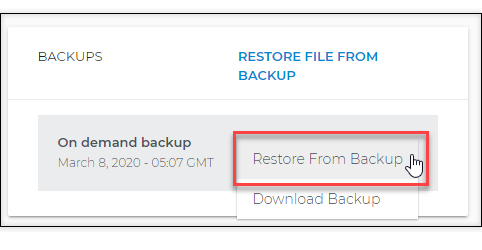
- Click the three-dot menu on the backup file that you want to restore.
- Click Restore From Backup.
- Once in the Restore Backup page, select a restoration type. Then, select your desired action.
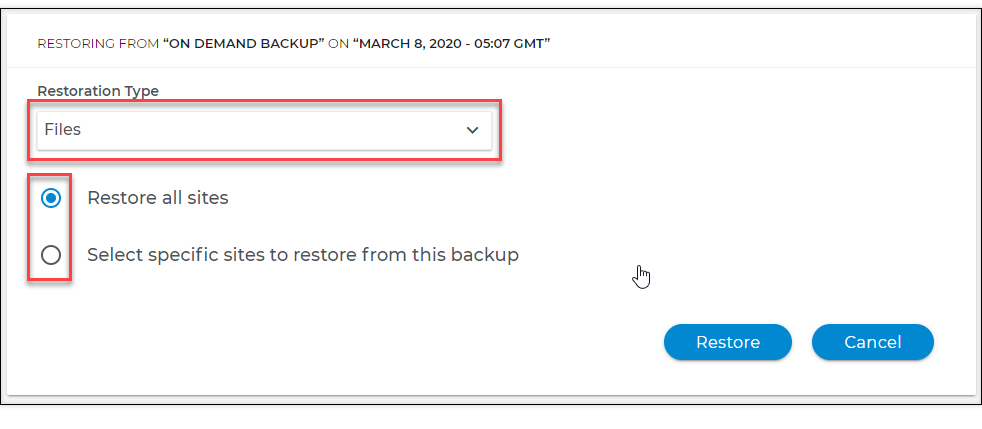
Important: Selecting a directory does not automatically select all of its contents. You will need to click on the directory first to show its contents, then click on the contents individually. - Click the Restore button.
Get practical tips and product updates on LinkedIn.
Follow Network Solutions