Knowledge Base
Categories: Legacy Domain
Powered By Network Solutions: FTP - How to Connect Using File Manager
In this article, we will discuss:
- Upload files with file manager
- How to download files with file manager
- Why does my upload time-out after a while?
- List of supported file types
- Can I use special characters in folder or file names?
Upload files with file manager
- Log in to your account via https://www.networksolutions.com/my-account/login.
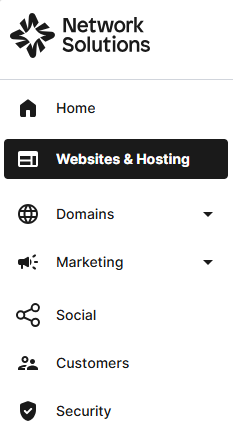
- Click Websites & Hosting from the left navigation menu.
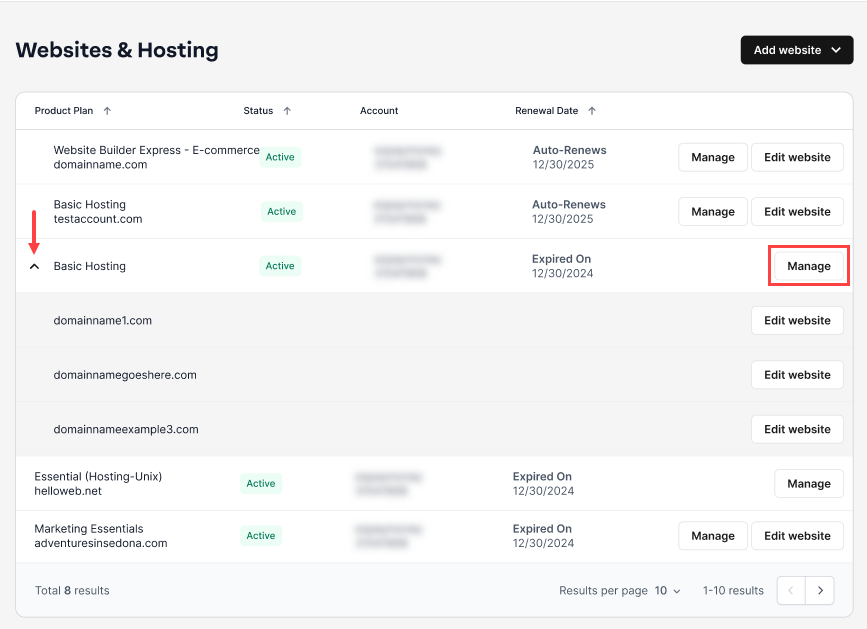
- Navigate to the websites and hosting package that you want to access in the control panel, then click Manage to continue
- In your hosting control panel, click File Manager.

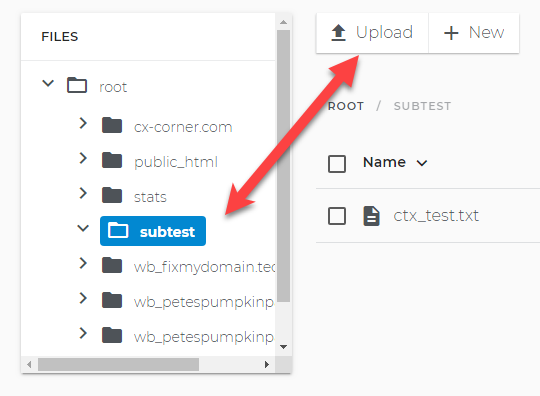
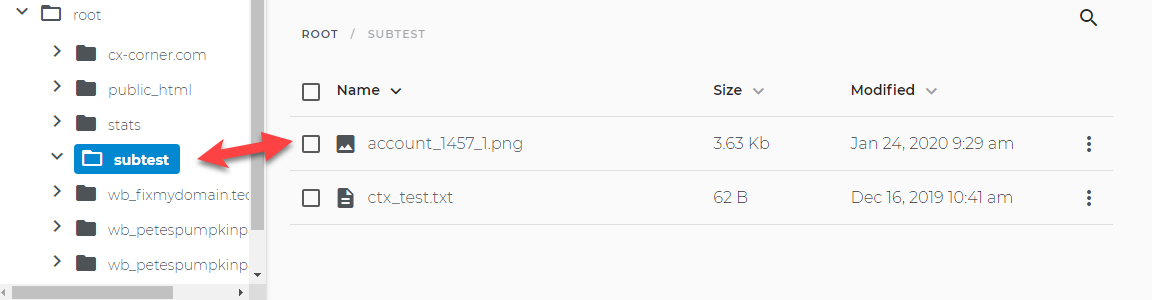
- Select the folder you wish to upload into and click on Upload button at the top.
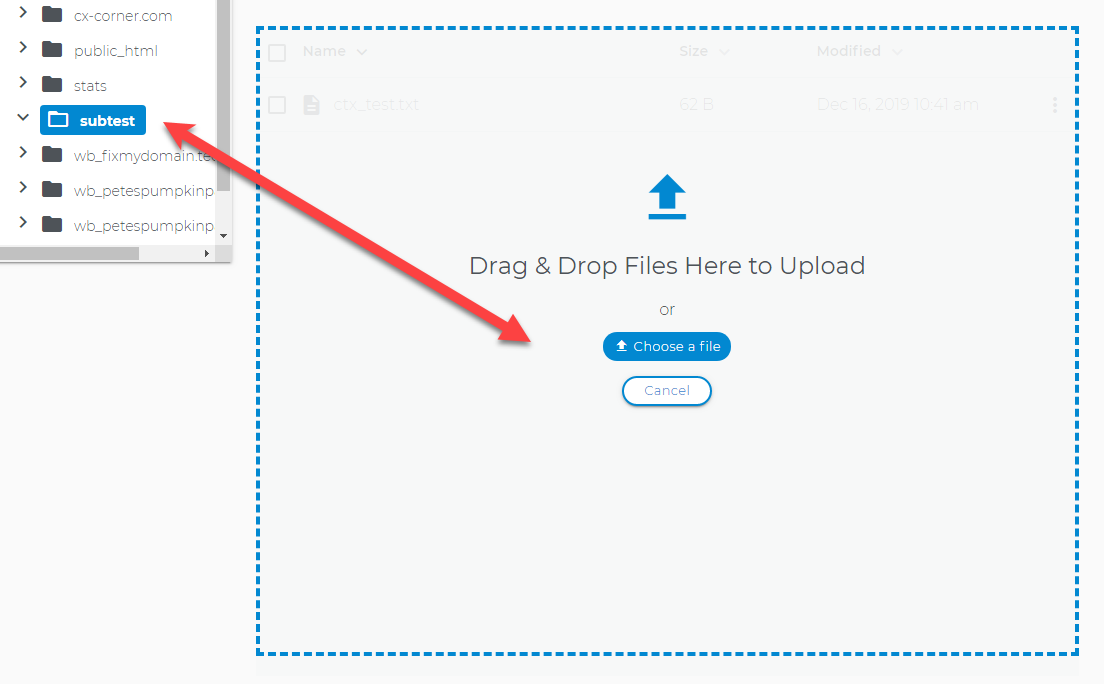
- Drag and drop or select your files from your computer.
- Your file will appear in the folder after the upload completes.
How to download files with file manager
- In your hosting control panel, click File Manager.
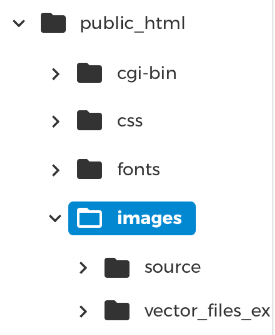
- Open directories by clicking the arrow.
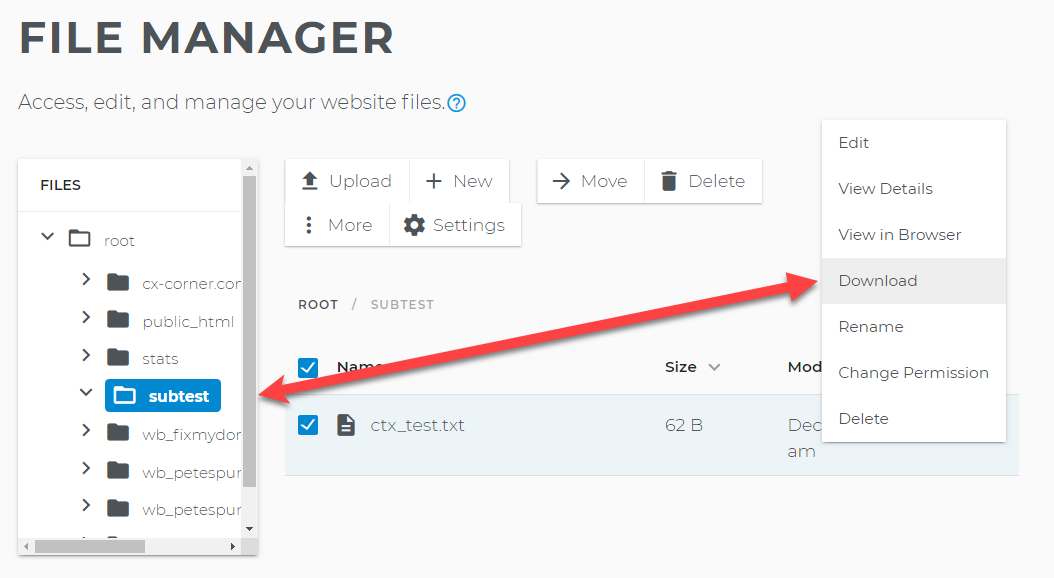
- Select the folder and file you wish to download and select Download from the options menu.
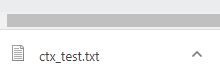
- Your downloaded file will appear at the lower left of your browser window.
Why does my upload time-out after a while?
File Manager is designed to handle smaller file uploads and will time out with larger file(s). In case the connection times out, the file upload will continue when the connection returns. If you estimate that it will take longer than 60 seconds to complete your entire upload, try one of the following solutions:
- If you are uploading a large number of files, consider uploading only a portion of them at a time.
- If you are uploading one very large file, try zipping it before uploading. Then, unzip the file after it is uploaded.
- Try to find a way to break up the file into smaller pieces prior to uploading it.
- If you are uploading pictures, consider reducing their storage size.
- Try installing an FTP Client to handle your upload. Even if you time out during the upload, the FTP client will continue right where you left off.
List of supported file types
| Category | List of Allowed File Types |
|---|---|
| Audio | aac, aif, aifc, aiff, flac, m3u, mid, midi, mpa, mp3, ra, ram, wav, wave, wma |
| Compressed Files | 7z, ace, bz, bz2, bzip, bzip2, gz, tar, rar, taz, tgz, zip |
| Flash Movies | fla, swf |
| Fonts | fnt, fon, otf, ttf |
| HTML/CSS | css, htm, html, shtm, shtml, xht, xhtml |
| Images | bmp, dwf, gif, ico, jpg, jpeg, png, psd, psp, svg, tif, tiff |
| MS Access | accdb, accde, accdt, accdr, mdb  |
| MS Excel | xlam, xls, xlt, xlsb, xlsx, xlsm, xltx, xltm |
| MS Powerpoint | ppam, ppt, pps, ppsx, pptx, pptm, pot, potm, potx |
| MS Word | doc, docm, docx, dot, dotm, dotx |
| OpenOffice | odb, odc, odf, odg, odi, odm, odp, ods, odt, otc, otf, otg, oth, oti, otp, ots, ott |
| July | Dooley |
| PDFs | |
| Text | csv, dat, ini, log, rtf, txt |
| Scripts | asp , aspx , cfm, cgi, inc, js, php, php3, php4, php5, phtm, phtml, pl, pm, py, sql |
| System Files | htaccess, htpasswd |
| Video | 3gp, asf, avi, mpg, mpeg, mov, mp4, qt, rm, wmv |
| XML | xml, xsl, xslt |
Can I use special characters in folder or file names?
Both your website and File Manager will work best if you limit your characters to the following types:
| Allowed Character Type | Folder Name Example | File Name Example |
|---|---|---|
| Letters | mywebsite | index.html |
| Numbers | my1stwebsite | page1.html |
| Hyphens | my-website | page-1.html |
| Underscores | my_website | page_1.html |
| Spaces | my website | page 1.html |
Get practical tips and product updates on LinkedIn.
Follow Network Solutions
Did you find this article helpful?