Knowledge Base
Powered by Network Solutions: Google Workspace Transfer in Foundation
You can now transfer your Google Workspace account to your hosting dashboard! This process is intended for customers who are in the new Control Panel interface.
-
Log in to your Domains Dashboard.

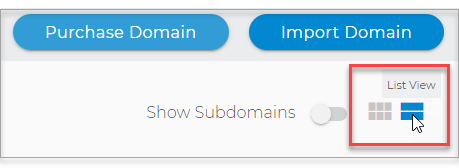
- There are two views in the Domains dashboard - the Card and List views. Click on the view icons to switch to your preferred view.
- Choose the domain you are working on.
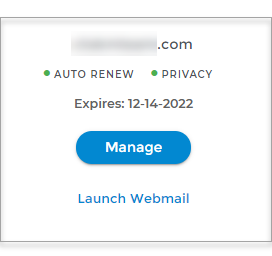
In the Card view, click the domain's Manage button.
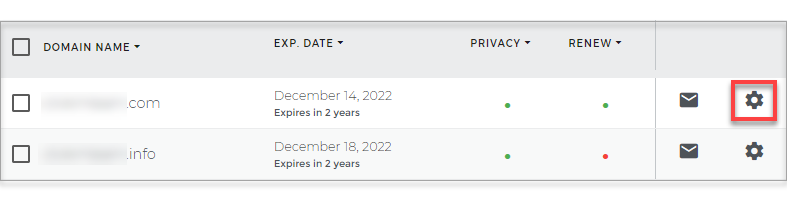
In List view, click the domain or its gear icon on the right-hand side.
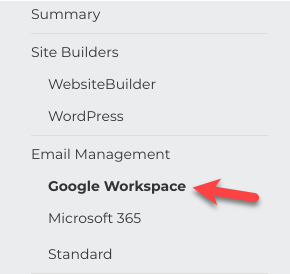
- Click on Google Workspace in the left-hand menu.
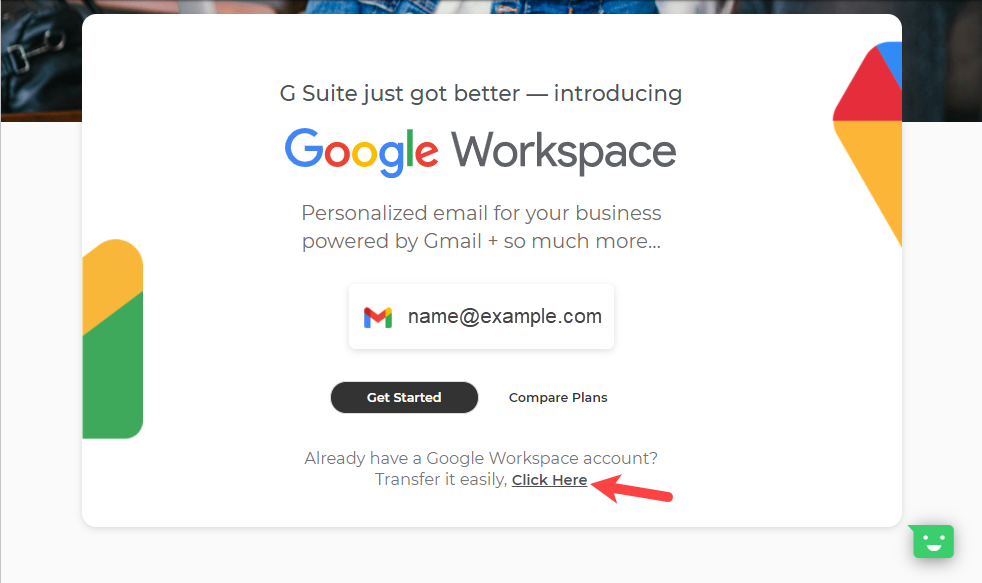
- Click on the link that says Click Here if you have an existing Google Workspace account.
- Copy the Public Identifier.
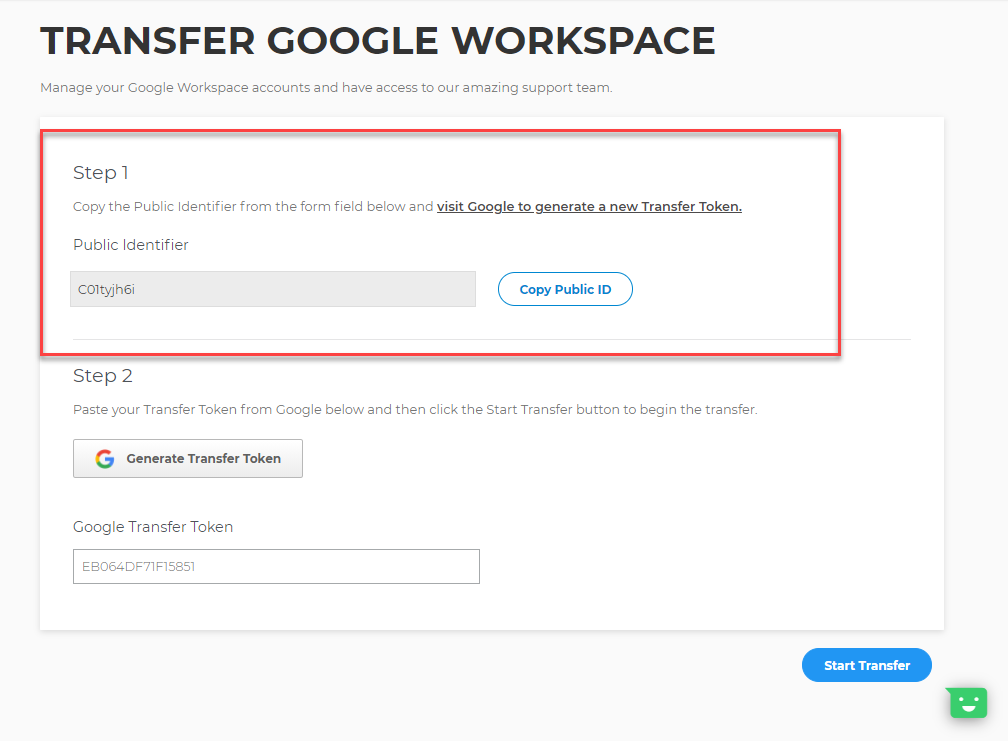
- Click on the visit Google to Generate a new Transfer Token link. You would need to access your Google Workspace through this link to generate the Transfer code required to complete the transfer process.
- Paste the Public Identifier in the selected field.
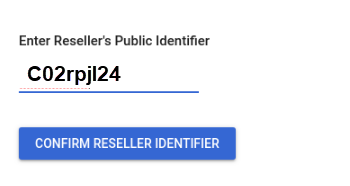
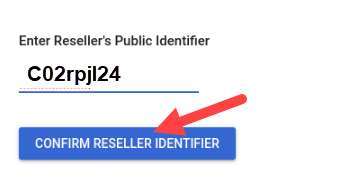
- Click Confirm Reseller Identifier.
- Paste your Transfer Token from Google to the Transfer Token field.
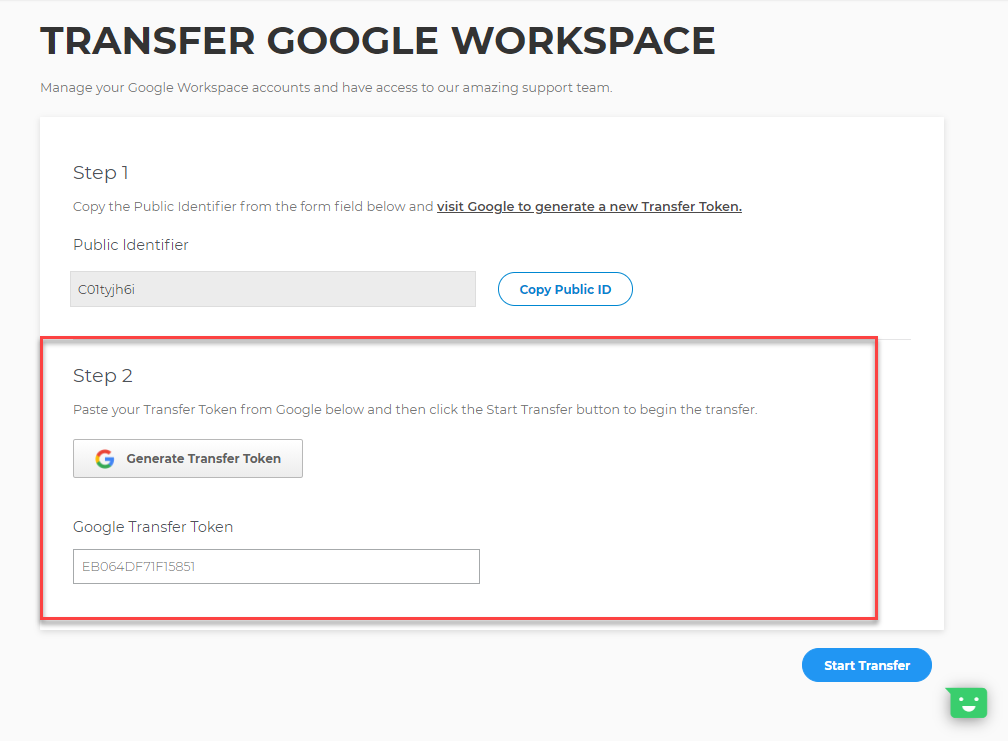
- Click on Start Transfer.
- Click on Next - Checkout.
- Review the Express Checkout page. Make sure that it has the correct payment method and number of accounts to be transferred. Then, hit the Checkout button.
- You will be routed back to your Google Workspace account dashboard. You can now sign in or manage your Google Workspace account from this.
The transfer process usually takes 1-2 minutes to complete.
Did you find this article helpful?