Knowledge Base
Categories: Powered by Network Solutions
Powered By Network Solutions: WebsiteBuilder - How to add a video
Note: We offer two different versions of WebsiteBuilder. Our original implementation of the builder is the Classic Editor, while WebsiteBuilder Express Editor is the newest interface commonly found in the Foundation dashboard. It is not possible to upgrade a Classic Builder site to the Express Editor. The site will need to be recreated with the Express Editor. All new WebsiteBuilder installations will be the Express Editor.
In this article, we have provided two sets of instructions for each editor. Follow the instruction set that matches your WebsiteBuilder version.
- How to check if I have Classic editor or Express editor?
- How to launch WebsiteBuilder
- WebsiteBuilder Classic editor: How to add a video
- WebsiteBuilder Express editor: How to add a video
How to check if I have Classic editor or Express editor?
| WebsiteBuilder Classic | WebsiteBuilder Express editor |
|---|---|
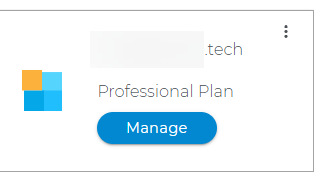 |
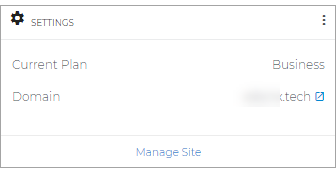 |
How to launch WebsiteBuilder
- Log in to your account manager via https://www.networksolutions.com/my-account/login.
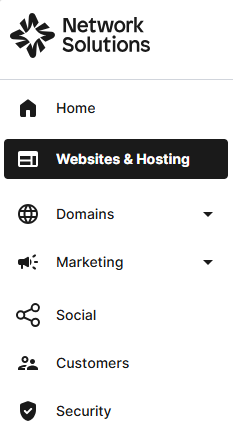
- From the left-hand menu, click the Websites & Hosting tab.
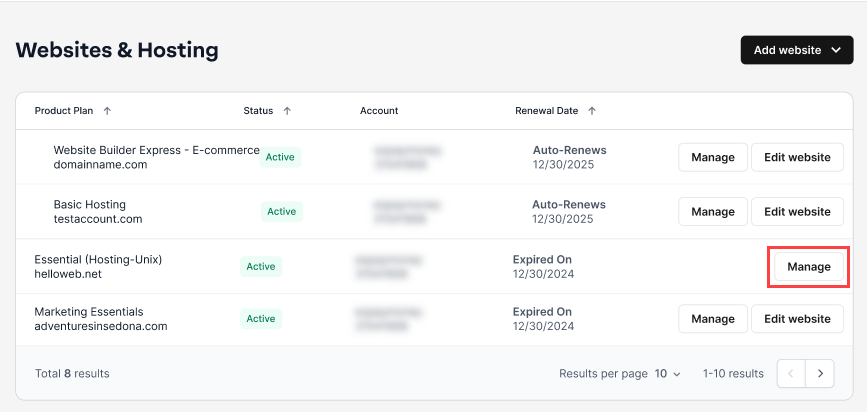
- If you have a single hosting package in the account, you will be redirected to the control panel. If you have multiple hosting packages in your account, click the Manage button on the respective hosting package that you need to access.
- Click the WEBSITES & POINTERS tab from the top menu, then select WebsiteBuilder from the left pane.
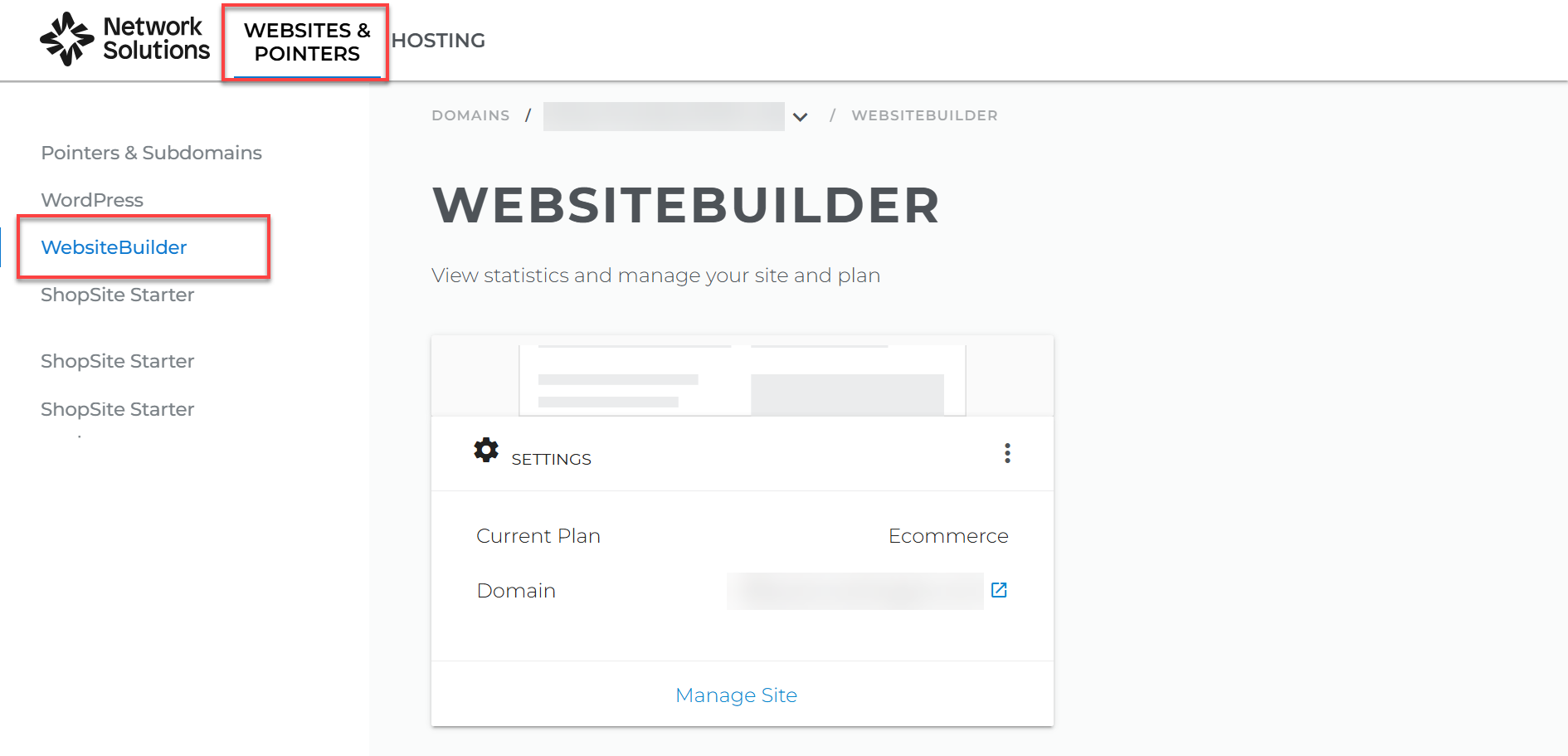
- Click Manage.
For Legacy WebsiteBuilder For WebsiteBuilder Express 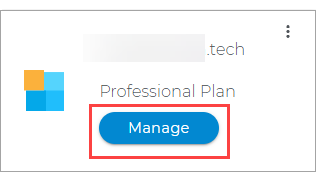
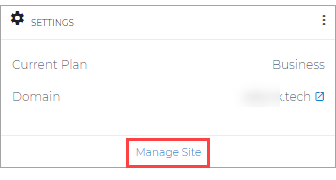
- Click Manage.
- This action will open your WebsiteBuilder screen on a new tab:
Legacy WebsiteBuilder looks like this: WebsiteBuilder Express looks like this: 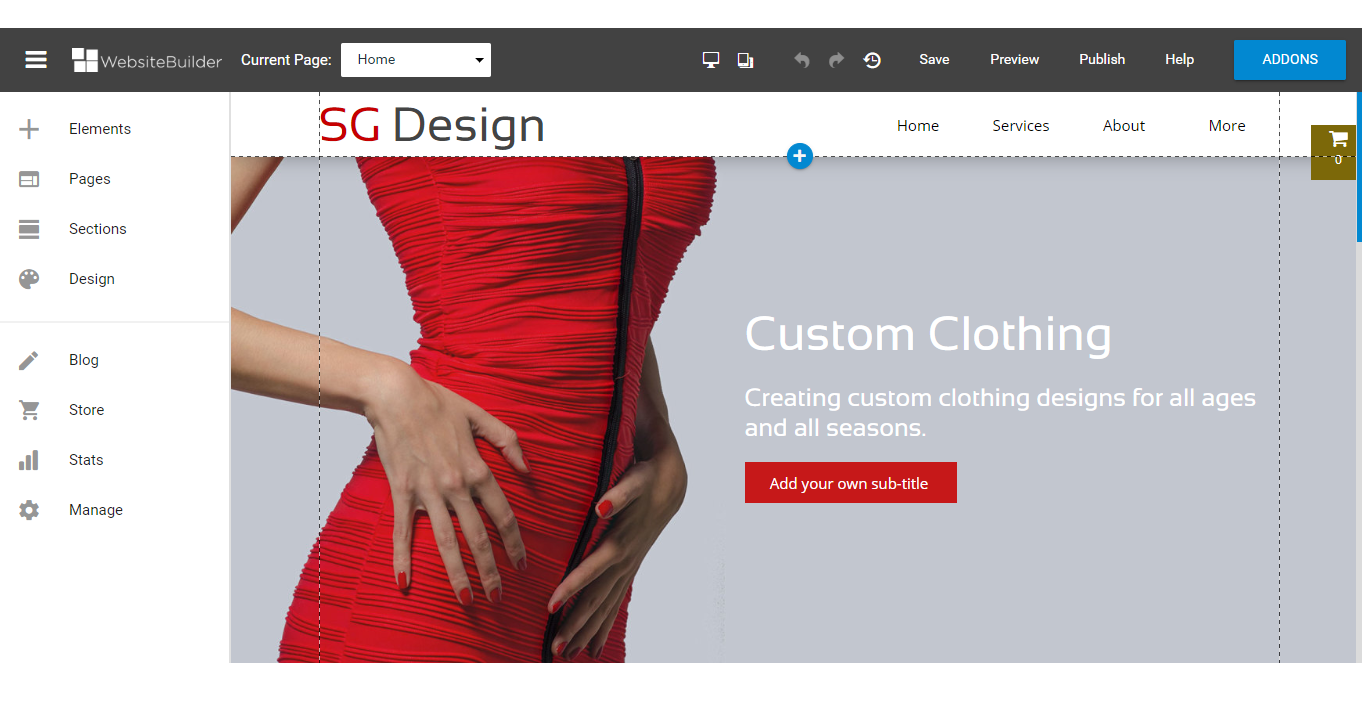
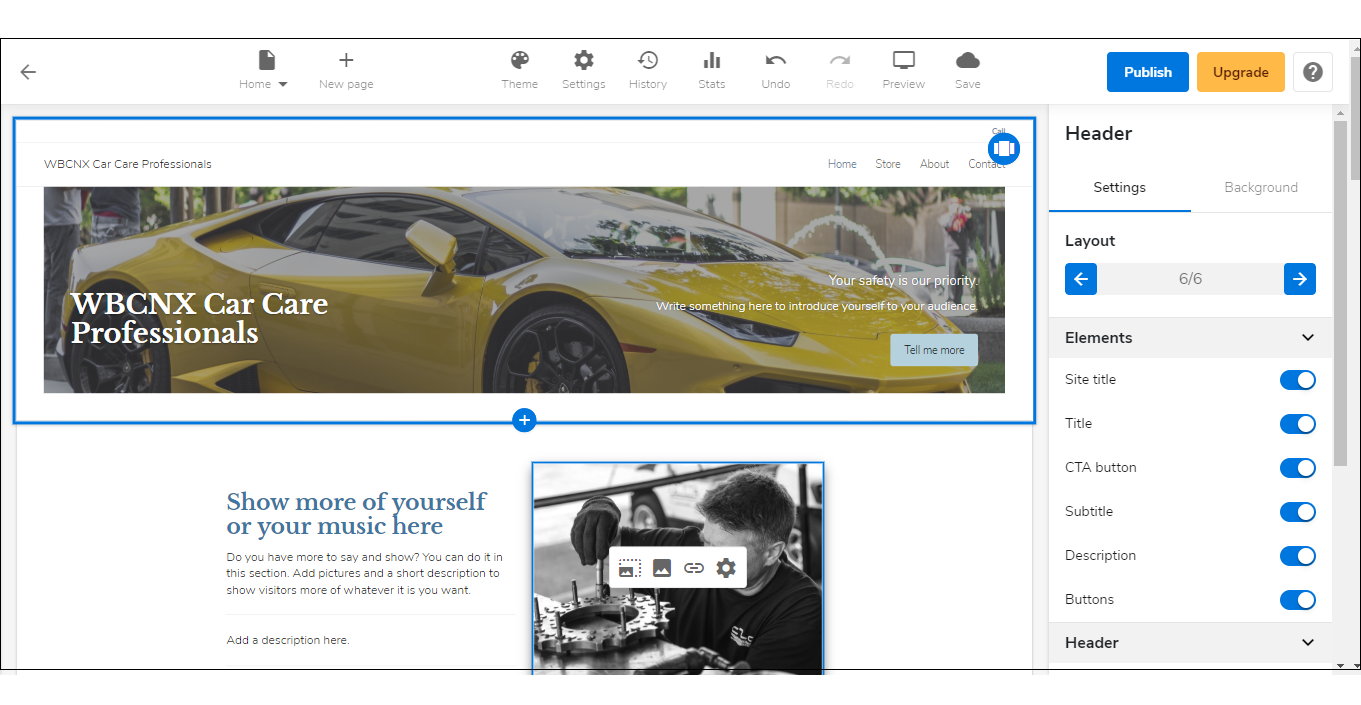 Note: If you are unsure which type of WebsiteBuilder you are using, you may reach out to our customer service support to help you determine it.
WebsiteBuilder Classic editor: How to add a video
- Scroll down and look for the plus symbol (+) between the sections of your existing posts, then click it.
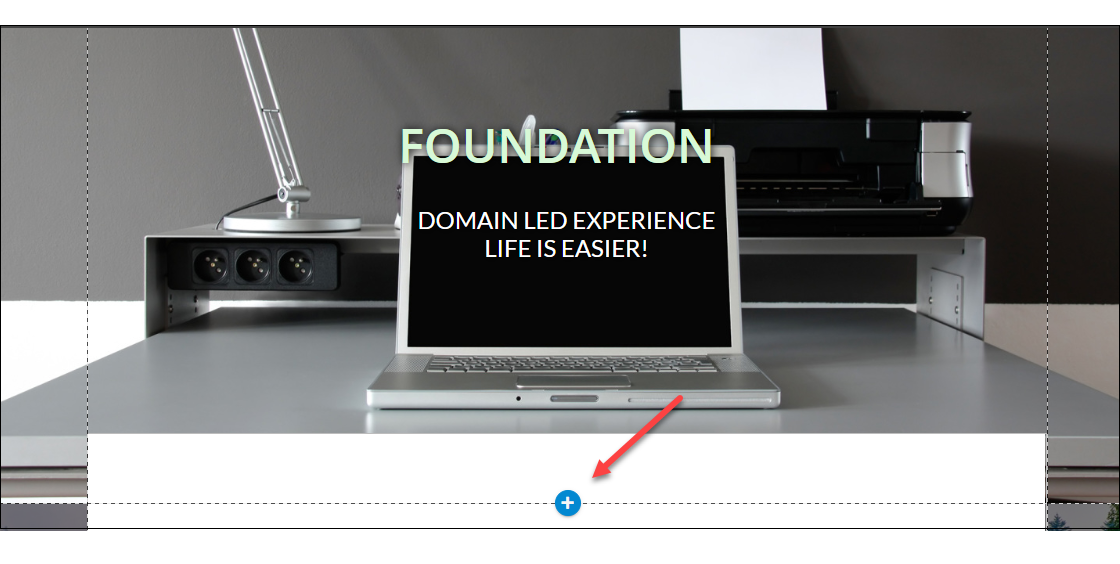
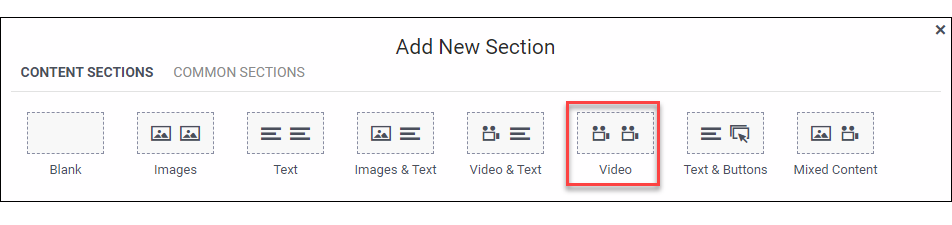
- Click Videos.
- Scroll down in the Categories pane on the far left and select a layout from the options provided.
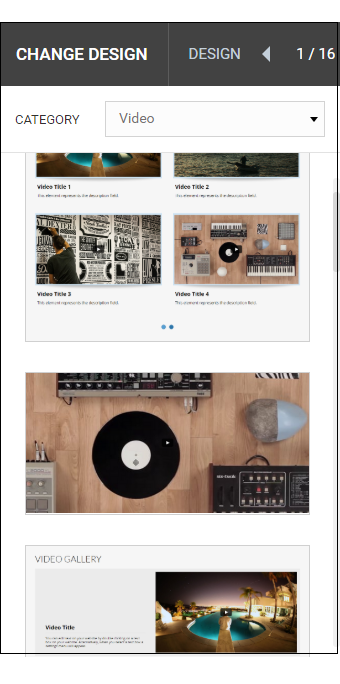
- After choosing a layout, click the APPLY button on the upper right.
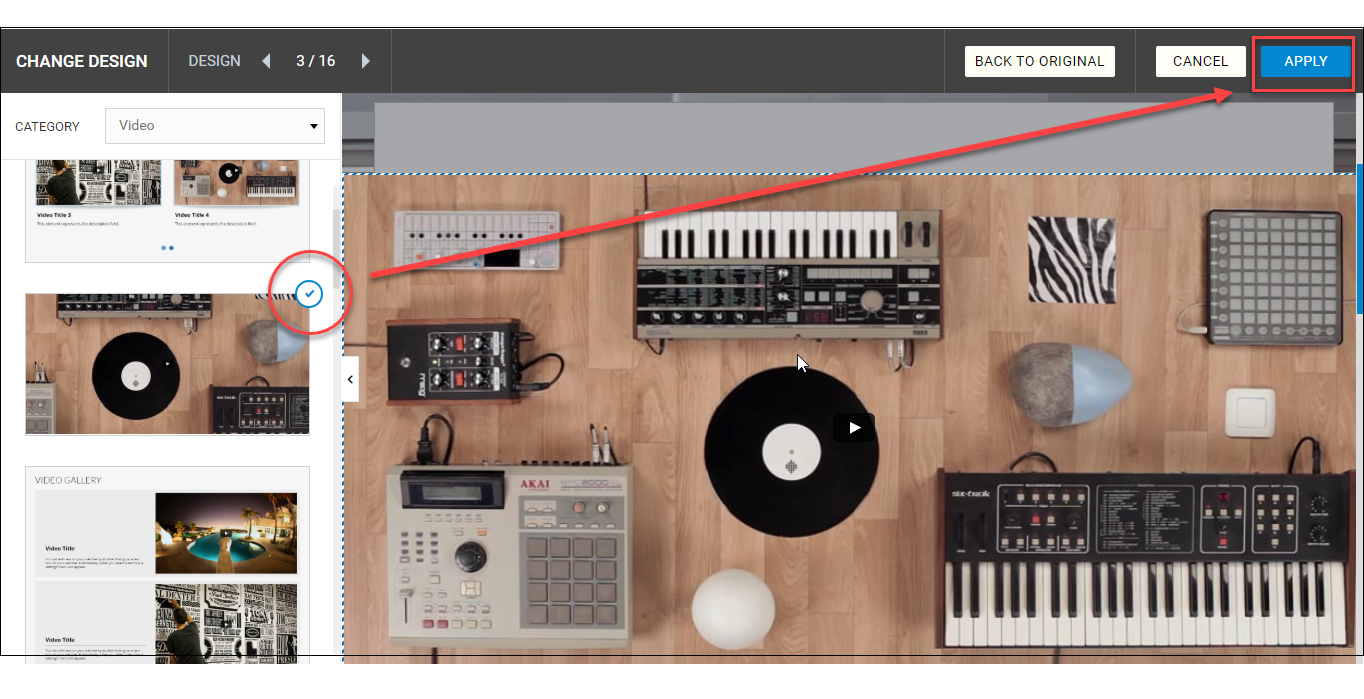
- Look for the video section that was pasted on your page then click over it to reveal the Menu bar.
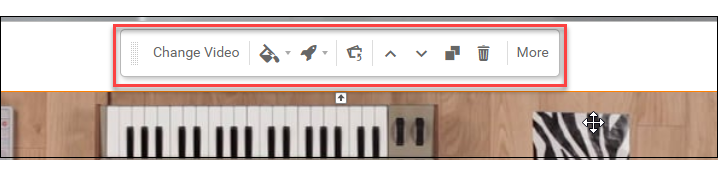
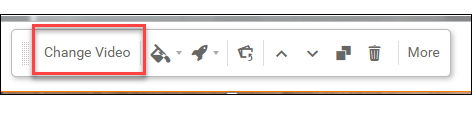
- Click Change Video.
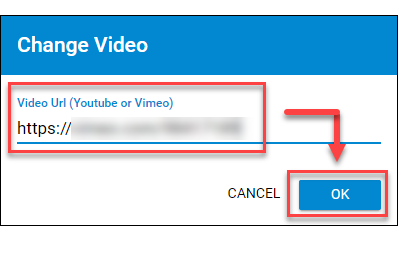
- Enter the link for your video and click OK.
- Remember to save your work by clicking the Save icon. After saving, click the Publish button on the upper part of your editor screen. Remember that changes are only visible after you have saved and published your work.

WebsiteBuilder Express editor: How to add a video
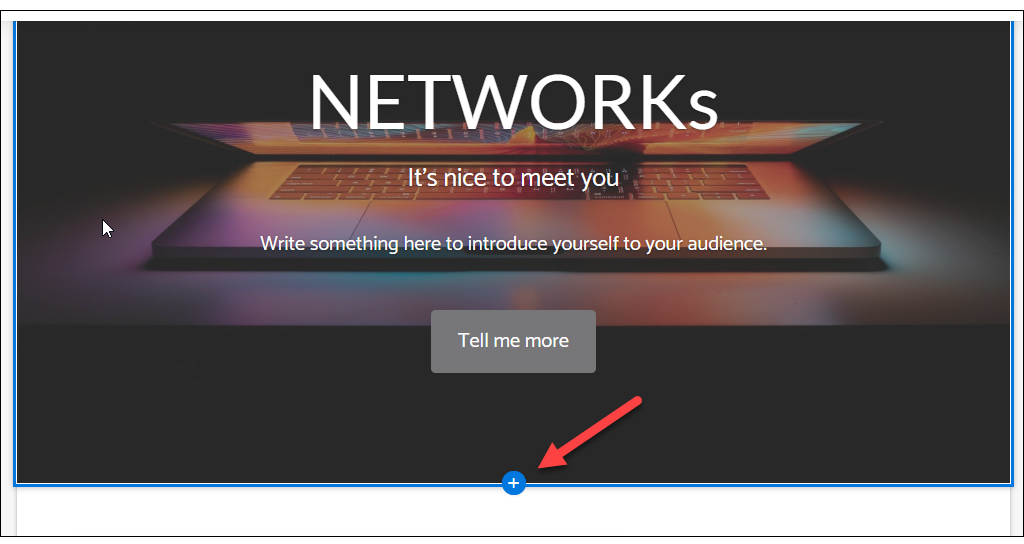
- Scroll down and look for the plus symbol (+) between the sections of your existing posts.
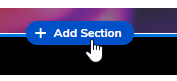
- Hover your cursor over and click Add Section.
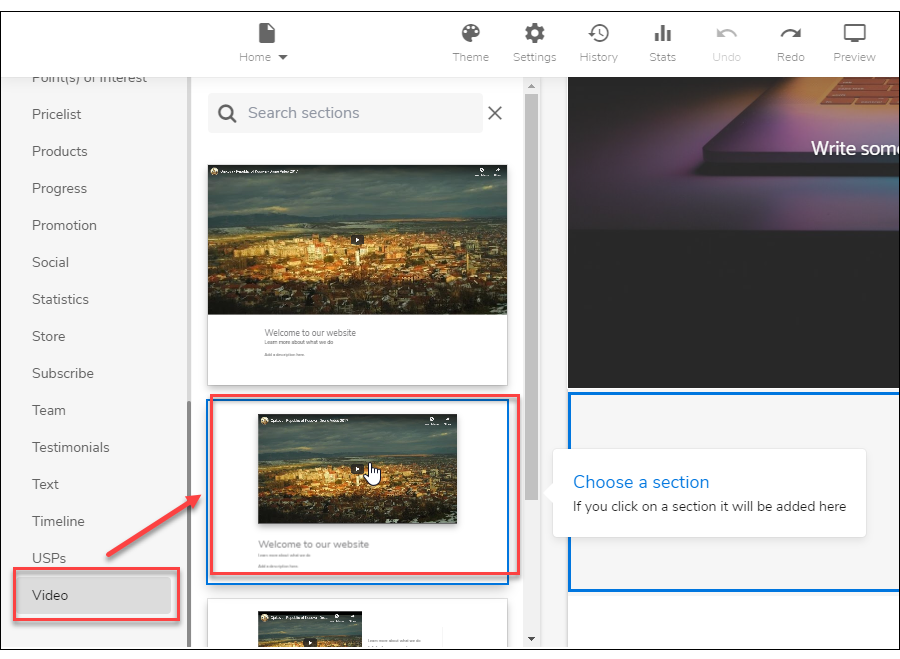
- Scroll down in the Categories pane on the far left and select Video. Then, select a layout from the options provided.
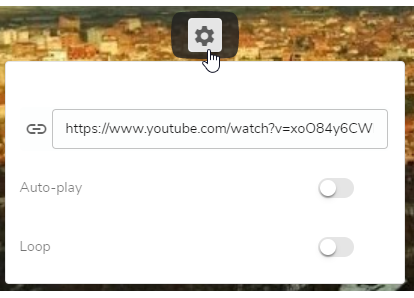
- Look for the video section that was pasted on your page, then hover over the play button to reveal the Settings icon and click it. Here, you can enter the link for your video and enable/disable the autoplay and loop functions.
- Remember to save your work by clicking the Save icon. After saving, click the Publish button on the upper part of your editor screen. Remember that changes are only visible after you have saved and published your work.

Get practical tips and product updates on LinkedIn.
Follow Network Solutions
Did you find this article helpful?