How to purchase Dark Web Monitoring
With Dark Web Monitoring, you stay informed when information associated with your domain appears in known data breaches. Learn how to purchase the service and get started with monitoring.
There are multiple outlets where you can purchase Dark Web Monitoring:
Things to know before purchasing
Before purchasing Dark Web Monitoring, make sure the domain you want to monitor meets the following requirements:
Domain requirements
- The domain must be registered with Network Solutions.
- The domain must be owned and managed within the account used to purchase Dark Web Monitoring.
- Dark Web Monitoring is linked to the selected domain while it is active on your account. If the domain is transferred away, expires, or is no longer managed within your account, the service will be canceled for that domain.
- During initial setup, the primary email address associated with your account is automatically added for monitoring alongside the selected domain.
- To continue receiving monitoring and alerts, maintain active ownership and management of the monitored domain within your account.
Purchase through Network Solutions
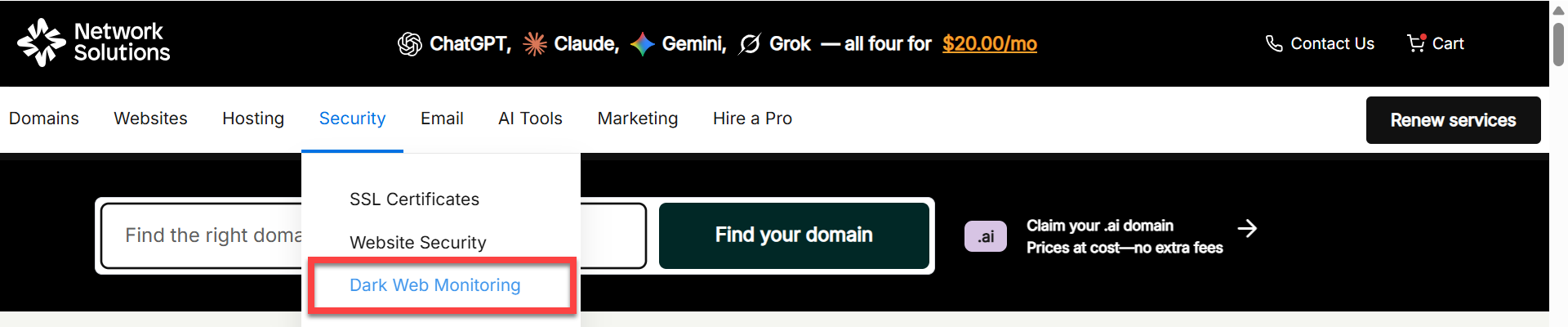
- Go to www.networksolutions.com
- Hover over the Security tab.
- Select Dark Web Monitoring.
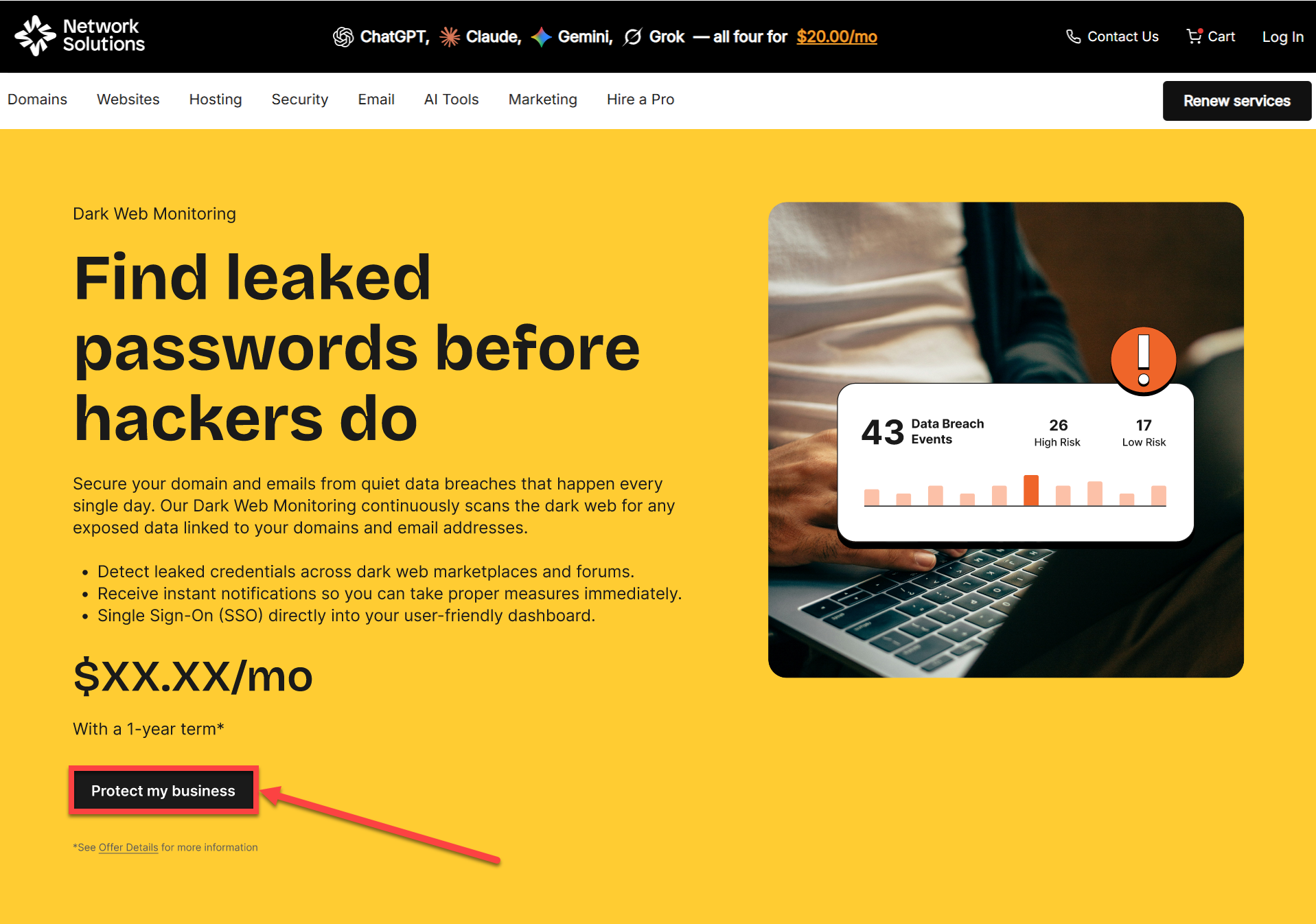
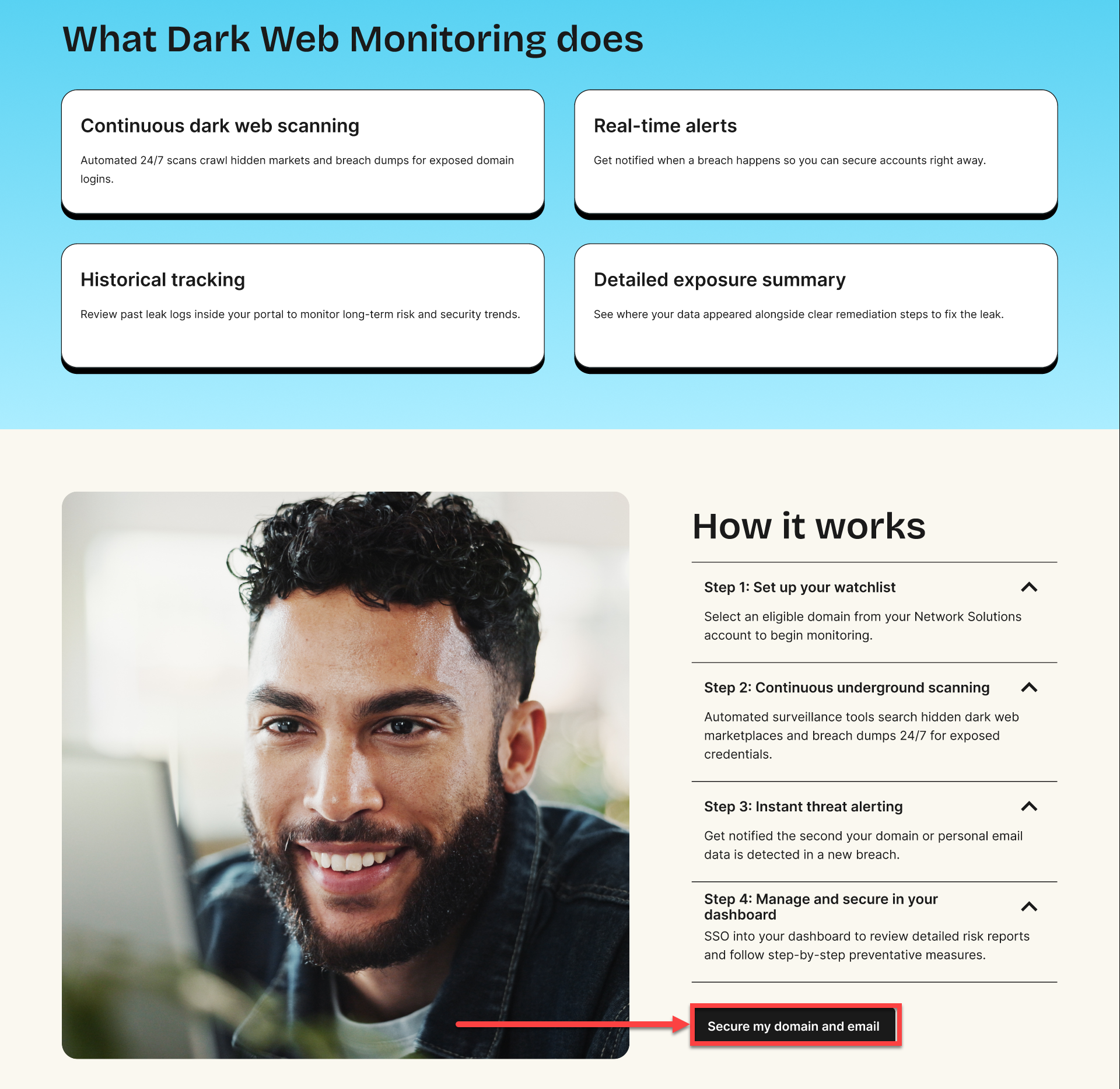
- Click the Protect my business or Secure my domain and email buttons.
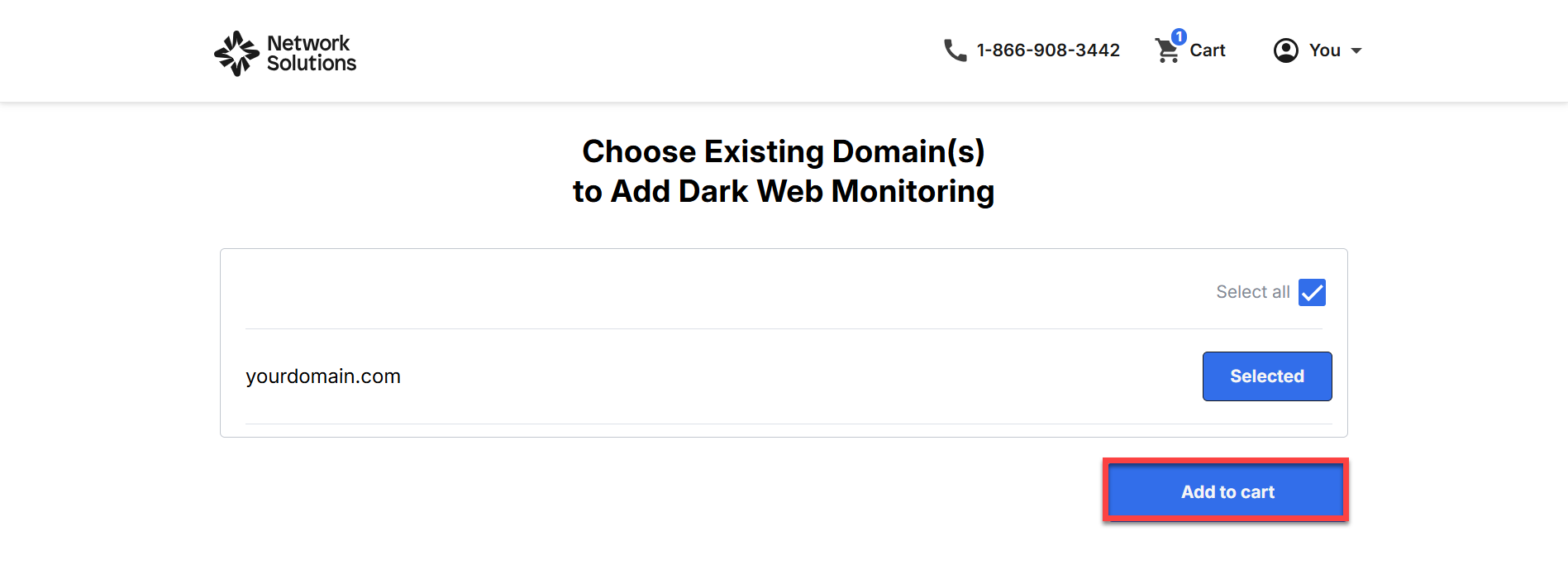
- Kindly select from the domain list and click Select.
Important: If you already own the domain you want to monitor, sign in to your Account Manager before purchasing Dark Web Monitoring. Purchasing for an existing domain is not currently supported through the storefront experience.
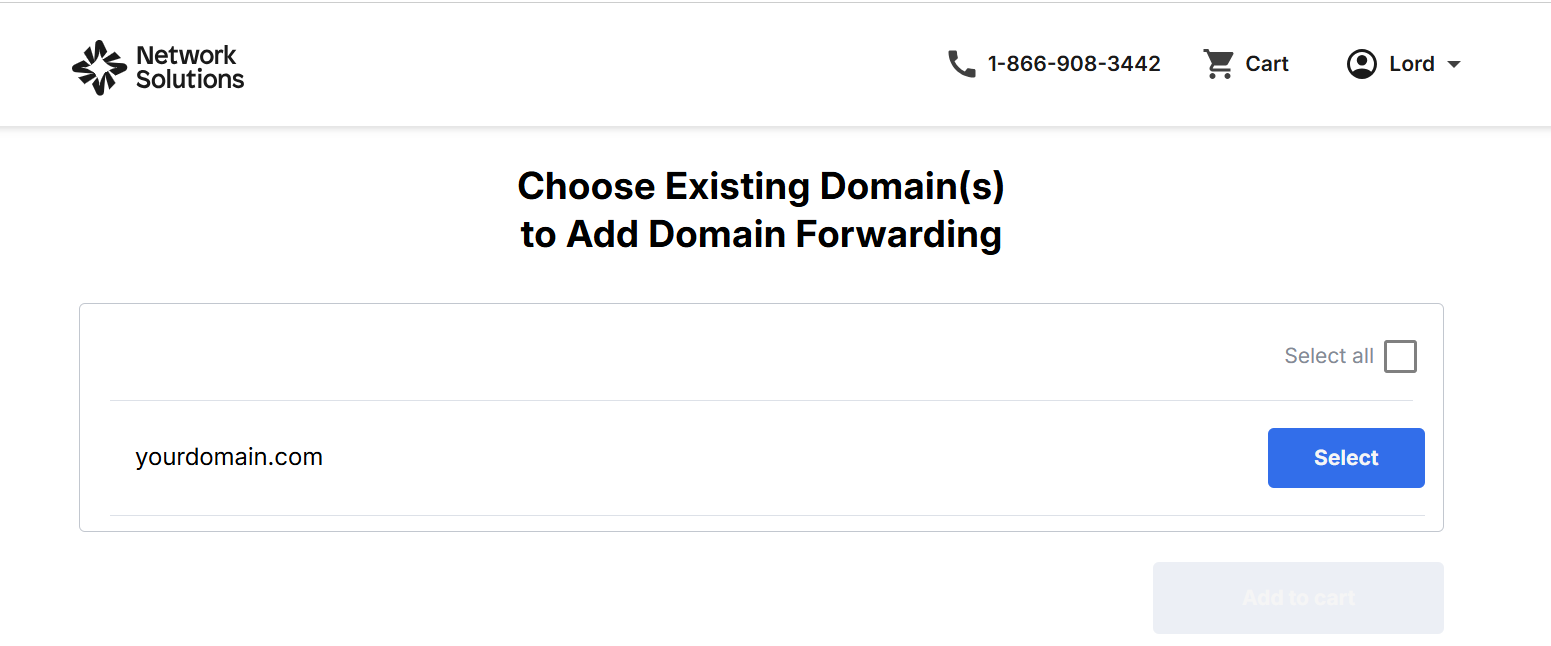
- Click Add to cart.
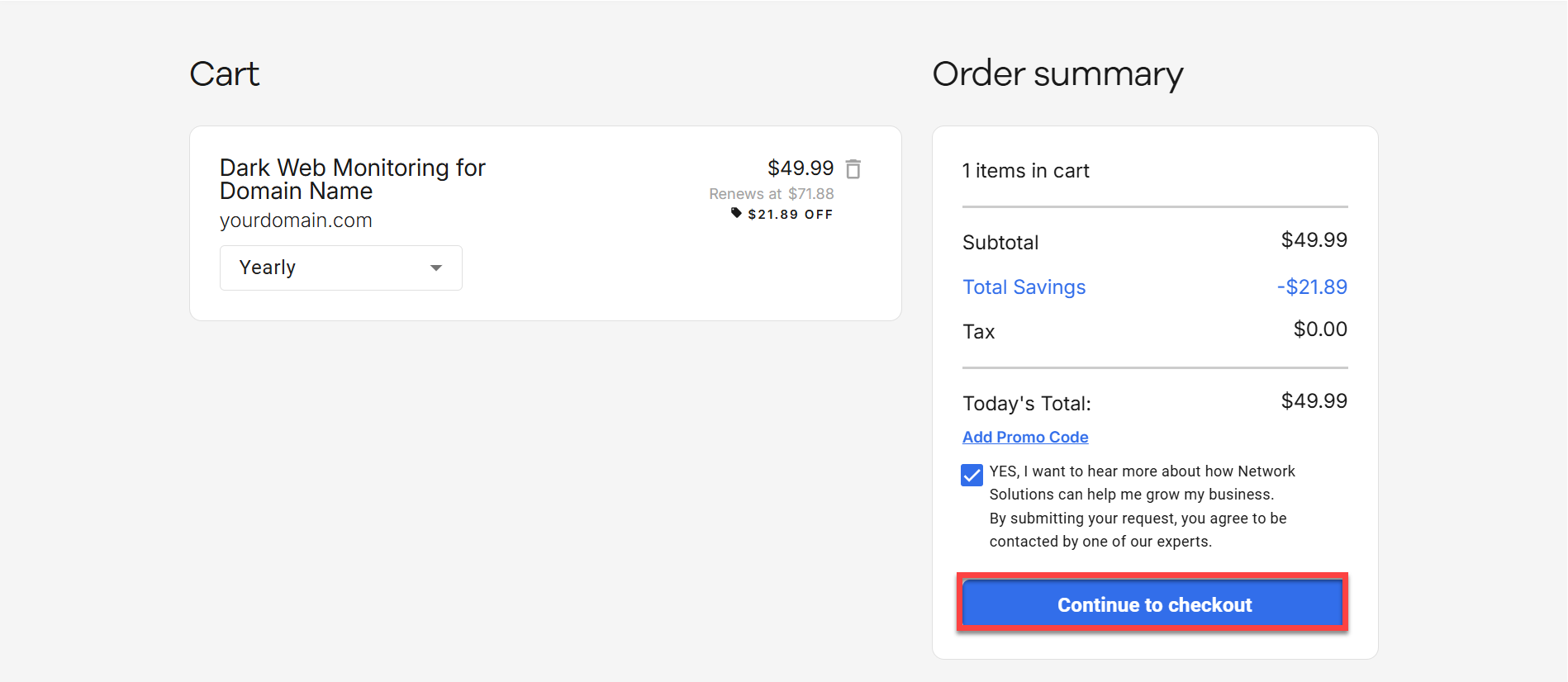
- On your cart, you can select your Dark Web Monitoring's billing term.
Important: Dark Web Monitoring is a subscription and renews automatically at the then-current rate unless auto-renewal is turned off. Promotional pricing applies to the initial term only. For current pricing, visit your account manager’s renewal center.
- Click Continue to checkout.
Note: Pricing is subject to change. For the most up-to-date pricing, visit networksolutions.com.
- Review your order and payment method.
- To confirm your order, click Submit payment.
After your purchase is complete, you will receive an order confirmation email with details about your order.
Purchase through account manager
Dark Web Monitoring can be added to your account in several ways. Log in to your Network Solutions account manager at https://www.networksolutions.com/my-account/login and use the options below to purchase the service.
Via homepage
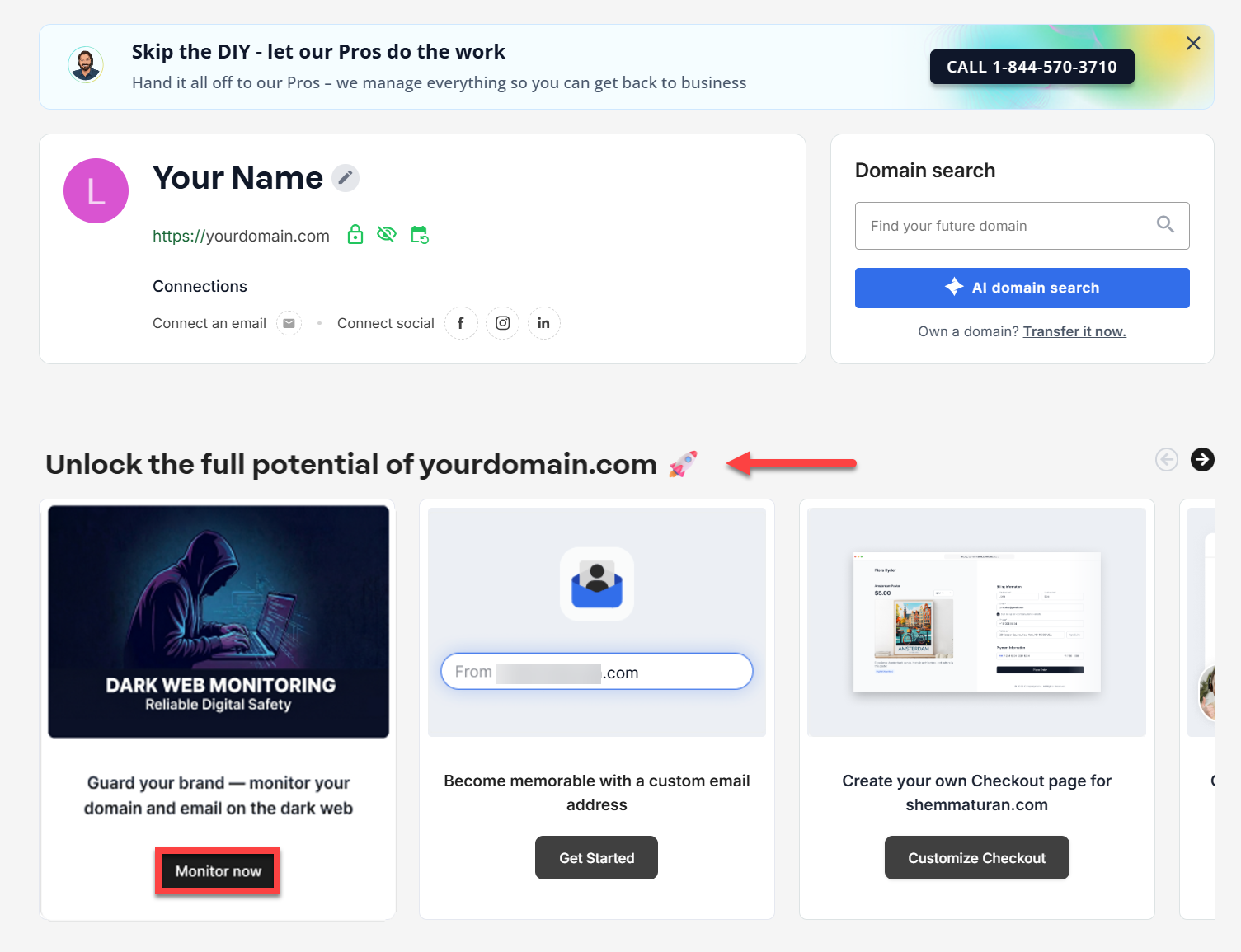
- Under the Unlock the full potential of your domain section, look for the Dark Web Monitoring tile.
- Click the Monitor now button.
- Select the domain you want to add Dark Web Monitoring to from the drop-down.
- Select the term either yearly or monthly.
Note: Pricing is subject to change.
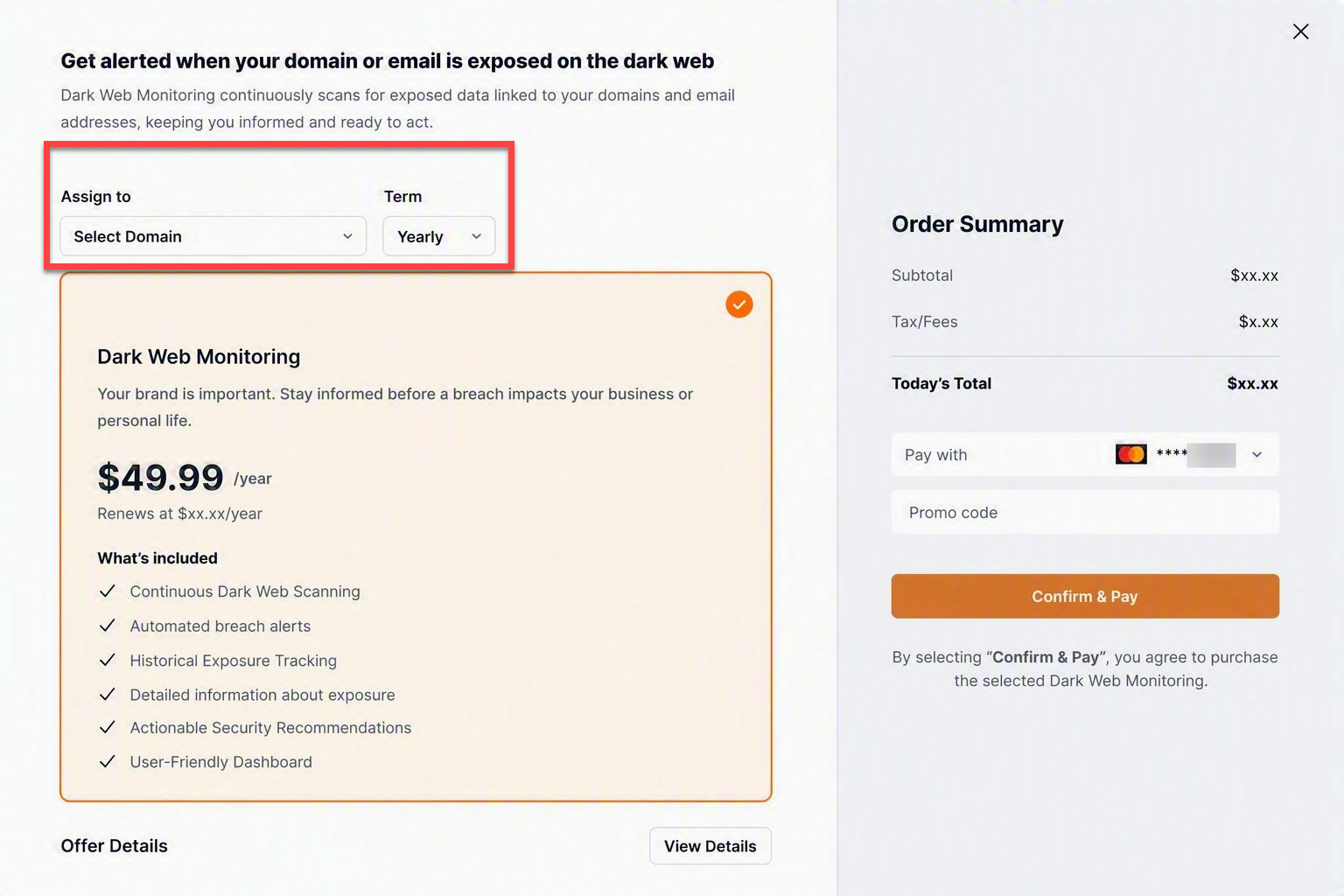
Important: Dark Web Monitoring is a subscription and renews automatically at the then-current rate unless auto-renewal is turned off. Promotional pricing applies to the initial term only. For current pricing, visit your account manager’s renewal center. - Review your order and payment method through the Order Summary section.
- To confirm, click Confirm & Pay.
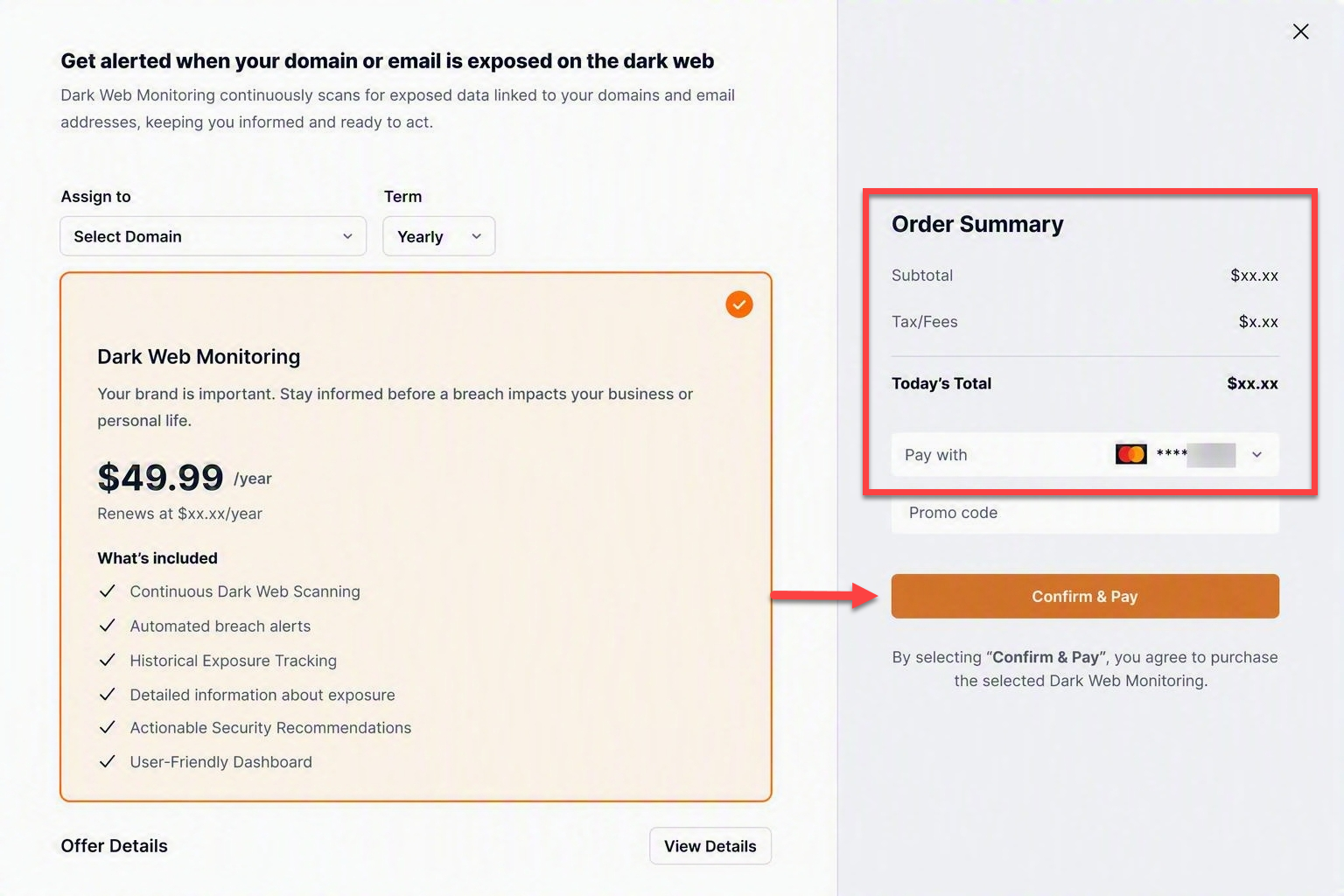
After your purchase is complete, you will receive an order confirmation email with details about your order.
Via Domains tab
- Click the Domains tab.

If you have multiple domain names on your account, select the domain you want to manage or click the vertical ellipsis in the Actions column next to it. - On the domain management page, scroll down and look for the Suggested for you section.
- Select the Dark Web Monitoring tile and click Get Started.
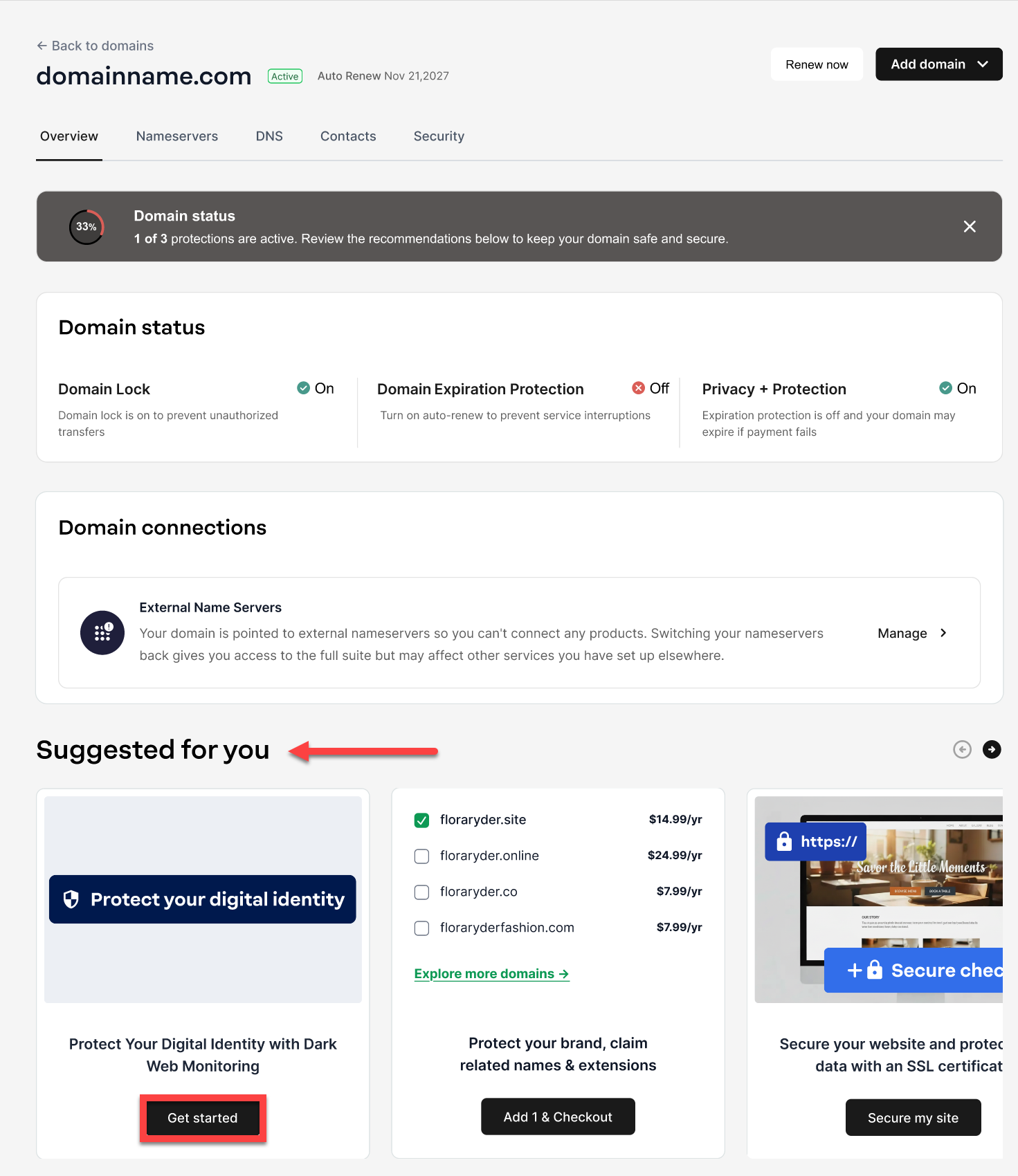
- Select the domain you want to add Dark Web Monitoring to from the drop-down.
- Select the term either yearly or monthly.
Note: Pricing is subject to change.
Important: Dark Web Monitoring is a subscription and renews automatically at the then-current rate unless auto-renewal is turned off. Promotional pricing applies to the initial term only. For current pricing, visit your account manager’s renewal center. - Review your order and payment method through the Order Summary section.
- To confirm, click Confirm & Pay.
After your purchase is complete, you will receive an order confirmation email with details about your order.
Via Security tab
- Click the Security tab.

- Click the Add security button found at the top right corner, then select Dark Web Monitoring from the options.
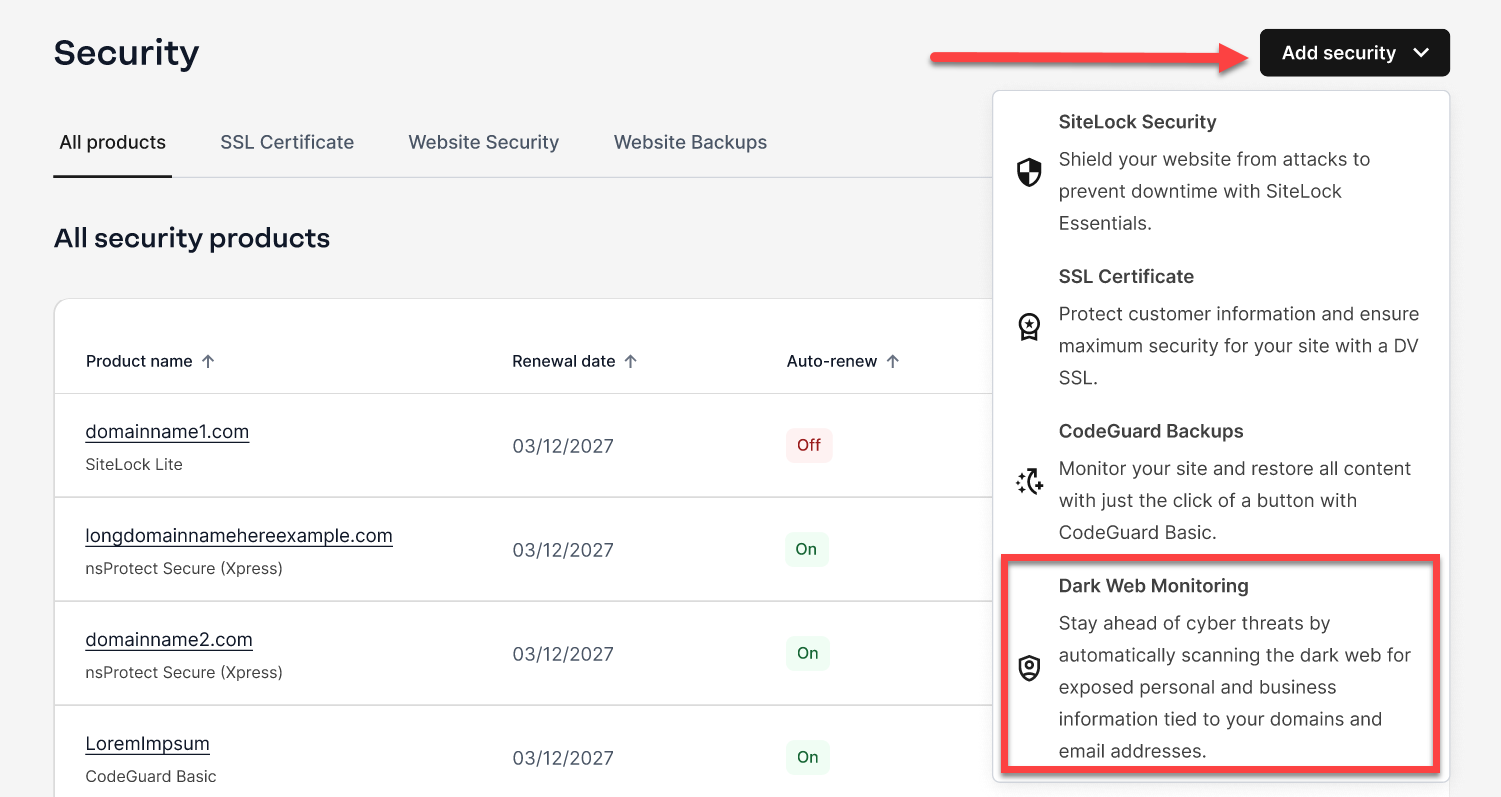
Alternatively, you can click on the Dark Web Monitoring tab under the security page (if available) and then click Add Dark Web Monitoring.
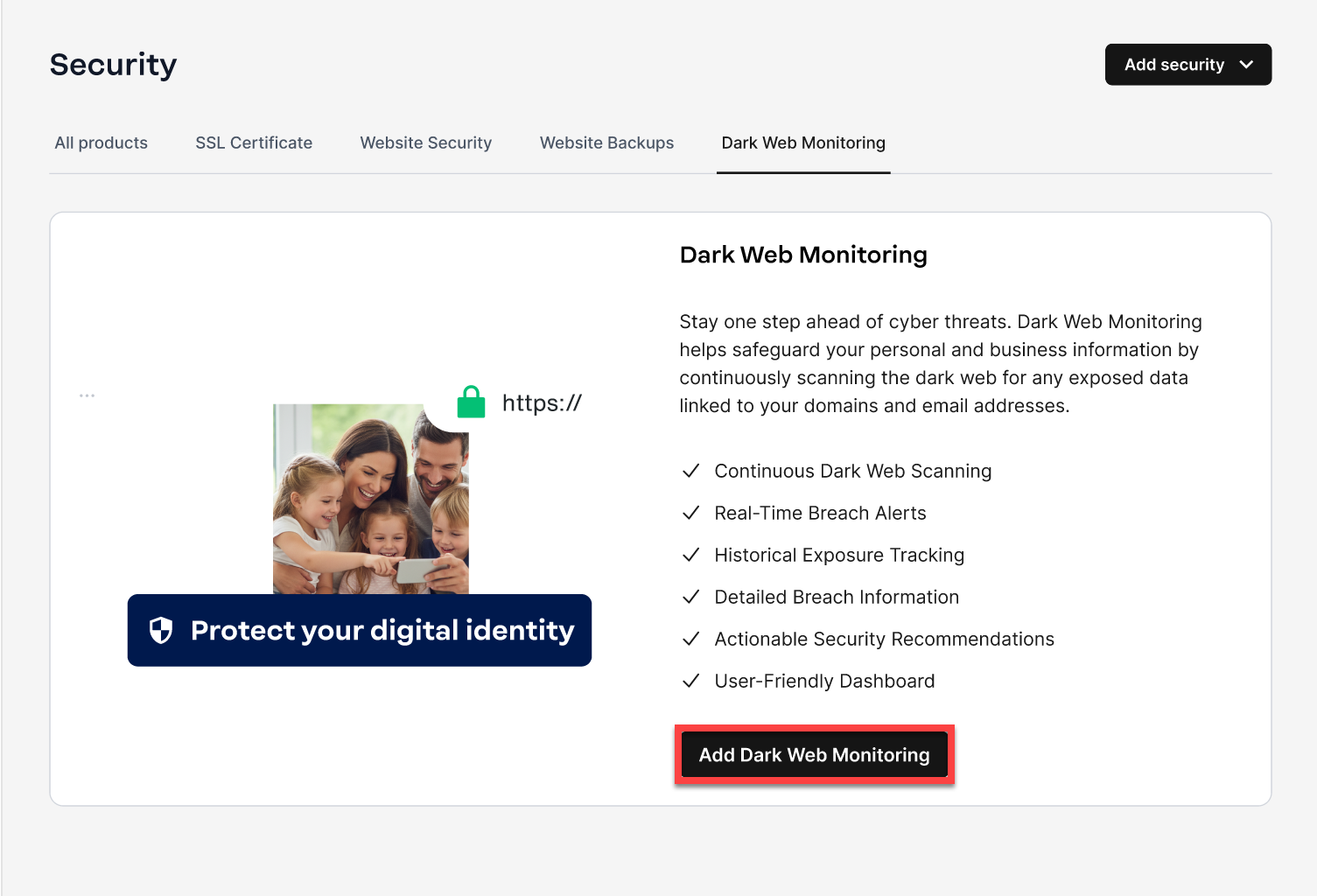
- Select the domain you want to add Dark Web Monitoring to from the drop-down.
- Select the term either yearly or monthly.
Note: Pricing is subject to change.
Important: Dark Web Monitoring is a subscription and renews automatically at the then-current rate unless auto-renewal is turned off. Promotional pricing applies to the initial term only. For current pricing, visit your account manager’s renewal center. - Review your order and payment method through the Order Summary section.
- To confirm, click Confirm & Pay.
After your purchase is complete, you will receive an order confirmation email with details about your order.
Via Special Offers
- Click the Special Offers tab.
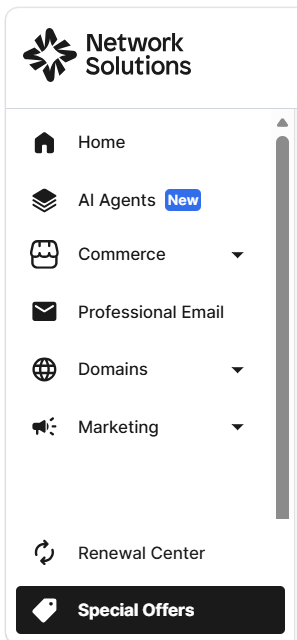
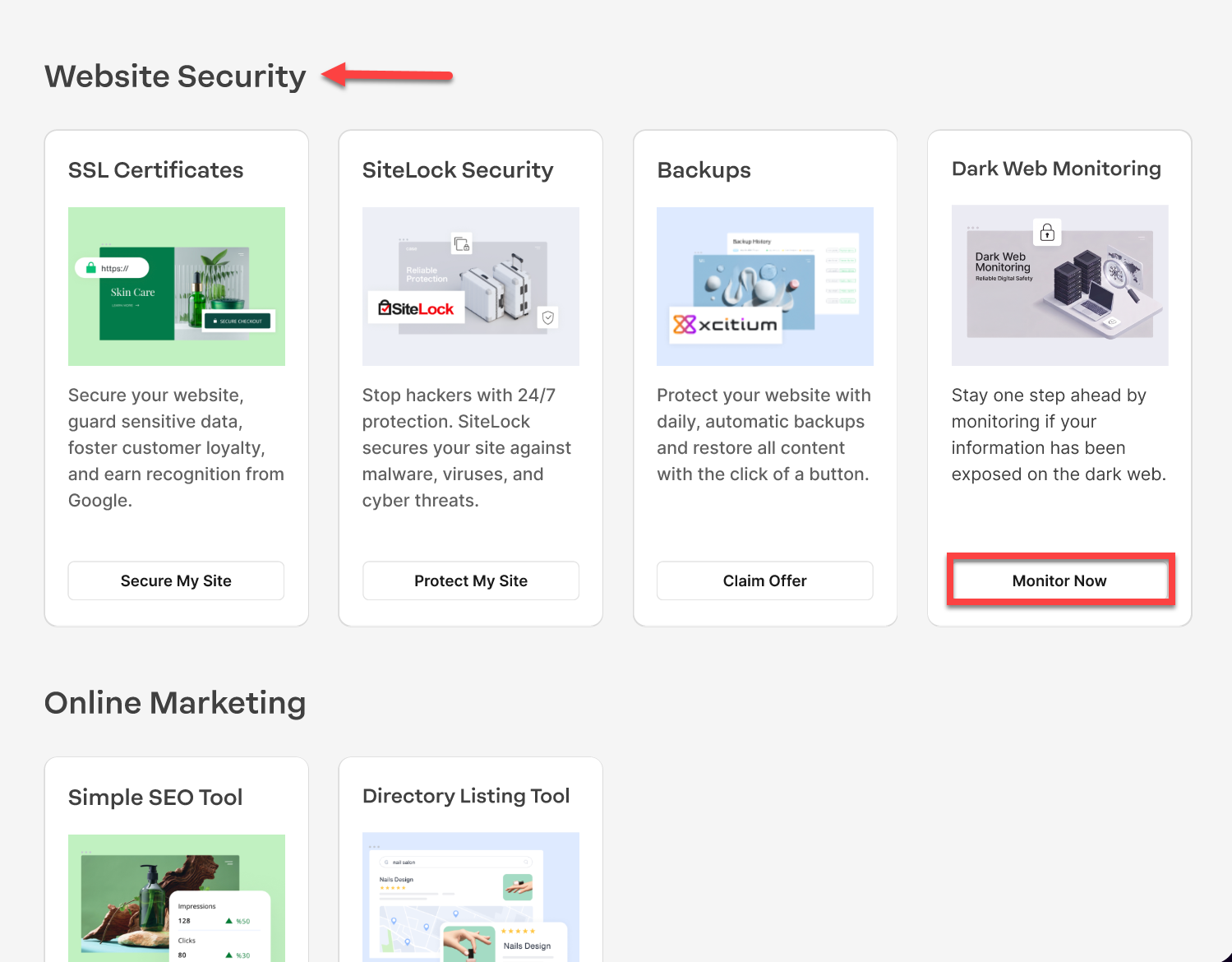
- Scroll down and, under the Website Security section, look for the Dark Web Monitoring option.
- Click the Monitor now button.
- Select the domain you want to add Dark Web Monitoring to from the drop-down.
- Select the term either yearly or monthly.
Note: Pricing is subject to change.
Important: Dark Web Monitoring is a subscription and renews automatically at the then-current rate unless auto-renewal is turned off. Promotional pricing applies to the initial term only. For current pricing, visit your account manager’s renewal center. - Review your order and payment method through the Order Summary section.
- To confirm, click Confirm & Pay.
After your purchase is complete, you will receive an order confirmation email with details about your order.
Review
You can now purchase and activate Dark Web Monitoring for your domain. After activation, you'll be able to monitor breach events, review exposure details, and receive alerts when new exposure is detected. For more information about the service and its dashboard features, see What is Dark Web Monitoring?
Get practical tips and product updates on LinkedIn.