SiteLock: Essentials/Prevent Next Steps
We provide SiteLock to help safeguard your website from malware and malicious attacks. While SiteLock does most of the work, users with Essentials and Prevent plans will need to take some additional steps to restore their websites to their pre-infection states.
- What to Do if Your Site is Infected?
- What to Do if Your Account is Suspended?
- What to Do if your Website is Blacklisted?
What to Do if Your Site is Infected?
When your website is infected with malware, you should check your SiteLock Dashboard notifications and carry out the necessary cleanup processes.
Check SiteLock Dashboard Notifications
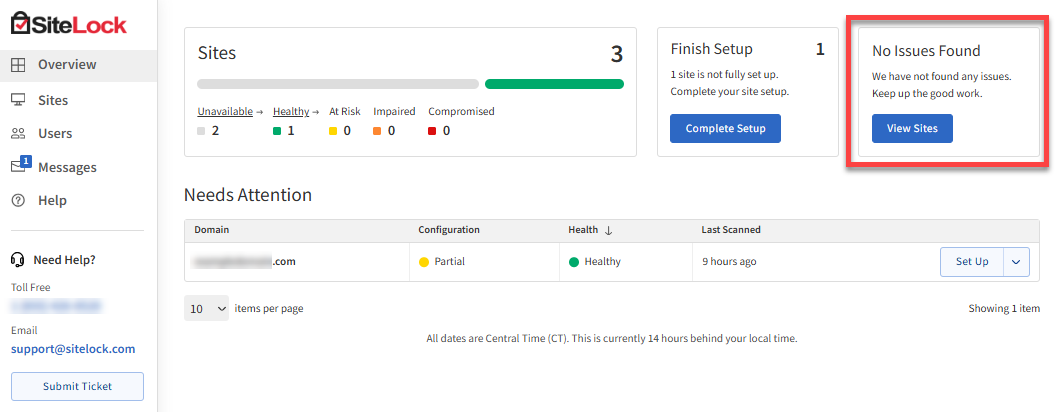
The Sites section of your SiteLock Dashboard displays a quick overview of your site's security status. If issues such as malware or vulnerabilities are detected, the Alerts section prompts you with a call to action. If no issues are found, the Alerts section simply states, "No issues found."
Run any Scan and Clean Updates
Review your SiteLock Dashboard for scan/clean updates. Auto-configuration of products is performed for you.
The duration of SMART Scan queues (the time before scanning begins) varies based on the size of your website, the number of infections found (if any), and depending on the type of SiteLock plan that you have:
- Sitelock Premium
- Sitelock Defend - Ongoing Vulnerability Scan. Web Application Firewall.
- Sitelock 911 - Start removing malware within minutes. Most sites are clean within 2 hours.
There is no visual representation of the ongoing scan. Once the scan is completed, Red X (if still infected) or Green ✔ (if clean) will show the scan's status. You will receive an email, so ensure your email address is up-to-date.
Follow these steps to update your email address in the SiteLock Dashboard.
- Launch your Sitelock Dashboard.
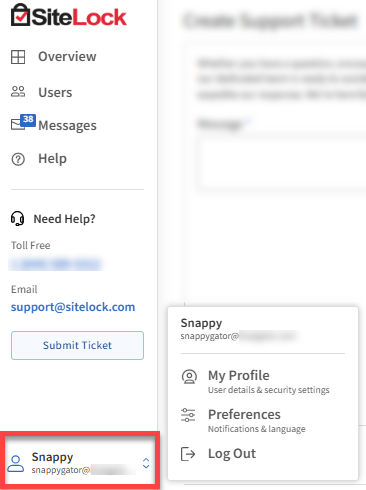
- Click your profile name in the bottom-left corner of the Dashboard, then select My Profile.
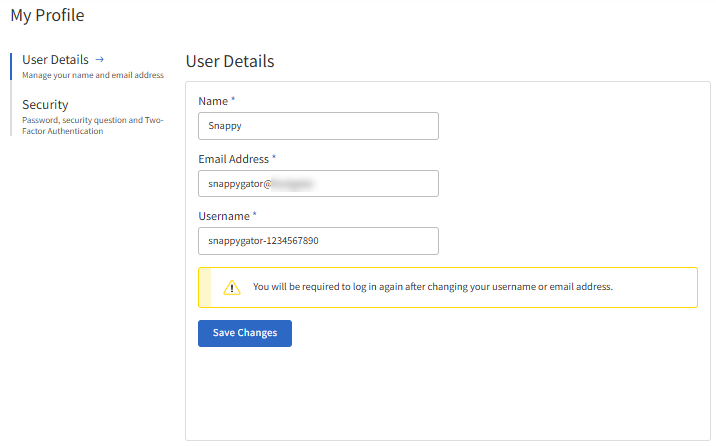
- Under User Details, update your Email Address and then click the Save Changes button.
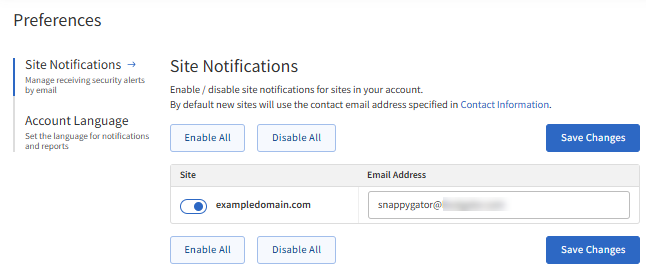
- Under the Site Notifications tab, make sure the website toggle is ON.
The SiteLock Dashboard has the following scans available:
SMART File Scan
The SMART File Scan detects and removes malware infections from your file system if your website supports FTP, SFTP, or FTPS.
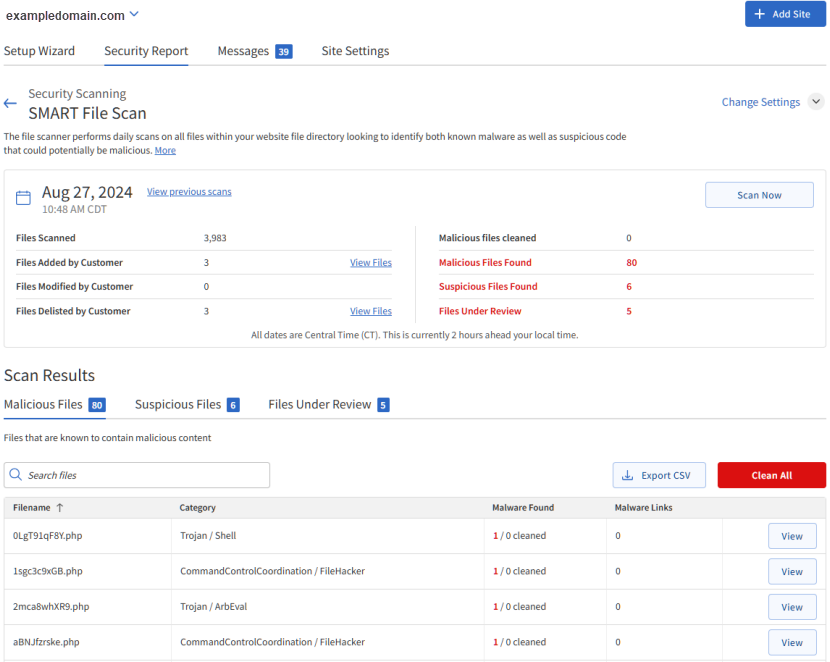
Scan Summary:
This SMART File Scan section will display the following scan details:
- Scan time - the latest scan date (found in the Summary tab) in Central Time Zone (UTC-6)
- Status - shows the current scan status: either Good or Issues Found.
- Files Scanned - the number of files last scanned.
- Files Added by Customer - the number of files you've added since the last scan. If changes are detected, you will see a View Files link, which will display the differences.
- Files Modified by Customer - the number of files you've modified since the last scan. If changes are detected, you will see a View Files link, which will display the differences.
- Files Delisted by Customer - the number of files you deleted or removed since the last scan. If changes are detected, you will see a View Files link, which will display the differences.
- Malicious files cleaned - the number of malicious files remediated.
- Malicious files found - the number of malicious files detected but not remediated.
- Suspicious files found - the number of suspicious files detected.
- Files Under Review - the number of files being reviewed by SiteLock.
Scan Results:
- Malicious Files Tab - This section shows the malicious files that were found and cleaned. If there are any files still needing cleanup, a "Clean All" button will show up for the next scan. This option usually appears in detect mode or if there was a previous problem that stopped the SMART File Scan from fixing the files.
- Suspicious Files Tab - This section shows the results of detected suspicious files that may need further attention.
- Files Under Review Tab - This section shows the results of files that are currently under review by SiteLock
SMART Database Scan
The SMART Database Scan identifies and removes malicious infections and spam from WordPress, Joomla, and MySQL databases.
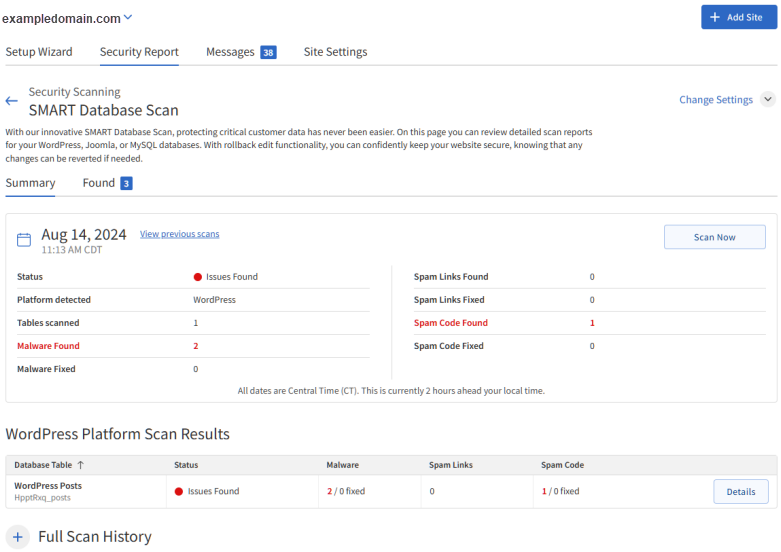
The Summary tab will display the following scan details:
- Scan time - the latest scan date (shown in Central Time Zone UTC-6).
- Status - shows the current scan status: either Good or Issues Found.
- Tables Scanned - the number of tables scanned in your site's database.
- Malware Found - the number of malware instances detected.
- Malware Fixed - the number of malware instances remediated.
- Spam Links Found - the number of spam links identified.
- Spam Links Fixed - the number of spam links removed.
- Spam Code Found - the number of spam code instances detected.
- Spam Code Fixed - the number of spam code instances resolved.
The Found tab will show the following info:
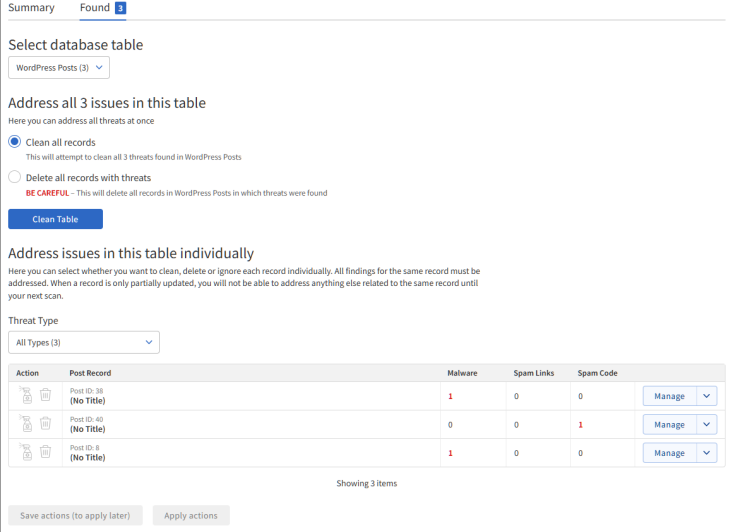
Address All Issues: If you have set the SMART Database Scan to "warn only" instead of automatically fixing issues, the following steps are required.
- To delete or remediate all detections at once, select one of the two options:
- Clean (Recommended option) - This remediates the detection while leaving content that is still legitimate.
- Delete (Cannot be undone) - This deletes the entire post that has the threat.
- Click on the Clean Table button.
Manage Individual Detections: If you prefer to manage the detections individually, you can do the following steps.
- To manage specific threats, click on the Manage button next to the threat.
- You will have the following options:
- Clean - Click on the spray bottle icon to remediate the detection while leaving legitimate content behind.
- Delete - Click on the trash icon to remove the post that has the detection.
- Ignore - Select the checkbox to ignore detection.
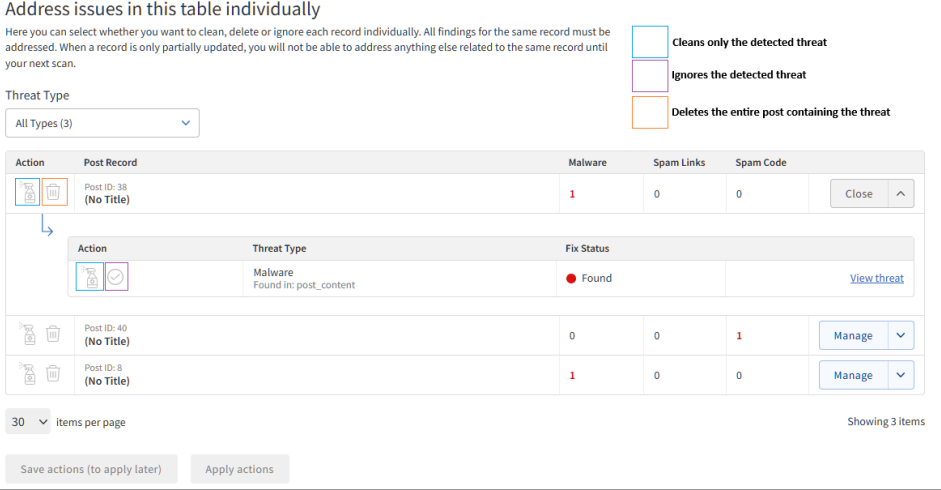
View Threat Details: For more details about a treat, click on the View Threat button.
Finalizing Selection: In this section, you have the following options:
- Save # Actions button - Click this to apply all selected actions on the next scan.
- Apply # Actions button - Click this to apply the actions now.
Smart Patch Scan
SMART Patch detects and patches vulnerabilities in WordPress and Joomla sites. Key features include patching vulnerable code for both platforms and offering rollback functionality.
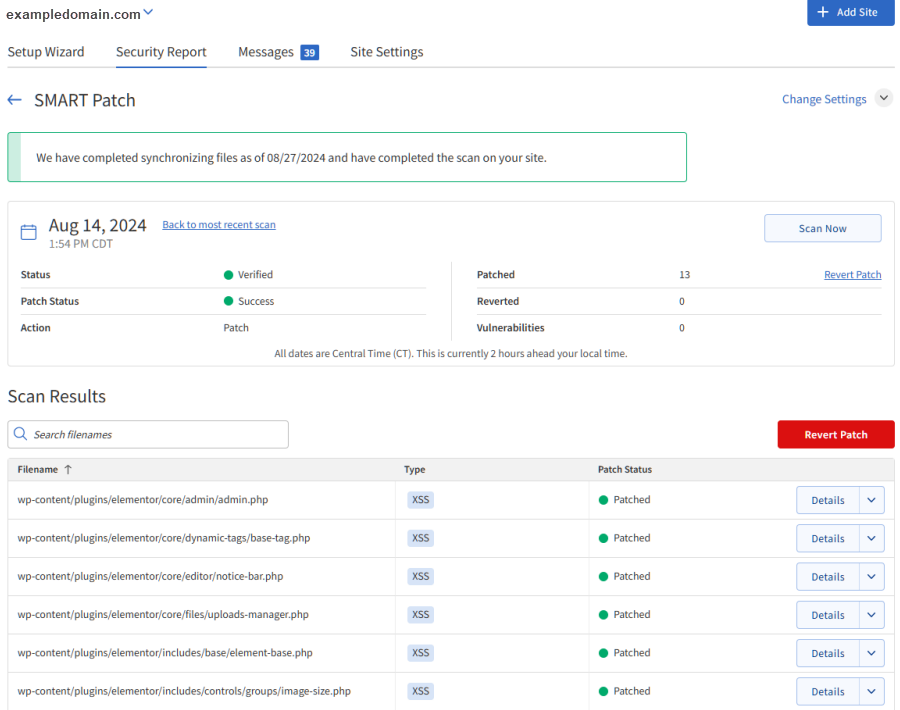
Scan Summary:
The SMART Patch section will display the following latest scan details:
- Scan time - The latest scan date is shown in Central Time Zone (UTC-6).
- Status - Indicates the current scan status: "Verified" or "Non-Compliant."
- Patch Status - Indicates the patch status: "Warning Only," "Success," or "Failed."
- Action - The action of the scan: "Patch" or "Revert."
- Patched - The number of instances patched.
- Reverted - The number of patches reverted.
- Vulnerabilities - The number of vulnerabilities detected.
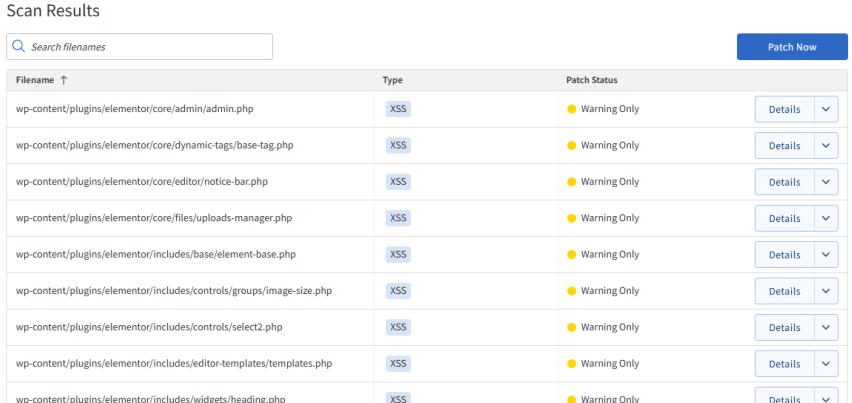
If vulnerabilities are detected but automatic patching is disabled, a Patch Now button will be displayed.
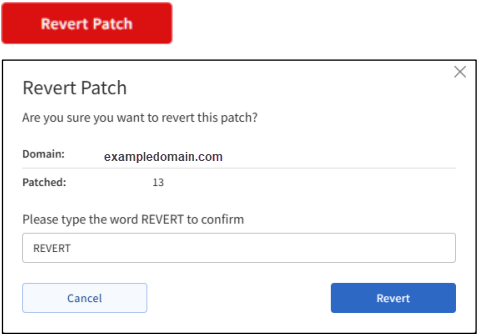
Revert Patch: Users can revert a successful patch if necessary. A red Revert Patch button appears, accompanied by a confirmation pop-up.
What to Do if Your Account is Suspended?
- If your account is suspended, but both your SMART File and SMART Database Scans show up as "Clean" (as indicated by the Green ✔), please contact our Support team and request a review of your site/account to remove the suspension.
- If your site is still infected (as indicated by the Red X) or there are additional files, please contact SiteLock Support.SiteLock Support's contact information is available in the left menu of the Dashboard. You can also open a ticket by clicking the Submit Ticket button and filling out the required information. Their friendly security specialists are always available and happy to assist you.
What to Do if your Website is Blacklisted?
If you have cleaned up your website after being blacklisted, follow the steps below.
- Submit your site to virustotal.com to verify if there are any malicious content or just false positives on your website.
- Ask the organization that blacklisted your website to recheck your site and remove you from their blacklist. Here are the most common organizations and links with instructions on how to remove your site from the list:
We highly recommend to acquire the Sitelock Defend and Sitelock 911. Not only will you have the benefits of both, but you will also have PCI compliance scanning (quarterly vulnerability scans) and website CMS (WordPress, WooCommerce, Joomla, Magento, PrestaShop, and Drupal) vulnerability patching.
Get practical tips and product updates on LinkedIn.
Follow Network Solutions