How to log in to your Cloud Mail account
Need access to your Cloud Mail? This guide explains how to log in to your Cloud Mail account. Please select from the options below for instructions:
- This article applies to customers with Cloud Mail. To determine your email version, see How to determine my email platform.
- If you need instructions on how to set up your email account in an email client, please see How to set up your email with POP3 and IMAP.
In this article, we will discuss:
Cloud Mail login instructions
Access email through an internet browser
Follow the steps below to log in to webmail via your internet browser:
- Open a new window in your browser.
- Open your internet browser, then type
mail.yourdomainname.comin the address bar. For example, if your domain name isexample.com, typemail.example.com.

- Next, enter your mailbox name and password on the login page.

- Click the Sign In button.
You have accessed your email through your internet browser window. To easily access your email, bookmark this page. Just add the address to your Favorites in your browser.
Access email through the account manager
- Log in to your account via https://www.networksolutions.com/my-account/login.
- Click Professional Email from the left navigation menu.

- Click the vertical ellipsis next to the mailbox you want to access. Then, tap Webmail Login from the options.
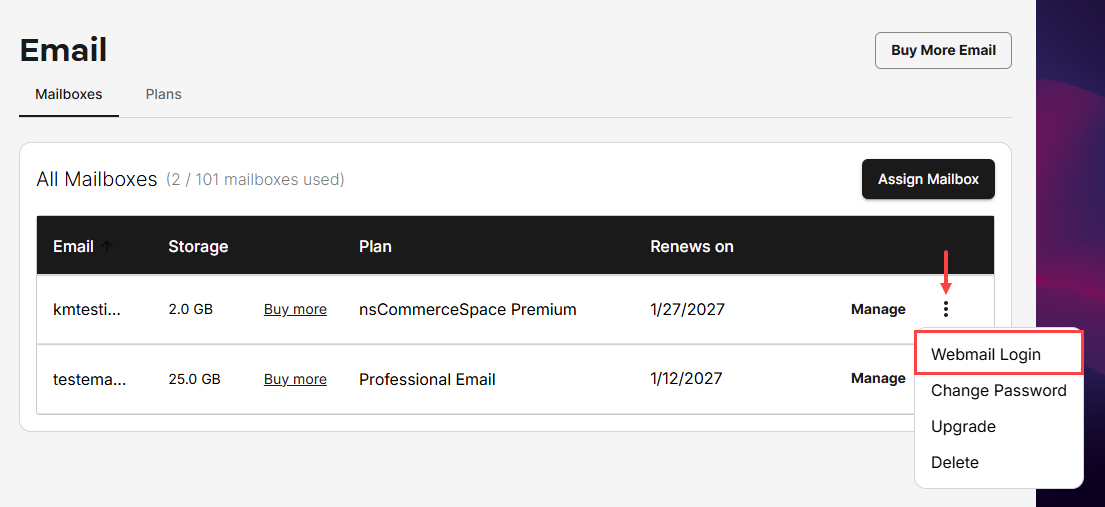
- Enter your mailbox name and password on the login page to access your email online.
Resetting a Cloud Mail password
Please see the article Cloud Mail password requirements and management for instructions on regaining access to your account if you have forgotten your Cloud Mail password.
Review
Learn how to log in to your Network Solutions email. You can log in to Cloud Mail via your internet browser or the account manager. If you have Cloud Mail login problems, you can reset your Cloud Mail password to regain access to your account.
Get practical tips and product updates on LinkedIn.
Follow Network Solutions