How to access and restore website backups
Access and restore website backups easily with our Network Solutions hosting tools. This guide walks you through recovering your files and explains your backup options: our free automatic Daily Snapshots and the on-demand Xcitium Backup premium service.
In this article, we will discuss:
Accessing the website backups dashboard
- Log in to your account via https://www.networksolutions.com/my-account/login.
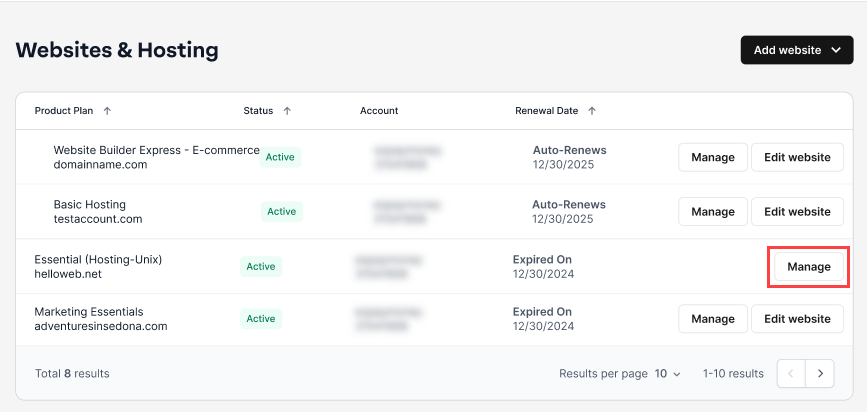
- Click Websites & Hosting from the left navigation menu.

- Navigate to the hosting package that you want to access the website backups for, then click Manage to continue.
- Go to Configurations, then select Website Backups to continue.

Restoring files in the account manager
On the Website Backups dashboard, you will see a list of Daily Backup History, which are automatic backups of your website created by our system. You can use this feature to restore your website to a previous complete copy of your website (files and/or database) at a specific point in time. Follow the steps below to begin:
- Locate the date of backup you want to restore, then click Restore to Snapshot.

- Click Continue to proceed with the restore process, which will overwrite your current website files.

- A notification will appear stating that there is a 15-minute processing delay. Please give it a few minutes to process your backup restore request.
Review
This guide has shown you how to access your hosting backups. You can restore your website for free using one of the automatic Daily Snapshots or purchase Xcitium Backup to create on-demand copies of your website files for added security and peace of mind.
Get practical tips and product updates on LinkedIn.
Follow Network Solutions