Builder brands: Working with pages
While working with your builder, you may decide to utilize multiple pages to create the look you are seeking. Ideally, most websites will have a Home, About, Service, and Contact page, which is precisely what almost every Constant Contact website theme will come with when you get started.
Once you have selected a theme for your website and clicked the button to Start Editing, you will be brought to your drag and drop editor. At first glance, you may notice a few things that stand out; the background should already have text, images, and sections based on the theme you chose. You will also notice there are a few pages already included with the design. A toolbar will be present both on the left-hand side and at the top of the builder.
In this article, we will learn how to switch between the pre-designed pages that come with your theme and the pages you create. Here you can learn more about creating and managing pages.
Switching between pages
- Log in to your account via https://www.networksolutions.com/my-account/login.
- Click Websites & Hosting from the left navigation menu.

- If you have a single website builder in the account, you will be redirected to the Website Builder dashboard. If you have multiple website builder accounts, click the Edit website button on the respective website package that you need to access.
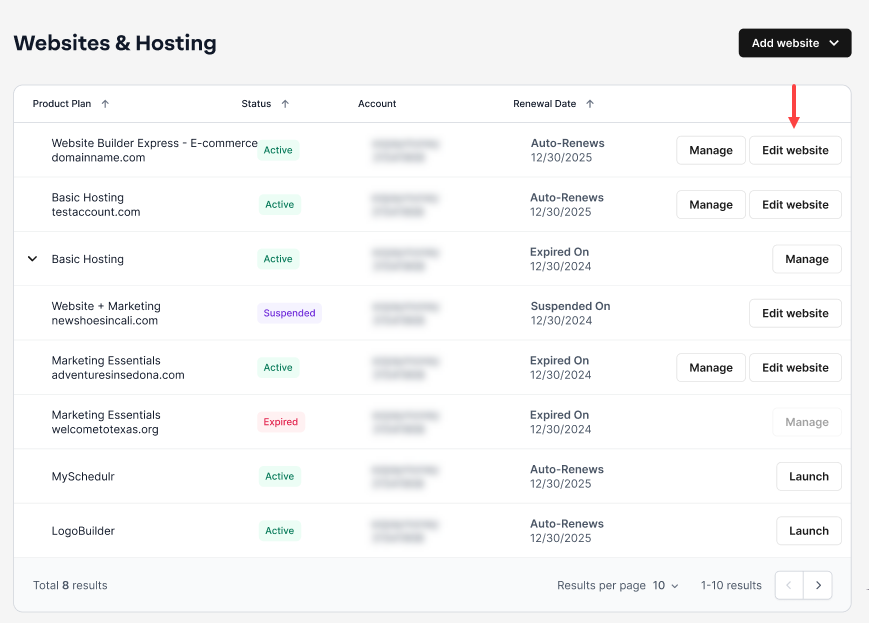
- Launch your website editor by choosing Edit Site.

Managing pages
Add and delete pages
- Select the Current page drop-down from the editor in the upper left-hand corner to change between pages.
- Choose the name of the page you would like to work on next.

- You can also access different pages from the Pages tab in the left-hand toolbar when you select the Pages option to reveal a side menu containing your page names.

- Select the name of the page you would like to work on next. You should now see that page display within the main editor area.

Pro tip: Before moving to another page, we recommend always hitting Save at the top of the design dashboard. You can also Preview your site if you would like to check your changes before you Publish them to your live website.

- Click on Pages in the left-hand toolbar.

- Click on MANAGE PAGES.

- Click on Pages in the left-hand toolbar.
- A pop-up will appear where you can manage various details about a specific page.


From the Manage Pages Menu, you can:
- Change the order of your pages by dragging the three vertical dots up or down the left column.
- Update Page Information, like Page name and URL appearance.
- Select Site Settings to hide your page on a mobile or desktop device.
- Add Password Protection to a single page.
- Add Keywords, Meta Tags, and Descriptions.
- Add Page HTML Code to add effects to your site.
Below the Manage Pages button, you will see more icons that give you additional page settings that you can use to:

- Add New Page
- Duplicate Current Page
- Rename Current Page
- Delete Current Page
- Change Current Page Design

Add a new page

- Click the Add Page icon, and you’ll see several different layout options appear, plus the option to create a blank page.
- Select the page layout that fits your needs, then name the page something logical.
- From there, you’ll be able to start editing the page itself, like adding text, uploading photos or videos, changing headers, and updating fonts.
Delete a page
There are two ways to delete a page: delete the current page or delete a page you are not on.

Deleting a current page
- Simply click the Pages section from the left-hand menu, then select the Page so that it displays in the background of the designer.

- Select the Delete Current Page option to remove your page from this list.

Deleting a page you are not on
- Click the Pages section from the left-hand menu.
- Select the three lines next to the page you wish to delete.
- Choose Delete.

- Both of these options will give you a confirmation pop-up.

- Click DELETE to confirm that you would like to remove the page from your site.
- Be sure to Save and Publish changes to make them live on your website.

Get practical tips and product updates on LinkedIn.
Follow Network Solutions