Configure cWatch access permissions
The access permissions section allows you to choose how cWatch gains access to your website for malware scanning, vulnerability detection, and remediation activities. Selecting the appropriate access method ensures that cWatch can effectively monitor and protect your website while aligning with your organization's security requirements.
In this article, we will discuss:
Navigate to access permissions
- Log in to your account via https://www.networksolutions.com/my-account/login.
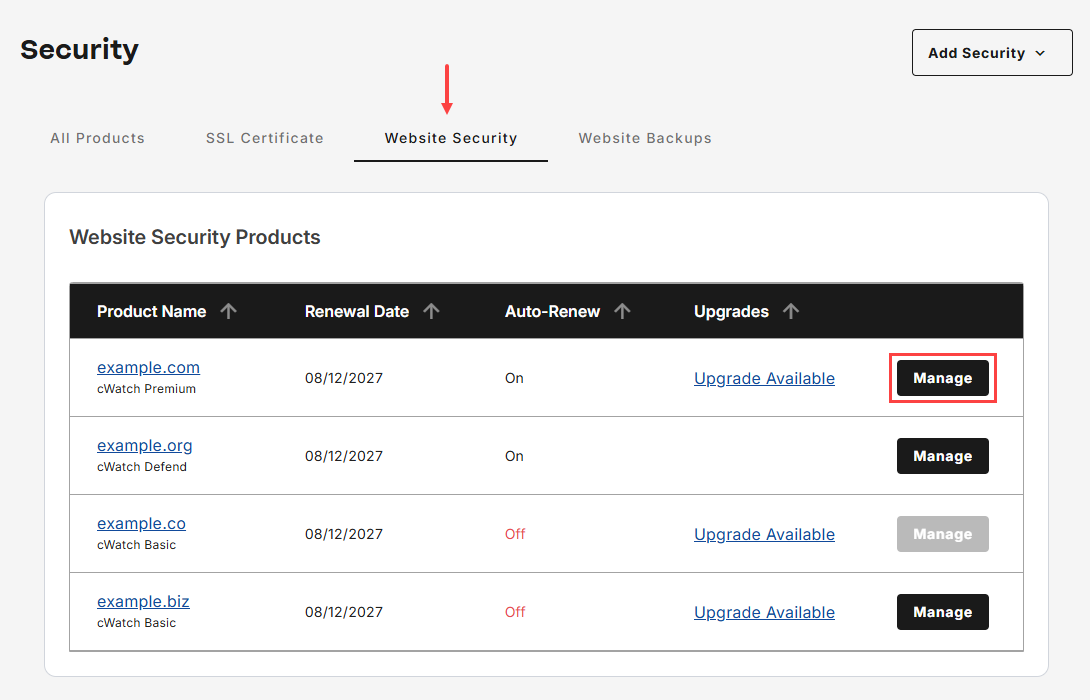
- Click Security from the left navigation menu.

- Go to Website Security, then tap Manage for the domain that you would like to access cWatch.
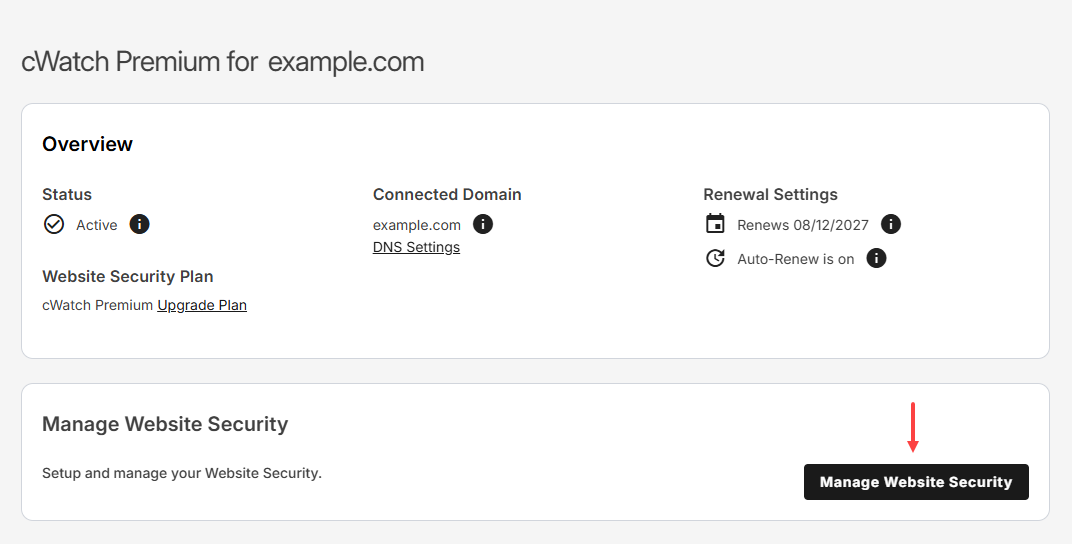
- Tap Manage Website Security to launch cWatch portal.
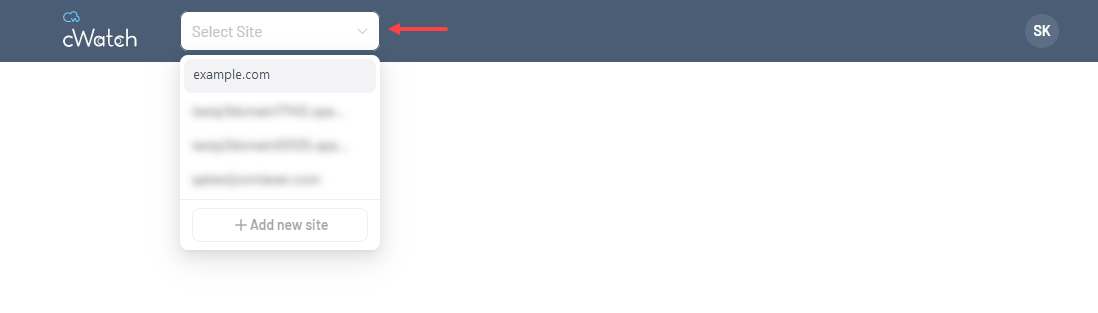
- Ensure that you select the correct domain from the drop-down menu before navigating to cWatch Access Permissions.
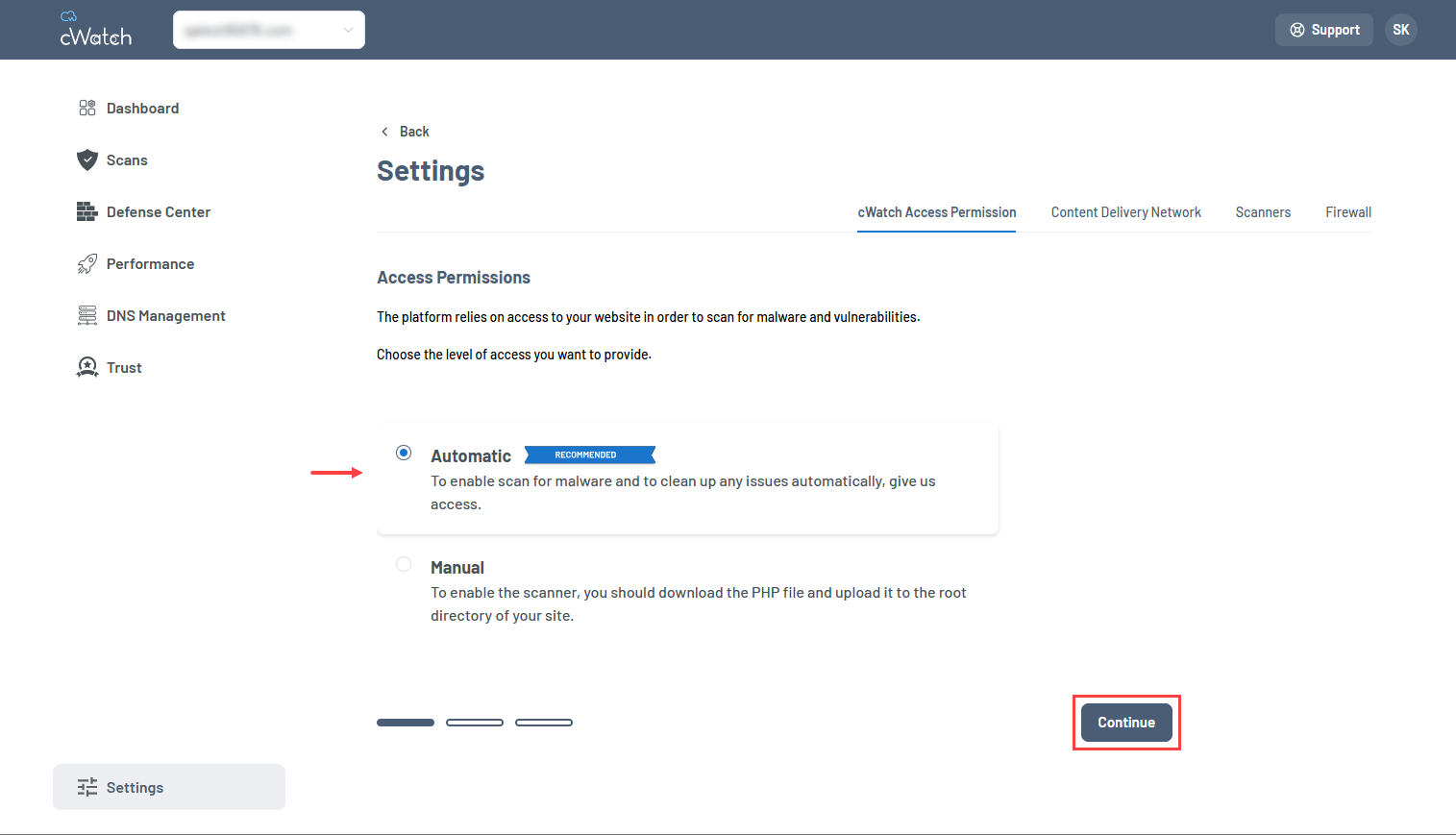
- Go to Settings, select the cWatch Access Permission tab, then choose either Automatic or Manual access.
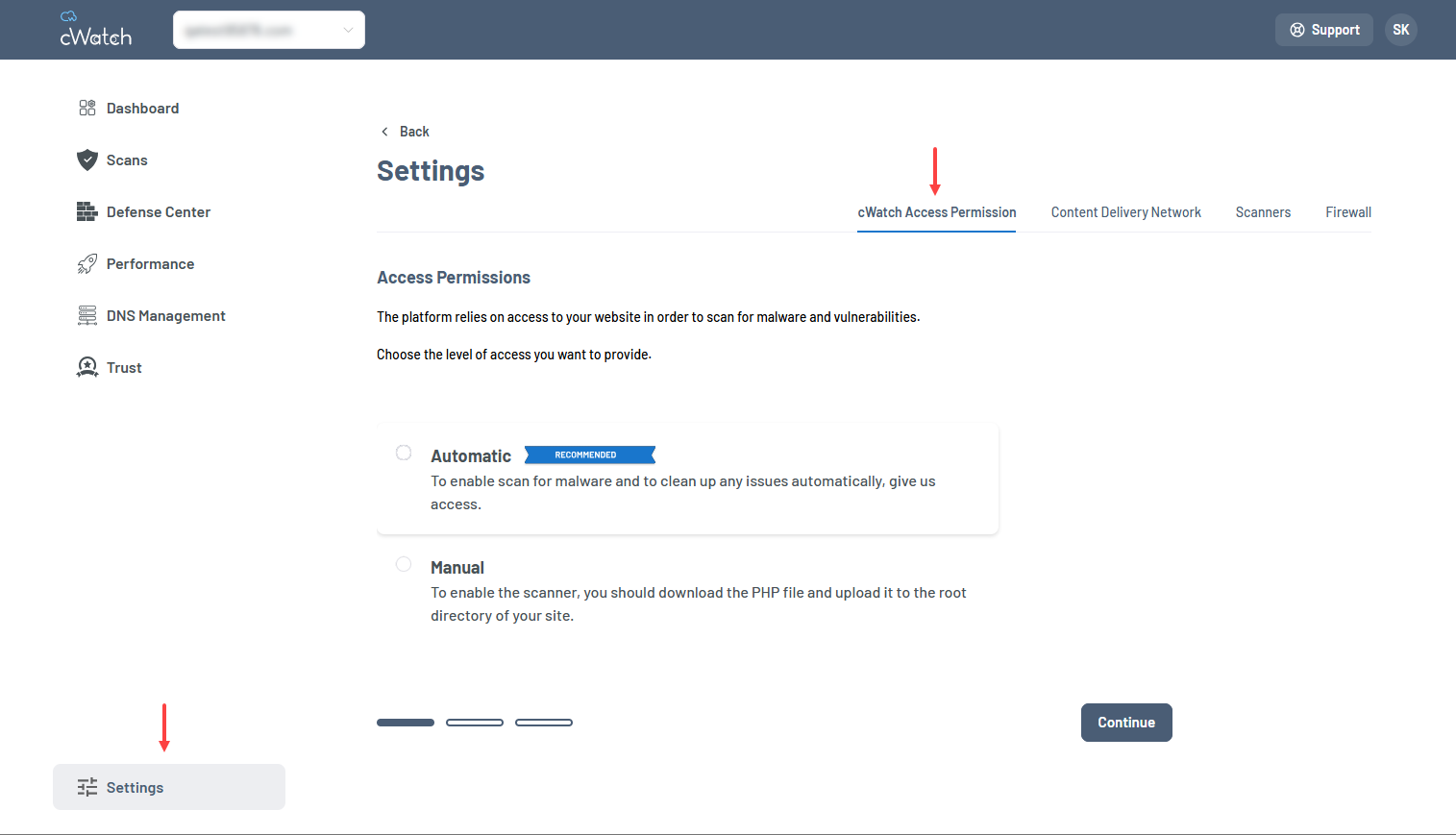
Access permissions options
This option allows cWatch to establish access to your website automatically. This method simplifies deployment and enables advanced security features, including automated malware remediation.
Benefits
- Quick and easy setup
- Continuous malware scanning
- Automated threat detection and cleanup
- Minimal manual intervention
- Recommended for most users
How it works
- Select Automatic, then click Continue.
- Choose the level of access you want to provide, whether FTP, SFTP, or an SSH-Key, then provide the required website or hosting access information.
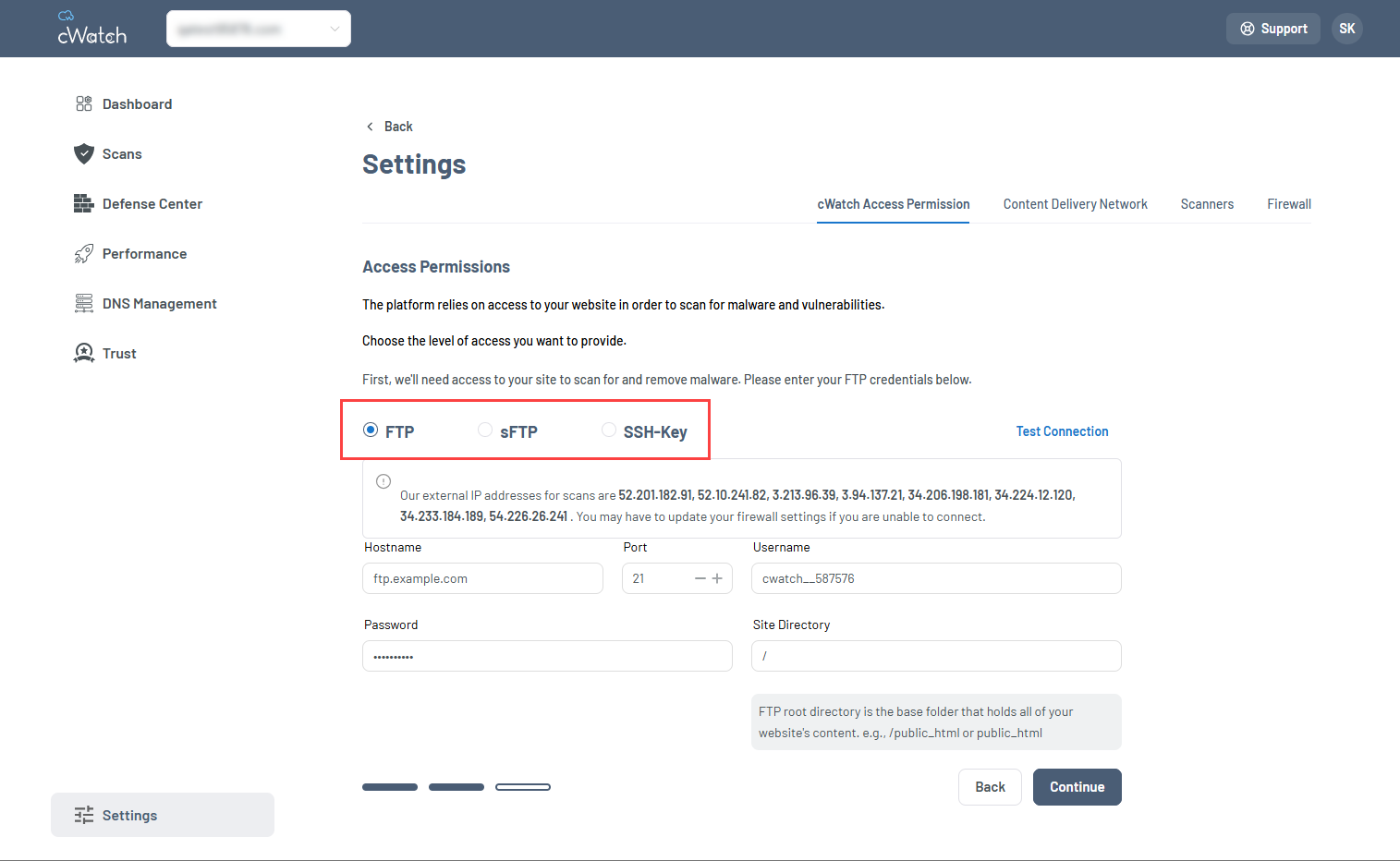
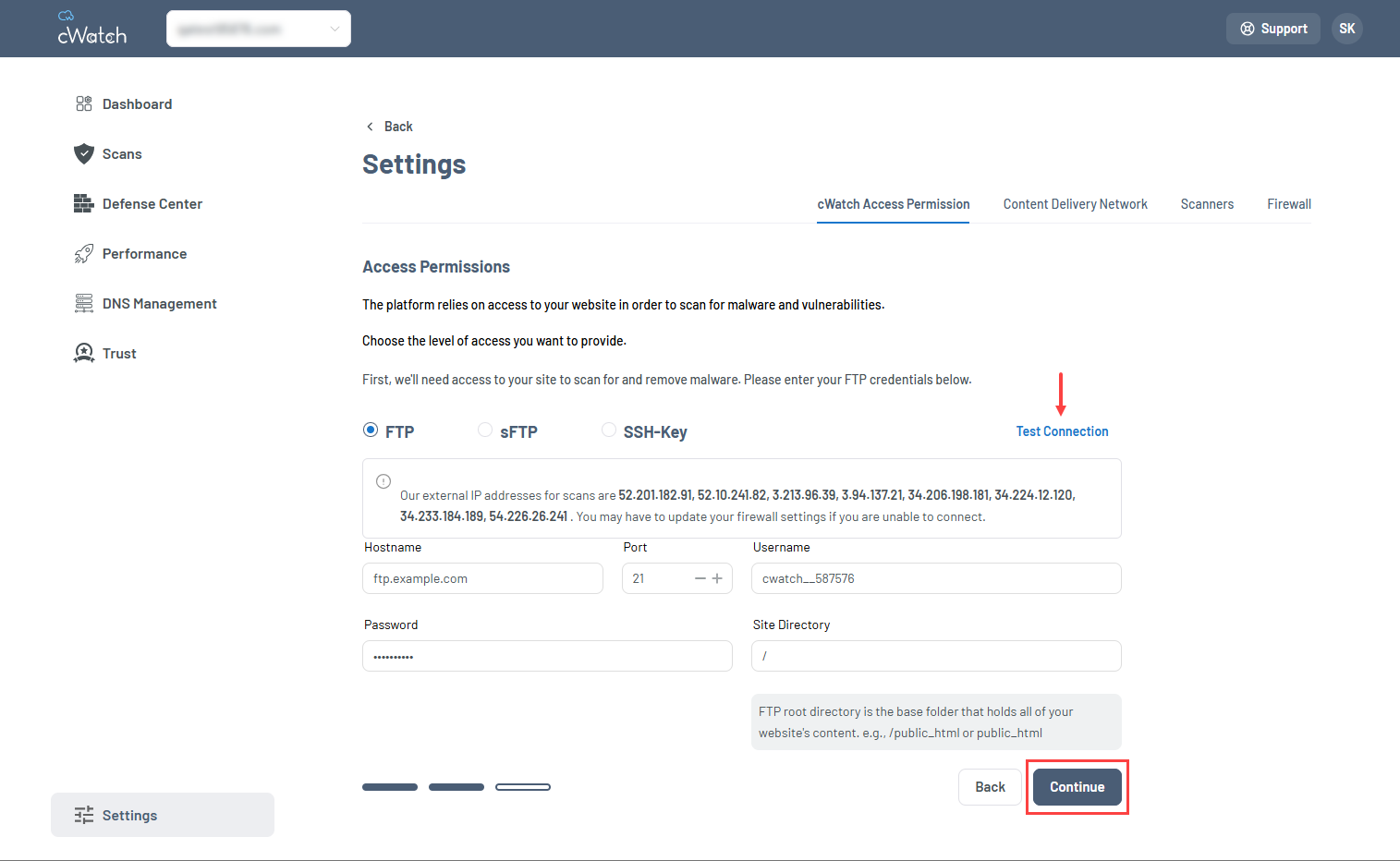
- Verify the details, then click Test Connection. If the status is Success, click Continue. If it shows Error, review the information and test again.
This option allows cWatch to establish access to your website automatically. This method simplifies deployment and enables advanced security features, including automated malware remediation.
Benefits
- Limited access exposure
- Greater administrative control
- Suitable for environments with strict security policies
How it works
Depending on your hosting provider, the website root directory may be:
- Select Manual, then click Continue.
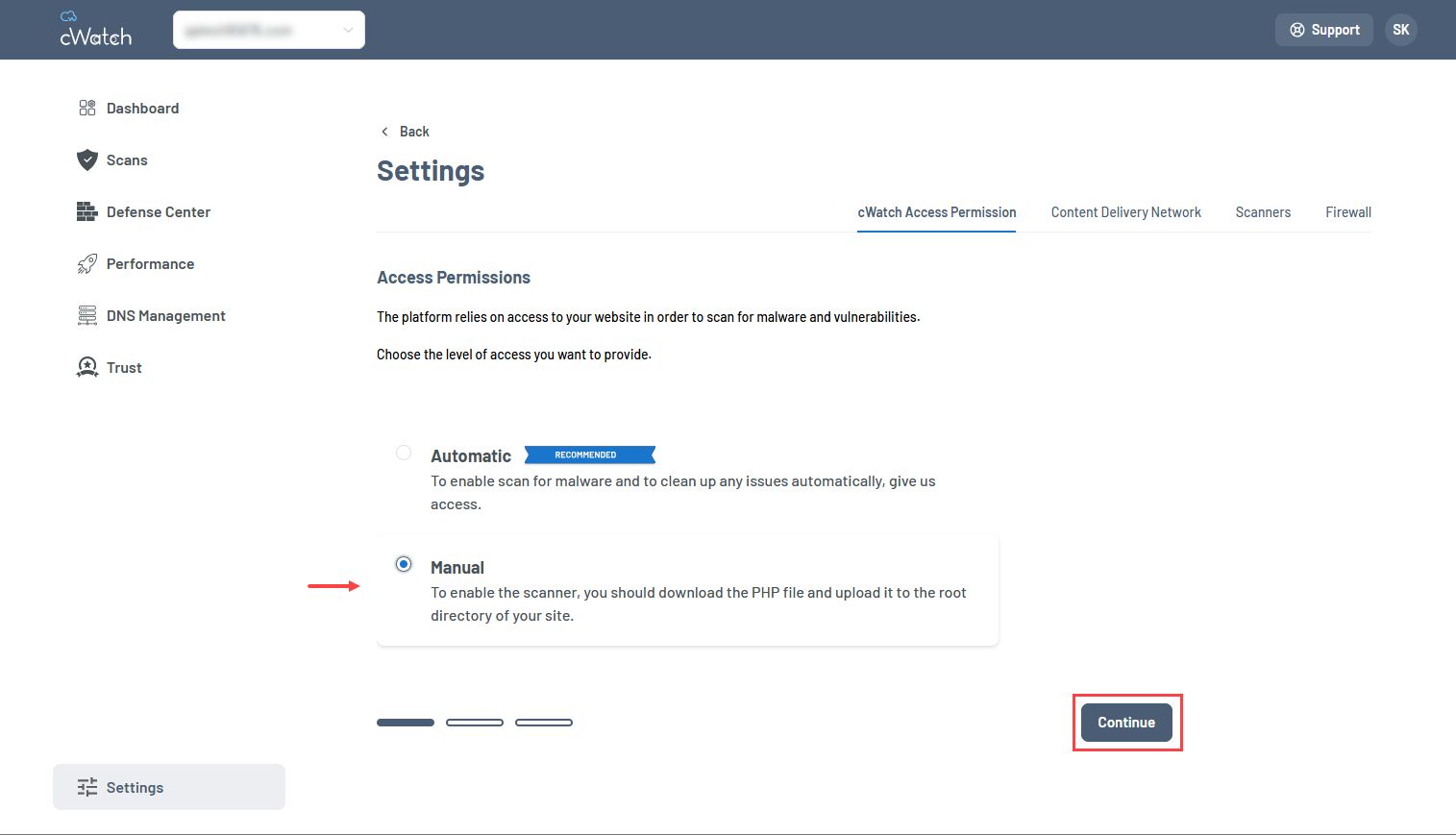
- In this section, following the steps promptly:
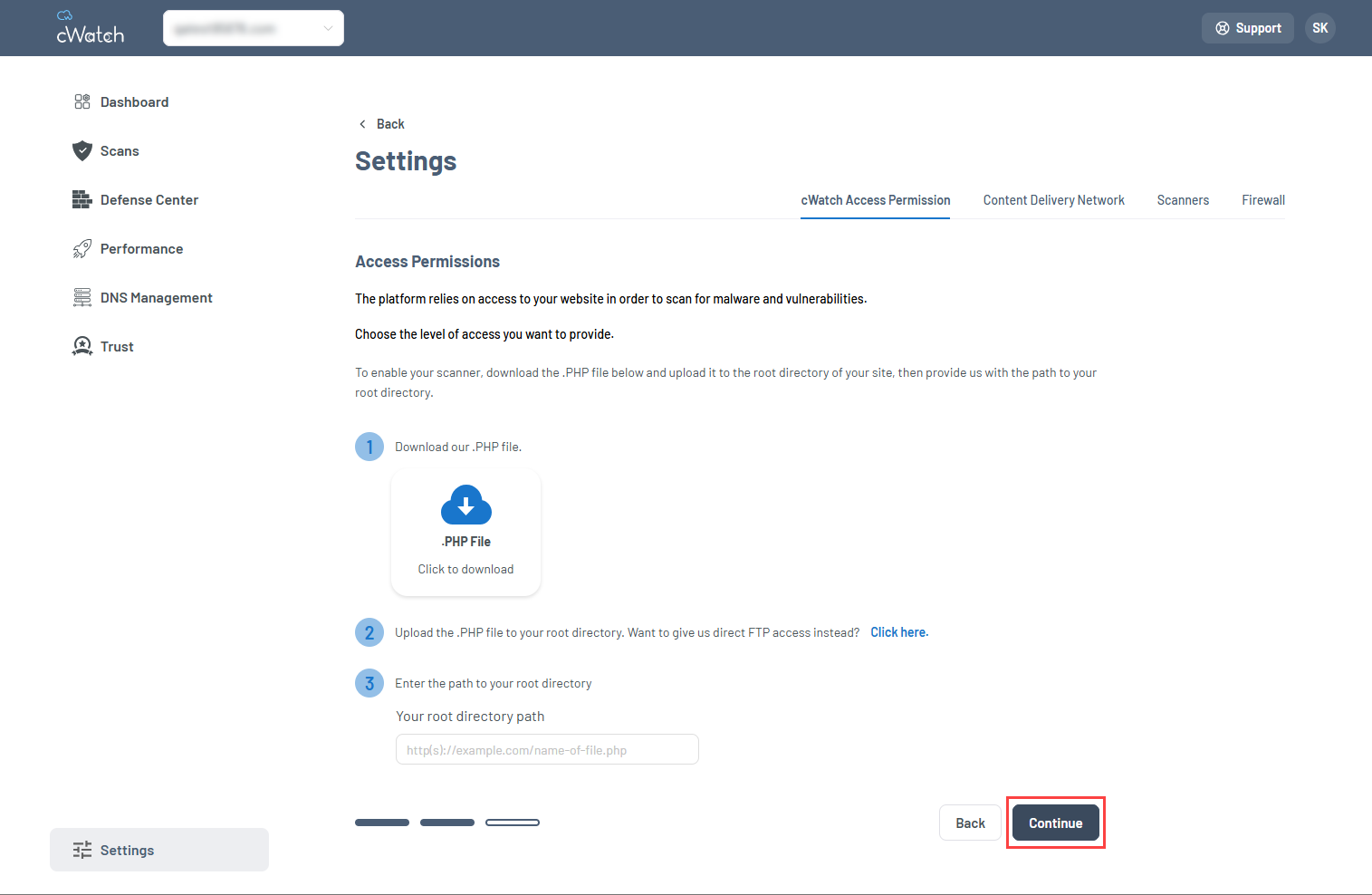
- Download the cWatch .PHP file.
- Upload the .PHP file to your root directory.
- Enter the path to your root directory, then click Continue.
Common root directory locations
- public_html
- www
- htdocs
- Website document root configured in your hosting panel
Choosing the right option
| Option | Recommended for |
|---|---|
| Automatic | Users seeking fast deployment and automated malware remediation |
| Manual | Administrators who require tighter control over website access and verification methods |
Review
By configuring cWatch access permissions, you can determine how cWatch connects to your website for security monitoring and remediation activities. The available options, automatic and manual, provide different levels of access based on your security and administrative requirements. Selecting the appropriate cWatch access permissions method helps ensure that malware scanning, vulnerability detection, and validation processes can be performed as intended while aligning with your organization's security policies. Review your access settings periodically to confirm that the configured method continues to meet your website management and security needs.
Get practical tips and product updates on LinkedIn.
Follow Network Solutions