Knowledge Base
Categories: Email
How to sort emails in Cloud Mail
Knowing how to sort emails in Cloud Mail can help you keep your inbox organized and make it easier to find important messages when you need them. Cloud Mail provides several sorting options to help you organize messages based on your preferences.
Follow the steps below to sort your mailbox:
- Log in to your Cloud Mail account. If you don’t know how to access your Cloud Mail, please refer to this article: How to log in to your Cloud Mail account.
- Once logged in to Cloud Mail, open the mailbox you want to sort from the left-hand side of the page. In this example, Inbox is selected.
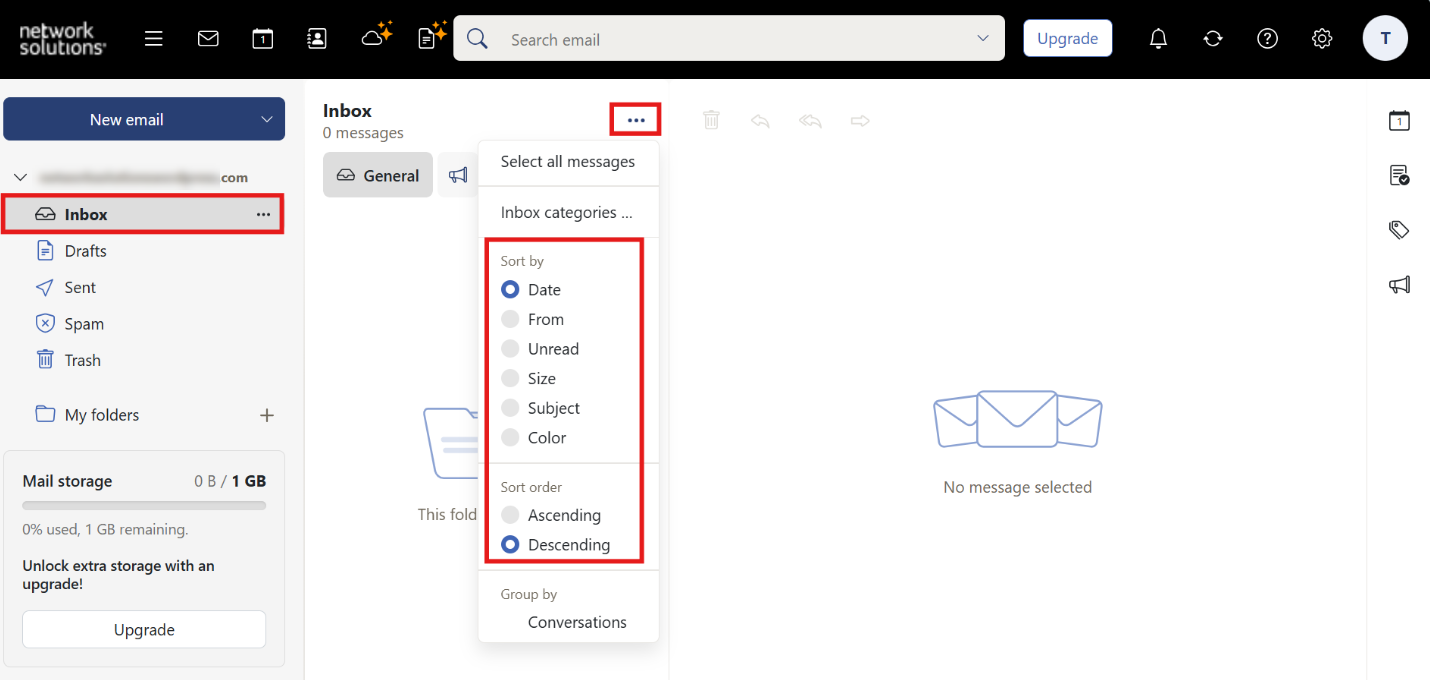
- Click the three-dot menu (⋯) at the top of the message list.
Under Sort by, choose how you want to organize your emails:
- Date: Sort by the date received.
- From: Sort alphabetically by sender.
- Unread: Sort by read/unread status.
- Size: Sort by email size.
- Subject: Sort alphabetically by subject.
- Color: Sort by assigned color.
Under Sort order, choose:
- Ascending: Oldest/A–Z first.
- Descending: Newest/Z–A first.
- Repeat these steps for any other folder or mailbox where you want to organize your messages.
Review
By following the steps above, you can easily sort your emails in Cloud Mail based on your preferred criteria, such as date, sender, unread status, size, subject, or color. Regularly organizing your mailbox can help you manage your communications more efficiently and maintain a clutter-free inbox.
Get practical tips and product updates on LinkedIn.
Follow Network Solutions
Did you find this article helpful?