How to access the Open Source Applications library
Network Solutions’ Open Source Applications library includes an auto-script installer that makes setting up web applications quick and straightforward. Whether you’re creating a blog, an e-commerce site, or another type of website, this feature helps reduce manual setup and saves time.
In this article, we'll discuss:
How to access the Open Source Applications library
To access the Open Source Applications library, follow the steps below:
- Log in to your account via https://www.networksolutions.com/my-account/login.
- Click Websites & Hosting from the left navigation menu.

- Navigate to the hosting package that you want to access with Website Builder, then click Manage to continue.
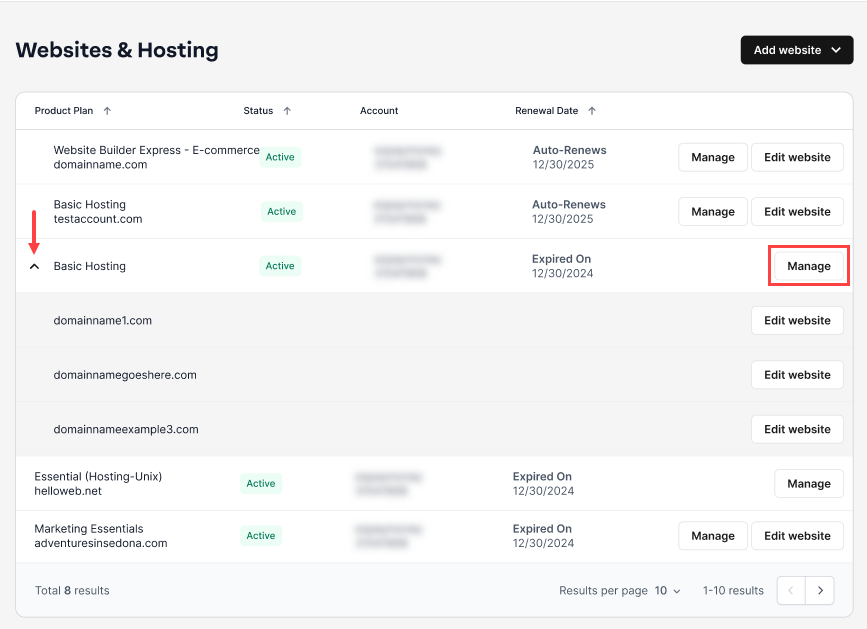
- Under Configurations, click the Open Source Applications option.

- You are provided with a list of open-source applications available for one-click installation.
Note: If you already have an application installed, you will need to click the Open Source Applications link to get to the open-source applications page.

-
Click the Add New button next to the application you would like to add, then follow the installation instructions.
Review
In summary, this article explains how Network Solutions customers can locate and access the Open Source Applications library. It outlines where to find the feature within the account and hosting control panel, including selecting a hosting package if needed and navigating to the Configurations section. From there, the Open Source Applications option opens a list of available applications.
Get practical tips and product updates on LinkedIn.
Follow Network Solutions