How to manage Checkout app orders
In the Network Solutions Checkout app, all orders are centrally organized in the Orders tab, allowing you to efficiently track order details such as order number, quantity, total price, status, customer information, and purchase date. Understanding how the Checkout app works, including order statuses, available actions, and order detail management, enables you to stay organized, reduce errors, and maximize your sales opportunities.
In this article, we will discuss:
Managing orders
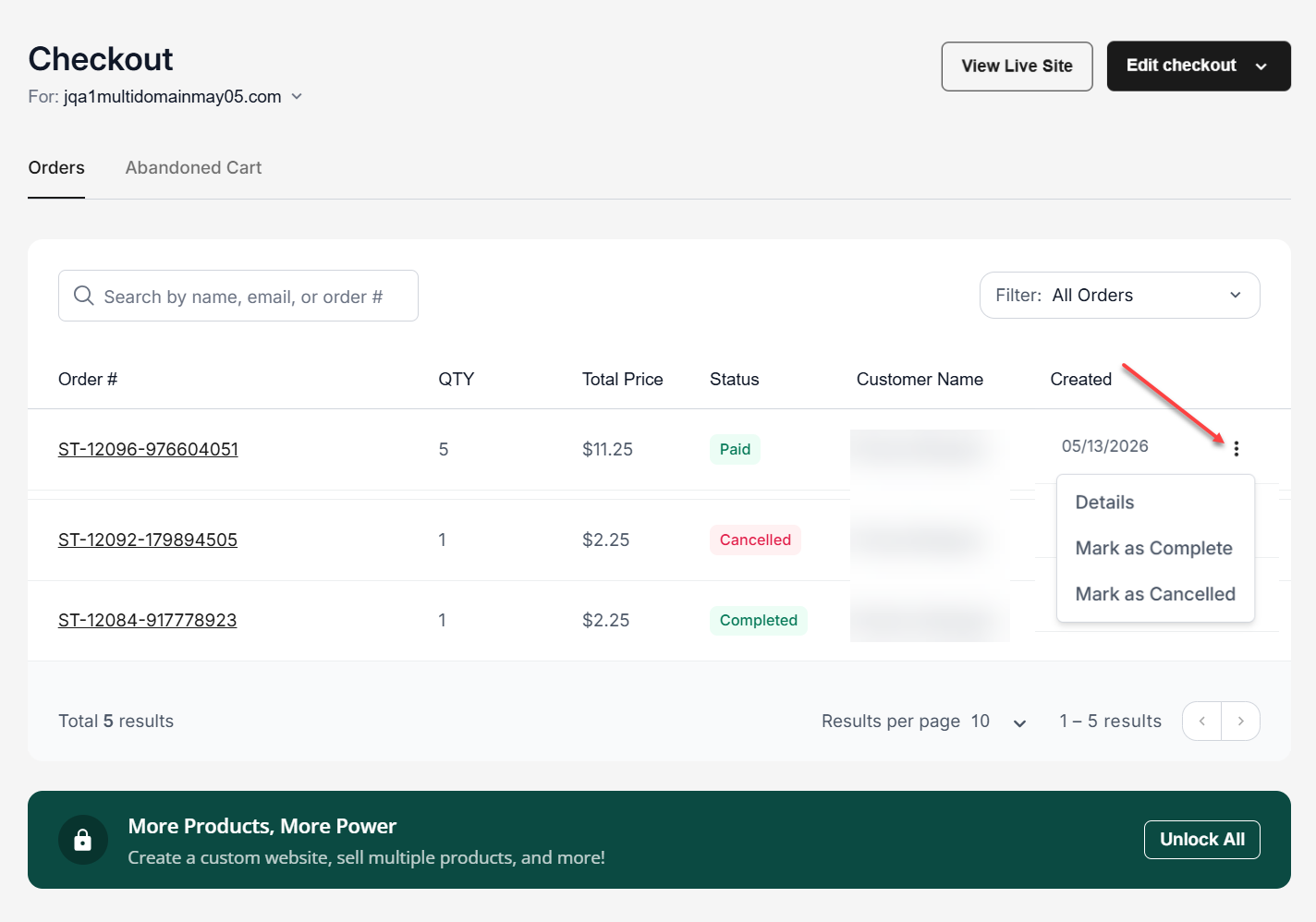
When someone buys from your Checkout page, their orders will be reflected in the Orders tab of the Checkout management page in your account manager. In the Orders tab, you will see the order number, order quantity, total price, order status, customer name, and the date when the order was placed. From here, you can also select the vertical ellipsis for each order to mark them as complete or cancelled, and you can click on the Details option to see the order specifics and access additional order management choices.
Order statuses
Orders are categorized into four statuses, and the actions you can perform will vary based on each order’s status.
- Paid: The payment has been successfully processed.
- Unpaid: This is a temporary status displayed for a short period of time while the order is being processed by the payment provider.
- Completed: This status is used when the payment has been successfully processed, and you have delivered the product or ensured that your customer can access your digital product. You have to set this manually when you are finished processing that order. This will allow you to filter only those orders that need your attention for fulfillment.
- Cancelled: This status is used when the order is not processed or fulfilled due to system/payment issues, product availability, or the buyer requests to cancel their order. You have to set this manually at your discretion.
Important: This cannot be undone if you accidentally cancel an order. Any refunds will need to be handled manually through your payment processor.
Order details
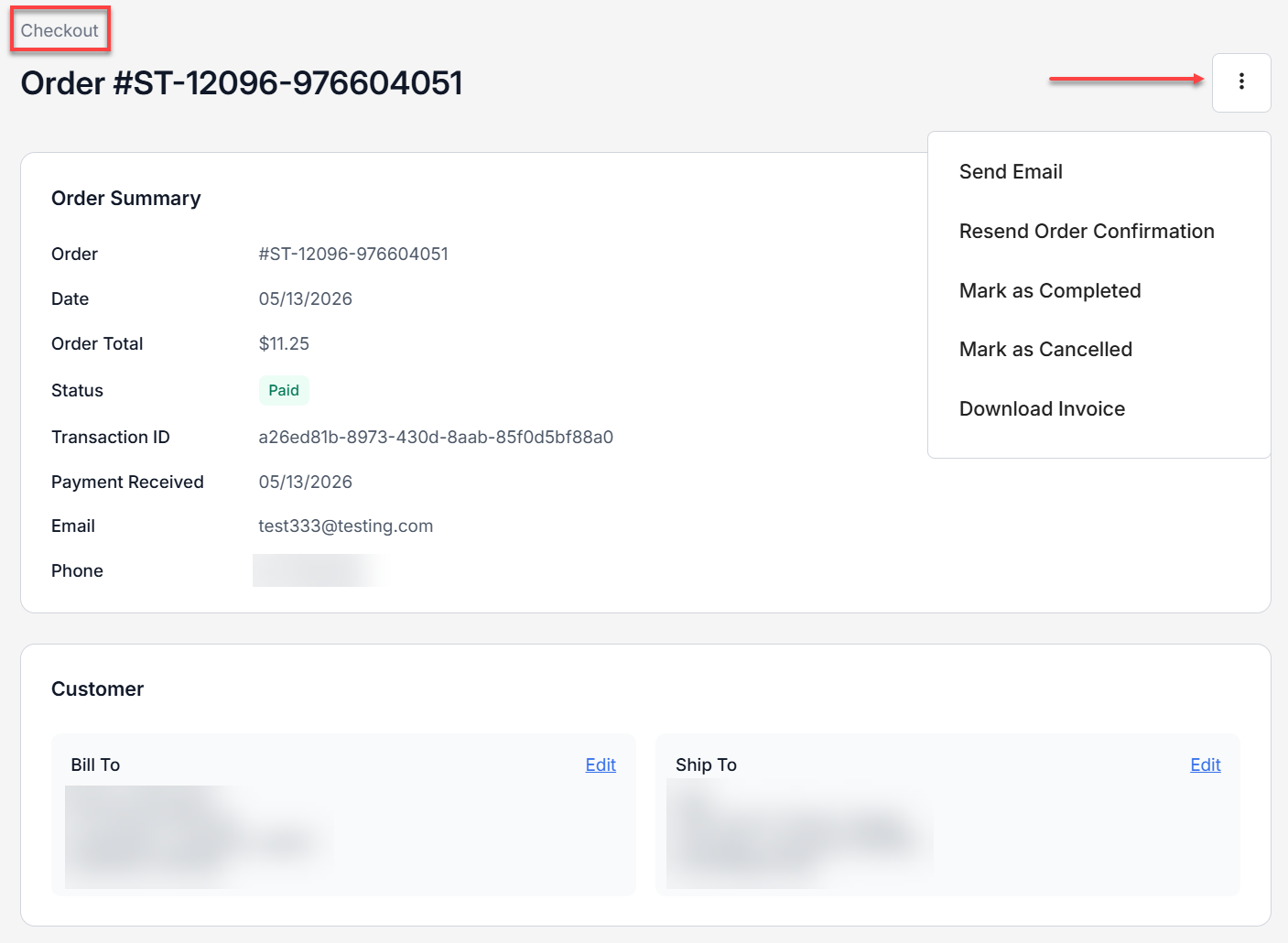
After clicking the Details option in the Actions menu, you will see the order summary, providing you with a comprehensive snapshot of the transaction. This section helps you quickly verify order details, confirm payment status, and reference customer contact information for digital communication and real-time contact.
At the top of the order summary, you will see an Actions menu (vertical ellipsis). The actions you can perform will vary based on the order’s status. Click the Available actions per order status button below to view more information about this feature.
Available actions per order status
The Actions menu (vertical ellipsis) at the top of the order details provides additional order management actions. The available actions vary depending on the current status of the order.
| Order status | Actions |
|---|---|
| Paid |
|
| Completed |
|
Additionally, you have the customer information section, where you will have an option to update the billing and shipping information. This information is also saved in the Customers app for the associated domain. The contact will appear in the following system lists: Store and either First-Time Buyers (if it is their first purchase) or Repeat Buyers (if they purchased from you multiple times).
Update the buyer’s billing and shipping information
You can only update the customer’s information, such as billing and shipping address, before the order is finalized or fulfilled. Updating this information is straightforward; just click the Edit button beside the field you want to modify, make the necessary changes, and then click Save to apply them.
Below are common scenarios where you may need to update the customer’s information.
- The customer requests a correction (e.g., wrong address).
- There is missing or incomplete information.
- Seller verification before processing the order to ensure successful delivery.
If you want to go back to the previous page, just click the Checkout breadcrumb on the top left of the order details screen.
Managing abandoned carts
An abandoned cart occurs when a customer begins the checkout process but does not complete the purchase. This can happen due to issues during checkout or a change in the customer’s intent. While abandoned carts represent lost sales opportunities, they can also provide valuable insights into potential friction points in the checkout experience. For this reason, the Network Solutions Checkout management page tracks abandoned carts to help you monitor and better understand customer behavior.
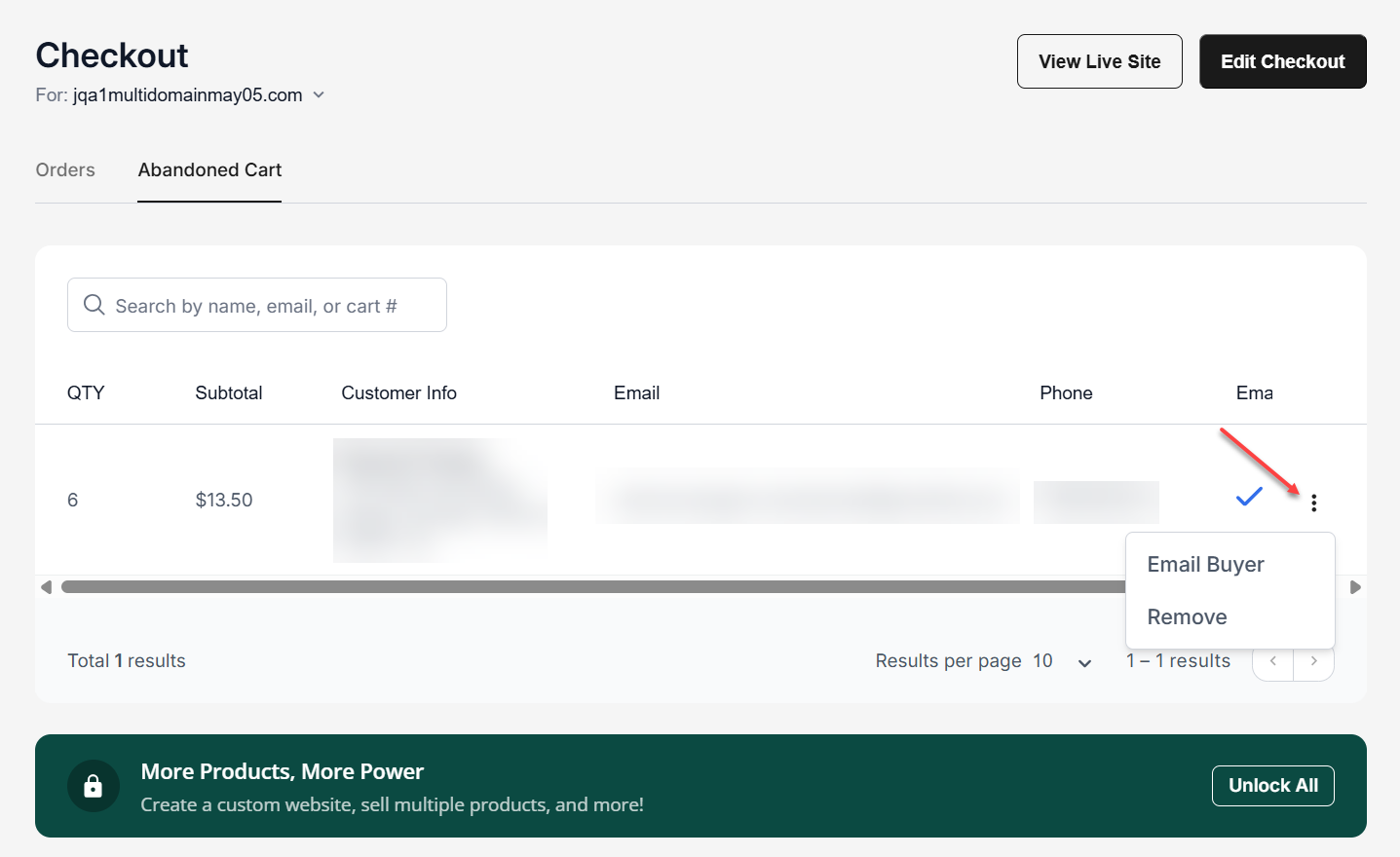
You can access additional options for an abandoned order by clicking the Actions menu (vertical ellipsis) beside the order. From there, you can choose to email the buyer to follow up and encourage them to complete their purchase, or remove the order from your abandoned cart list if it is no longer needed.
Related articles
Review
The Checkout app’s streamlined dashboard allows you to easily review order progress, update order statuses, access detailed order information, and perform key actions like marking orders as completed or cancelled. Whether you’re verifying customer details, handling payment statuses, or following up on abandoned carts, effective Checkout order management helps ensure smooth transactions and a better customer experience.
Get practical tips and product updates on LinkedIn.
Follow Network Solutions