How to manage traffic from top threat countries in cWatch
The Top Threat Countries feature in cWatch Defense Center helps administrators identify and review website traffic originating from countries that may present a higher security risk based on observed activity. By providing visibility into traffic patterns from these locations, it supports informed decision-making when managing website access and security controls. To manage traffic from top threat countries, administrators can create custom firewall rules that allow or block traffic by country based on their organization's requirements. Combined with the Web Application Firewall (WAF) and insights from the firewall event log, this feature helps strengthen firewall rule management, improve traffic monitoring, and support a more controlled approach to handling traffic from high-risk countries.
In this article, we will discuss:
Before you begin
- You have access to the cWatch Defense Center.
- The website is already protected by cWatch Web Application Firewall (WAF).
- You have the required permissions to view firewall events and manage custom firewall rules.
- Firewall activity has been detected and recorded in the firewall event log for review.
Managing traffic from top threat countries
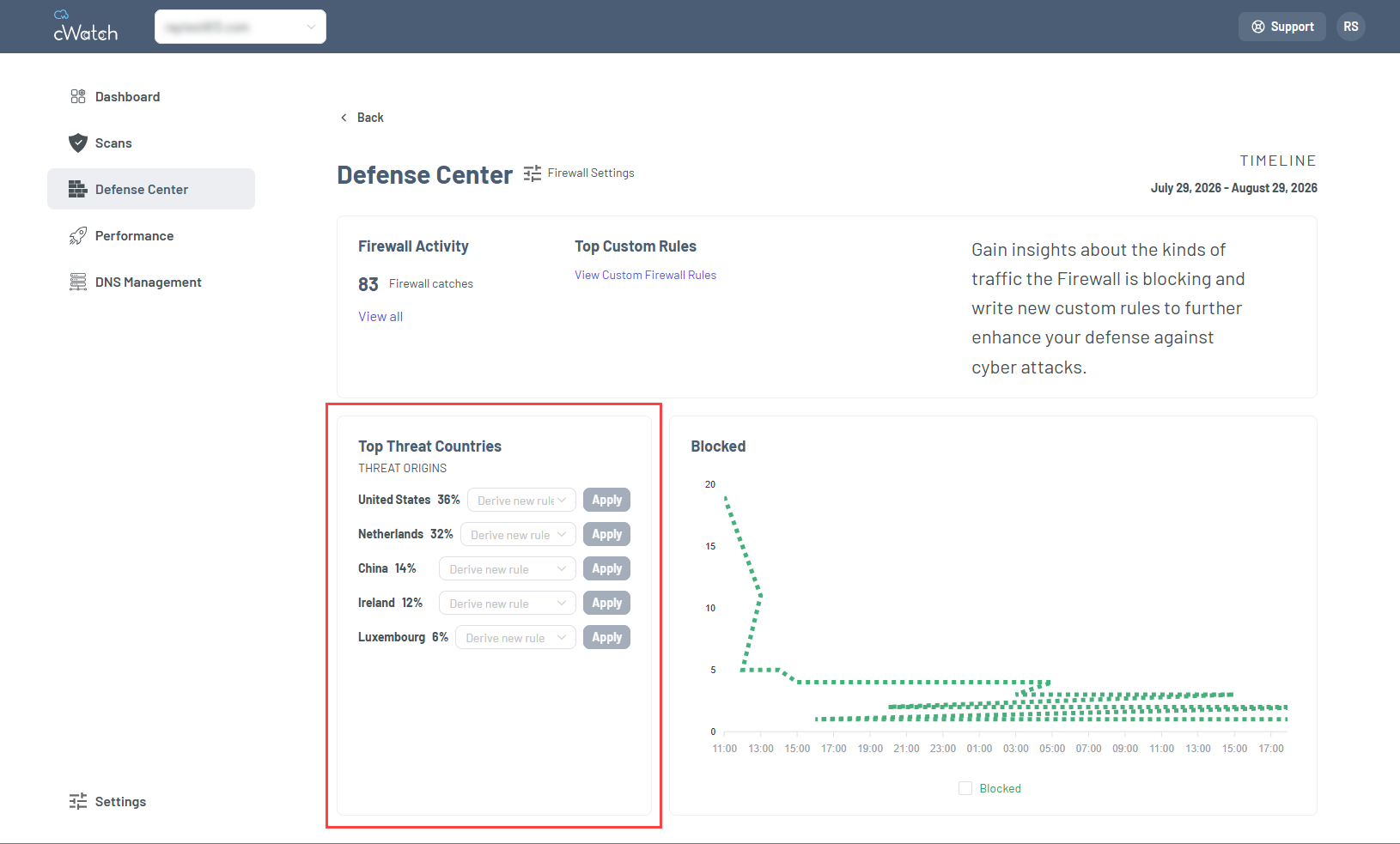
The Top Threat Countries card helps you review traffic from high-risk countries and create firewall rules based on your findings and supports Allow or Block actions.
Create a rule for a country
- Log in to your account via https://www.networksolutions.com/my-account/login.
- Click Security from the left navigation menu.

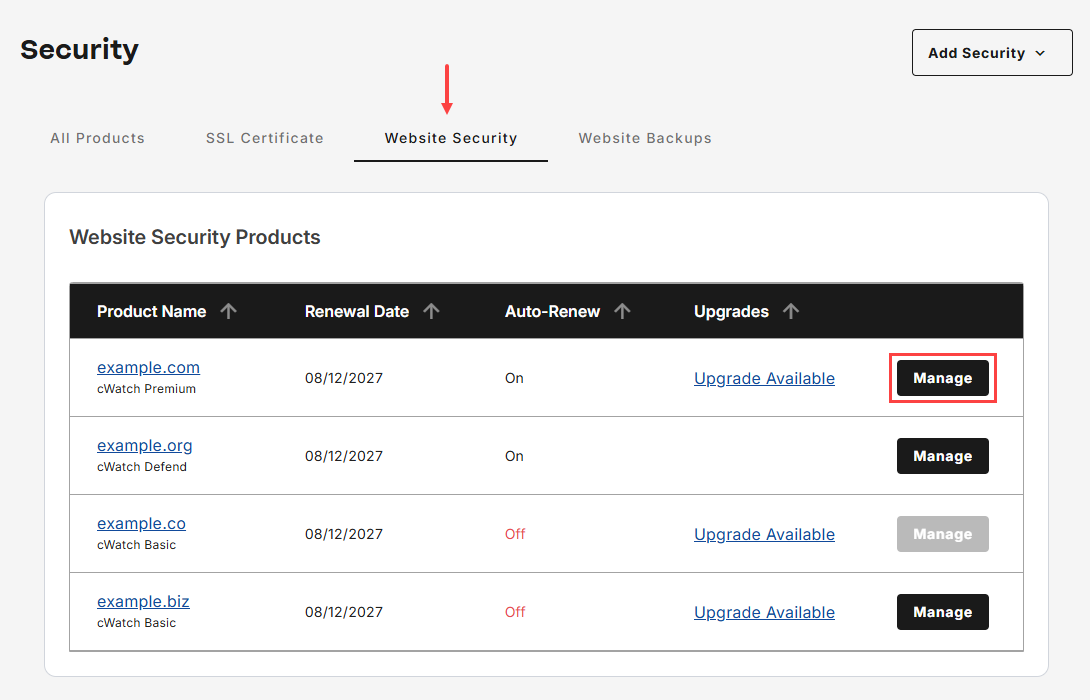
- Go to Website Security, then tap Manage for the domain that you would like to access cWatch.
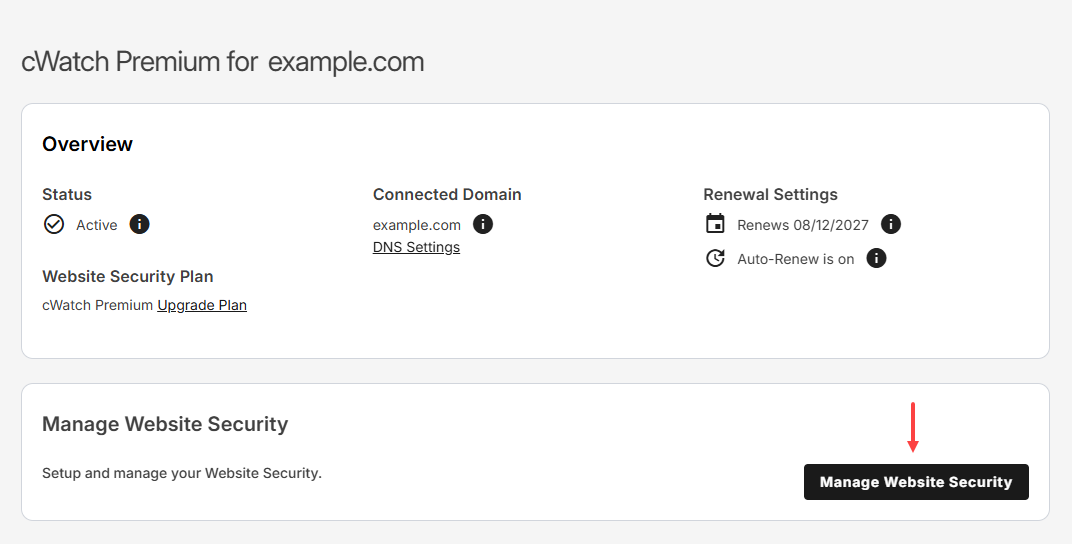
- Tap Manage Website Security to launch cWatch portal.
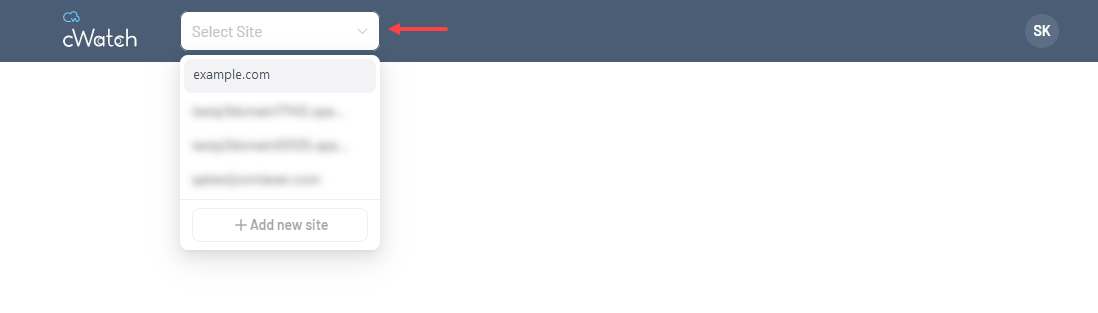
- Ensure that you select the correct domain from the drop-down menu before proceeding to create a custom firewall rule for a country.
- Navigate to the Defense Center and locate the Top Threat Countries card.
- Click Derive new rule for the relevant country, select Allow or Block, then choose Apply.
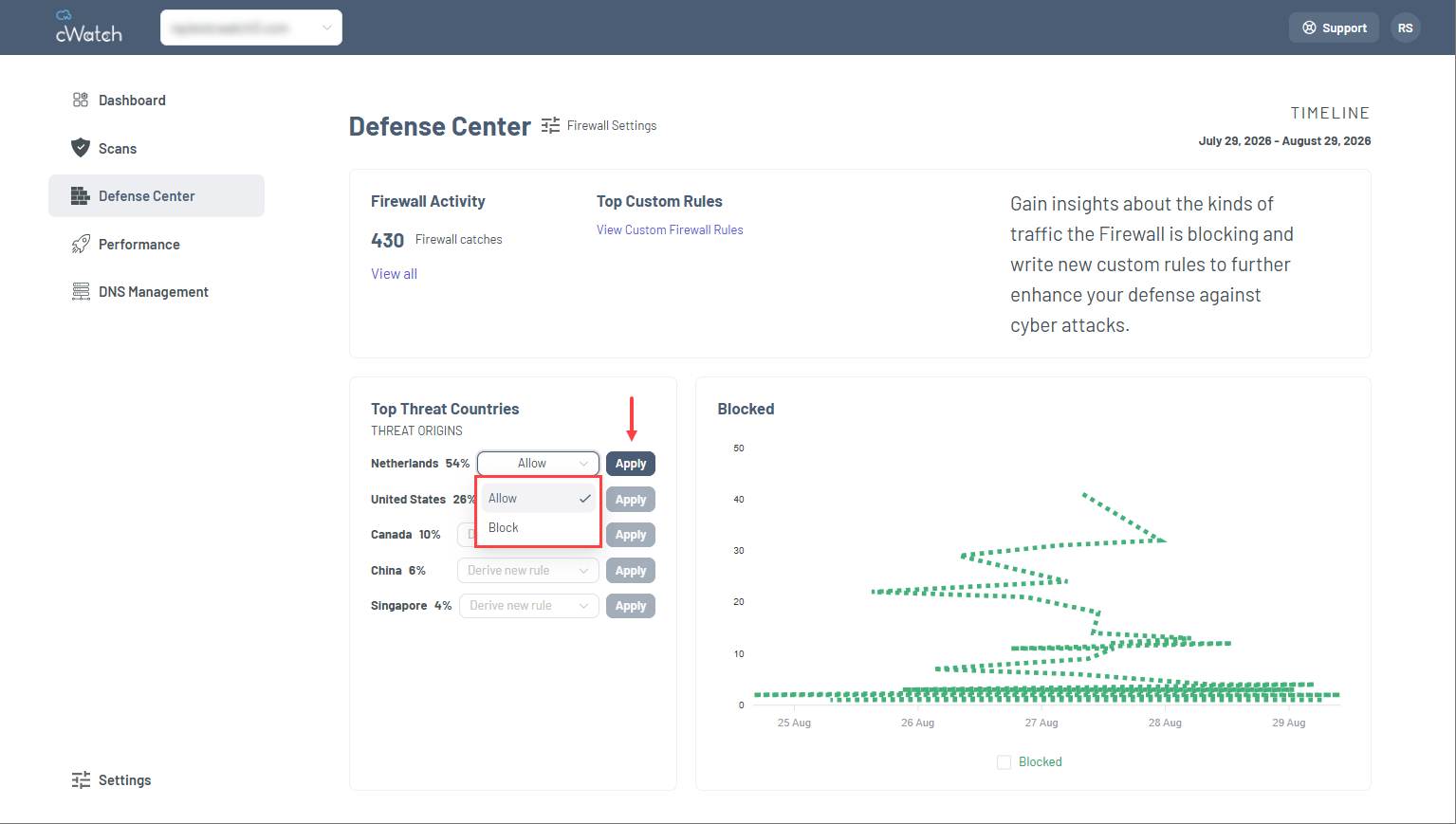
Note: Alternatively, click Manage Defense Center from your main dashboard to navigate directly to this section and monitor firewall activity. - In the Add new rule window, configure the rule using the following fields:
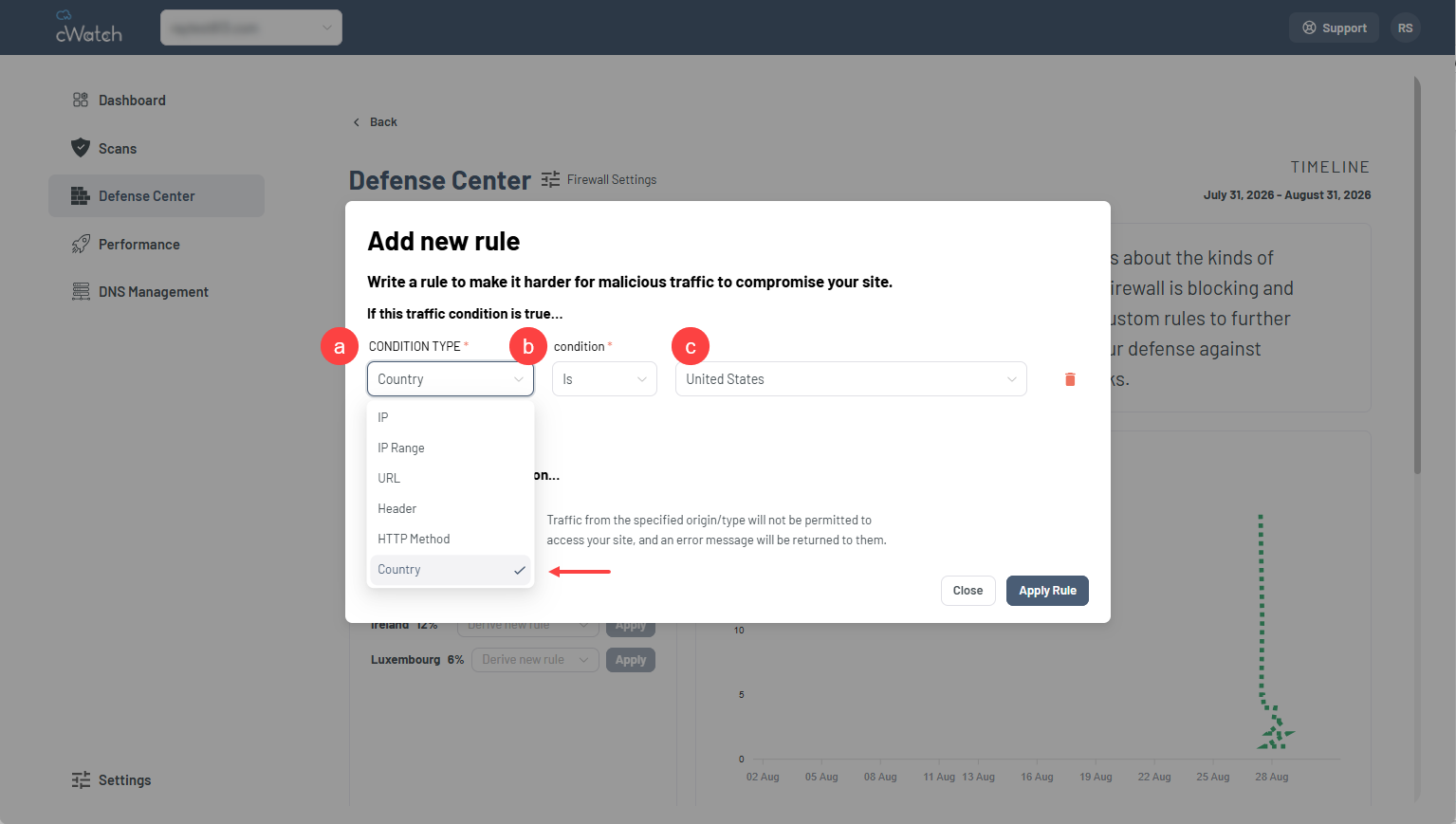
- Condition type: Select Country from the drop-down menu.
- Condition: Select the comparison operator that will be applied to the selected condition type (for example, Is or Is not).
- Value: Select the Country value that the firewall will use to evaluate the condition.
- After completing the rule configuration, click Apply Rule to save and activate the custom firewall rule.
Note:
- Allow and Block rules are configured using the same steps. The selected action determines whether the specified traffic is allowed or blocked.
- To create a custom rule through the Firewall Event Log, refer to the How to monitor firewall activity in cWatch Defense Center article for detailed instructions.
Manage a custom firewall rule for a country
- Go to Defense Center, then select View Custom Firewall Rules under Top Custom Rules.
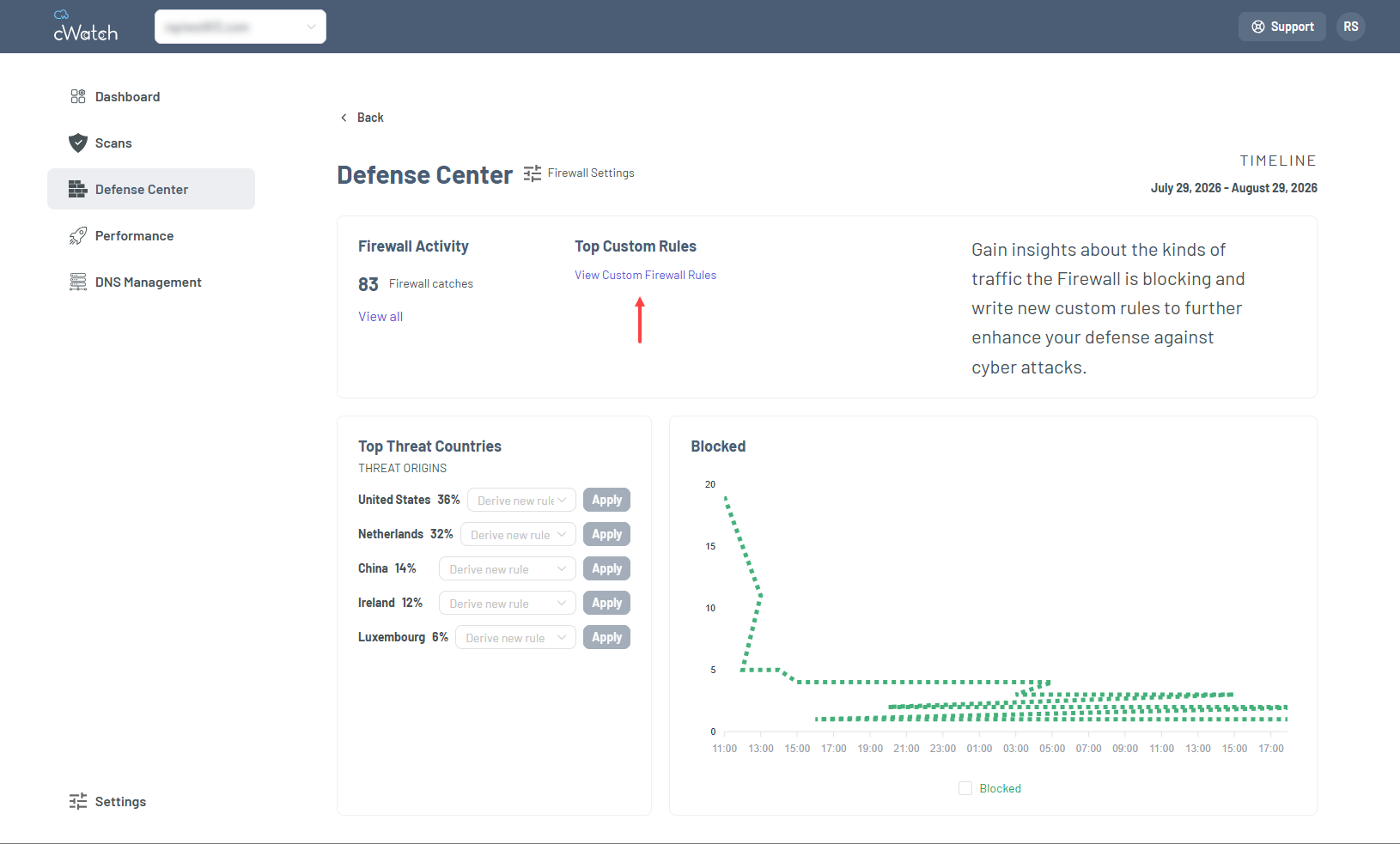
- In the Custom Firewall Rules section, perform one of the following actions:
- Click the edit icon next to the custom firewall rule you want to modify, make the necessary changes, and then click Apply Rule to save the updated rule.
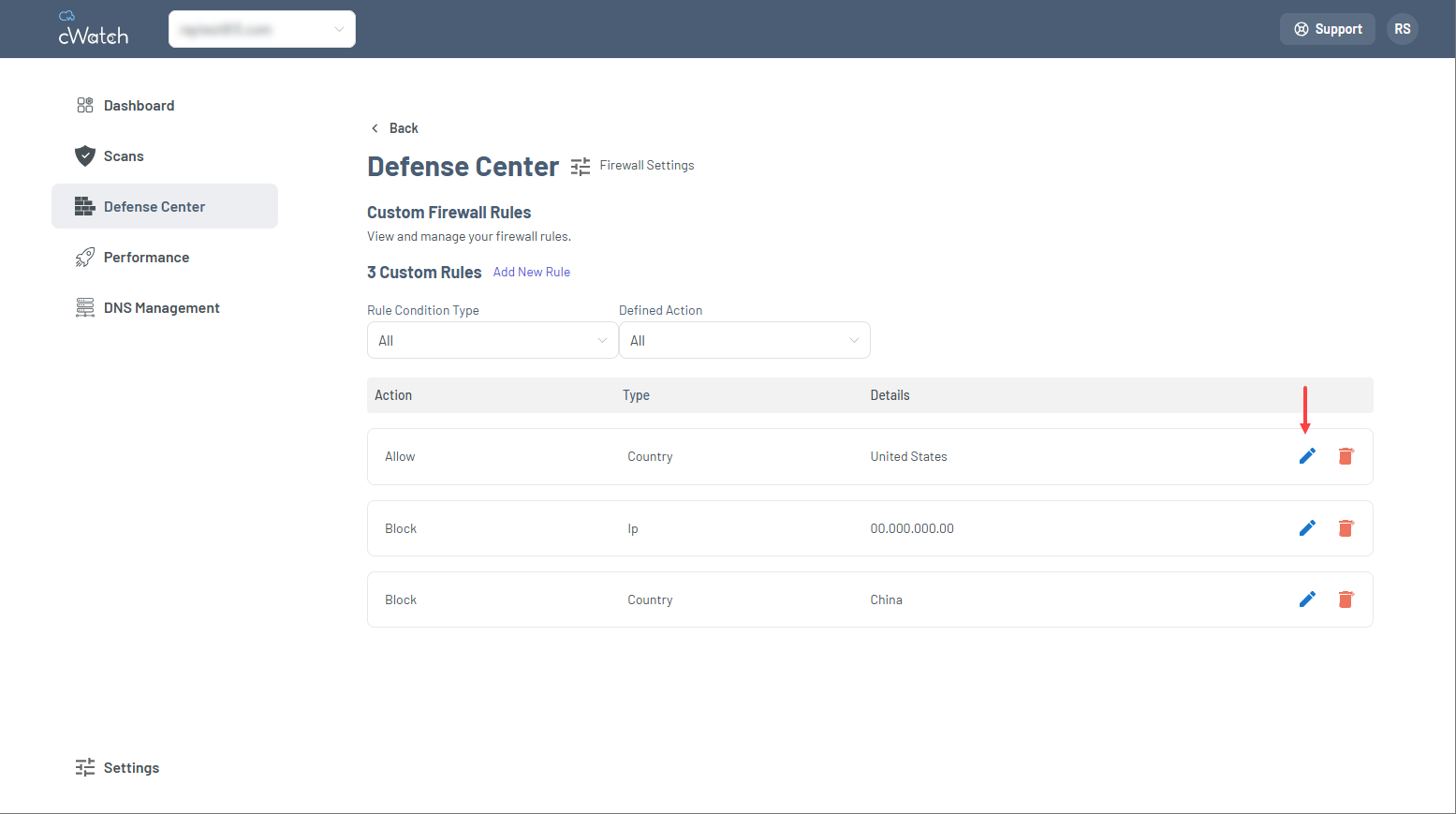
- Click the delete icon next to the custom firewall rule you want to remove, and then click Delete to confirm the action.
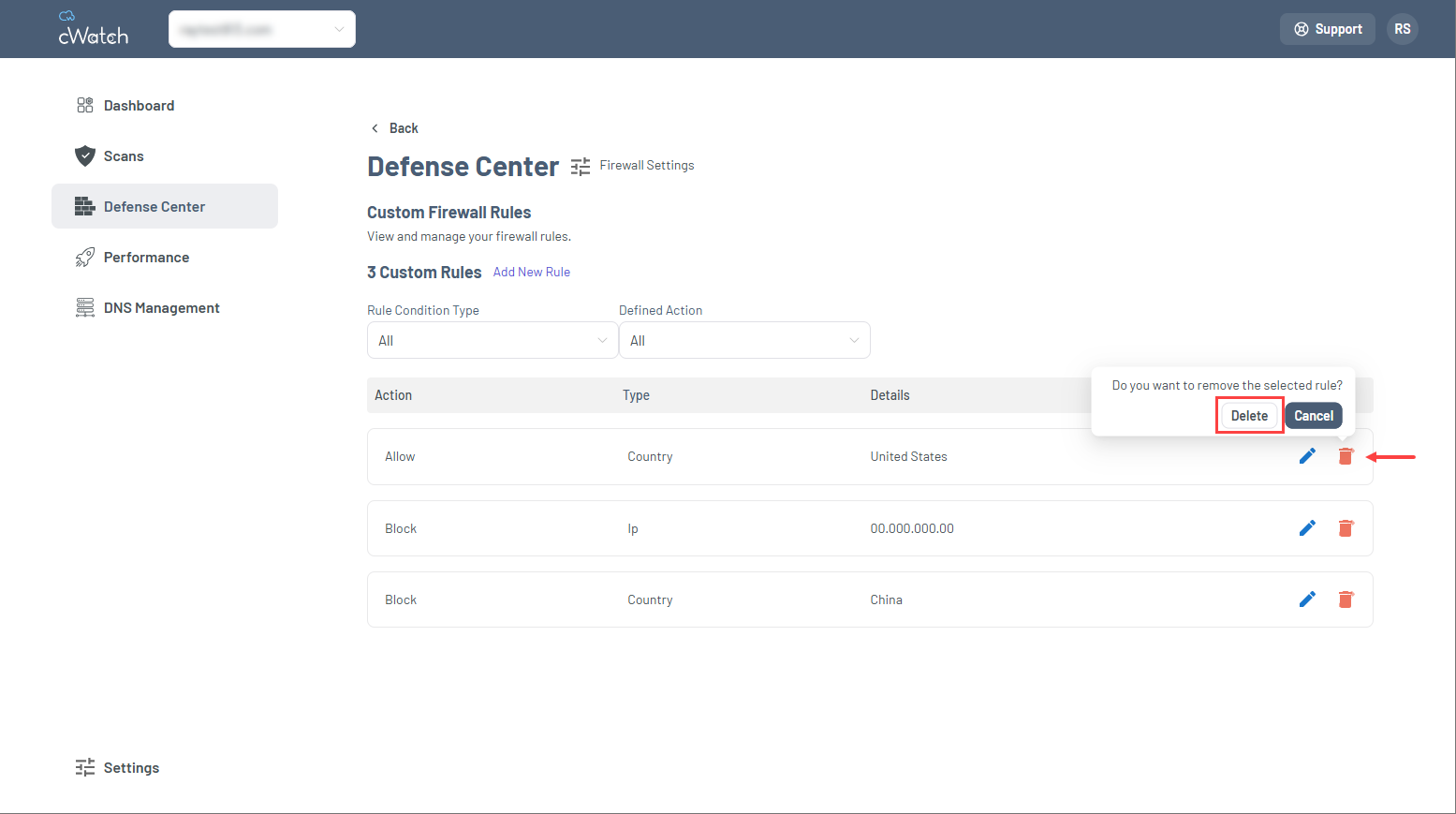
Important: Deleting a custom firewall rule permanently removes it from the firewall configuration. Ensure that the rule is no longer required before proceeding.
- Click the edit icon next to the custom firewall rule you want to modify, make the necessary changes, and then click Apply Rule to save the updated rule.
Review
Managing traffic from top threat countries in cWatch involves reviewing activity in the Top Threat Countries card, creating custom firewall rules to allow or block traffic by country, and maintaining those rules as security requirements change. Through cWatch Defense Center, administrators can use country-based controls to help manage traffic from top threat countries, apply appropriate actions for high-risk countries, and update or remove existing rules when needed. The article also highlights the relationship between country firewall rules, the firewall event log, and the Web Application Firewall (WAF), providing a workflow for monitoring traffic, implementing access controls, and maintaining firewall configurations in support of ongoing website security management.
Get practical tips and product updates on LinkedIn.
Follow Network Solutions