How to monitor firewall activity in cWatch Defense Center
A firewall is a security control that monitors and filters website traffic based on predefined rules. It helps administrators gain visibility into incoming requests and identify potentially suspicious activity that may require further review. Within cWatch Defense Center, administrators can monitor firewall activity, review events recorded in the firewall event log, and evaluate how traffic is processed by existing firewall protections.
This article explains how to monitor firewall activity in cWatch Defense Center, review firewall event log data, create and manage custom firewall rules, and understand the available firewall settings. It also provides an overview of key firewall features that can assist administrators in monitoring website security, analyzing traffic activity, and configuring firewall protections according to their organization's requirements.
In this article, we will discuss:
Monitoring firewall event log and custom rules
The event log contains the event data used by Defense Center to help administrators monitor firewall activity, verify system events, determine which rule processed a request, identify the reported source of the request, and evaluate whether additional rule configuration should be considered.
- Log in to your account via https://www.networksolutions.com/my-account/login.
- Click Security from the left navigation menu.

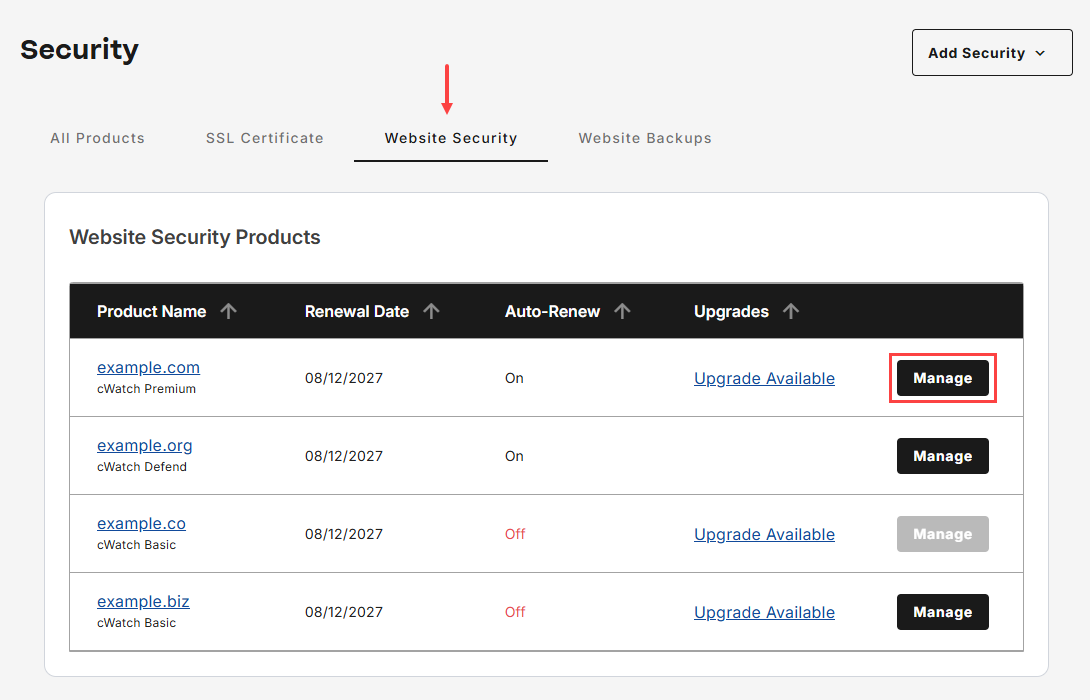
- Go to Website Security, then tap Manage for the domain that you would like to access cWatch.
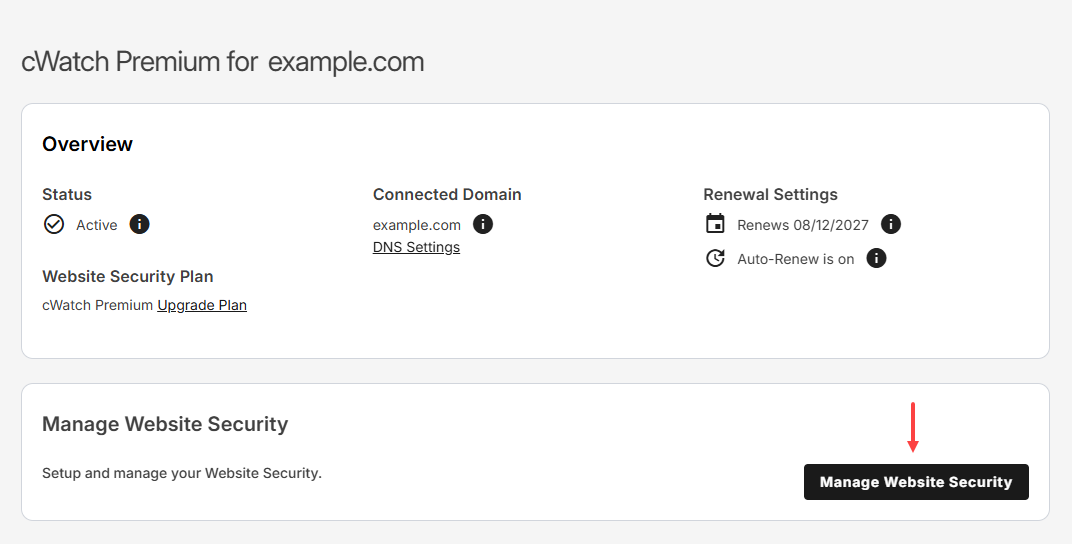
- Tap Manage Website Security to launch cWatch portal.
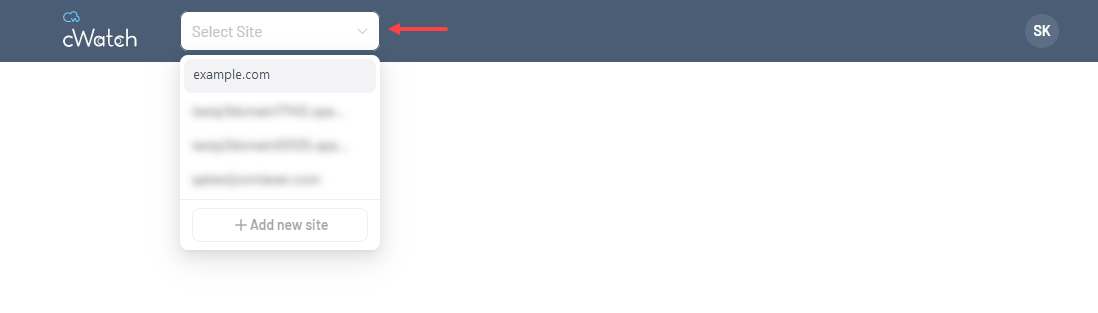
- Ensure that you select the correct domain from the drop-down menu before proceeding to monitor or configure the firewall settings.
- Go to Defense Center, then click View all.
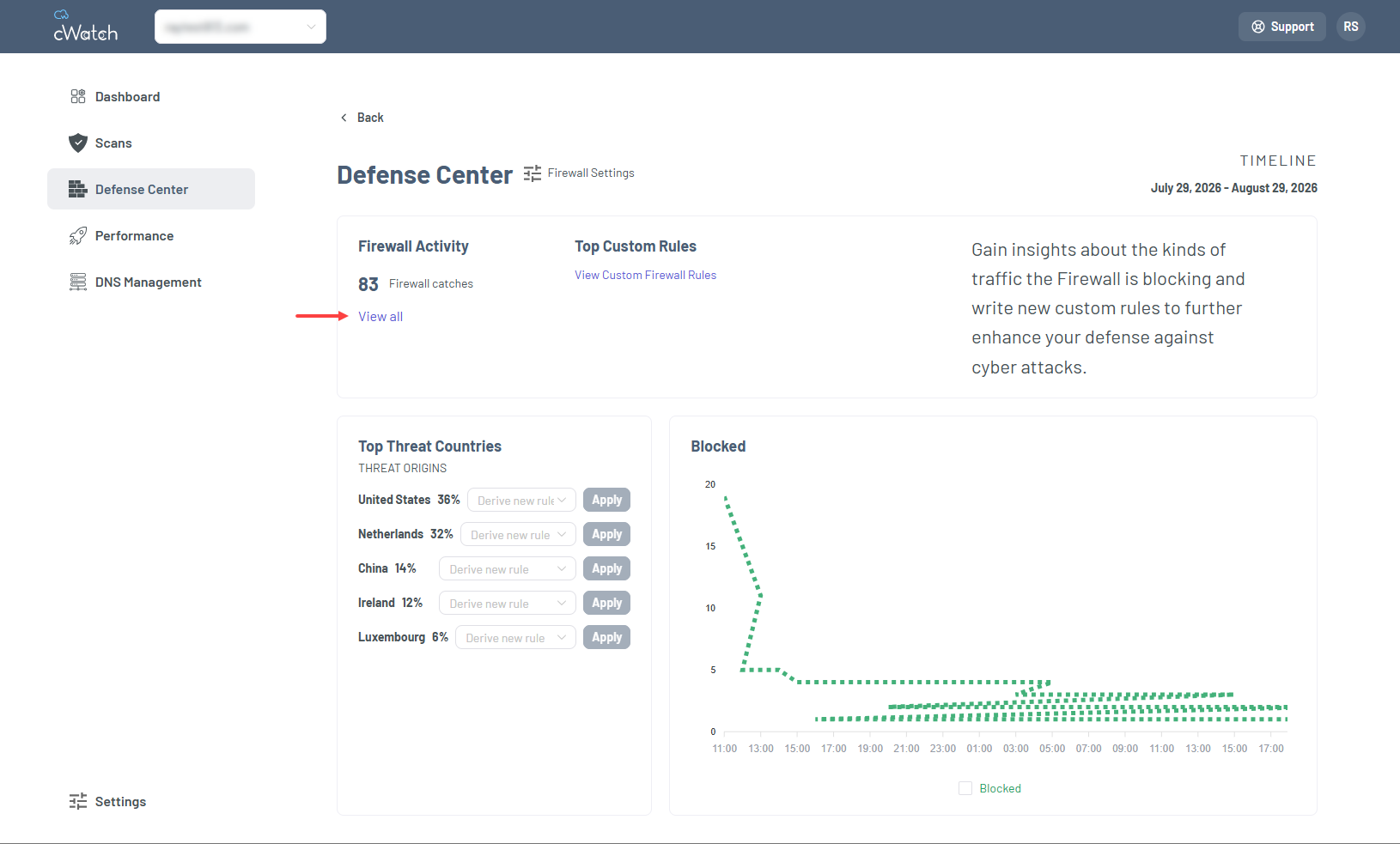
Note: Alternatively, click Manage Defense Center from your main dashboard to navigate directly to this section and monitor firewall activity. - In the Firewall Event Log section displays the following information:
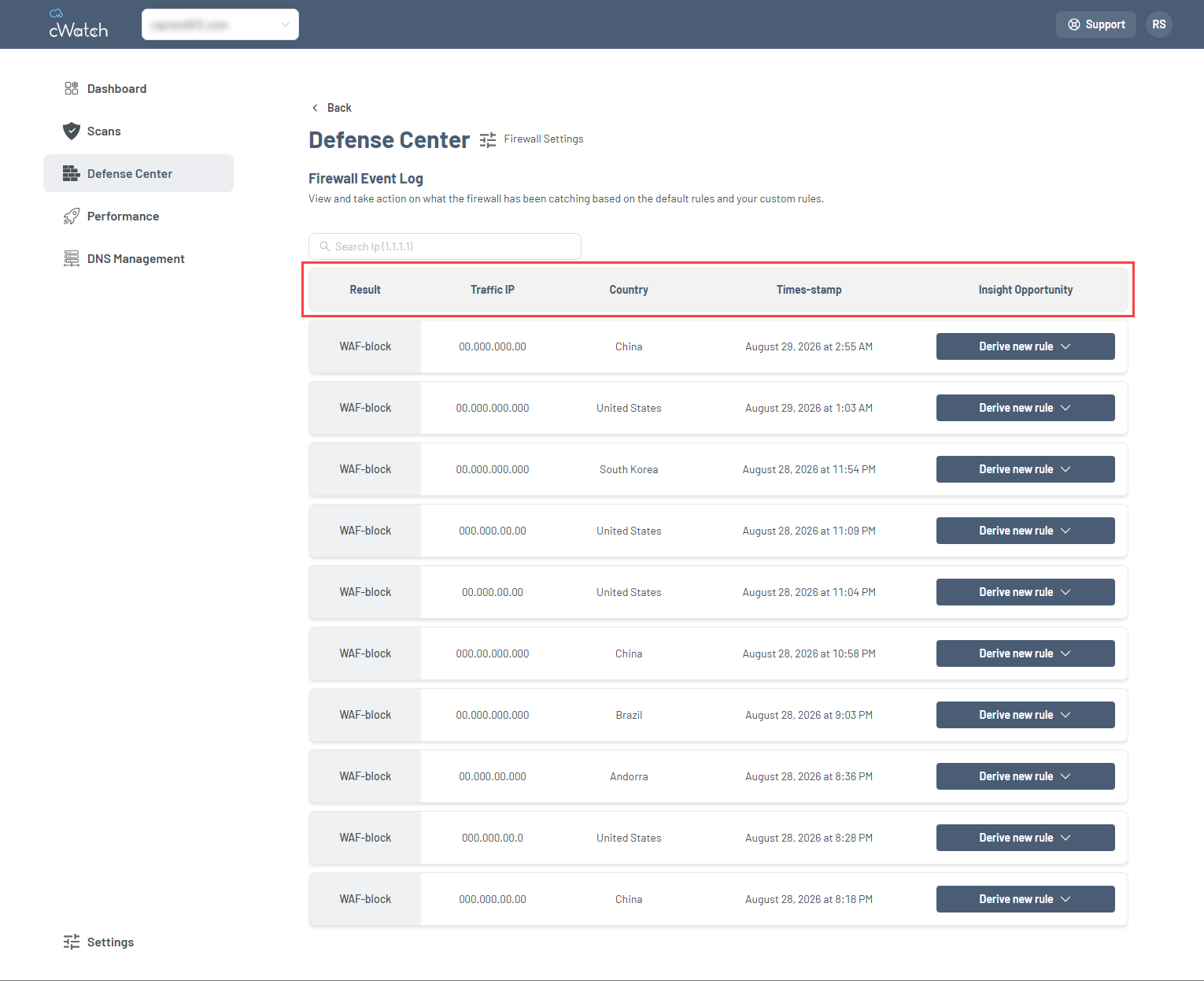
- Result: Shows whether the request was blocked or allowed.
- Traffic IP: Shows the source IP address of the request. This information can help when investigating traffic or creating specific firewall rules.
- Country: Shows the geographic location associated with the IP address. This information is for reference only and does not confirm a user's identity.
- Time-stamp: Shows when the event occurred, helping you identify traffic patterns or investigate security incidents.
- Insight opportunity: Provides recommendations or suggested actions based on the event, when available.
Adding a custom firewall rule
- Select Derive new rule under Insight Opportunity, then choose Allow or Block to proceed adding a new rule.
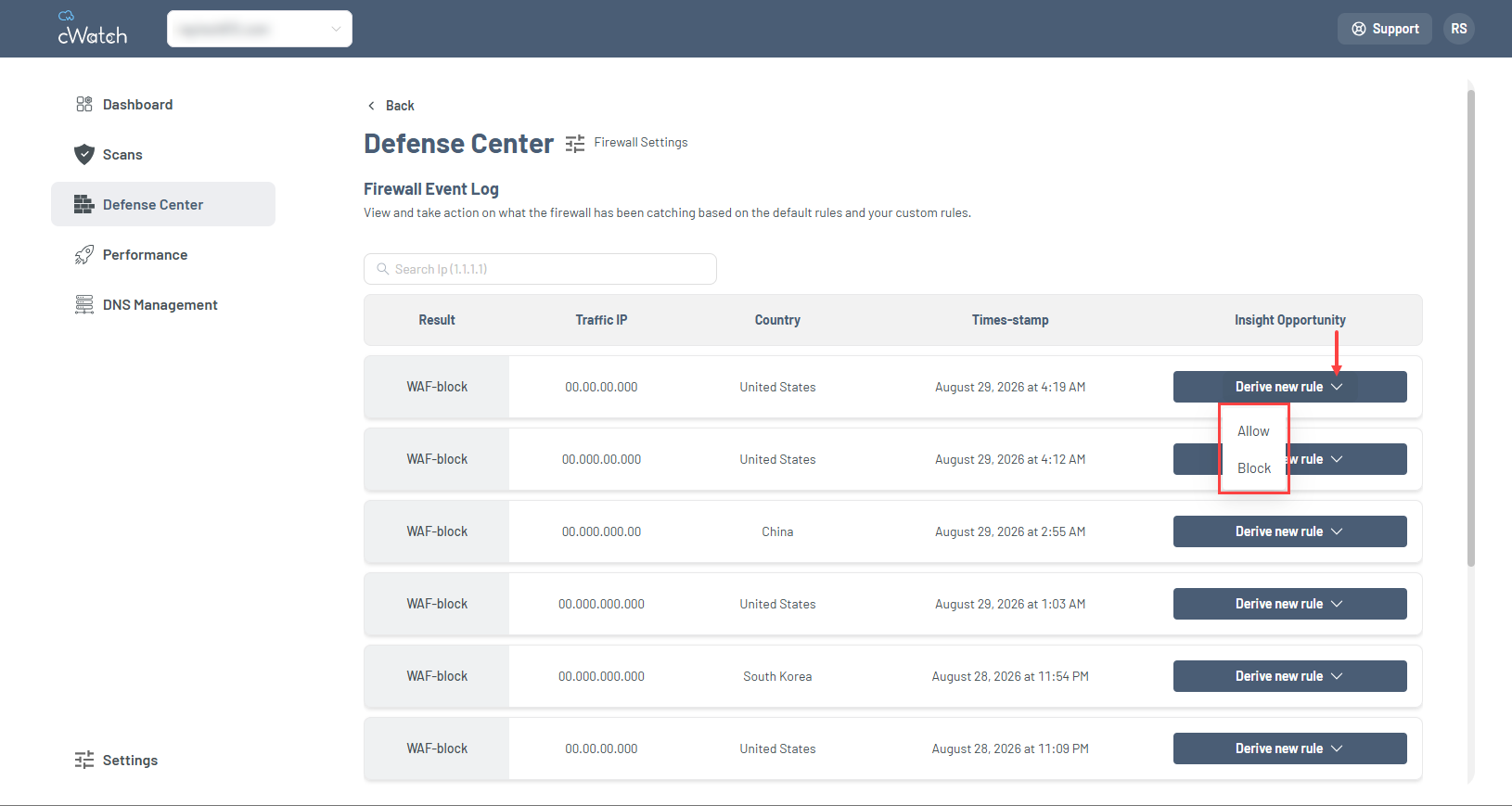
- In the Add new rule window, configure the rule using the following fields:
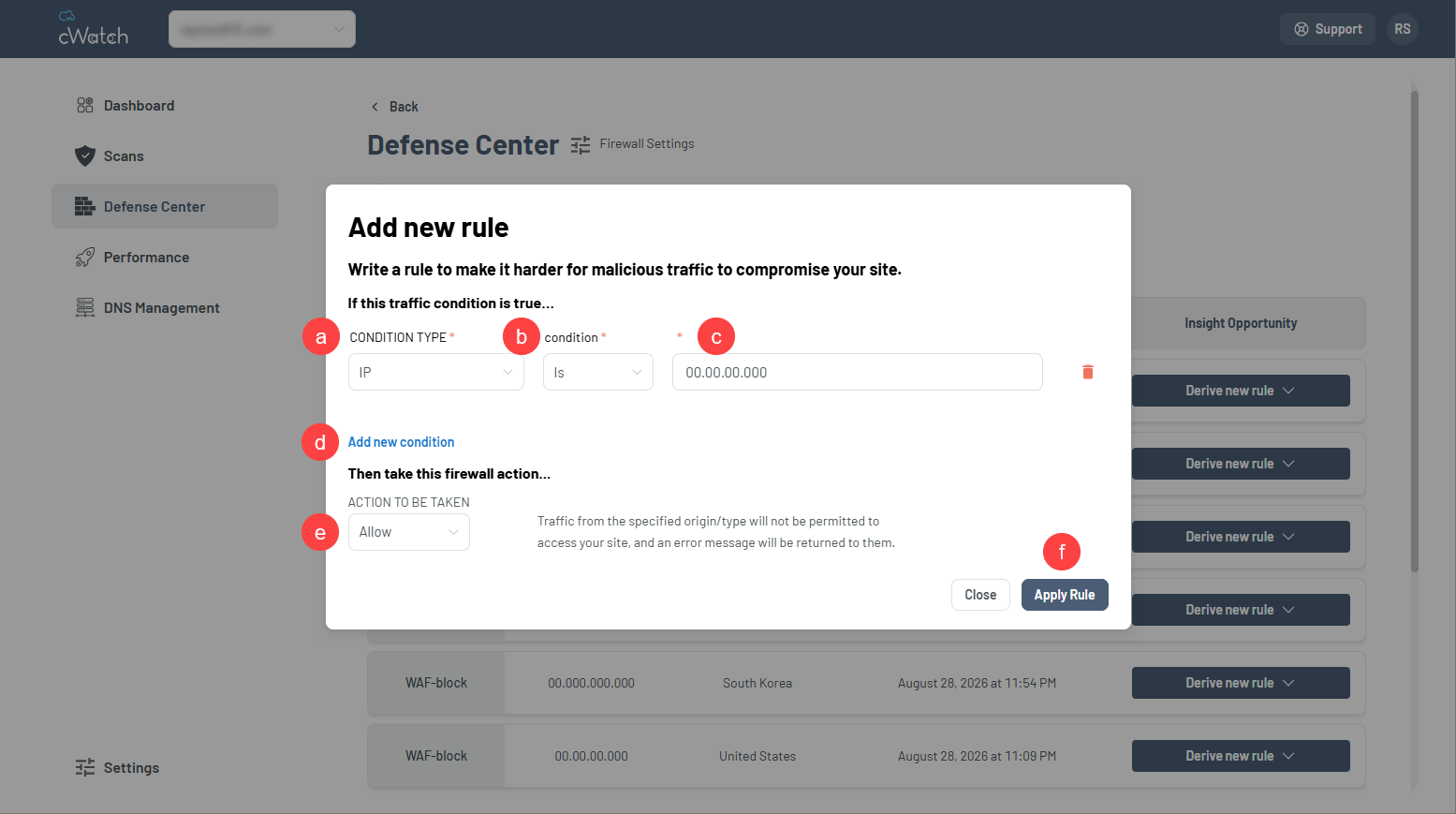
- Condition type: Select the traffic attribute from the drop-down menu that the firewall will evaluate, such as IP, IP range, URL, Header, HTTP Method, or Country.
- Condition: Select the comparison operator that will be applied to the selected condition type (for example, Is or Is not).
- Value: Enter the value that the firewall will use to evaluate the condition.
- Add new condition (optional): Click Add new condition to define additional criteria for the rule.
- Action to be taken: Select whether the matching traffic should be Allowed or Blocked.
- After completing the rule configuration, click Apply Rule to save and activate the custom firewall rule.
Note:
- Allow and Block rules are configured using the same steps. The selected action determines whether the specified traffic is allowed or blocked.
- To create a custom rule for high-risk countries, refer to the How to manage traffic from top threat countries in cWatch article for detailed instructions.
Updating or removing a custom firewall rule
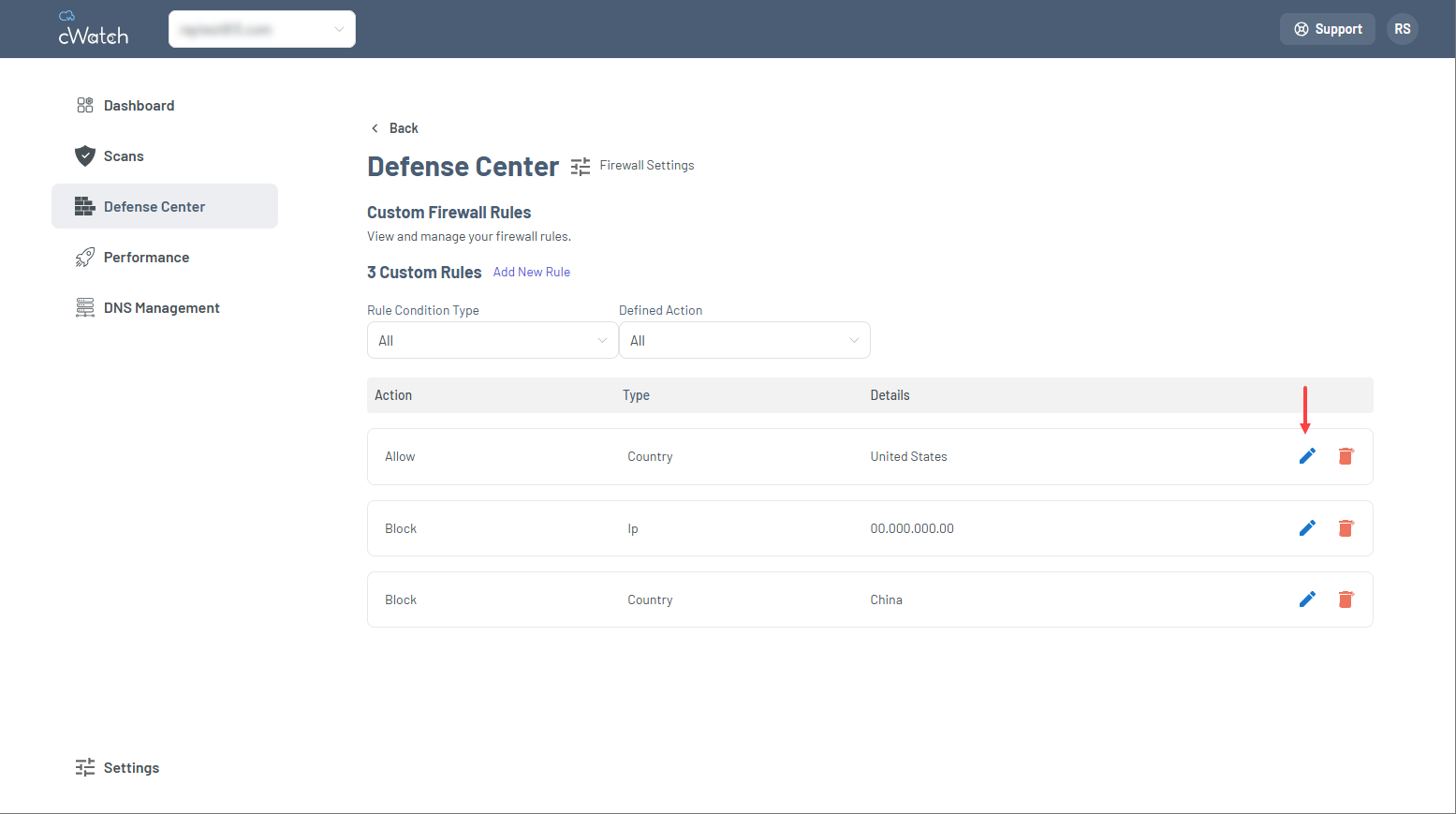
- Go to Defense Center, then select View Custom Firewall Rules under Top Custom Rules.
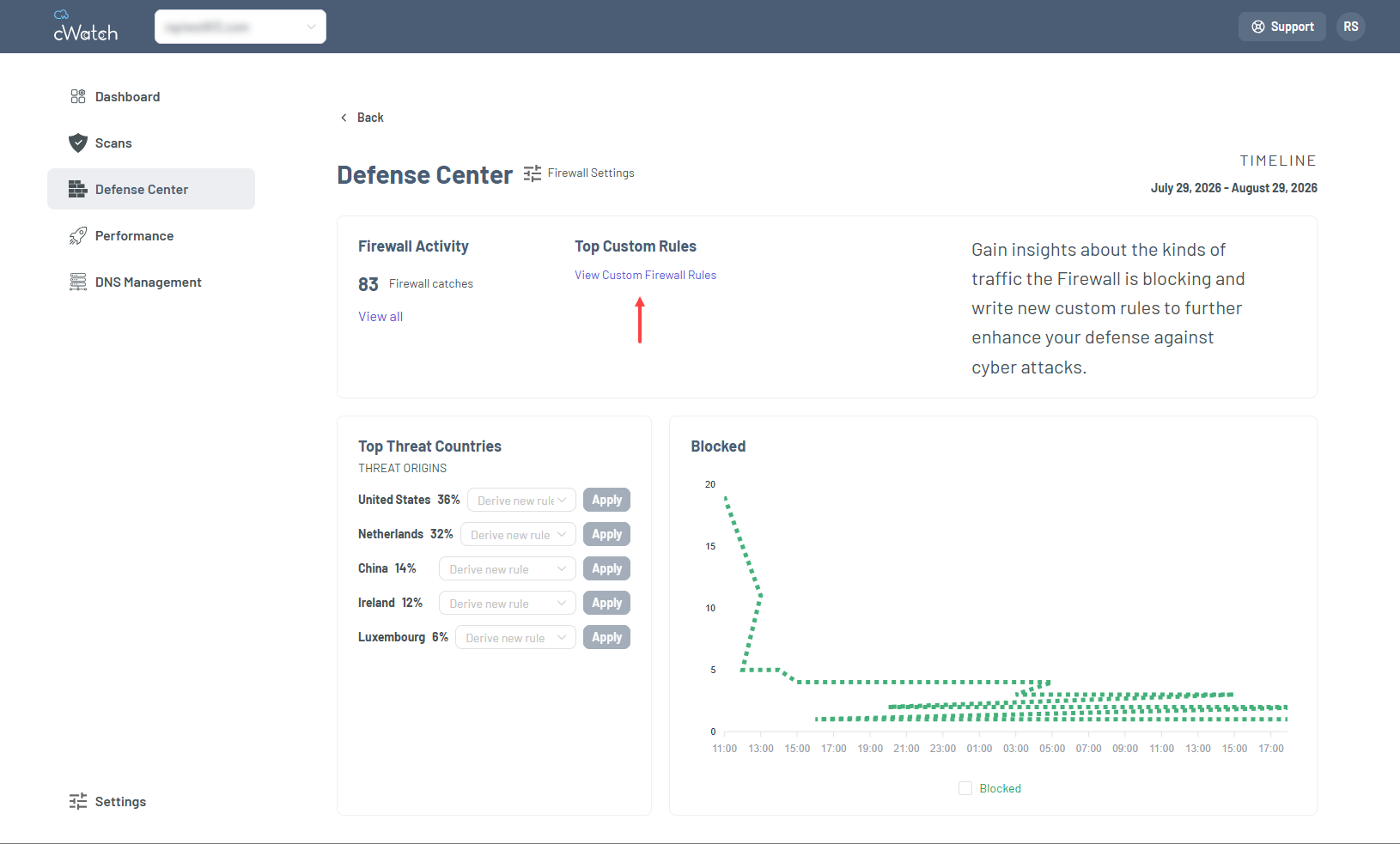
- In the Custom Firewall Rules section, perform one of the following actions:
- Click the edit icon next to the custom firewall rule you want to modify, make the necessary changes, and then click Apply Rule to save the updated rule.
- Click the delete icon next to the custom firewall rule you want to remove, and then click Delete to confirm the action.
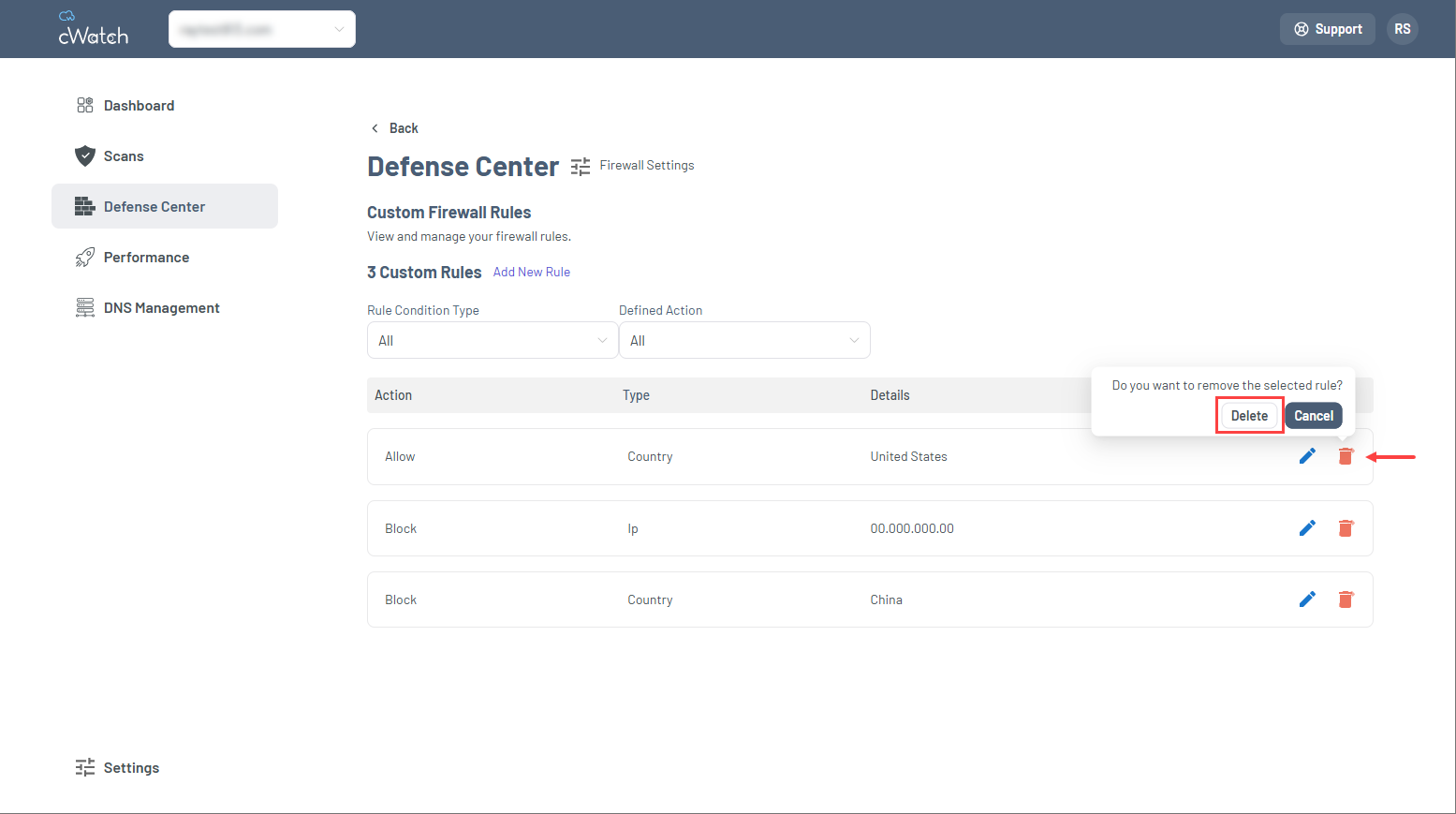
Important: Deleting a custom firewall rule permanently removes it from the firewall configuration. Ensure that the rule is no longer required before proceeding.
- Click the edit icon next to the custom firewall rule you want to modify, make the necessary changes, and then click Apply Rule to save the updated rule.
Understanding cWatch firewall settings
| Firewall settings | What it does |
|---|---|
| Firewall activation | Allows administrators to enable or disable cWatch firewall protection for a website. When enabled, the firewall monitors and filters website traffic to help identify and block potentially malicious requests before they reach the origin server. Changes take effect after selecting Save. |
| Automation and bot protection | Allows administrators to configure security controls that help identify and manage automated traffic, bots, and suspicious browser activity. These protections can help reduce unwanted automated requests while allowing legitimate users and approved bots to access the website. Changes take effect after selecting Save. |
| User agent | This section allows administrators to configure protections based on the client information included in incoming requests. Available settings help identify potentially suspicious user-agent values and enable automated protections against common OWASP web application vulnerabilities. Changes take effect after selecting Save. |
| WAF and OWASP top threats | This section allows administrators to configure protections against common web application attacks and vulnerabilities. These controls help the firewall inspect incoming requests and mitigate potentially malicious activity associated with Open Worldwide Application Security Project (OWASP) top 10 risks and other known threat categories. Changes take effect after selecting Save. |
| CSRF | Enables protection against Cross-Site Request Forgery (CSRF) attacks. When enabled, the firewall helps validate incoming requests and identify potentially forged actions originating from untrusted sources. This protection helps reduce the risk of unauthorized actions being performed through an authenticated user session. Changes take effect after selecting Save. |
| IP reputation | It allows administrators to configure firewall protections based on the reputation and characteristics of incoming traffic sources. Available controls help identify and manage requests originating from TOR networks, proxy services, hosting providers, VPNs, and known malicious bot networks. Changes take effect after selecting Save. |
| Behavior protection | This section allows administrators to configure firewall controls that help detect and mitigate suspicious website activity based on traffic behavior. Available protections can help identify spam, reconnaissance attempts, obfuscated attack patterns, repeated violations, and brute-force login attempts. Changes take effect after selecting Save. |
| CMS protection | Allows administrators to configure whitelist exceptions for supported content management systems and trusted website sources. These settings help reduce false positives by allowing authenticated administrative traffic and approved server communications to operate without unnecessary firewall intervention. Changes take effect after selecting Save. |
| Spam blocker | It allows administrators to configure protections against spam and abusive website activity. When enabled, these controls help identify and mitigate unwanted automated submissions and other potentially abusive interactions. Whitelisting options are available to allow approved traffic sources to bypass spam filtering rules when appropriate. Changes take effect after selecting Save. |
Review
Using the tools available in cWatch Defense Center, administrators can monitor firewall activity, review traffic events through the firewall event log, and configure custom firewall rules to address specific requirements. Understanding these features and available firewall settings can help support ongoing website security monitoring and firewall management efforts.
Get practical tips and product updates on LinkedIn.
Follow Network Solutions