How to move your Microsoft Office 365 service to Ingram Micro
Take the right steps to move your Microsoft Office 365 service and avoid interruptions to your Microsoft 365 subscription. Due to recent unexpected changes to Microsoft’s Direct Reseller Partnership program and new service restrictions imposed by Microsoft, our Microsoft Partner status has changed. As a result, Microsoft subscriptions are at risk of service disruption after August 29, 2026. We recommend taking action on or before August 26, 2026, to ensure a smooth transition. While this change is outside of our control, we are committed to helping make this transition as smooth as possible for you. This guide explains how to accept the Ingram Micro partner relationship, back up your Microsoft 365 data, take steps if your subscription has expired, and review other available options so you can continue using your email and Microsoft 365 services with minimal disruption.
In this article, we will discuss:
Steps to transition your Office 365 service
- Accept the Ingram Micro partner relationship.
Accepting the partner relationship helps prevent interruptions to your Microsoft 365 services after Aug 29, 2026.- Sign in to your Microsoft admin portal as a Global admin user
- Click the link below to accept the Partner Relationship invitation:
- Accept Partner Relationship
- Follow the on-screen prompts to confirm your acceptance
Once you've completed this step, no further action is needed on your end. We'll confirm the acceptance and complete the transition on our side. We're working hard to resolve this as quickly as possible and want to be transparent with you throughout the process. Please note, however, that we cannot guarantee uninterrupted service, even if all steps are completed correctly.
We strongly encourage you to follow the above instructions and transition your services with our partner Ingram Micro to maintain continuity.Alternatively, if you prefer not to proceed with this transition, you may choose to:- Move directly to Microsoft as a direct customer using the instructions provided by Microsoft. Click here for more information.
- Switch your email services to another trusted provider such as Google Workspace or Professional Email offerings.
- Back up your data.
Note: Our Support teams do not provide assistance for this process.Backing up your Microsoft 365 data helps protect your emails, contacts, and calendars during the transition.
Options for backing up your Office 365 data include:- Using Microsoft Outlook’s export features to create local backup files.
- Exporting emails, contacts, and calendars if you are moving from other webmail platforms.
- Considering third-party backup solutions for additional security.
- Open Microsoft Outlook configured with your Microsoft 365 account.
- Click File > Open & Export > Import/Export.
- Select Export to a file, then click Next.
- Choose Outlook Data File (.pst), then click Next.
- Select the account or specific folders to export. Ensure Include subfolders is checked.
- Click Browse, choose a save location, name the file, and click Finish.
- Outlook will export your emails to a .pst file that you can keep locally.
Note: Some personal configurations such as alerts, rules, and signatures may not be included.
What to do if your Office 365 services have already expired
If your Microsoft 365 subscription has already expired, please follow these steps to restore your services and avoid further disruption:
- Back up your Microsoft 365 data immediately, if possible.
- Accept the Ingram Micro Partner Relationship invitation so we can work to re-establish your subscription as quickly as possible.
- Recover administrator access
If you cannot access the admin portal due to MCA or GDAP restrictions, use the Microsoft 365 Global Admin Access Recovery - Microsoft Q and A to regain control of your tenancy. - Alternatively: Purchase a new subscription with Microsoft Direct
If you want to continue using Microsoft 365 without Accepting the Ingram Micro Partner Relationship, you will need to purchase a new subscription directly from Microsoft or through an authorized Cloud Service Provider. - Restore your backed-up emails, contacts, and calendars into your new Microsoft 365 subscription.
Additional information
Our priority is to support you in transitioning with Ingram Micro to minimize disruption.
- To ensure uninterrupted service, Microsoft requires users to review and accept the updated Microsoft Customer Agreement. Click here for more information.
- If you face portal login issues due to new Granular Delegated Admin Privileges (GDAP) policies, please refer to the Microsoft 365 global admin recovery process or contact Microsoft for assistance.
Noted: As your reseller, our Cloud Service Provider (CSP) status is currently suspended, which means we do not have access to manage or make changes to your subscription or request GDAP access.
- Our support team remains available to assist you with this transition to maintain seamless email service.
- You can also refer to this article for more information and step-by-step guidance: Resolve subscriptions detached from CSP partners in the Microsoft 365 admin center.
Frequently asked questions
Who is Ingram Micro, and what is their relationship with Network Solutions?
Network Solutions works with Ingram Micro to provide Microsoft 365 services to you. As part of this partnership, you may see Ingram Micro mentioned in your Microsoft 365 account settings, emails, or partner relation requests.
Your Microsoft 365 subscription is still managed through Network Solutions. You can continue to purchase, renew, and manage your subscription through your Network Solutions account manager, including billing and other account-related services.
How can I confirm that I have accepted the partner relationship with the correct organizations?
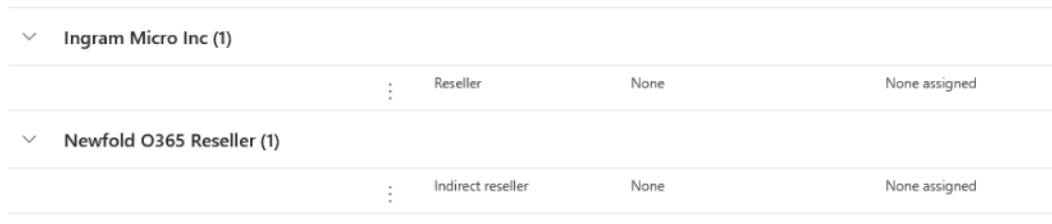
There are two Partner Relationships that must be accepted, and both are completed using the single "Accept Partner Relationship" link above. To confirm, log into your admin portal and go to Settings > Partner relationships, then verify that both Ingram Micro Inc. and Newfold O365 Reseller (This is the same organization as Endurance International Group) are listed.
Why am I seeing a "Something went wrong" (500 error) message in Outlook on the web?
If Outlook on the web displays a "Something went wrong" (500 error) message after sign-in, the issue may be related to your mailbox setup or Microsoft 365 email service configuration. For troubleshooting steps, see Outlook on the web: Something went wrong (500 error) after signing in.
Is there any cost to accept the partner relationship, and will my subscription price change?
There is no cost to accept the partner relationship. Your subscription price will not change during this transition.
Will my email addresses, data, or existing settings change during this transition?
All of your existing email addresses and user data are managed with your O365 tenant and will remain unchanged during this transition.
What happens if I miss the August 25, 2026 deadline?
If you missed the deadline, you may experience a disruption in service, but you can still go through the steps to transition the account.
Additional resources
Review
This article explains the changes to Microsoft 365 subscription renewals and guides customers through transitioning their Microsoft 365 reseller relationship to Ingram Micro. It also provides instructions for backing up Microsoft 365 data, recovering administrator access when needed, understanding alternative renewal options, and finding additional Microsoft resources to help ensure uninterrupted Microsoft 365 service.
Get practical tips and product updates on LinkedIn.
Follow Network Solutions