How to submit a Rapid Scan 911 request in cWatch
cWatch 911 provides a priority malware removal request option for eligible websites that require immediate security attention. Through the Rapid Scan 911 form, administrators can submit details about suspected malware infections, website issues, blacklist warnings, unusual redirects, suspicious files, or other security-related concerns. Providing accurate and detailed information helps the security team assess the reported issue more efficiently and begin the investigation and remediation process as quickly as possible. This article explains how to submit a Rapid Scan 911 request and provide the necessary information for review.
- Rapid Scan requests are available only to customers with an active cWatch 911 plan. If cWatch 911 is not currently enabled for your account, complete the purchase process first to activate the service.
- Purchasing cWatch 911 adds Rapid Scan 911 and a one-time full website cleanup service to your cWatch account. If you have an active Premium or Defend plan, your existing subscription and features remain unchanged.
Submitting a Rapid Scan 911 request
- Log in to your account via https://www.networksolutions.com/my-account/login.
- Click Security from the left navigation menu.

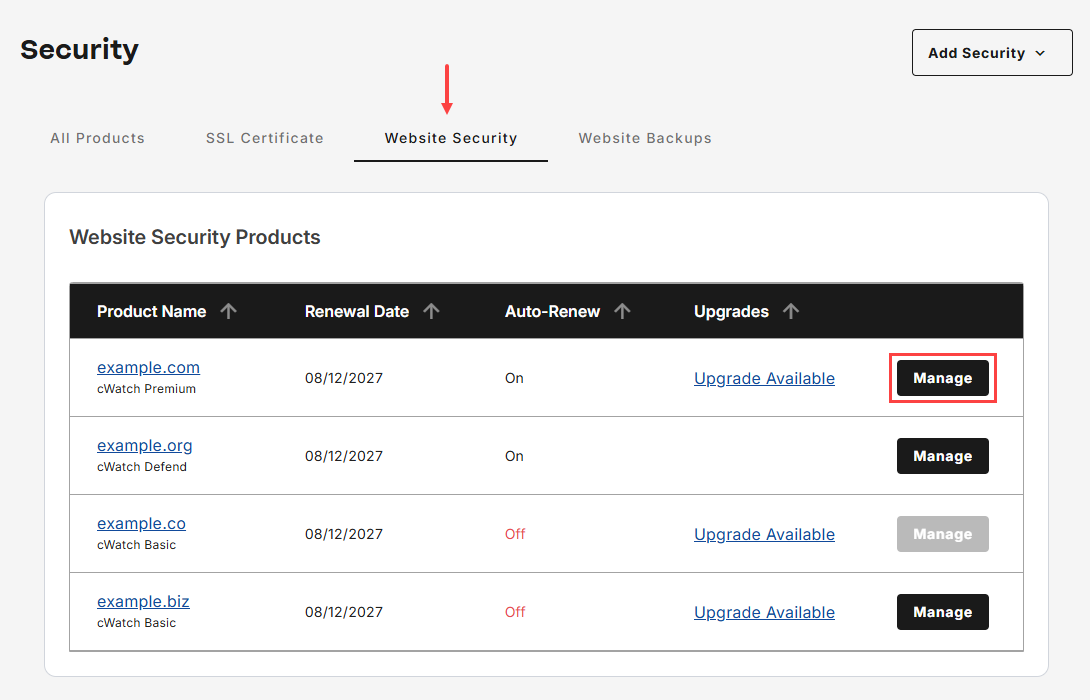
- Go to Website Security, then tap Manage for the domain that you would like to access cWatch.
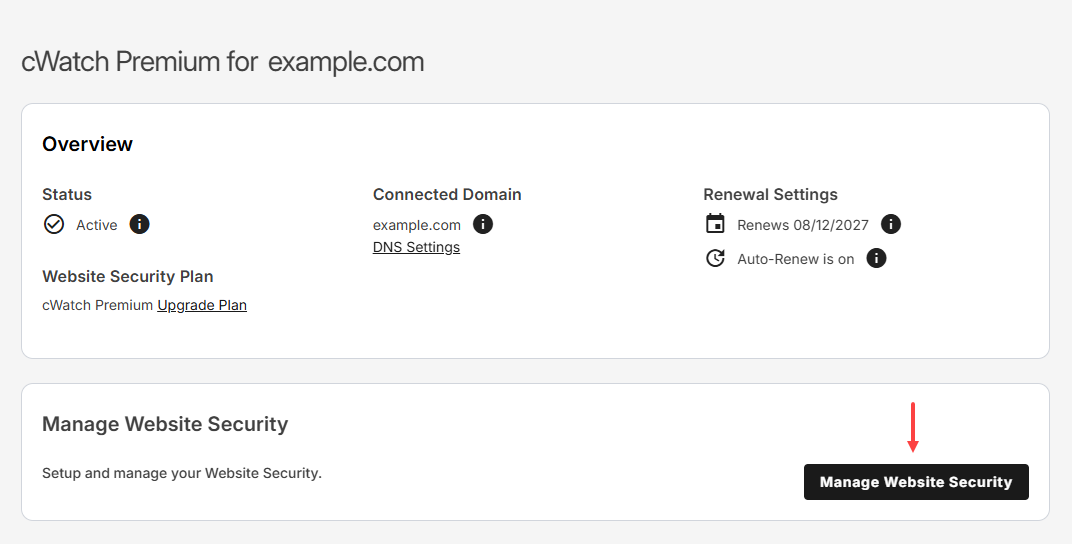
- Tap Manage Website Security to launch cWatch portal.
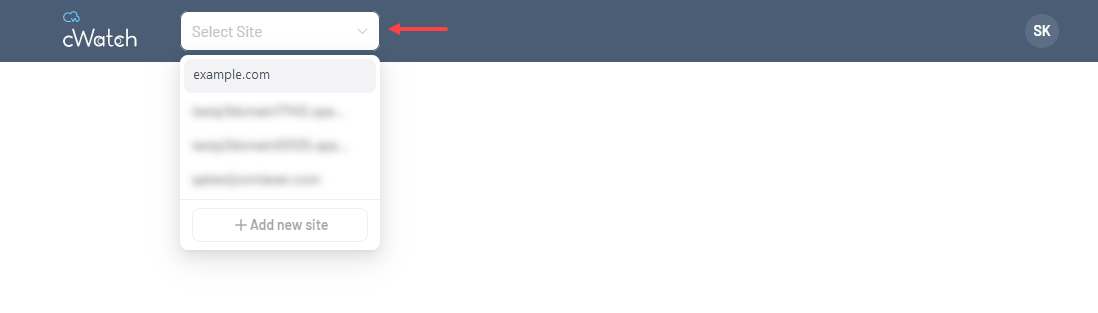
- Ensure that you select the correct domain from the drop-down menu before submitting a malware removal request.
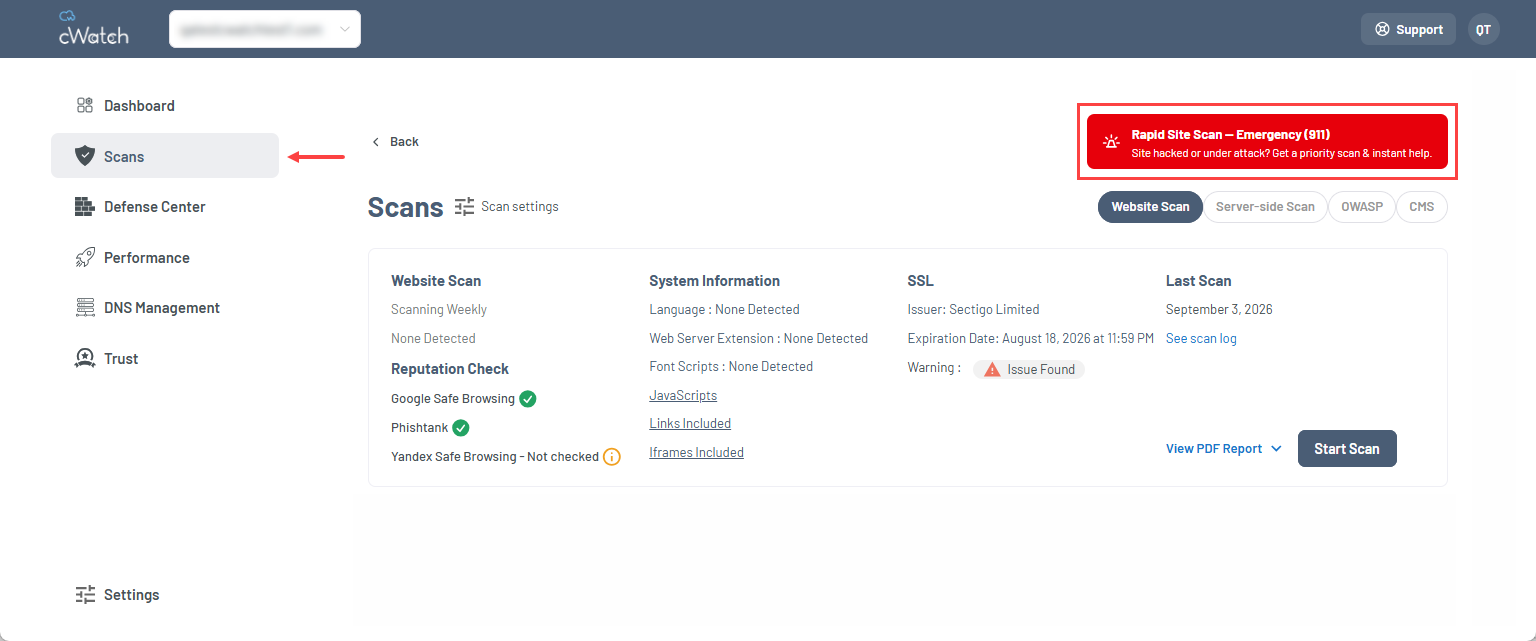
- Go to Scans, then select Rapid Site Scan – Emergency (911).
- Provide the following information to submit your Rapid Scan 911 request:
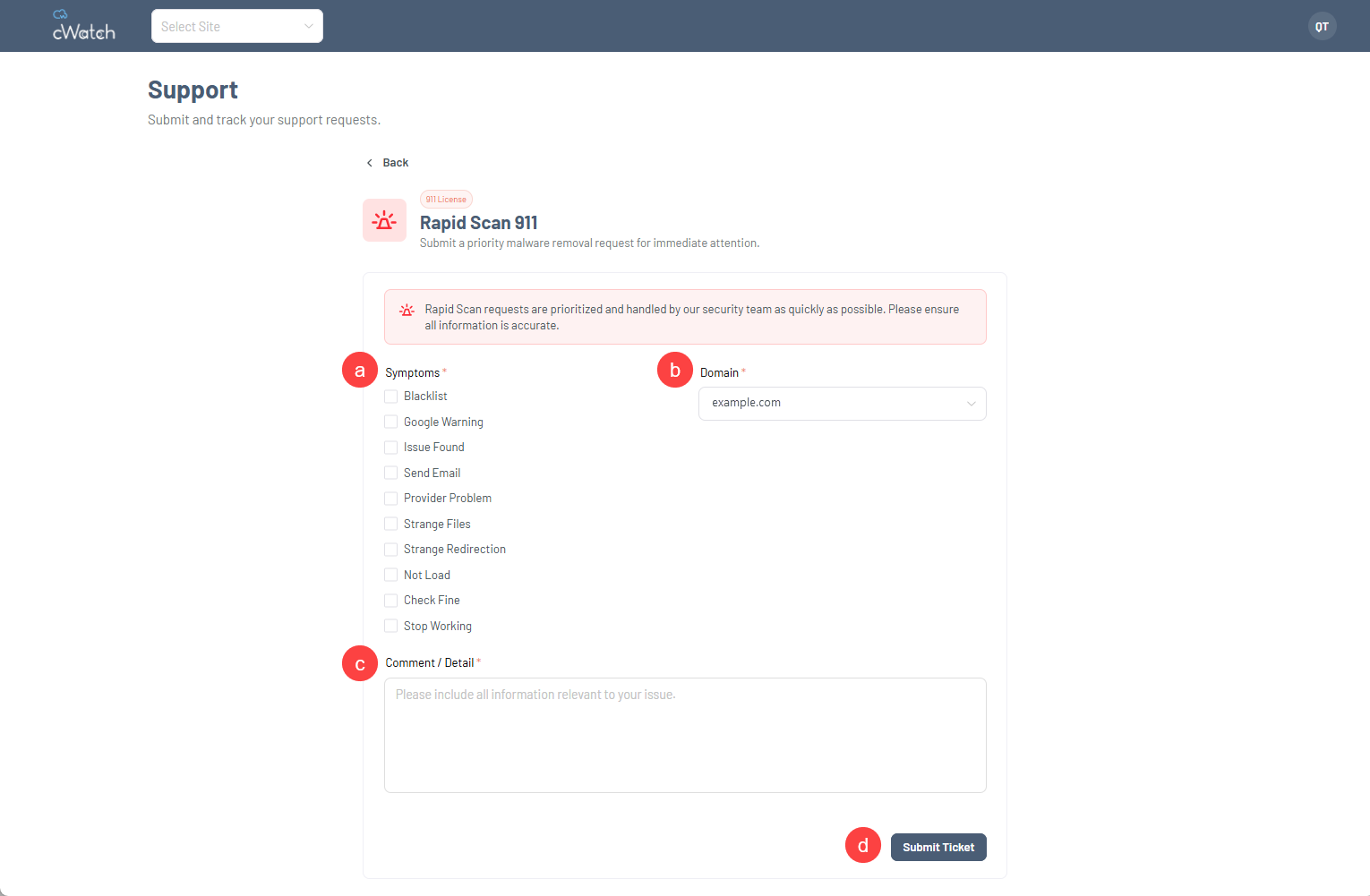
- Symptoms: Select one or more symptoms that best describe the issue affecting the website:
- Blacklist
- Google warning
- Issue found
- Send email
- Provider problem
- Strange files
- Strange redirection
- Not load
- Check fine
- Stop working
- Domain: Select the affected domain from the drop-down menu.
- Comment/Detail: Provide relevant information about the issue, including observations, error messages, or other details that may assist the security team during the investigation.
- Submit ticket: Click to submit the Rapid Scan 911 request for review.
Note:
- Rapid scan requests are prioritized and reviewed by the security team.
- Ensure that all submitted information is accurate and complete to support the review process.
- Scanning and remediation activities typically begin within a few hours. In most cases, an initial response is provided within 24 hours.
- Resolution times may vary depending on the complexity and scope of the identified issues, but cleanup efforts are generally completed within seven days.
- Symptoms: Select one or more symptoms that best describe the issue affecting the website:
Review
A Rapid Scan 911 request enables eligible cWatch 911 customers to report urgent website security concerns for priority review by the security team. To help facilitate timely assessment and remediation, ensure that the correct website is selected, applicable symptoms are identified, and relevant details are provided when submitting the request. Common indicators that may require attention include blacklist notices, search engine warnings, suspicious files, unexpected redirects, website loading issues, and other security-related events. Customers should verify that all submitted information is accurate and complete, as this supports a more efficient investigation and review process. Requests are evaluated based on the details provided, and response and resolution timelines may vary depending on the nature and complexity of the reported issue.
Get practical tips and product updates on LinkedIn.
Follow Network Solutions