How to track visitor traffic statistics for my websites
Tracking visitor traffic statistics is essential to understanding how your site is performing. Network Solutions packages allow you to leverage AWStats, a comprehensive dashboard showing how your site operates in terms of visitors. It provides an easily accessible tool across multiple domains to track visits, page views, and other critical metrics. This article details how you can track visitor traffic statistics for your websites.
In this article, we will discuss:
How to enable AWStats
Follow the instructions below to begin using AWStats tracking:
- Log in to your account manager via https://www.networksolutions.com/my-account/login.
- On the left side of the page, click Websites & Hosting.

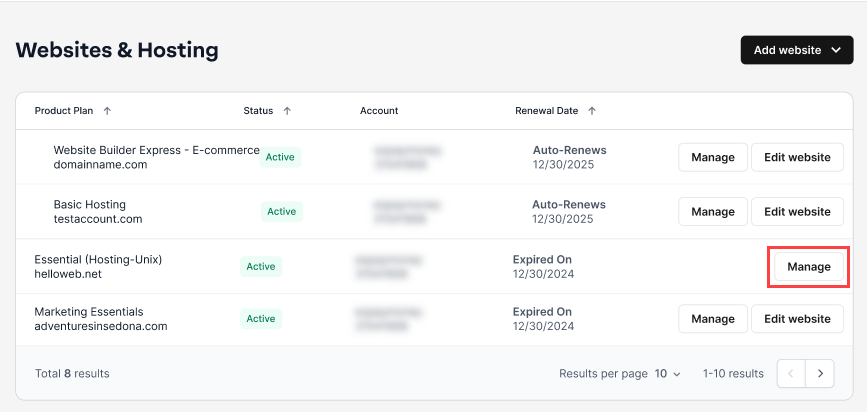
- If you only have one hosting package in your account, you will be redirected to the hosting control panel right away. If you have multiple hosting packages in your account, click the Manage button on the respective hosting package that you need to access.
- In the Hosting Package dashboard, scroll down to the Statistics section and click the AWStats option.

- Click the Enable button.

- The first AWStats report will typically be available within 24 hours. After 24 hours, return to this same section to launch your AWStats. Use the User ID and Password shown on this page to log in.
- Click the Launch AWStats button to begin using AWStats to track visitor traffic to your website.

You can begin using AWStats to track visitor traffic to your website!
Review
AWStats, available through your Network Solutions account, provides statistical information about your website, including traffic patterns and visitor activity. These insights help you assess content performance, improve site efficiency, attract more visitors, and monitor progress toward your online goals.
Get practical tips and product updates on LinkedIn.
Follow Network Solutions