Knowledge Base
Categories: AI Products
How to add users in AI All-Access Pack
The AI All-Access Pack allows you to add users directly through your account manager. This guide covers selecting the number of users, reviewing your order summary, understanding prorated billing, and completing payment.
Important: Due to GDPR, this product is not available to customers in the EU or UK at this time.
Upgrade your AI All-Access Pack
- Log in to your account via https://www.networksolutions.com/my-account/login.
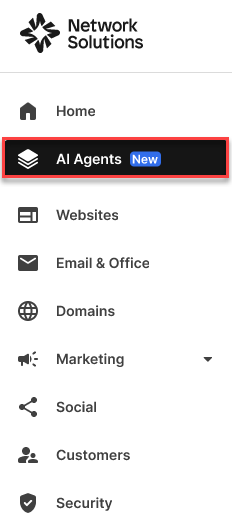
- Click AI Agents on the left navigation tab.
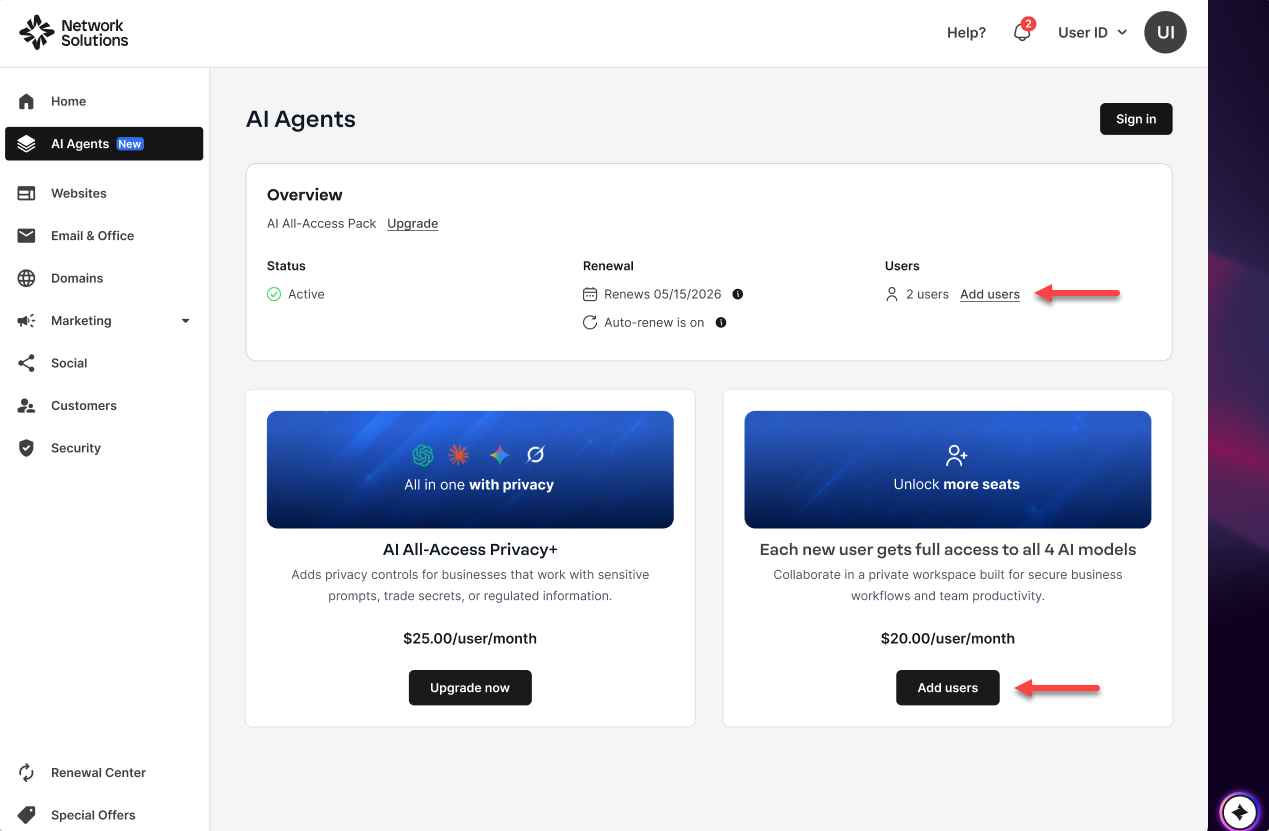
- Click on the button or link to begin Adding users.
- And under Add users to your existing plan, you can choose how many users you would like to be added.
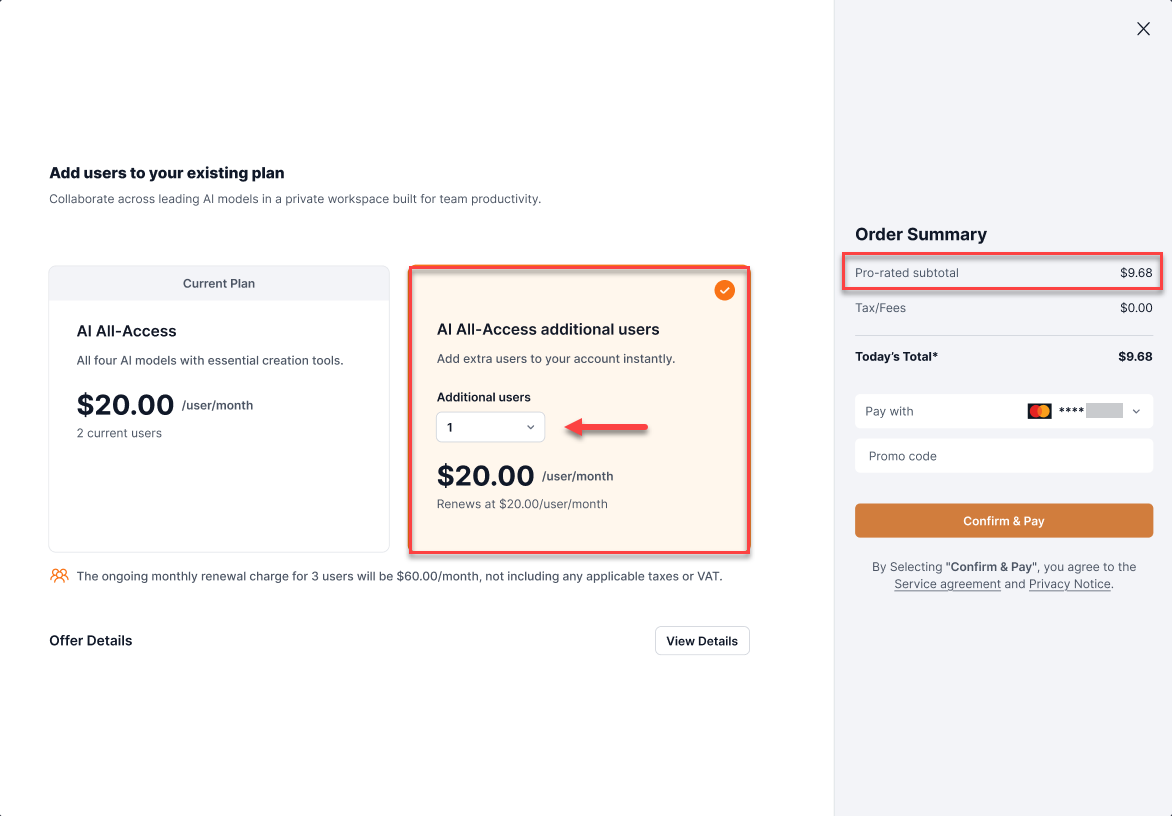
- Review your Order Summary on the right side of the window before clicking Confirm & Pay to proceed.
Note: You can choose how many users you would like to add to your package. The pro-rated subtotal is calculated based on the package, remaining time before expiry, and the number of users being added. Please see the Offer Details for more info.Important: All products and packages will automatically renew using the card on file. Cancel anytime by logging in to your account manager or calling customer service. - A thank you window will show confirming your order.
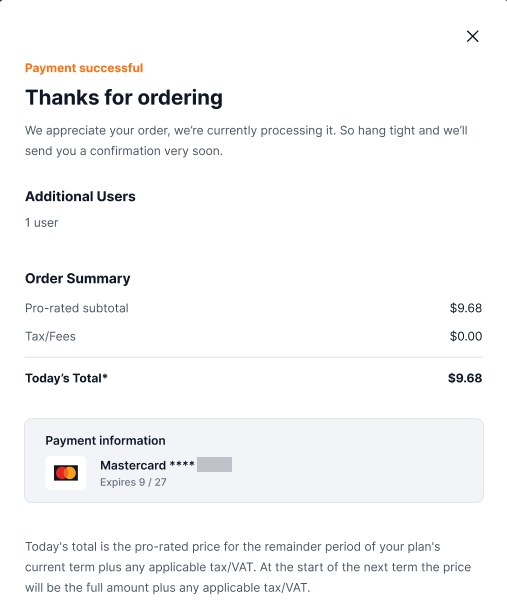
Note: Once the order completes, you will receive an order confirmation email. You will be returned to our details page, and we will now reflect the new total number of users with these added.
Related Articles
Review
This article provides step-by-step instructions for adding users to an existing AI All-Access Pack. It also explains how prorated charges are calculated and reminds customers that plans renew automatically unless canceled.
Get practical tips and product updates on LinkedIn.
Follow Network Solutions
Did you find this article helpful?