Getting started with AI All-Access Pack
Get started and manage your Network Solutions AI All-Access Pack to leverage AI for your business needs. Know the ins and outs of this service, from accessing the dashboard to utilizing its features and getting the full experience with your AI tools.
In this article, we will discuss:
Access your AI All-Access Pack
To manage your AI All-Access Pack:
- Log in to your account manager via https://www.networksolutions.com/my-account/login.
- Click the AI Agents tab.
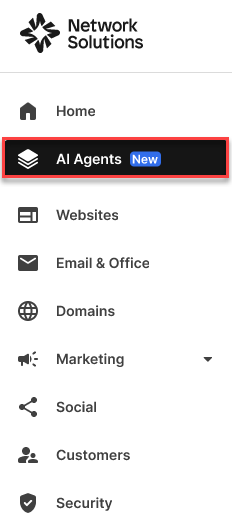
AI Agents Overview page
The overview page displays your product summary, divided into three categories:
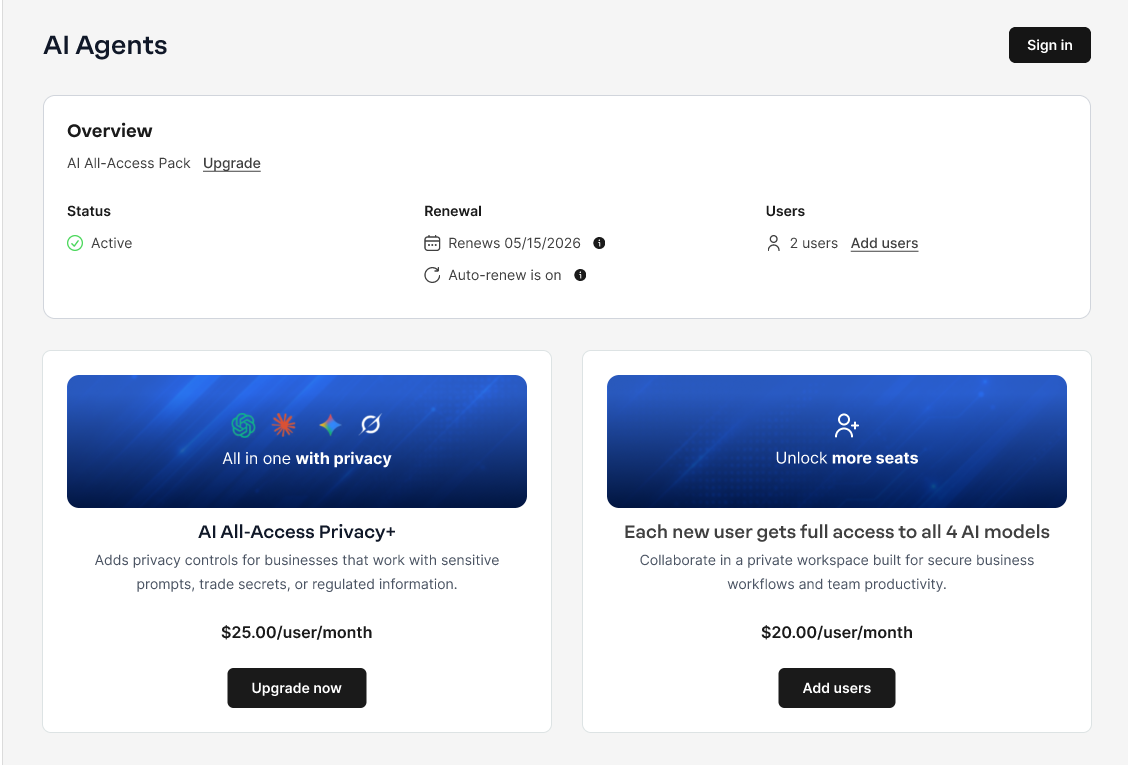
- Status: Shows the package type and its status.
- Renewal: Indicates the renewal date and auto-renewal status.
- Users: Displays the number of users with the package. You can add users through the Add users link or the Add users button in the unlock more seats tile below the Overview section.
Log in to your AI All-Access
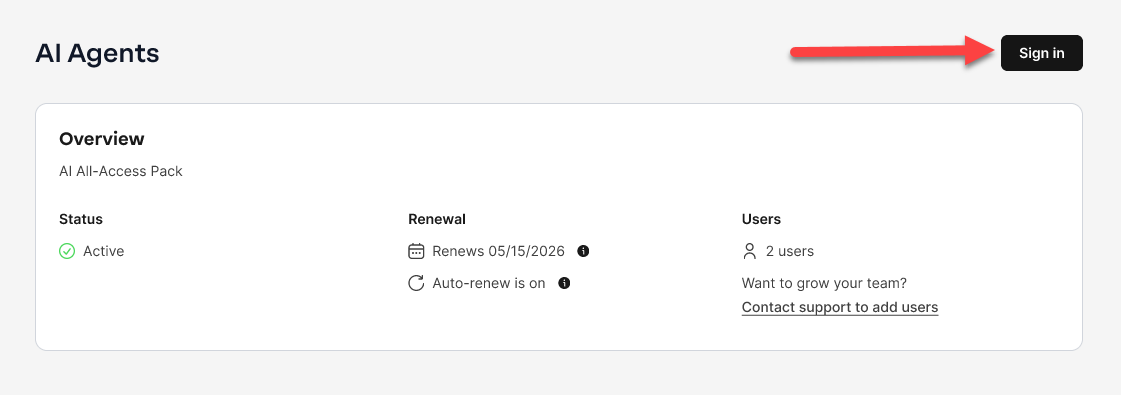
- On the AI Agents overview page, click the Sign in button found in the top right corner of the page.
- The application will open, and you'll find right on the New Chat page, ready to enter a new prompt.
Note: Users on the AI All-Access Privacy+ plan must enter a unique security PIN before gaining access. This individual PIN ensures an extra layer of protection for teams and accounts.
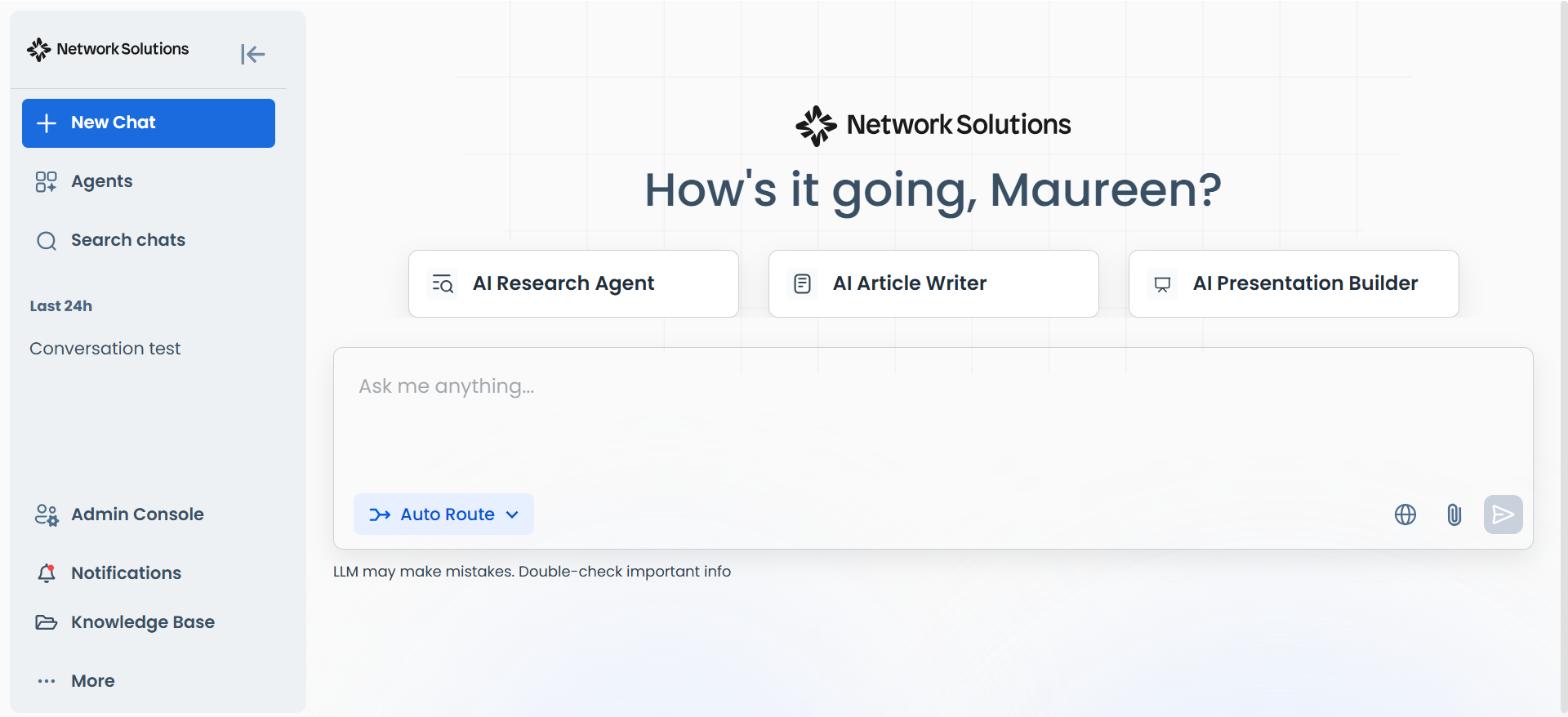
- You will have the option to use your preferred AI model in the available chat box.
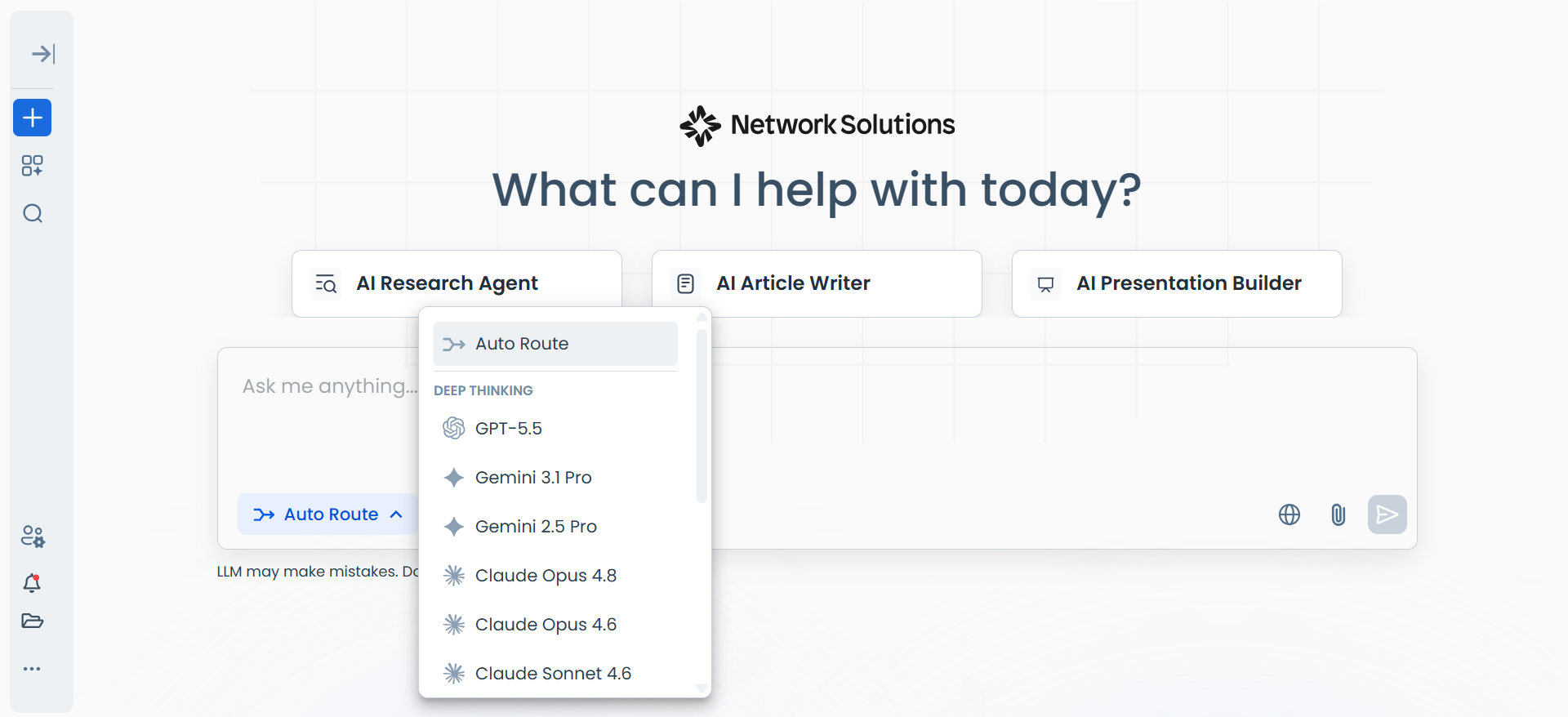
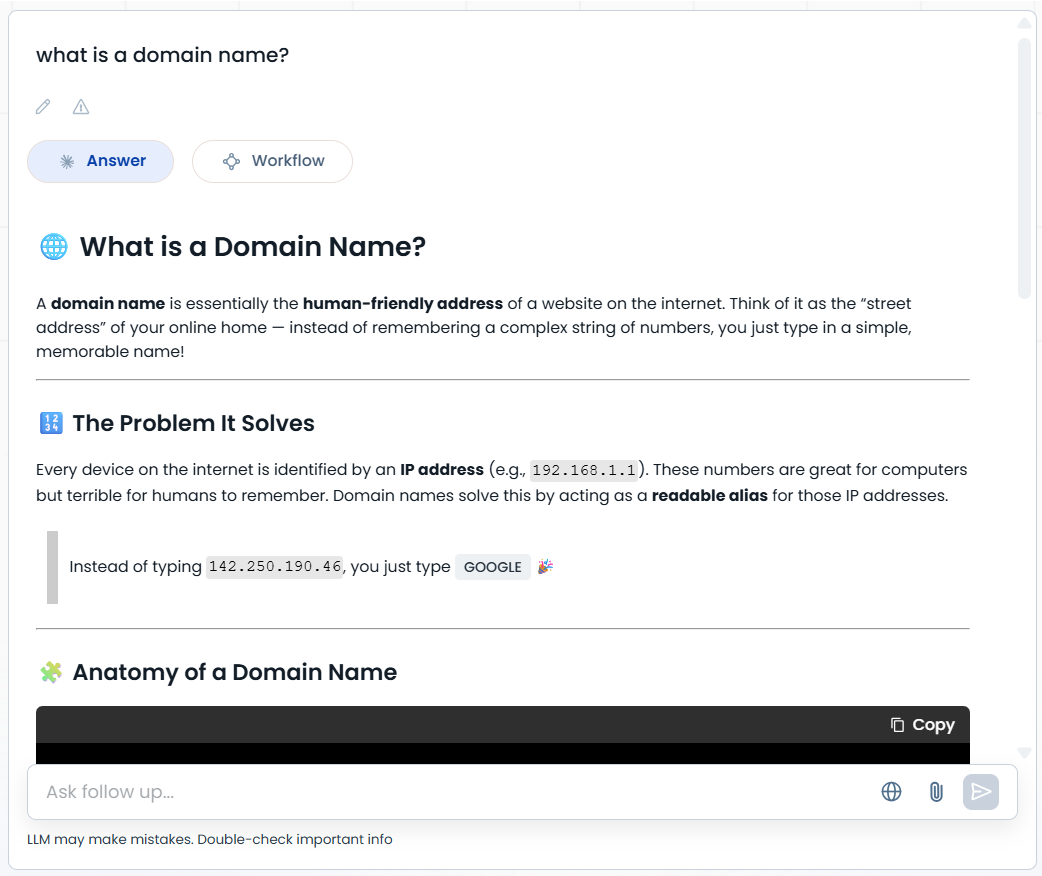
- After choosing the AI model you want to use, you can start chatting with the AI.
AI sanitization
Nowadays, AI tools are integrated with our daily workflow, like writing content, researching topics, and analyzing data. This raises a very vital question: "Is our data safe when using AI?"
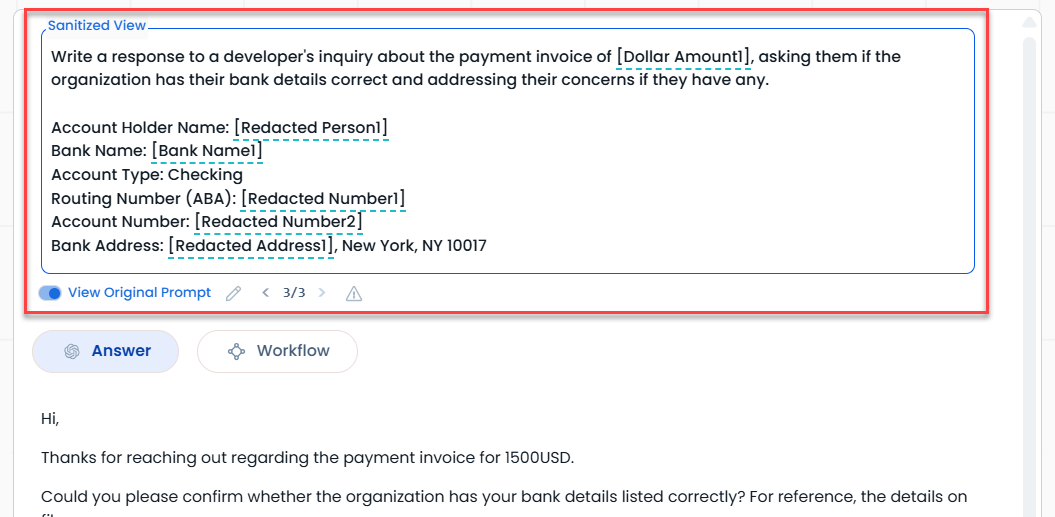
That is where AI sanitization comes in. AI sanitization is the process of detecting and removing or replacing sensitive information in your prompts before the sanitized version is sent to an AI model.
The sanitization will remove names, emails, addresses, phone numbers, and other information that is flagged by the system as sensitive information.
With the AI All-Access Privacy+, you can sanitize searches containing sensitive data to help reduce the risk of sensitive data reaching AI models.
Use sanitization with your AI All-Access Privacy+ plan
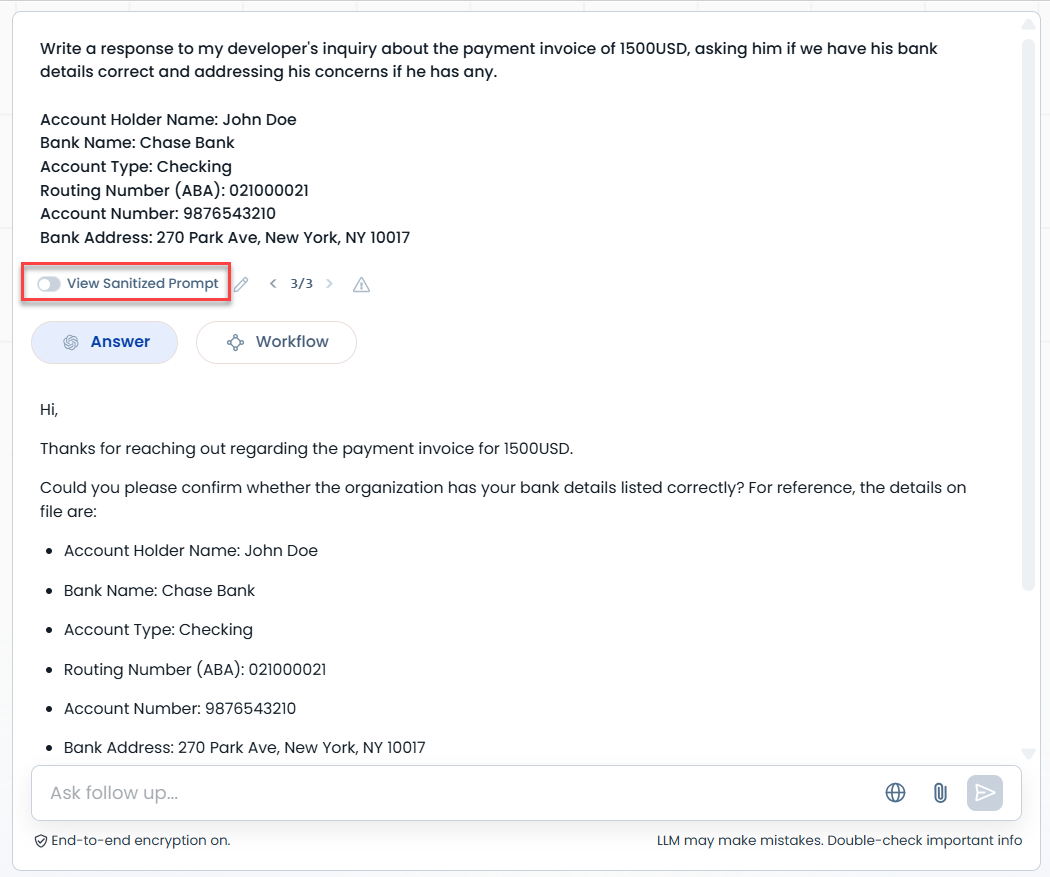
- Once you have entered your prompt with the private information, the system will automatically sanitize it without any action on your part. Toggle the sanitize button to view the sanitized prompt.
- AI will then show you the sanitized content after toggling the button.
Admin Console
Manage users, review audit logs, handle billing, and select AI models to be used.
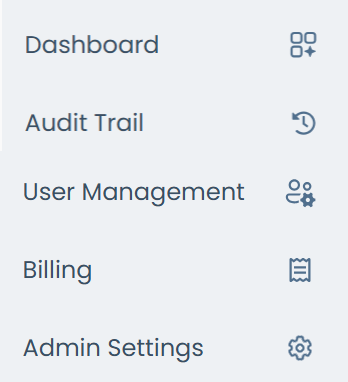
Inside your AI All-Access Pack admin dashboard, you will find:
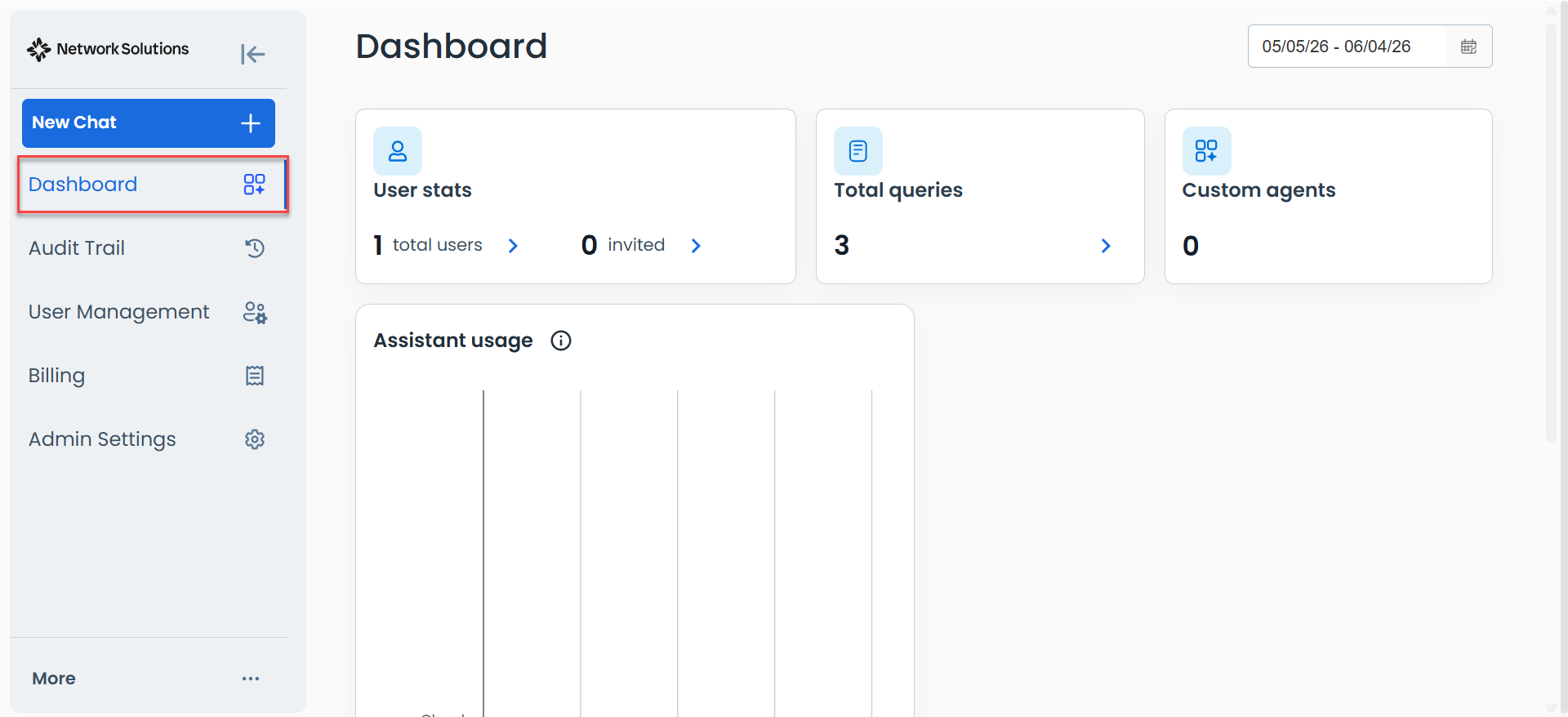
Dashboard
Shows a detailed summary of AI All-Access usage metrics.
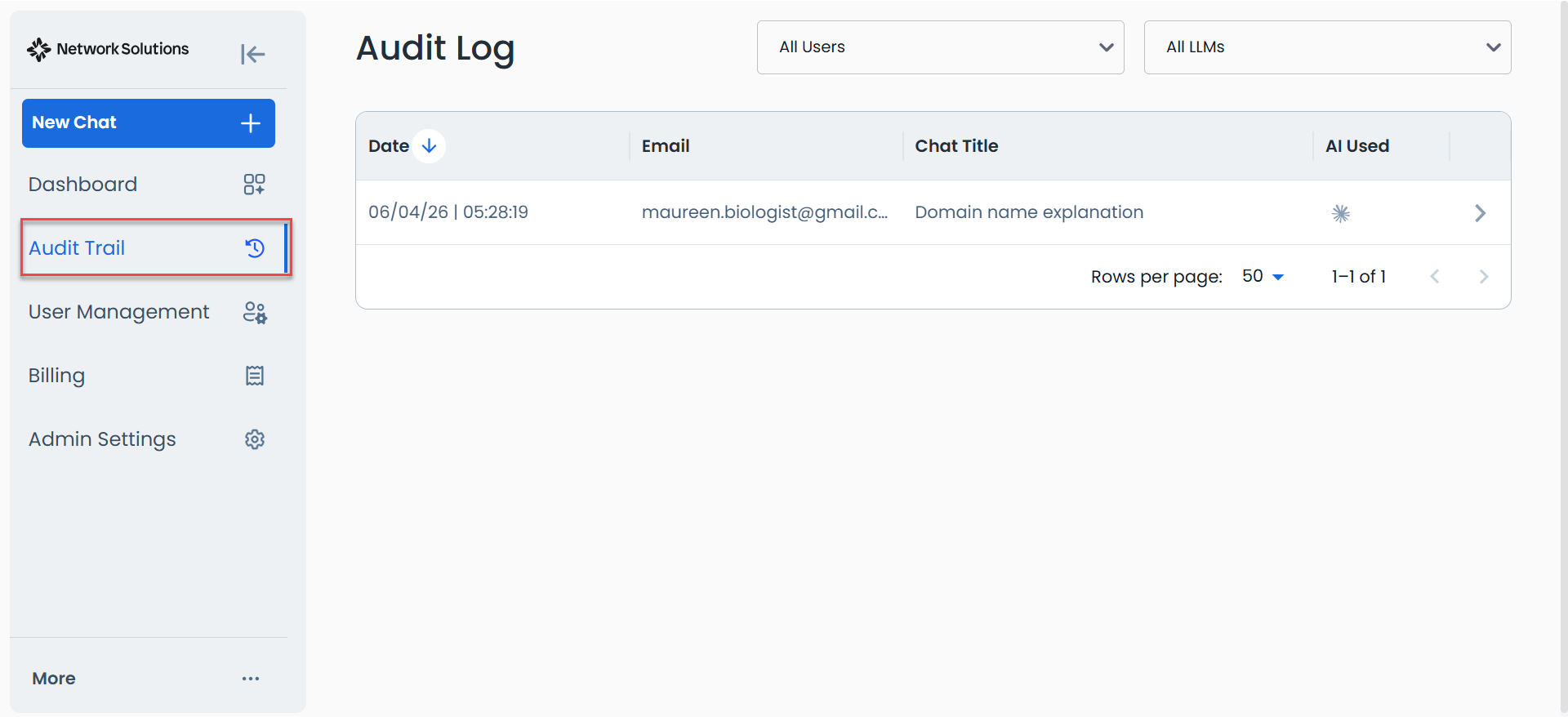
Audit trail
Shows the log of user conversations
User Management
You can manage plan users by viewing existing accounts and adding new ones.

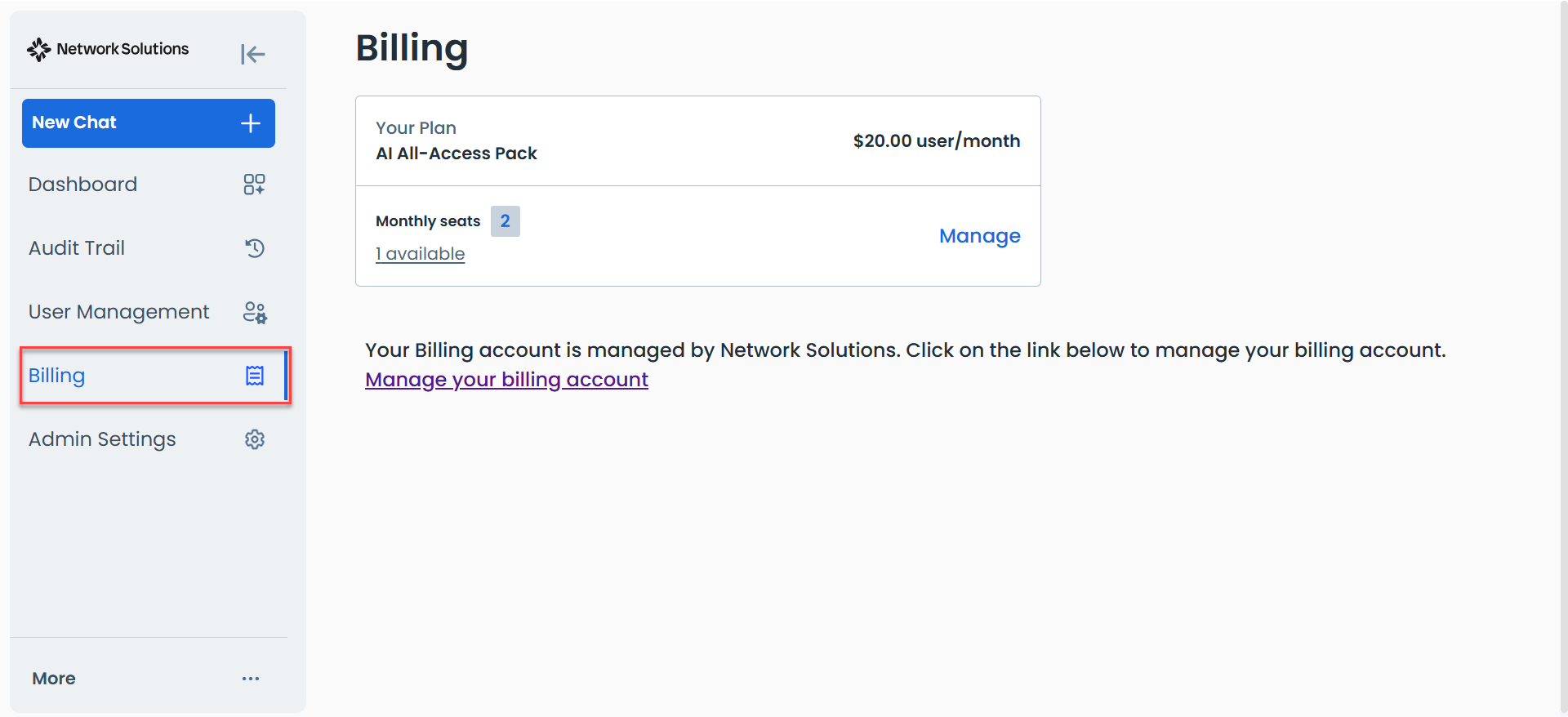
Billing
Shows your billing information, with an option to manage your subscription through Manage your billing account.
Admin Settings
Administrators can modify the team's name and manage conversation retention policies.
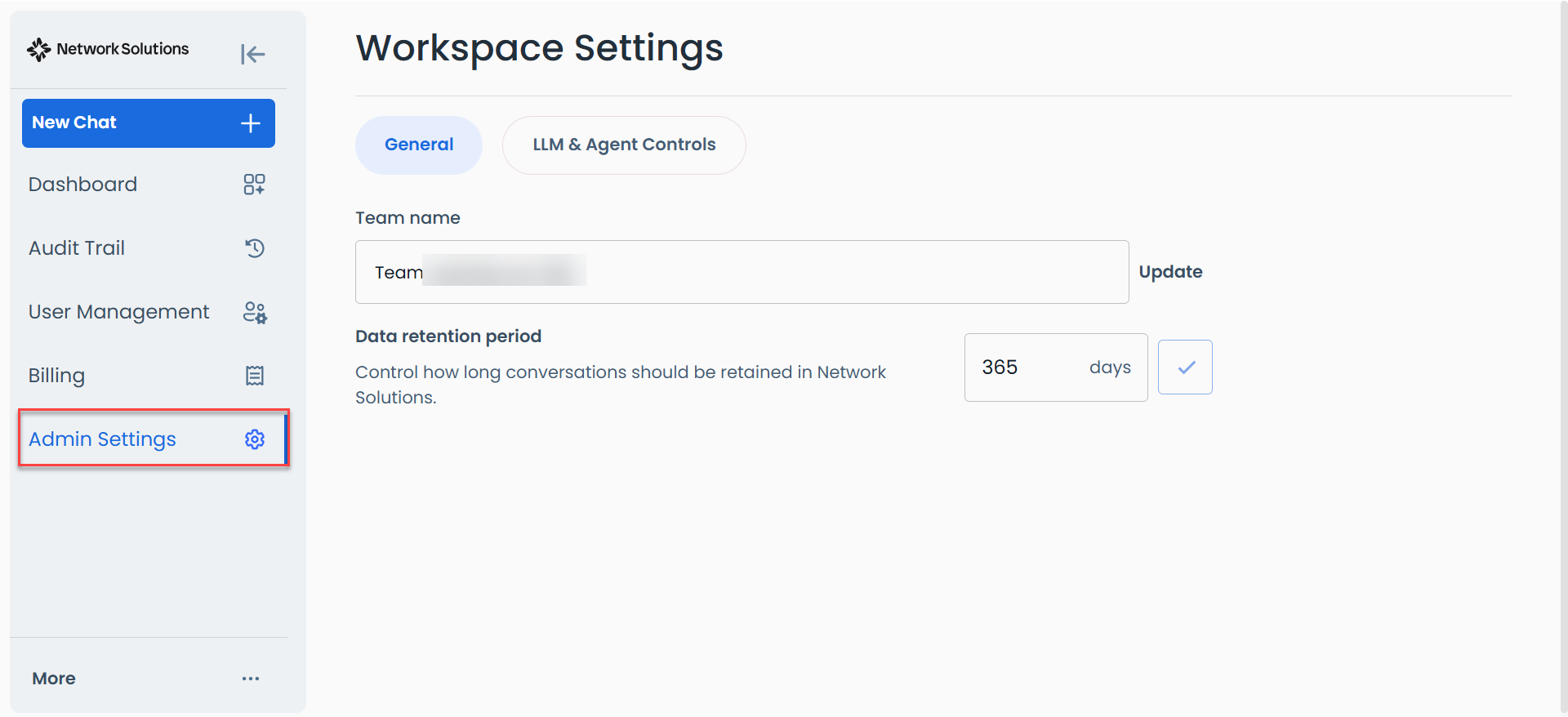
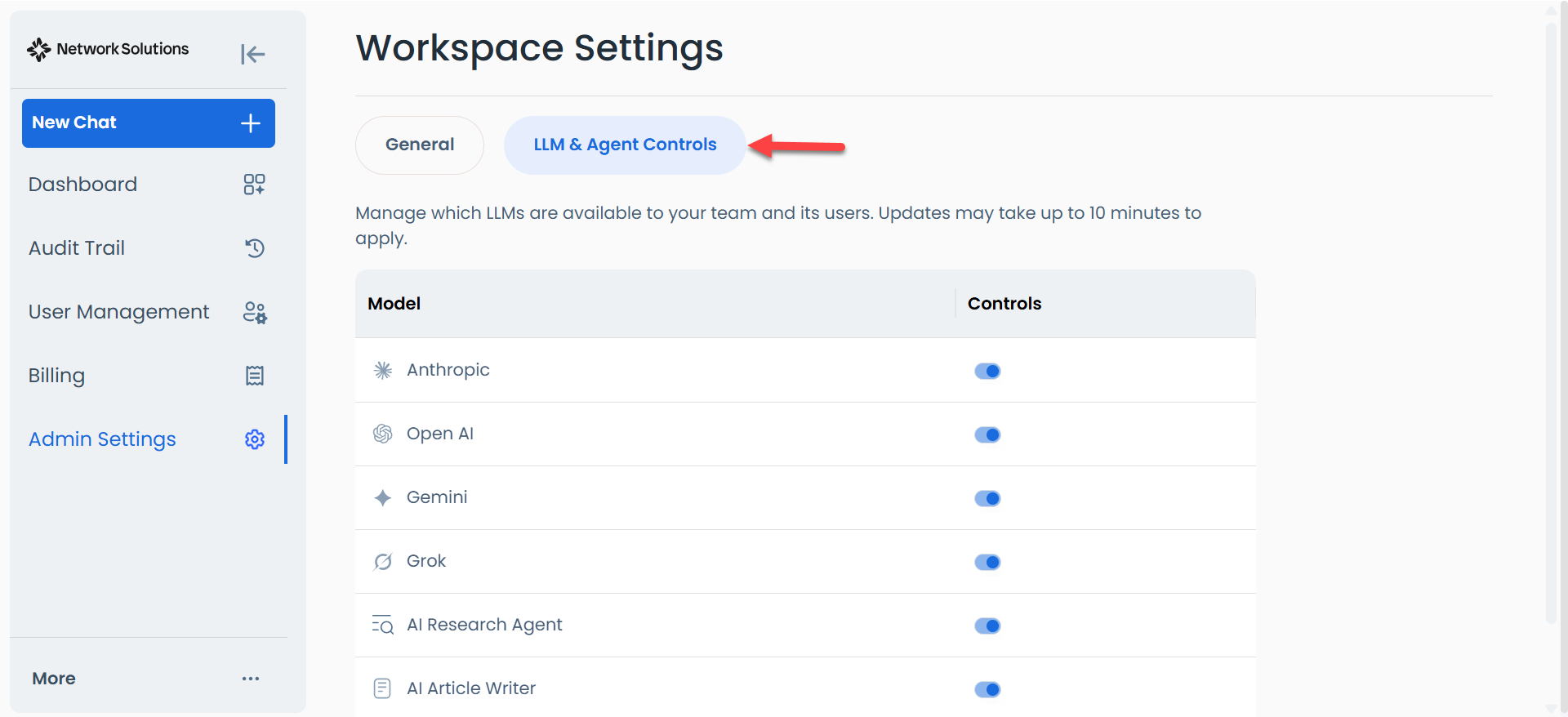
Also manage which AI models to use by enabling or disabling them using the toggle button.
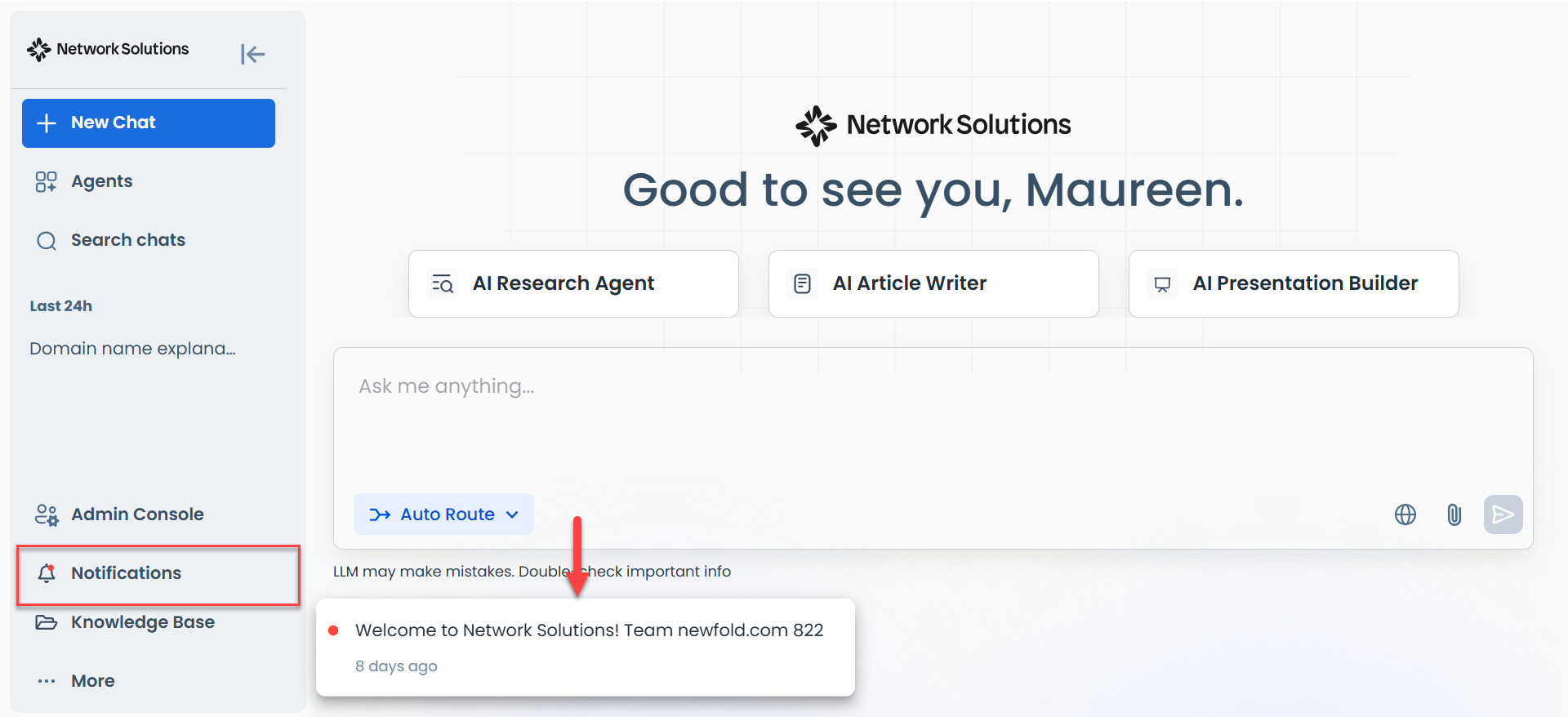
Notifications
View your account activity and system updates.
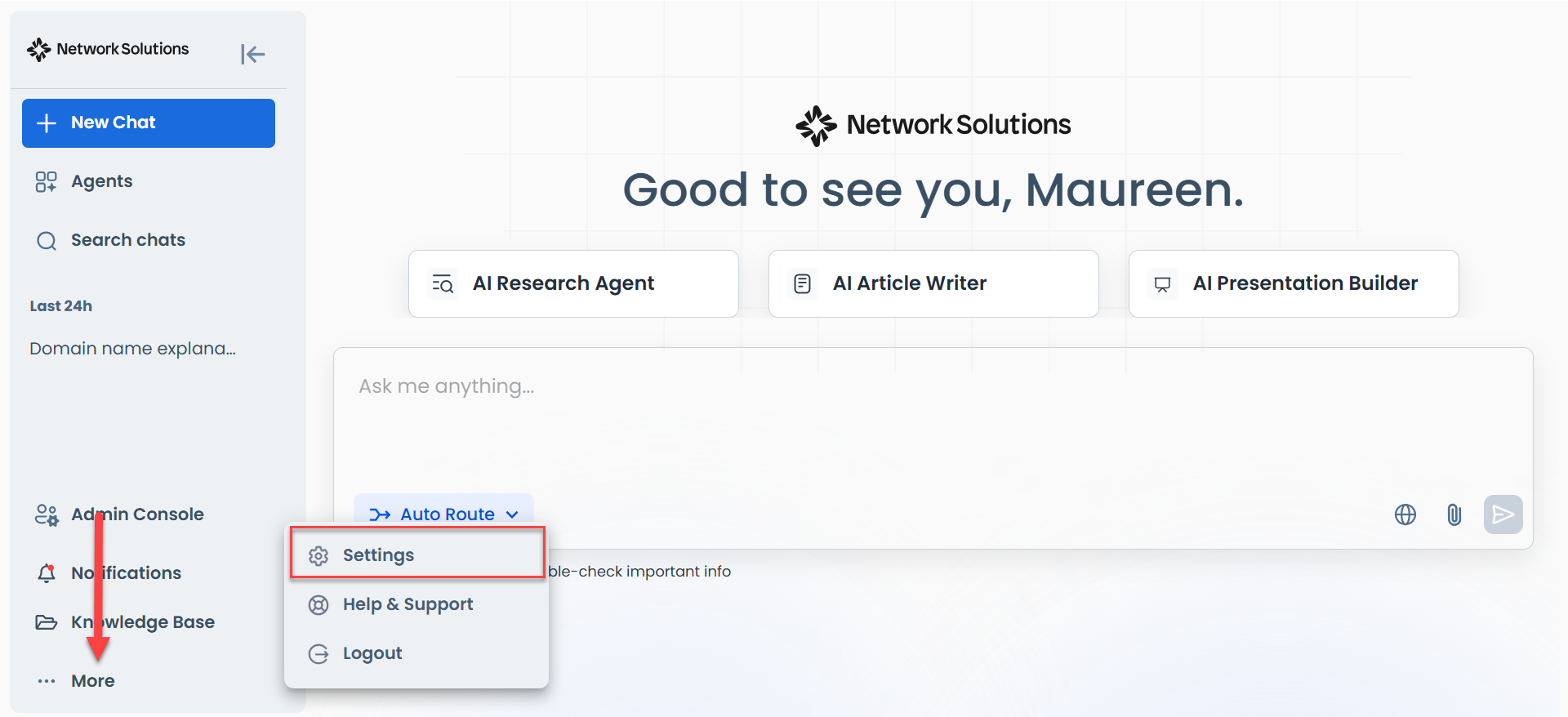
Settings
Configure your account preferences, personal profile, and custom AI behavior.
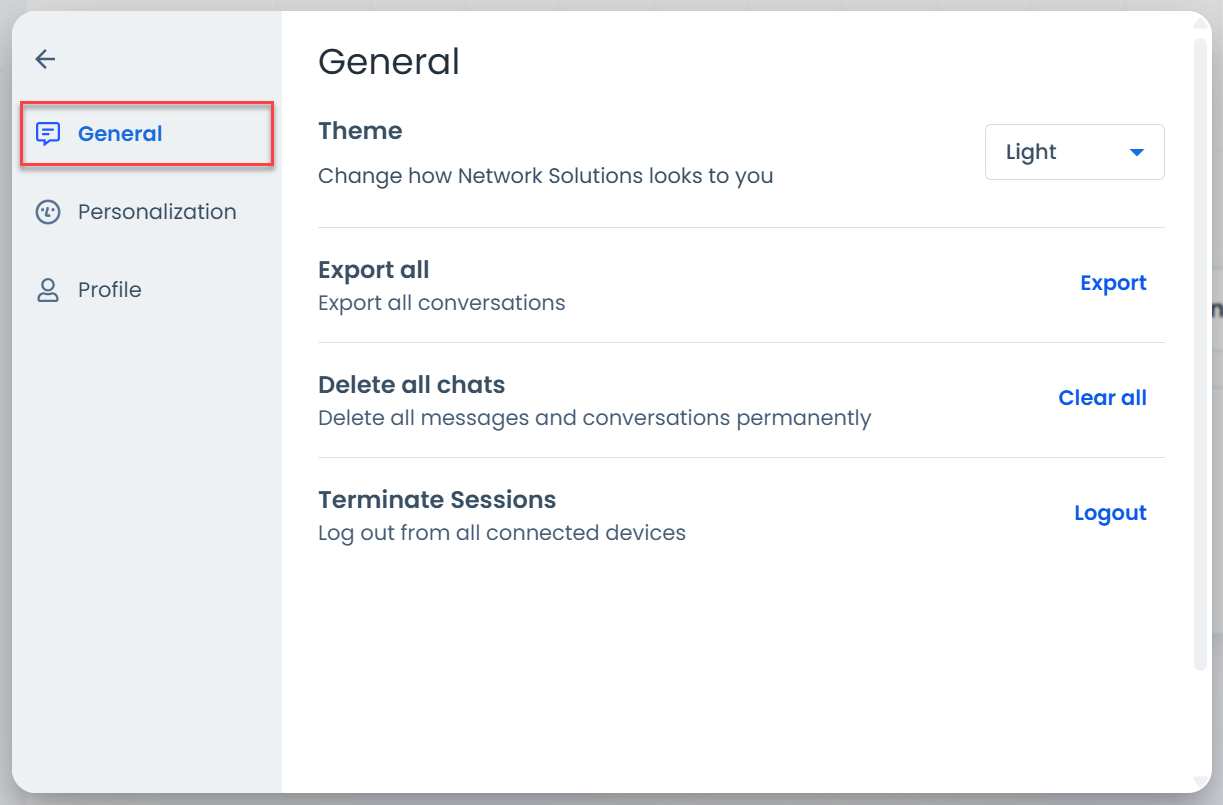
General
This is where you can customize the theme, export conversations, remove chats or accounts, and end sessions on all connected devices.
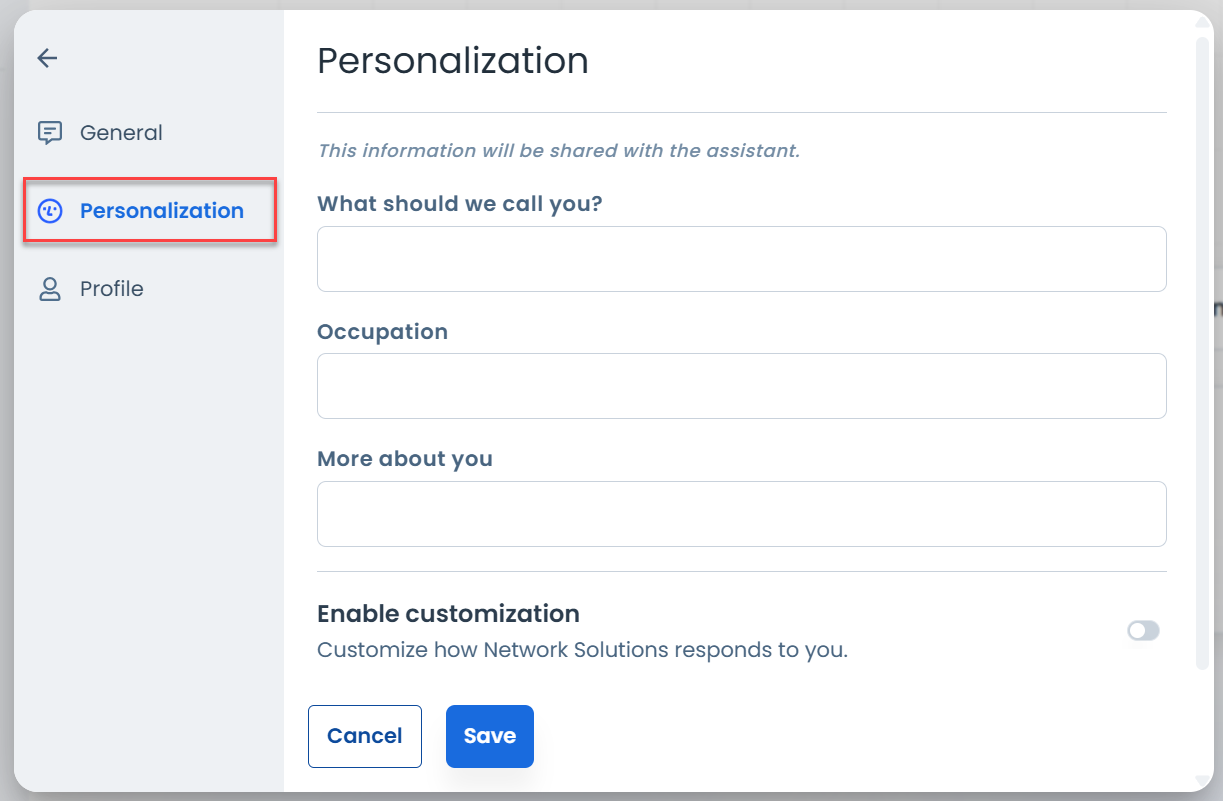
Personalization
This is where you can add more information about yourself and customize how the AI responds, including adjusting its personality or setting up custom instructions.
Memory
This is where you can personalize your AI experience by allowing AI to remember information you choose to save, such as preferences, instructions, and other context from previous conversations. To know more about chat memory, please check Introducing Chat Memory: A more personalized chat experience.
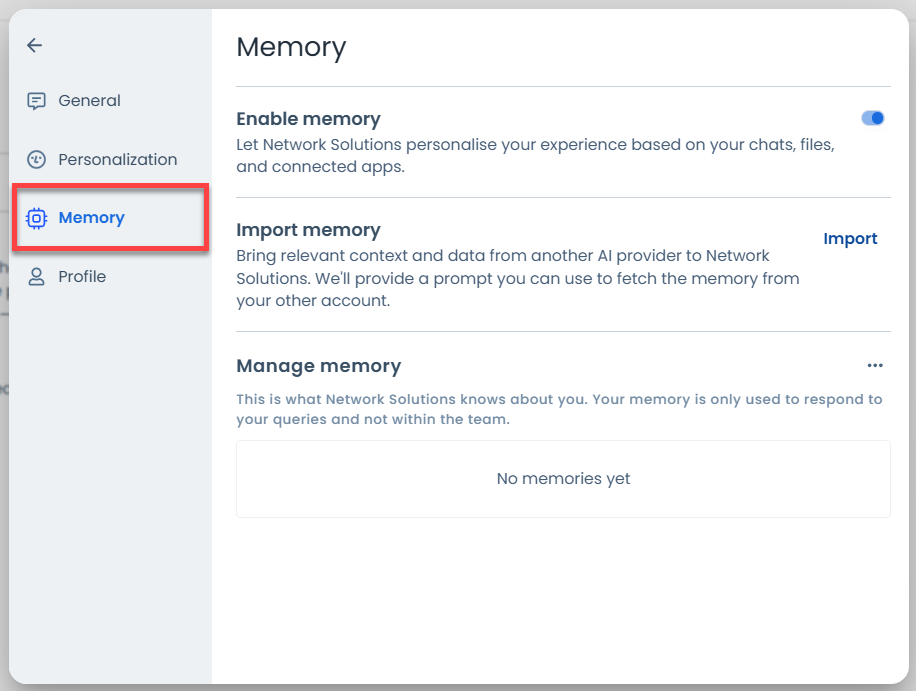
- Enable Memory - Turn memory on or off to control whether AI can save and use memories for future conversations.
- Import Memory - Import memories from supported AI assistants, such as ChatGPT, Gemini, and Claude.
- Click Import.
- Copy the prompt shown in the pop-up, send it to your external AI assistant
- Paste the response into the import field
- Click Add to Memory.
- Manage Memory - View, edit, or delete existing memories, or clear all saved memories from your account.
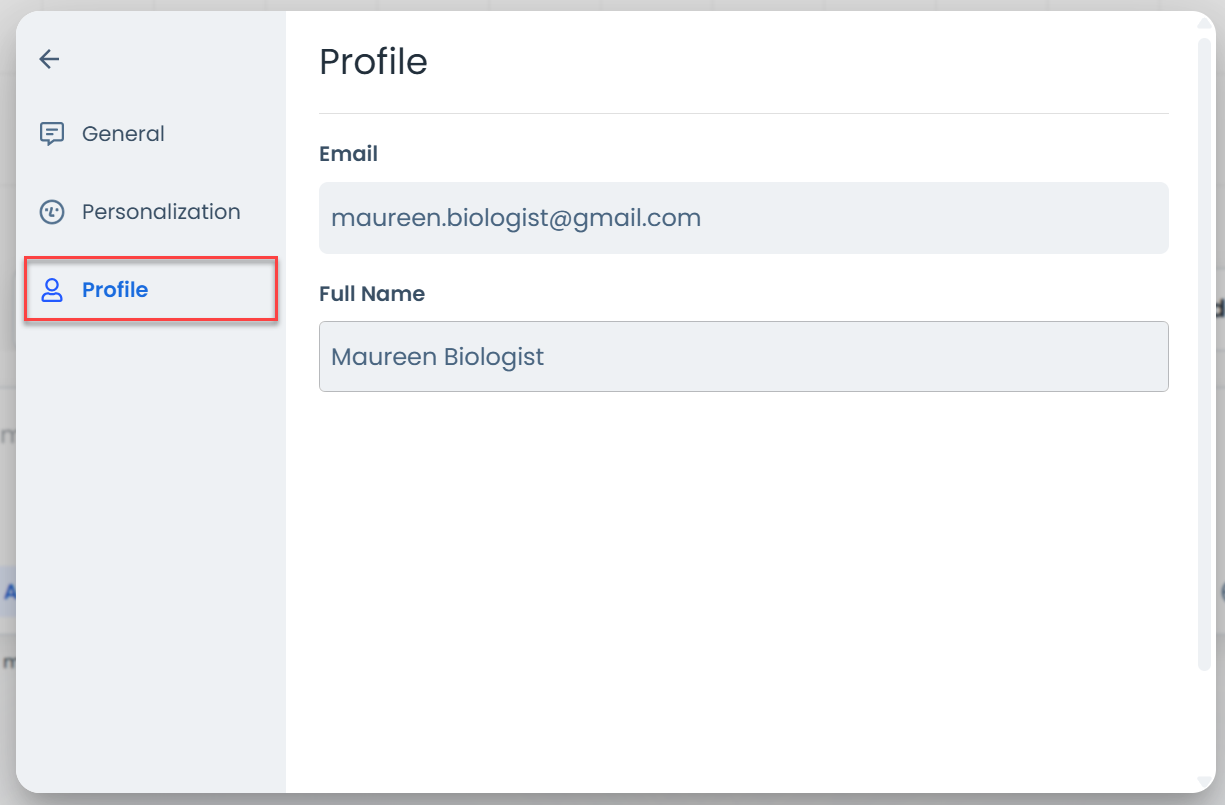
Profile
This is where you can add or update your full name.
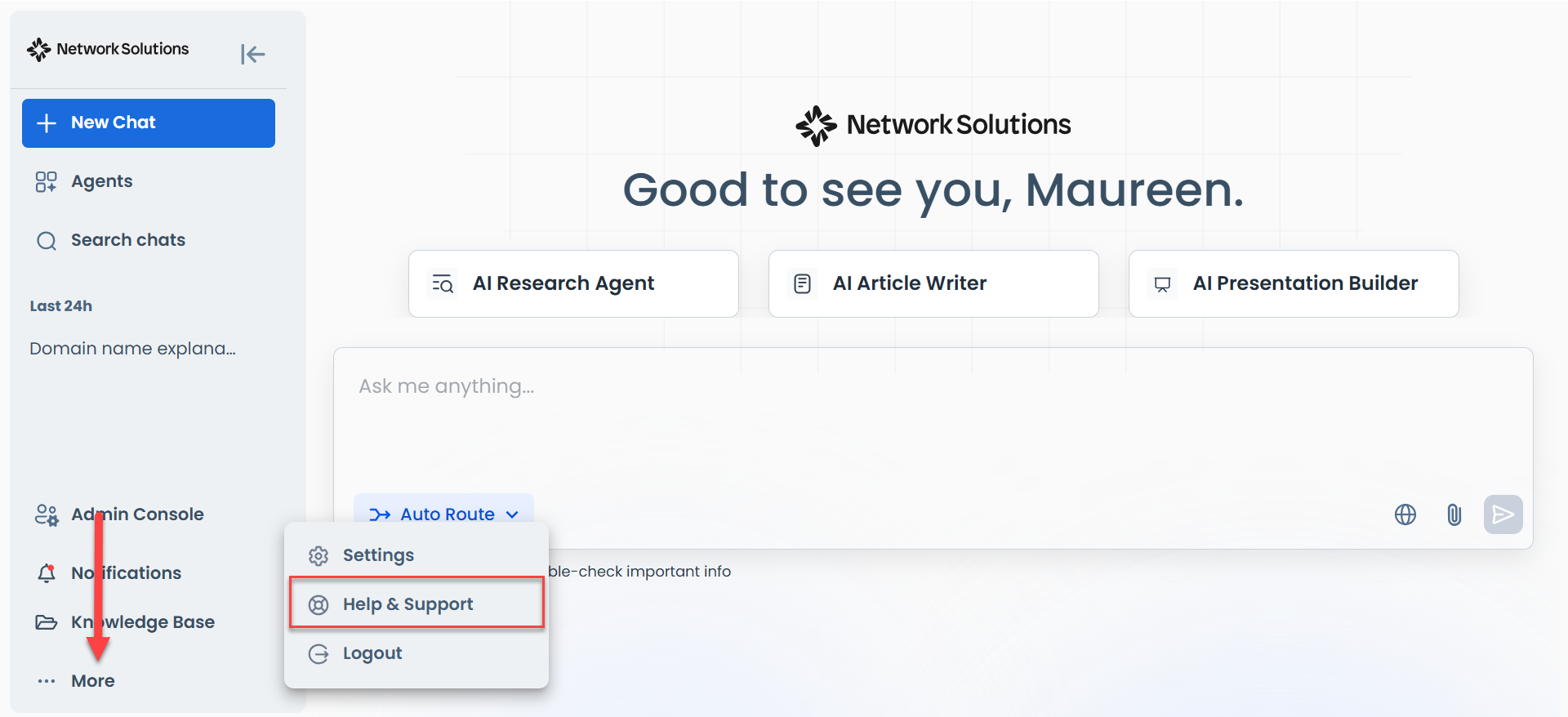
Help & Support
Directs you to our support knowledge base. Live chat and ticket support are handled through the standard Network Solutions support chat available in your account manager.
Related articles
Review
Getting your account ready and logging into the dashboard is incredibly fast. There is no complicated setup to worry about, so you can focus right away on using the AI tools.
Get practical tips and product updates on LinkedIn. Follow Network Solutions