How to download website files via SFTP
Knowing how to download website files via Secure File Transfer Protocol (SFTP) is a vital skill for managing your Network Solutions website securely. Whether you’re moving your site to a new home or creating backups of your hard work, this protocol will give you the power to manage your digital assets with ease.
In this guide, we will walk you through how to use FileZilla to transfer data between your local computer and your website via SFTP. Let’s get your story moving.
What is Secure File Transfer Protocol?
SFTP is an important tool for managing and maintaining websites since it can be used to upload and download files from your local computer to the server of your website and vice versa.
FileZilla is one of the most recommended free SFTP clients, with an easy-to-use interface and well-developed features. It lets you manage several different file transfers easily, navigate around the local and server-side directories of files, pause a file transfer, and resume it whenever possible.
To make things easier, you can use automated backup systems like CodeGuard. CodeGuard automatically backs up your website by creating regular copies, so you don't have to do it yourself. You can also schedule automated backups for daily or weekly intervals, and the system will handle them.
How to download website files via SFTP
Website security is essential when downloading or creating copies of your critical data and files. These copies serve as a safety net against unforeseen circumstances. Downloading files also helps improve organization, making files easier to manage and share in the future.
Follow the steps below to begin downloading website files:
- Log in to your account via https://www.networksolutions.com/my-account/login.
- On the left side of the page, select Website & Hosting.

- If you only have one hosting package in your account, you will be redirected to the hosting control panel right away. If you have multiple hosting packages in your account, click the Manage button on the respective hosting package that you need to access.
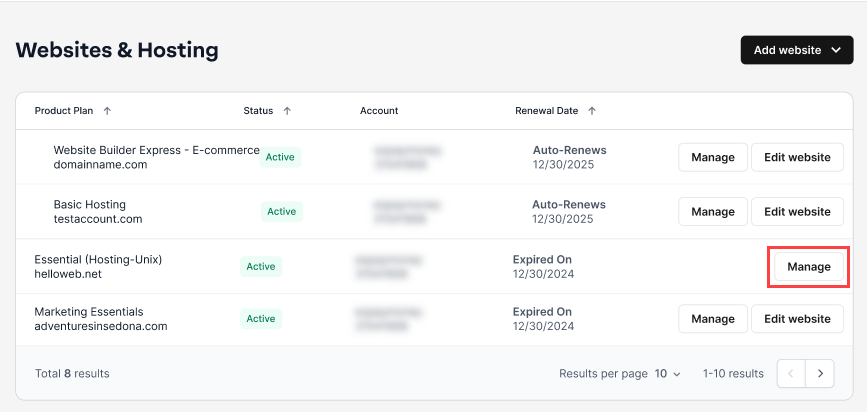
- In the hosting control panel, go to SFTP & Content Publishing section, then click SFTP Account Manager.

- Once you are redirected to the SFTP Account Manager dashboard, copy the SFTP Server, as you will need this to access the server through FileZilla.
Note: Paste your SFTP server address into Notepad for quick access later.

- Open FileZilla.

- Enter the following details in the fields provided in FileZilla. Click Quickconnect.

- Host – The SFTP server address you copied in step five
- Username – Your SFTP account username
- Password – Your SFTP account password
- Port – 22
- Click OK if a pop-up message appears.

- Your website files should be visible on the right side of the page after successfully entering your SFTP account, as shown in the screenshot below.

Important: The Local site (left) is your computer; the Remote site (right) is your website server. - Select the location where you wish to keep the website files on your local system. Click Desktop, for instance, if you wish to move all website files to your desktop.

- Hover your cursor over the directory containing the website files to initiate the download process. Click Download after that.

- As soon as the download starts, you can check its progress in the status window.

- At the bottom of the page, you can find the following tabs.

- Queued files – Website files that are pending transfer to your local computer
- Failed transfers –Website files that failed to transfer to your local computer
- Successful transfers – Website files that have been successfully transferred to your local computer
You’ve completed the steps to download your website files via SFTP! If you need further assistance, please don’t hesitate to contact us.
Review
With SFTP and FileZilla, managing your website content becomes easier and more secure. Keeping local copies of your files allows you to work offline, restore data when needed, and maintain a reliable backup of your site. Be sure to store your downloaded files in a secure location on your computer for future access.
Get practical tips and product updates on LinkedIn.
Follow Network Solutions